1. Introduction
This manual provides detailed instructions for the proper setup, operation, and maintenance of your FEELWORLD T10 Camera Monitor. Please read this manual thoroughly before using the product to ensure optimal performance and longevity. The FEELWORLD T10 is designed to enhance your videography and photography experience with its advanced monitoring capabilities.
2. Package Contents
Verify that all items are present in your package:
- FEELWORLD T10 Camera Monitor
- F750 4400mAh Battery (or similar NP-F series battery)
- USB Cable
- User Manual (this document)
If any items are missing or damaged, please contact FEELWORLD customer support.
3. Setup
3.1. Battery Installation
The FEELWORLD T10 monitor is powered by an NP-F series battery. The package includes an F750 4400mAh battery.
- Ensure the monitor is powered off.
- Locate the battery slot on the rear of the monitor.
- Align the battery with the slot, ensuring the contacts match.
- Slide the battery into the slot until it clicks securely into place.
- To remove, press the battery release button (if present) and slide the battery out.
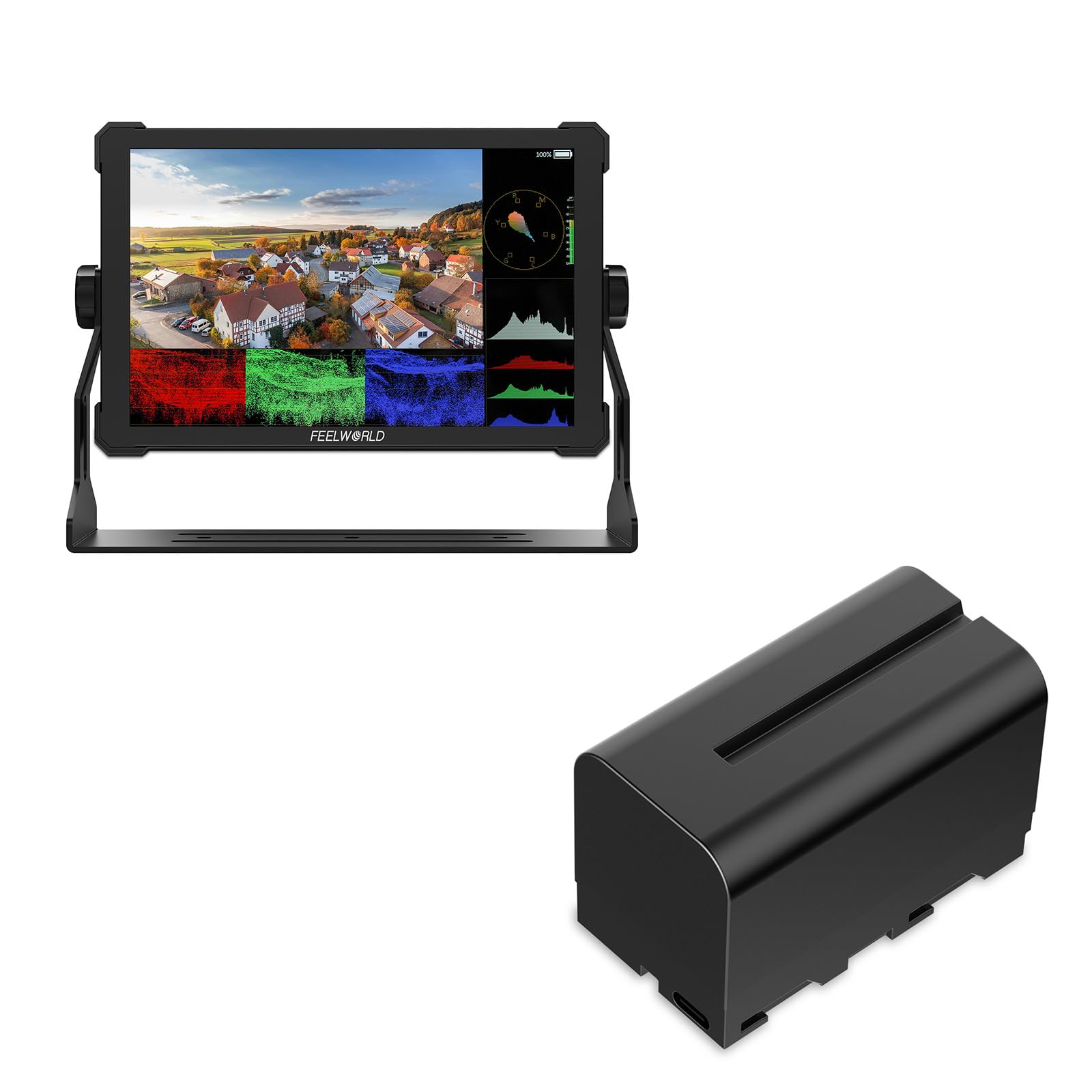
Image 1: Rear view of the FEELWORLD T10 Camera Monitor showing the battery slot. The F750 battery is designed to slide into this slot for power.
3.2. Connecting to a Camera/Device
The T10 monitor supports various input methods. Use the appropriate cable (not always included) to connect your camera or device.
- HDMI Input: Connect an HDMI cable from your camera's HDMI output to the monitor's HDMI input port.
- USB Connection: The included USB cable can be used for firmware updates or power delivery (if supported by your power source).
4. Operating Instructions
4.1. Powering On/Off
Press and hold the power button (usually located on the side or top of the monitor) for a few seconds to turn the monitor on or off. A short press may activate/deactivate the screen or enter standby mode, depending on settings.
4.2. Basic Navigation and Menu System
The T10 monitor typically features a menu button and navigation buttons (up/down/left/right or a scroll wheel) to access and adjust settings.
- Press the MENU button to open the main menu.
- Use the navigation buttons to scroll through menu options.
- Press the OK/SET button (often the center of the navigation cluster) to select an option or confirm a setting.
- Press the MENU button again or an EXIT button to close the menu.
4.3. Key Features and Settings
The FEELWORLD T10 offers various features to assist with videography and photography:
- Aspect Ratio: Adjust the display aspect ratio (e.g., 16:9) to match your camera's output or desired viewing format.
- Video Resolution: The monitor supports up to 1080p video resolution. Ensure your camera's output matches or is compatible.
- Focus Assist: Utilize peaking or other focus assist tools to ensure sharp focus.
- Exposure Tools: Features like false color or zebras can help monitor exposure levels.
- Custom Function Buttons: Assign frequently used functions to programmable buttons for quick access.
5. Maintenance
5.1. Cleaning the Monitor
- Use a soft, lint-free cloth to gently wipe the screen and body.
- For stubborn smudges, slightly dampen the cloth with water or a screen-cleaning solution specifically designed for electronics.
- Avoid using harsh chemicals, solvents, or abrasive materials, as these can damage the screen or casing.
5.2. Battery Care
- Charge the battery fully before first use.
- Store batteries in a cool, dry place when not in use.
- Avoid fully discharging lithium-ion batteries frequently, as this can reduce their lifespan.
- If storing for extended periods, charge the battery to approximately 50-60% capacity.
5.3. Storage
When not in use, store the monitor in a protective case or bag to prevent scratches and impact damage. Keep it away from extreme temperatures, humidity, and direct sunlight.
6. Troubleshooting
| Problem | Possible Cause | Solution |
|---|---|---|
| Monitor does not power on. | Battery is dead or not installed correctly. | Charge the battery or ensure it is properly seated. |
| No signal displayed. | Incorrect input source selected; cable not connected properly; camera not outputting signal. | Check cable connections; select correct input source in monitor menu; verify camera's output settings. |
| Image is distorted or flickering. | Faulty cable; incompatible resolution/frame rate; interference. | Try a different cable; adjust camera output resolution; move away from strong electromagnetic sources. |
| Battery drains quickly. | High screen brightness; old battery; cold environment. | Reduce screen brightness; replace old battery; operate in moderate temperatures. |
If you encounter issues not listed here, please refer to the support section or contact customer service.
7. Specifications
| Feature | Detail |
|---|---|
| Brand | FEELWORLD |
| Model Name | T10 |
| Aspect Ratio | 16:9 |
| Video Capture Resolution | 1080p |
| Supported File Format | MP4, AVI, MOV |
| Battery Type | Lithium Ion (NP-F series compatible) |
| Battery Average Life | Approximately 3 Hours (with included F750 battery) |
| Compatible Devices | Personal Computer, Smartphone, Tablet (via appropriate adapters/cables) |
| Specific Uses For Product | Videography, Photography |
| Display Resolution Maximum | FHD |
| Autofocus | Yes (Focus Assist features) |
8. Warranty and Support
8.1. Warranty Information
FEELWORLD products typically come with a limited warranty. Please refer to the warranty card included with your product or visit the official FEELWORLD website for the most current and detailed warranty terms and conditions. Keep your proof of purchase for warranty claims.
8.2. Customer Support
For technical assistance, troubleshooting, or service inquiries, please contact FEELWORLD customer support through their official website or the contact information provided in your product packaging. You may need to provide your product model (T10) and serial number.
FEELWORLD Official Store: Visit the FEELWORLD Store on Amazon


