
1. Introduction
This manual provides detailed instructions for the installation, operation, and maintenance of your Dasaita 13.1-inch Double Din Car Stereo. This advanced head unit features Android 13, Wireless CarPlay, Android Auto, 5G WiFi, 4G LTE, a 2000x1200P touch screen, GPS, and Bluetooth 5.0, offering a comprehensive in-car entertainment and navigation experience. Please read this manual thoroughly before use to ensure proper functionality and safety.
2. Setup
2.1 Package Contents
Verify that all items listed below are included in your package:
- Main Head Unit
- User Manual
- Appreciation Card
- Tool Kit
- Audio Output & Cam in cable
- AUX in & F-Cam in cable
- SIM card cable
- Microphone
- GPS Antenna
- 4G Antenna
- WiFi Antenna
- ISO Power Cable
- 2 USB Adapters
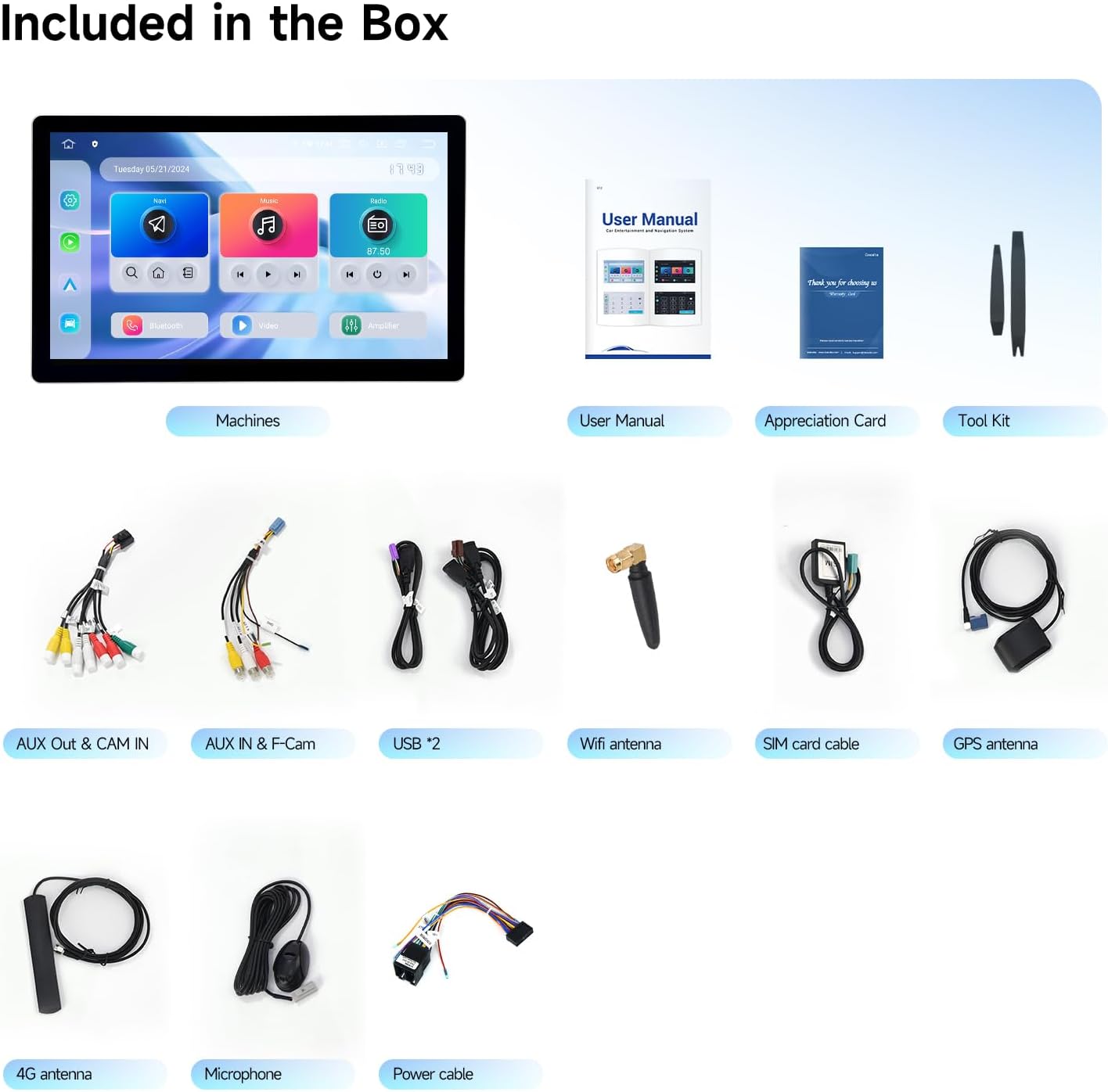
Image: All components included in the Dasaita 13.1" Double Din Radio package.
2.2 Vehicle Compatibility
The Dasaita 13.1-inch universal head unit is designed to fit double din center console sizes of 178x100mm. It comes with a standard ISO port power cable for easy connection or rewiring to existing vehicle cables. This unit is compatible with double din frames found in vehicles such as the Nissan Qashqai and Subaru Forester.
2.3 Physical Installation
The 13.1-inch display is a floating head unit design, allowing for installation in a standard double din space. The touchscreen can be rotated, tilted, and moved vertically to achieve optimal viewing angles and integration with your vehicle's dashboard.

Image: Adjustable features of the 13.1" floating head unit, including rotation, tilt, and vertical movement.
2.4 Wiring Diagram
Refer to the following diagram for proper connection of the head unit to your vehicle's electrical system and peripherals. Ensure all connections are secure before powering on the device.
Image: Universal wiring connections for the Dasaita head unit, illustrating various input and output ports.
Important: Always turn off the engine before inserting or removing the SIM card. Insert a 4G SIM card into the provided slot for internet connectivity and software updates.

Image: Instructions for inserting a SIM card for 4G LTE functionality.
3. Operating Instructions
3.1 Power On/Off
The unit powers on automatically when the vehicle's ignition is turned on. To power off, turn off the vehicle's ignition. A long press on the power button (if available) may also initiate a soft shutdown or restart.
3.2 User Interface and Navigation
The Dasaita Android 13 head unit features a personalized and intelligent user interface. You can customize the position of software icons by long-pressing them. The system supports split-screen functionality, allowing you to run multiple applications simultaneously.

Image: User-friendly interface with customization options and split-screen view.
3.3 Wireless CarPlay and Android Auto
Enjoy seamless integration with your smartphone using wireless CarPlay and wired/wireless Android Auto via Bluetooth 5.0. Access navigation, make calls, send messages, and listen to music directly from the head unit display. Activate Siri or Google Assistant for voice commands.

Image: Wireless CarPlay interface on the Dasaita head unit.
Video: Demonstration of Wireless Android Auto functionality on the Dasaita Double Din Radio, showing app integration and navigation.
3.4 4G LTE and 5G WiFi Connectivity
The head unit supports 4G LTE connectivity via a SIM card (refer to Section 2.4 for SIM card insertion) and 5G WiFi. This enables continuous internet access for software updates, online navigation, streaming, and other internet-dependent applications.

Image: Internal components and 4G LTE connectivity for enhanced performance.
3.5 Audio Settings and DTS Sound Quality
The unit features a professional-grade TDA7808 amplifier chip (23W RMS/50 peak x 4 channels) and optical fiber output for superior sound quality. Customize your audio experience using the built-in equalizer, delay settings, DTS sound manipulation, and individual speaker volume controls.
- Equalizer: A 15-band graphic equalizer allows precise frequency adjustments. You can save up to three custom presets.
- Delay: Adjust audio delay for individual speakers to optimize sound staging for different seating positions (e.g., driver, copilot).
- DTS: Digital Sound Manipulation offers various effects (Music, Cinema, Pro) and controls for TruBass, Focus, and Surround to enhance the audio output.
- Volume: Independently control the volume of center, front, rear, and subwoofer speakers. A loudness function is also available.
- Frequency: Set high-pass and low-pass filters for specific speakers to manage frequency distribution.

Image: DTS Sound Processor with 15-band equalizer for fine-tuning audio.
Video: Detailed overview of the DTS sound settings, including equalizer, delay, and volume controls, demonstrating how to customize the audio experience.
3.6 Off-Road Inclinometer Functions
The built-in gyro sensor provides real-time monitoring of the vehicle's roll and pitch angles. An alarm will activate if preset values are exceeded, enhancing driving safety, especially on challenging terrains. This feature offers intelligent vehicle stability control and driving assistance.

Image: Off-Road Inclinometer display for monitoring vehicle angles.
3.7 Radio Functions
The unit supports 18 FM and 12 AM radio stations. The radio software focuses on RDS (Radio Data System) to display station names, providing a more informative listening experience compared to just frequencies.
Video: Demonstration of the FM radio interface on the Dasaita G13, highlighting RDS functionality for displaying station names.
3.8 Screen Sharing and Day/Night Mode
The head unit supports screen sharing features like TV projection and mirroring, allowing content from your iPhone or Android device to be displayed. The system intelligently switches between day and night modes based on your headlights, optimizing screen clarity and reducing eye strain.

Image: Screen sharing capabilities including mirroring and TV projection.

Image: Automatic Day and Night Mode switching for improved visibility.
4. Maintenance
4.1 Cleaning the Unit
To clean the touchscreen and exterior of the unit, use a soft, dry, lint-free cloth. For stubborn smudges, lightly dampen the cloth with water or a screen-safe cleaning solution. Avoid using abrasive cleaners, solvents, or alcohol-based products, as these can damage the screen and finish.
4.2 Software Updates
Ensure your head unit's software is kept up-to-date for optimal performance and access to the latest features. Connect the unit to the internet via 5G WiFi or a 4G SIM card. Navigate to the system settings to check for and install available updates. Follow on-screen prompts carefully during the update process.
Video: Demonstration of the fast software launch speed of the Dasaita G13 radio, indicating efficient performance for everyday applications.
5. Troubleshooting
If you encounter issues with your Dasaita head unit, refer to the common problems and solutions below. For persistent problems, contact customer support.
5.1 Common Issues and Solutions
- Unit does not power on:
- Check all power cable connections.
- Ensure the vehicle's ignition is on.
- Verify the fuse in the power cable is intact.
- No sound:
- Check speaker wiring connections.
- Verify volume levels and mute settings in the audio menu.
- Ensure the correct audio output source is selected.
- CarPlay/Android Auto not connecting:
- Ensure Bluetooth is enabled on both the head unit and your smartphone.
- For wired connections, try a different USB cable.
- Restart both the head unit and your smartphone.
- GPS signal weak or inaccurate:
- Ensure the GPS antenna is installed correctly and has a clear view of the sky.
- Check GPS settings in the unit to ensure location services are enabled.
- Touchscreen unresponsive:
- Perform a soft reset of the unit (refer to the main unit's specific reset procedure if available).
- Ensure the screen is clean and free of debris.
6. Specifications
| Feature | Specification |
|---|---|
| Brand | Dasaita |
| Model Number | B0DRWV7RRJ |
| Operating System | Android 13 |
| CPU | Octa-core Qualcomm 665 (64-bit) |
| RAM | 6GB |
| ROM | 64GB |
| Screen Size | 13.1 inches |
| Screen Resolution | 2000 x 1200P QLED Full-fit Capacitive Touchscreen |
| Connectivity Technology | Bluetooth 5.0, HDMI, USB, Wi-Fi (5G), 4G LTE |
| Special Features | Built-In Bluetooth, Touchscreen, Off-Road Inclinometer, DTS Sound Processor, Wireless CarPlay, Android Auto |
| Audio Output Mode | Stereo, Optical Output |
| Product Dimensions (D x W x H) | 6"D x 12"W x 7.7"H |
| Item Weight | 4.24 Kilograms |
| Supported Internet Services | Google TV, Netflix, YouTube, etc. |

Image: Dimensions and various views of the Dasaita 13.1" head unit.
7. Warranty and Support
7.1 Manufacturer's Warranty
The Dasaita 13.1" Double Din Radio comes with a 1-Year Manufacturer's Warranty. This warranty covers defects in materials and workmanship under normal use. Please retain your proof of purchase for warranty claims.
7.2 Customer Support
For technical assistance, troubleshooting, or warranty inquiries, please contact the Dasaita Offical Store directly. You can typically find their contact information on the platform where you purchased the product or through their official website.
Seller: Dasaita Offical Store
For online support, visit the Dasaita Official Store on Amazon and use the "Ask a question" feature.


