
J-Tech Digital JTECH-MV41AE
J-Tech Digital 4K HDMI Multiviewer Switch (JTECH-MV41AE) Instruction Manual
Model: JTECH-MV41AE
Introduction
This manual provides detailed instructions for the installation, operation, and troubleshooting of your J-Tech Digital 4K HDMI Multiviewer Switch (JTECH-MV41AE). Please read this manual thoroughly before using the product to ensure proper functionality and to maximize your experience.

Image: J-Tech Digital 4K HDMI Multiviewer Switch (JTECH-MV41AE) with remote and a display showing multiple video inputs.
Safety Information
- Ensure proper ventilation around the device.
- Do not expose the device to water or excessive moisture.
- Use only the provided power adapter.
- Avoid placing heavy objects on the device.
- Keep the device away from heat sources.
Package Contents
Verify that all items are present in your package:
- 1x J-Tech Digital 4K HDMI Multiviewer Switch (JTECH-MV41AE)
- 1x IR Remote Control
- 1x 5V DC Power Adapter
- 1x User Manual
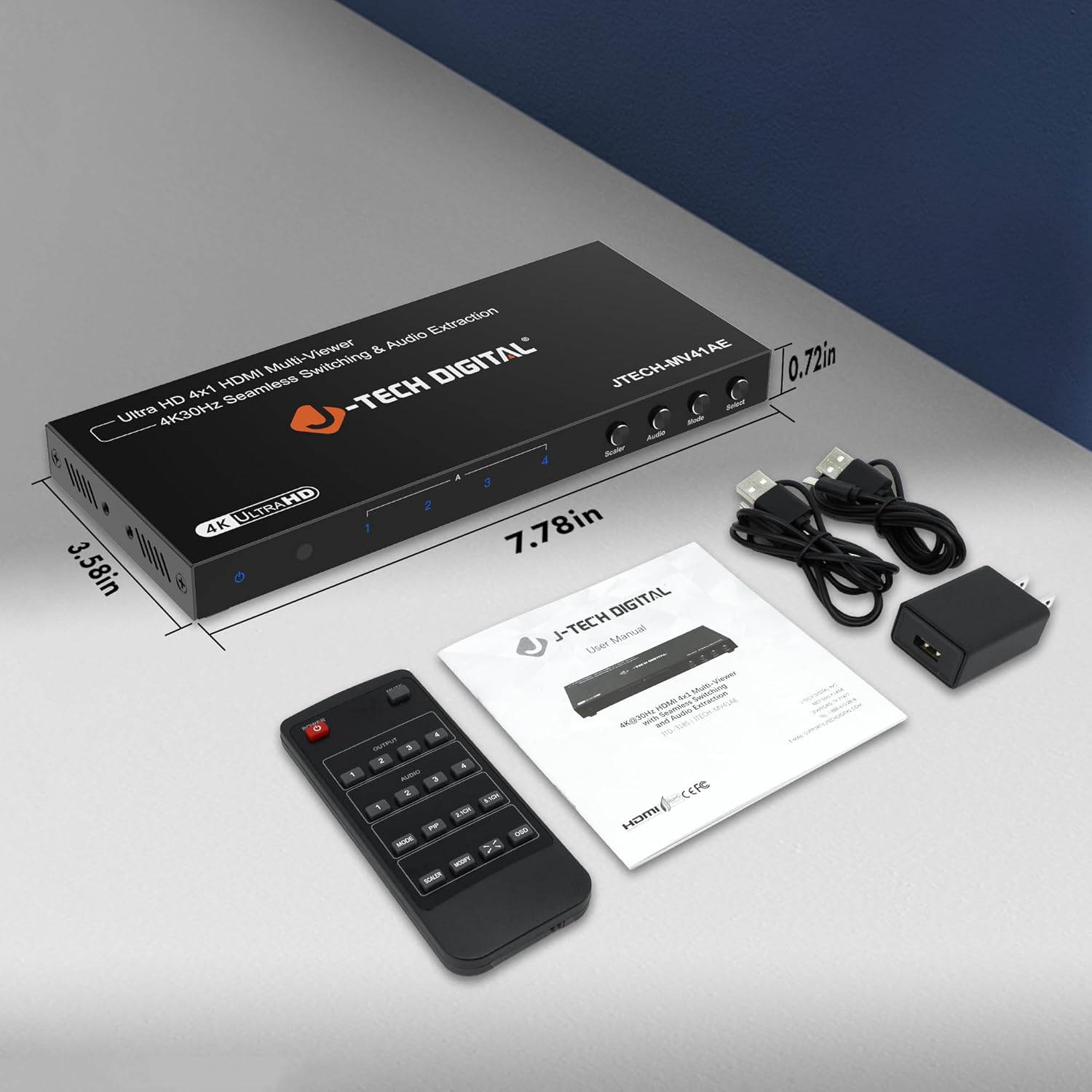
Image: Package contents of the JTECH-MV41AE.
Product Overview
Front and Rear Panel Interface

Image: Detailed diagram of the multiviewer switch's front and rear panels.
Front Panel:
- Power LED: Indicates power status.
- IR Receiver: For remote control signals.
- HDMI 1-4 Input Indicators: LEDs show active HDMI inputs.
- Input 1-4 Selection Buttons: Select individual HDMI inputs.
- Scaler Button: Adjusts output resolution.
- Audio Button: Controls audio output settings.
- Mode Button: Cycles through viewing modes.
- Select Button: Confirms selections or activates PiP.
Rear Panel:
- HDMI 1-4 Input: Connect your HDMI source devices.
- HDMI Output: Connect to your display (TV, monitor, projector).
- Audio Output (Stereo): 3.5mm jack for analog audio extraction.
- Audio Output (TOSLINK): Optical port for digital audio extraction.
- Micro USB (RS-232 Control): For advanced control via PC.
- DC 5V: Power input port.
- ON/OFF Switch: Power toggle.
Key Features
- Supports up to 4 HDMI sources on a single display.
- Seamless switching between source devices without delay or black screen.
- Supports 4K@30Hz resolution.
- Features 6 different viewing modes, including Picture-in-Picture (PiP) with custom location control.
- Audio extraction via Optical (TOSLINK) and 3.5mm stereo outputs.
- Control via remote control, front panel buttons, or RS232.
Setup and Installation
Follow these steps to set up your J-Tech Digital 4K HDMI Multiviewer Switch:
- Connect HDMI Sources: Connect up to four HDMI source devices (e.g., PC, game console, Blu-ray player, STB) to the HDMI Input 1-4 ports on the rear panel of the multiviewer switch.
- Connect HDMI Display: Connect an HDMI cable from the HDMI Output port on the multiviewer switch to the HDMI input of your display (TV, monitor, or projector).
- Connect Audio Output (Optional): If you wish to extract audio to an external sound system, connect an optical cable to the TOSLINK port or a 3.5mm stereo cable to the Stereo port on the rear panel.
- Connect Power: Plug the provided 5V DC power adapter into the DC 5V port on the rear panel, then plug the adapter into a power outlet.
- Power On: Flip the ON/OFF switch on the rear panel to the 'ON' position. The Power LED on the front panel should illuminate.

Image: Connection diagram for the JTECH-MV41AE.
Operation
Powering On/Off
Use the ON/OFF switch on the rear panel to power the device. The front panel Power LED indicates the power status.
Input Selection
You can select the desired HDMI input using the front panel buttons (Input 1-4) or the corresponding number buttons on the IR remote control.
Viewing Modes
The multiviewer switch offers 6 different viewing modes. Press the Mode button on the front panel or remote to cycle through these modes:
- Single Display Mode
- Dual Side Mode (Side by Side)
- Dual Side Mode (Up and Down)
- 4 Equal Display Mode
- 1 Big, 3 Small Display Mode
- Picture-in-Picture (PiP) Mode (1 Big, 1 Small)

Image: Six display modes supported by the JTECH-MV41AE.
Picture-in-Picture (PiP) Function
In PiP mode, you can customize the location of the small window. Press the PiP button on the remote control to adjust its position on the screen.
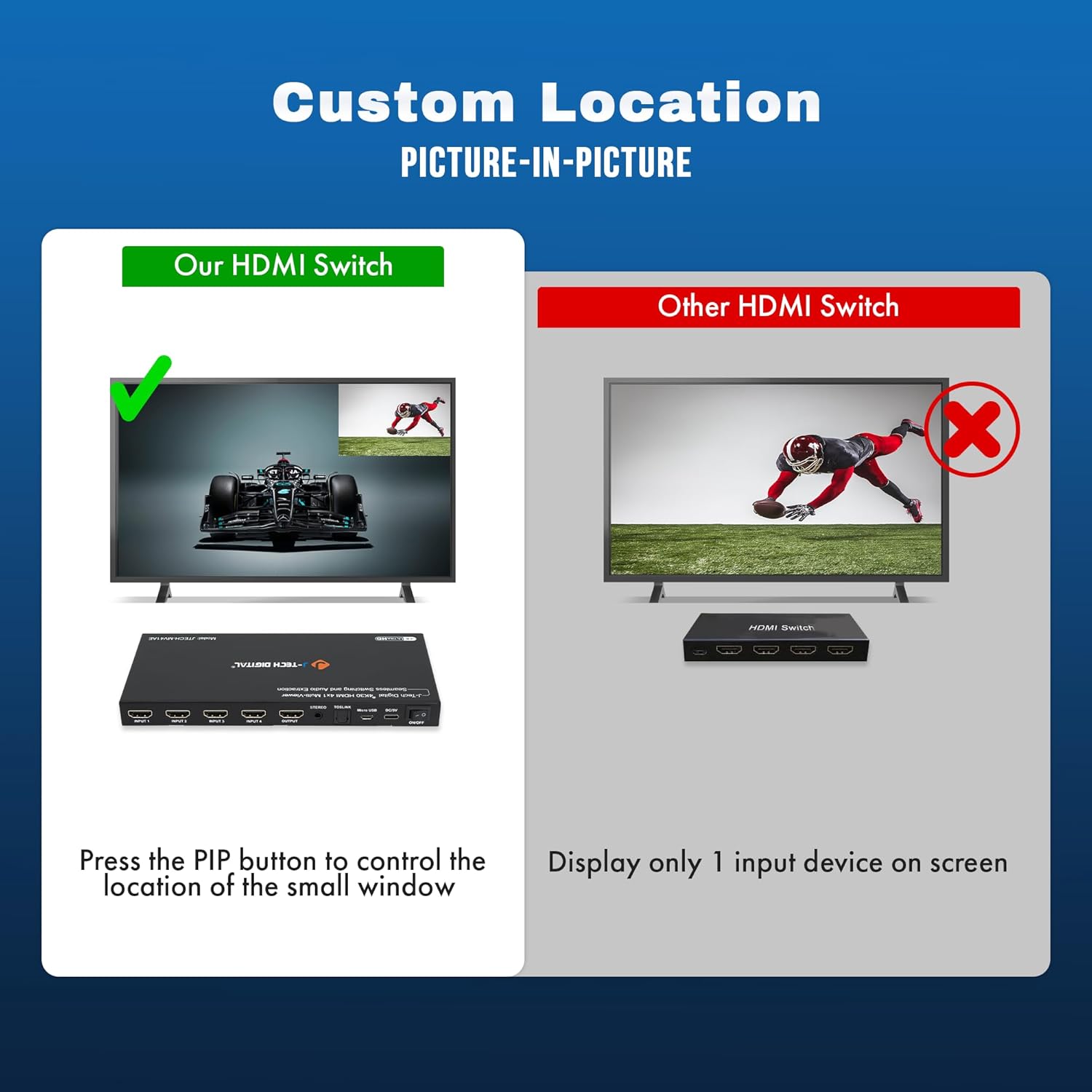
Image: Custom Picture-in-Picture location control feature.
Seamless Switching
The device features seamless switching, meaning there is no black screen or delay when transitioning between different source devices. This ensures a smooth viewing experience.

Image: Seamless switching functionality.
Audio Extraction
Audio from any of the incoming HDMI signals can be extracted to an external sound system using the Optical (TOSLINK) or 3.5mm analog audio outputs on the rear panel.
RS232 Control
For advanced control and integration into professional setups, the device can be controlled via RS232 using the Micro USB port and appropriate software.
Maintenance
To ensure the longevity and optimal performance of your J-Tech Digital 4K HDMI Multiviewer Switch, follow these maintenance guidelines:
- Cleaning: Use a soft, dry cloth to clean the exterior of the device. Avoid using harsh chemicals or abrasive cleaners.
- Ventilation: Ensure that the ventilation openings are not blocked to prevent overheating.
- Storage: When not in use for extended periods, store the device in a cool, dry place away from direct sunlight and extreme temperatures.
- Cable Management: Keep cables neatly organized and avoid sharp bends or excessive tension to prevent damage.
Troubleshooting
If you encounter issues with your multiviewer switch, refer to the following common problems and solutions:
| Problem | Possible Cause | Solution |
|---|---|---|
| No video output or flickering screen. | Loose cable connections, incompatible resolution, power issue. | Check all HDMI and power cable connections. Ensure they are secure. Try a different HDMI cable. Verify that your display supports the output resolution (4K@30Hz). Cycle power to the device and display. |
| No audio output. | Incorrect audio settings, loose audio cable, incompatible audio format. | Check audio cable connections (Optical/3.5mm). Ensure your external sound system is correctly configured. Press the 'Audio' button on the device or remote to adjust audio settings. |
| Remote control not working. | Dead batteries, obstructed IR path. | Replace batteries in the remote. Ensure there are no obstructions between the remote and the device's IR receiver. |
| Device defaults to 2K resolution on startup. | Default setting behavior. | Press the 'Scaler' button multiple times to cycle to the desired 4K resolution. This setting may need to be reapplied after each power cycle. |
| Cannot switch between inputs. | No signal from source, faulty button/remote. | Ensure all source devices are powered on and sending a signal. Try using both the front panel buttons and the remote control. |
Specifications
- Model: JTECH-MV41AE
- Product Dimensions: 3.58 x 7.78 x 0.72 inches
- Item Weight: 1.4 pounds
- Color: Black
- Connector Type: HDMI
- Cable Type: HDMI
- Input Ports: 4x HDMI
- Output Ports: 1x HDMI, 1x Optical (TOSLINK), 1x 3.5mm Stereo
- Resolution Support: Up to 4K@30Hz
- Control Methods: IR Remote, Front Panel Buttons, RS232
- Compatible Devices: Blu-Ray Player, Gaming Console, Laptop, Projector, Television

Image: Wide compatibility of the JTECH-MV41AE.
Warranty and Support
All J-Tech Digital products include a one-year manufacturer replacement warranty. Additionally, J-Tech Digital provides free lifetime technical support from their customer support team located in Stafford, TX.
Technical Support Hours: Monday – Friday, 9 AM – 6 PM CST.
Contact information is available on the J-Tech Digital seller page or official website.
Related documentsJTECH-MV41AE


Ask a question about this manual
Ask about setup, troubleshooting, compatibility, parts, safety, or missing instructions. Manuals+ will review the question and use this page’s manual context to help answer it.