Product Overview
The Irfora 9953W is a versatile 5-in-1 digital water quality tester designed for comprehensive analysis of various water sources. It accurately measures pH, EC (Electrical Conductivity), SALT (Salinity), S.G (Specific Gravity), and Temperature. Equipped with Bluetooth and WiFi connectivity, this device allows for convenient remote monitoring and data management via a dedicated mobile application.

Image: The Irfora 9953W water quality tester, showing the main display unit connected to two submersible probes. The display shows current readings for EC and temperature.
Key Features
- 5-in-1 Multifunction: Measures PH, EC, SALT, S.G, and Temperature.
- Bluetooth & WiFi Connectivity: Enables remote monitoring and control via a mobile application.
- APP Remote Control: Set alarm values and monitor water quality anytime, anywhere.
- Digital Backlit Screen: Enhances readability of measurements.
- Automatic Data Storage: Stores up to 30 days of data within the APP.
- Wide Application: Suitable for drinking water, aquariums, hydroponics, swimming pools, ponds, and laboratory use.
- Temperature Unit Switchable: Easily switch between Celsius (℃) and Fahrenheit (℉).
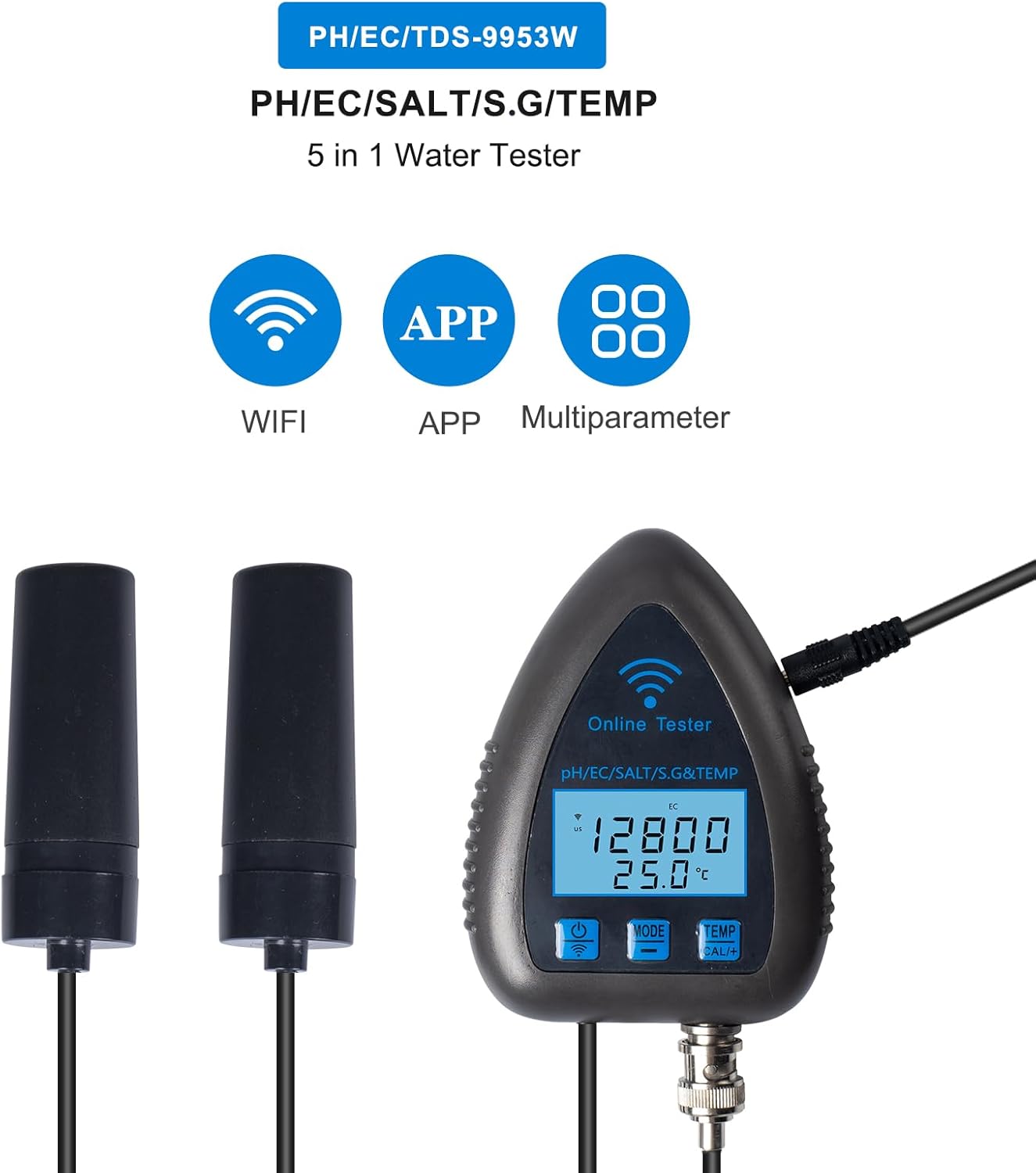
Image: Visual representation of the tester's key features, including WiFi connectivity, mobile application support, and multi-parameter measurement capabilities.
Package Contents
Upon opening the package, please verify that all the following items are included:
- 1 x Water Quality Analyzer (Main Unit)
- 1 x Electrode (Probe)
- 1 Pack x Accessories (e.g., power adapter, suction cups)
- 1 x User Manual (English)
Specifications
| Parameter | Range | Resolution | Accuracy |
|---|---|---|---|
| PH | 0.00-14.00pH | 0.01pH | ±0.03 |
| EC | 0-19900us/cm, 0-199.0ms/cm | 1us/cm (<1999us/cm), 10us/cm (>1999us/cm), 0.1ms/cm | ±2%F.S |
| SALT | 0-199.0 ppt | 1ppm (<1999ppm), 10ppm (>1999ppm), 0.1ppt | ±2%F.S |
| S.G | 0.990-1.400 | 0.001 | N/A |
| Temperature | 0°C-50°C (32°F-122°F) | 0.1°C (0.2°F) | ±1.0°C |
- Material: ABS
- Item Size: 100 x 75 x 22mm (3.94 x 2.95 x 0.87 inches)
- Item Weight: 121g (4.27oz)
Setup
1. Initial Hardware Setup
- Unpack all components from the package.
- Connect the electrode (probe) cable to the designated port on the main analyzer unit. Ensure a secure connection.
- Place the main unit in a stable location near the water source to be monitored. Use the provided suction cups if mounting to an aquarium or tank wall.
- Submerge the electrode into the water. Ensure the sensor part of the electrode is fully immersed.
- Connect the power adapter to the main unit and plug it into a power outlet. The device display should illuminate.
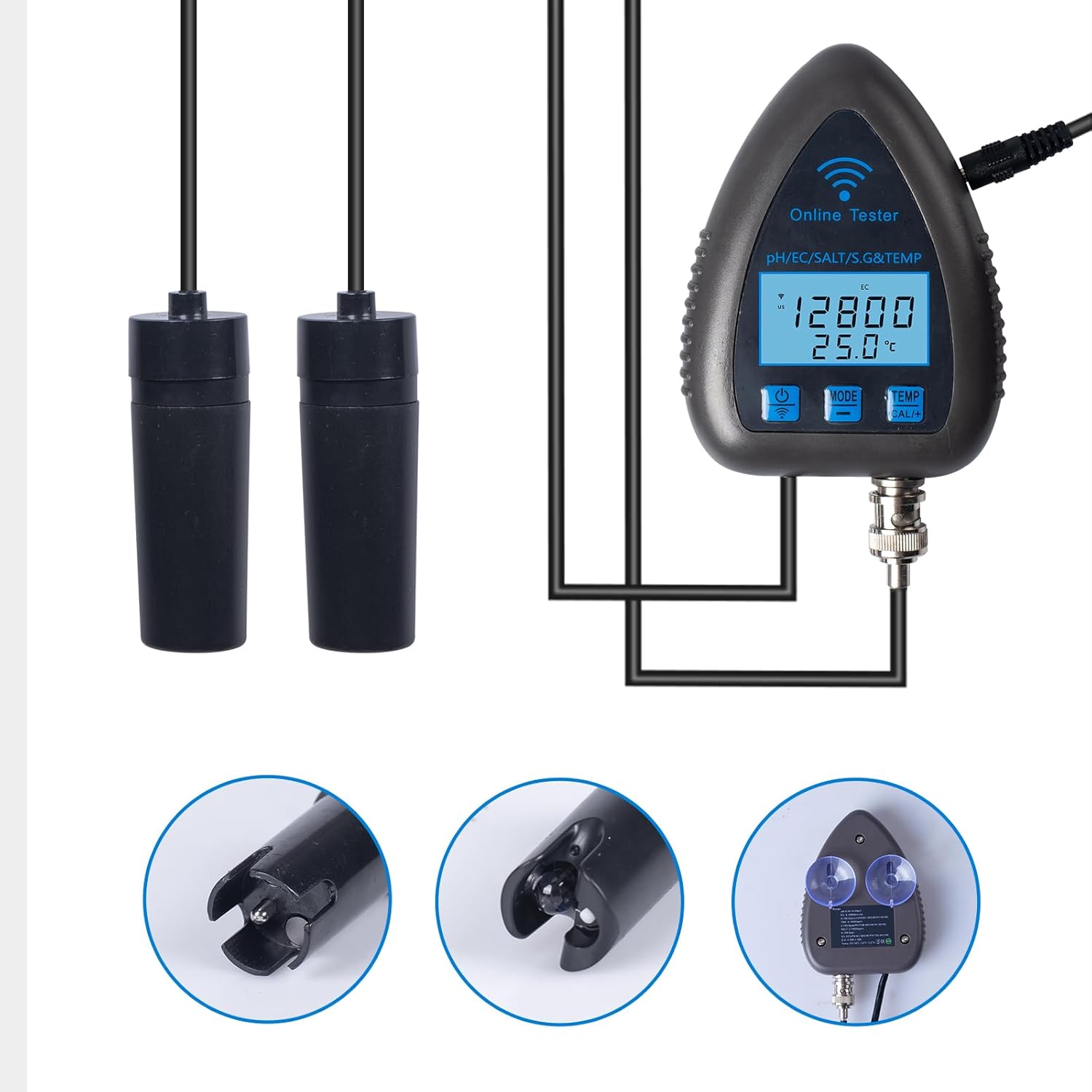
Image: Detailed view of the submersible probes and the suction cup accessory for mounting the main unit or probes.
2. App Installation and Connection
- Download the official mobile application. Search for "BT Water Tester" or "WiFi Smart Online" in your device's app store (available for iOS and Android).
- Open the app and follow the on-screen instructions to register an account if required.
- Ensure your mobile device's Bluetooth and WiFi are enabled.
- In the app, select "Add Device" or similar option. The app will search for nearby Irfora 9953W devices.
- Select your device from the list to pair. Follow any prompts for WiFi network configuration to enable remote monitoring.
- Once connected, the app will display real-time data from the tester.

Image: A smartphone displaying the mobile application interface, showing real-time water quality data and options for WiFi connection and data transfer.
Operation
1. Basic Operation and Display
- Power On/Off: Press the power button (↻) on the main unit to turn the device on or off.
- Mode Selection: Press the "MODE" button to cycle through different measurement parameters (PH, EC, SALT, S.G). The current parameter will be displayed on the screen.
- Temperature Unit: Press the "TEMP" button to switch the temperature display between Celsius (°C) and Fahrenheit (°F).
- The backlit digital screen will show the current measurement for the selected parameter and the temperature simultaneously.
2. Measurement Procedures
Once the probes are submerged and the device is powered on, it will automatically begin taking readings for the selected parameter. Ensure the probes are fully immersed and stable in the water for accurate measurements.
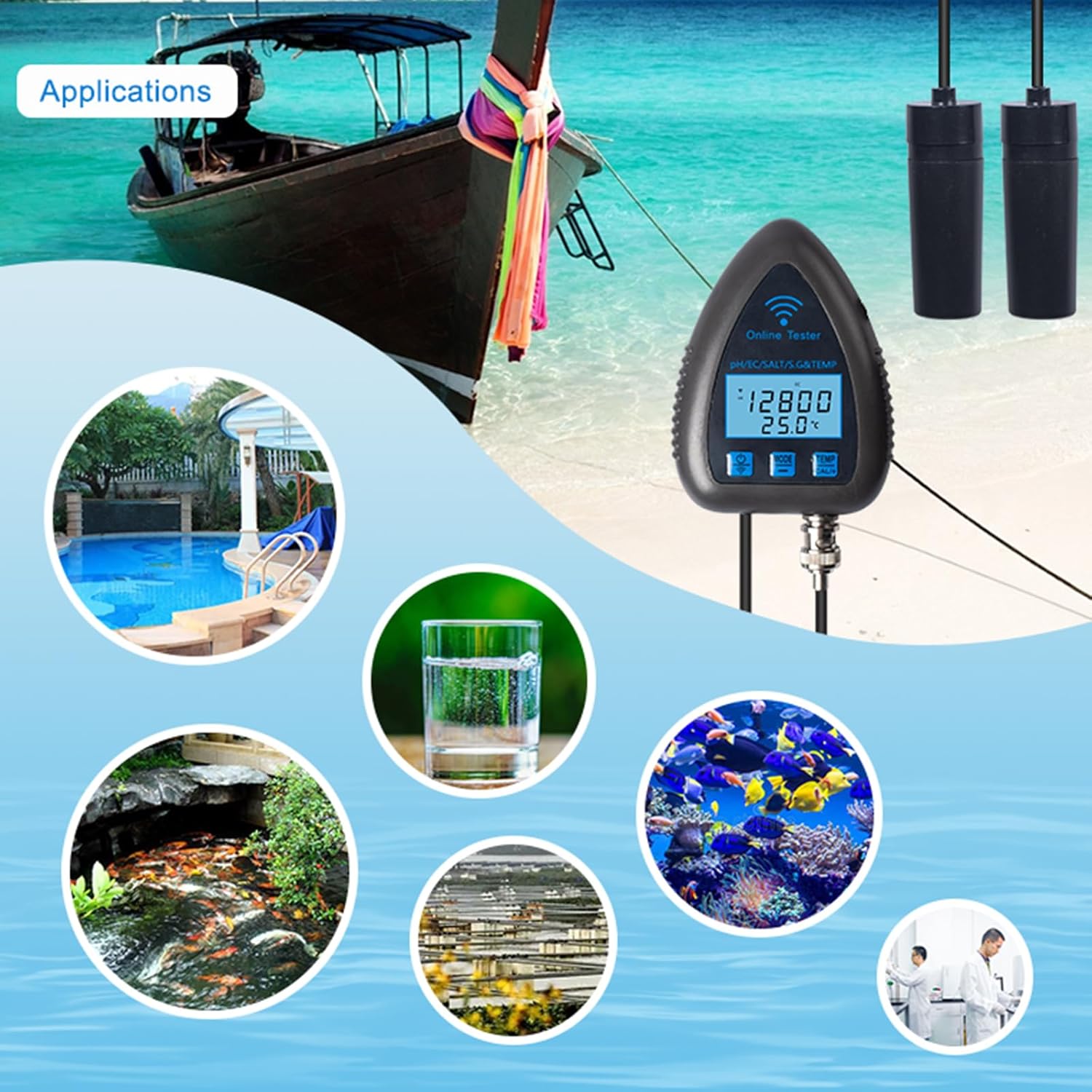
Image: Examples of where the Irfora 9953W can be used, such as in aquariums, swimming pools, for drinking water, hydroponics, and laboratory testing.
3. Data Monitoring and Export via APP
- Real-time Monitoring: Open the mobile app to view live readings from your device.
- Historical Data: The app automatically stores data for up to 30 days. Navigate to the historical data section within the app to view trends and past measurements. Data can be viewed by hour, day, week, or month.
- Alarm Settings: Set high and low alarm thresholds for each parameter within the app. You will receive notifications if readings fall outside your set range.
- Data Export: The app supports exporting data in an Excel sheet format.
- In the app, locate the "Export" or "Data Output" option.
- Enter your email address when prompted.
- The data will be sent to your mailbox as an Excel file, which you can then download.
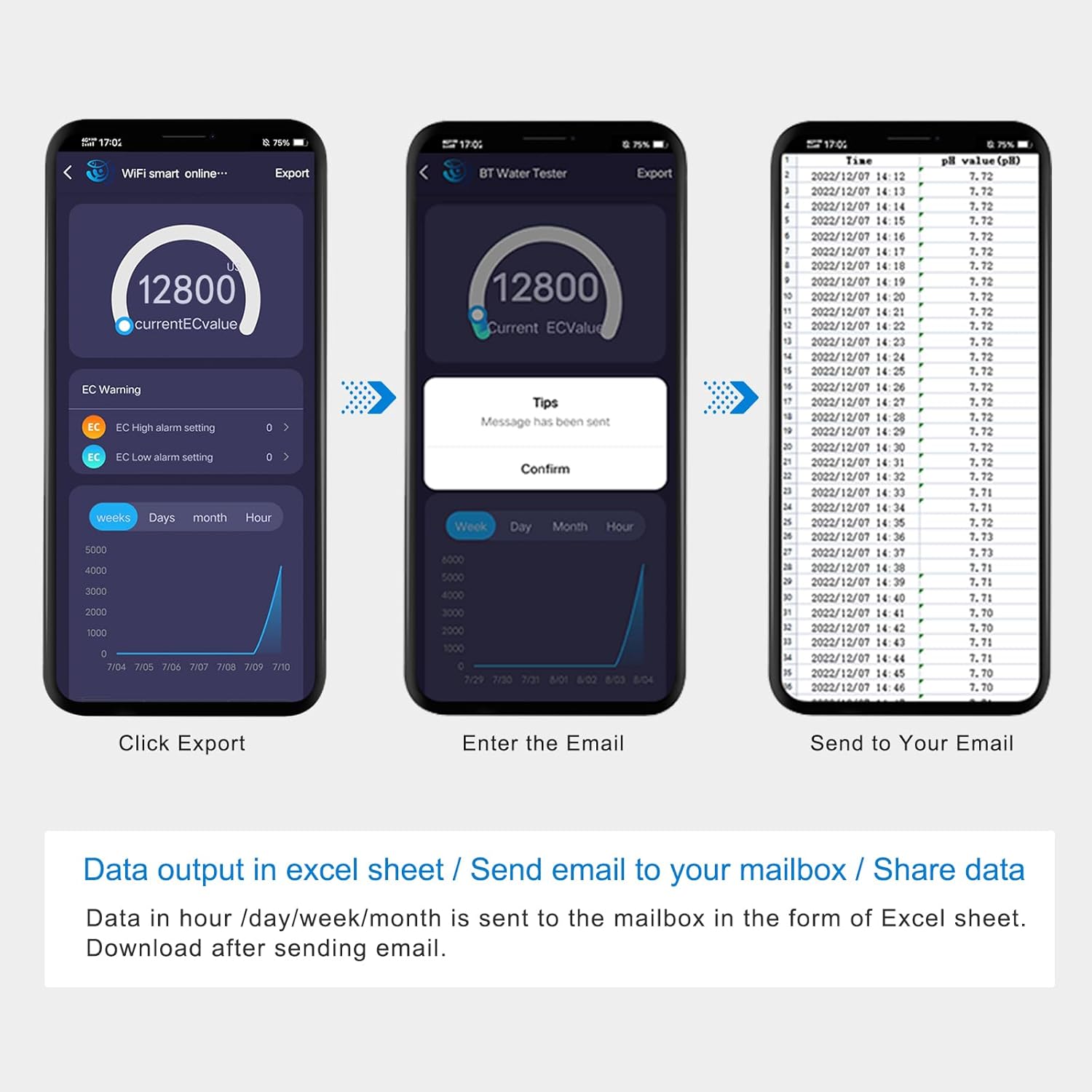
Image: A sequence of screenshots illustrating how to export measurement data from the mobile application to an Excel spreadsheet via email.

Image: A diagram illustrating the data output process, where the tester's data is sent to a mailbox for download as an Excel sheet, detailing data groups by hour, day, week, and month.
Maintenance
1. Cleaning the Electrode
- After each use, especially when testing different water sources, rinse the electrode thoroughly with distilled or deionized water.
- Gently wipe the electrode with a soft, lint-free cloth. Avoid abrasive materials that could damage the sensor.
- If there is significant buildup or contamination, use a mild cleaning solution specifically designed for pH/EC electrodes, following the solution's instructions.
2. Storage
- Store the electrode with its protective cap filled with a suitable electrode storage solution (or pH 4 buffer solution if storage solution is unavailable). Do not store in distilled water.
- Store the main unit in a cool, dry place, away from direct sunlight and extreme temperatures.
- Keep the device and accessories out of reach of children.
Troubleshooting
Common Issues and Solutions
| Problem | Possible Cause | Solution |
|---|---|---|
| Inaccurate Readings | Dirty electrode; Electrode not fully submerged; Calibration needed; Expired buffer solutions. | Clean the electrode; Ensure full submersion; Perform calibration; Use fresh buffer solutions. |
| Device Not Powering On | No power supply; Loose connection. | Check power adapter and outlet; Ensure all cables are securely connected. |
| App Not Connecting to Device | Bluetooth/WiFi off; Device too far; App not updated; Incorrect pairing. | Enable Bluetooth/WiFi on phone; Move closer to device; Update app; Re-pair device in app settings. |
| Data Not Exporting | No internet connection; Incorrect email address; App permissions. | Check internet connection; Verify email address; Ensure app has necessary permissions (e.g., network access). |
Warranty and Support
Irfora products are manufactured to high quality standards. For information regarding warranty coverage, technical support, or service, please refer to the contact information provided with your purchase documentation or visit the official Irfora website. Please retain your proof of purchase for warranty claims.
