
1. Introduction
This manual provides detailed instructions for the proper use and maintenance of your ORICO 7-Port USB 3.2 Gen 2 Hub. Please read this manual thoroughly before using the product to ensure optimal performance and safety.
The ORICO 7-Port USB 3.2 Gen 2 Hub is designed to expand the connectivity of your computer or laptop, offering high-speed data transfer and power delivery capabilities. It features a durable aluminum alloy construction and an ergonomic design for ease of use.
2. Features
- High-Speed Data Transfer: Supports USB 3.2 Gen 2 with data transfer speeds up to 10Gbps, suitable for high-performance devices like NVMe SSDs and USB flash drives.
- Multiple Ports: Expands a single USB port into 7 high-speed ports, including 4 USB-A 3.2 ports, 2 USB-C 3.2 data ports, and 1 PD 60W charging port.
- Power Delivery: Includes a dedicated PD 60W port for charging compatible devices such as phones, tablets, and cameras.
- Stable Power Supply: Equipped with a 24V 3A DC power adapter to ensure stable power for all connected devices.
- Ergonomic Design: Features a 34° ergonomic tilt for comfortable plugging and unplugging of devices.
- Durable Construction: Crafted from aluminum alloy with an anodized surface for effective heat dissipation and enhanced durability.
- Wide Compatibility: Compatible with Windows XP/2000/7/8/10/11, Linux, and Mac OS 10.3 and above.

Image: Key features of the ORICO USB 3.2 Hub, highlighting 10Gbps transfer speed, 34° ergonomic design, metal construction for cooling, compact size, and heat dissipation capabilities.
3. Package Contents
- 1 x ORICO 7-Port USB 3.2 10Gbps Hub
- 1 x 3.28Ft (1 meter) USB-A to USB-C Cable
- 1 x 24V 3A Power Adapter
4. Setup Instructions
- Connect Power Adapter: Insert the 24V 3A power adapter into the DC IN port on the side of the ORICO USB Hub. Plug the adapter into a power outlet. This ensures stable power for all connected devices.
- Connect to Host Device: Use the provided 3.28Ft USB-A to USB-C cable to connect the hub to your computer or laptop. Insert the USB-C end into the "PC IN" port on the hub and the USB-A end into an available USB-A port on your host device.
- Driver Installation: The ORICO USB Hub is plug-and-play and typically does not require additional driver installation for most operating systems. Your system should automatically recognize the device.

Image: Illustration of connecting the 24V 3A power adapter to the ORICO USB Hub and then to a wall outlet.

Image: Demonstrates connecting the hub to a laptop using the provided USB-A to USB-C cable for data transfer.
5. Operating Instructions
5.1 Port Overview

Image: An illustration detailing the various ports on the hub, including the PD 60W port, two USB-C 3.2 data ports, and four USB-A 3.2 data ports.
- PD 60W Port: This USB-C port is dedicated for power delivery (charging) only. It does not support data transfer. Connect compatible devices for fast charging.
- USB-C 3.2 Data Ports (x2): These two USB-C ports support data transfer speeds up to 10Gbps. Connect USB-C compatible peripherals for high-speed data exchange.
- USB-A 3.2 Data Ports (x4): These four USB-A ports support data transfer speeds up to 10Gbps. Connect USB-A compatible peripherals such as external hard drives, flash drives, keyboards, and mice.
5.2 Connecting Peripherals
Once the hub is connected to your host device and powered, you can connect your USB peripherals to the available ports. Ensure that the cables you use are compatible with the desired speed (e.g., USB 3.2 cables for 10Gbps transfer rates).

Image: The ORICO USB Hub integrated into a desktop setup, demonstrating multiple devices like external drives and input devices connected and functioning.
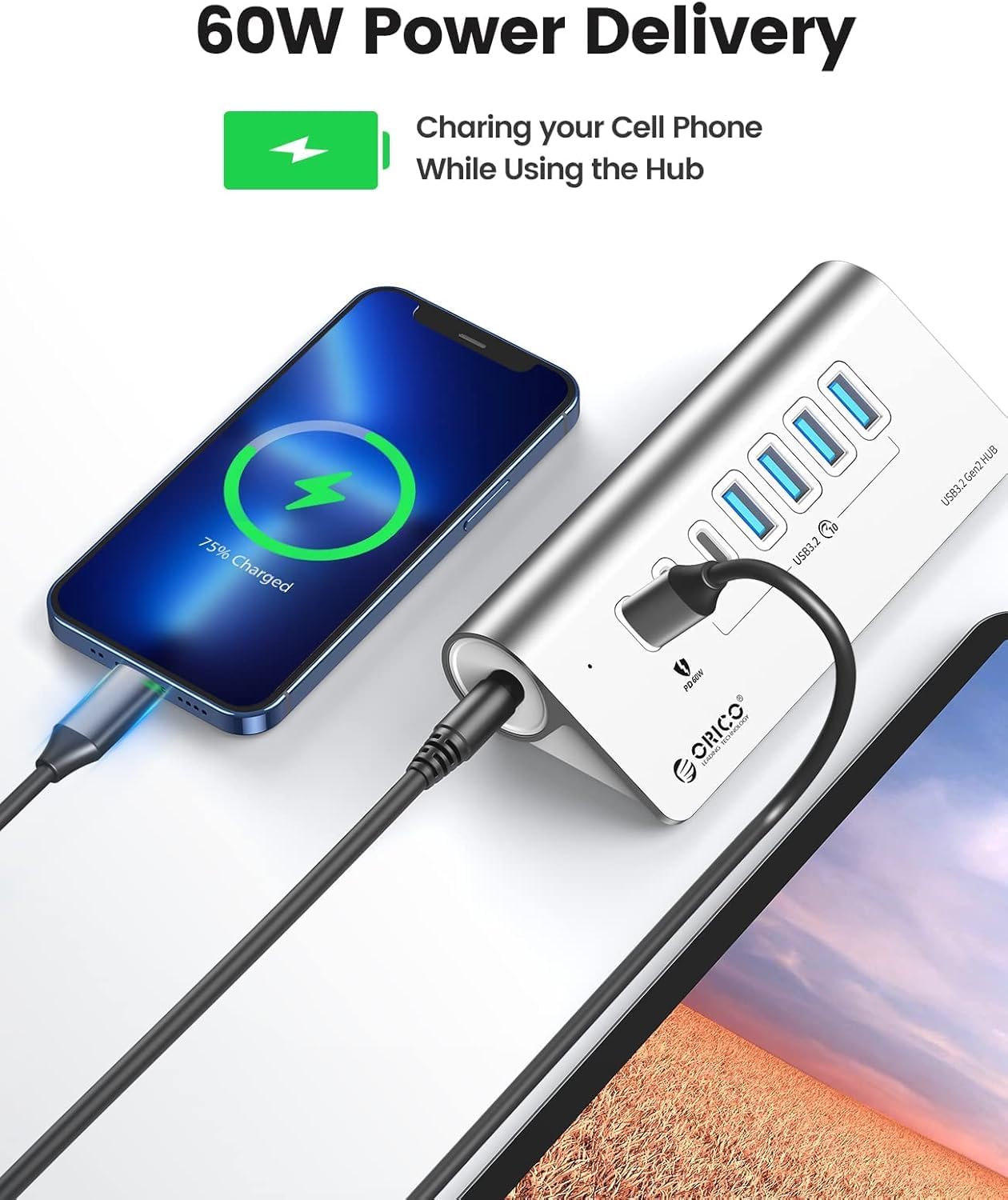
Image: A smartphone connected to the PD 60W port of the hub, indicating active charging.
For optimal performance with high-speed devices like NVMe SSDs, ensure they are connected to the USB 3.2 data ports.
6. Compatibility
The ORICO 7-Port USB 3.2 Gen 2 Hub offers broad compatibility with various devices and operating systems:
- Operating Systems: Windows XP/2000/7/8/10/11, Linux, Mac OS 10.3 and above.
- Compatible Devices: Laptops, desktop computers, tablets, smartphones, cameras, webcams, keyboards, USB flash drives, external hard drives, printers, and more.

Image: Visual representation of the hub's wide compatibility with devices such as PCs, notebooks, tablets, cellphones, cameras, webcams, keyboards, USB disks, HDDs, and printers, across Windows, Mac OS, iPad OS, and Chrome OS.
7. Specifications
| Feature | Detail |
|---|---|
| Model | 4 USB-A + 2 USB-C + 1 PD Port |
| Data Transfer Speed | Up to 10Gbps (USB 3.2 Gen 2) |
| Ports | 4 x USB-A 3.2, 2 x USB-C 3.2 (Data), 1 x USB-C (PD 60W) |
| Power Input | 24V 3A DC Power Adapter |
| Cable Length | 3.28 Ft (1 meter) USB-A to USB-C |
| Material | Aluminum Alloy |
| Dimensions | 132 x 59 x 31.5 mm (approx. 5.2 x 2.3 x 1.2 inches) |
| Weight | 1.17 pounds (approx. 0.53 kg) |
| Special Feature | Plug and Play, 34° Ergonomic Tilt, Heat Dissipation |

Image: The ORICO USB Hub with its dimensions labeled: 132mm length, 59mm width, and 31.5mm height, demonstrating its compact size.
8. Troubleshooting
- Device Not Recognized:
- Ensure the power adapter is securely connected to the hub and a power outlet.
- Verify the USB-A to USB-C cable is firmly connected between the hub and your host device.
- Try connecting the hub to a different USB port on your computer.
- Restart your computer.
- Ensure your operating system is up to date.
- Slow Data Transfer Speed:
- Confirm that both your host device's USB port and the connected peripheral support USB 3.2 Gen 2 (10Gbps).
- Use high-quality USB 3.2 compatible cables for all connections. Some older or lower-quality cables may limit speeds.
- Avoid using excessively long USB extension cables, as they can introduce signal degradation.
- Ensure the hub is receiving adequate power from the 24V 3A power adapter.
- Charging Issues:
- Ensure your device is connected to the dedicated PD 60W USB-C port.
- Verify your device supports USB Power Delivery (PD) and is compatible with 60W charging.
- Check the charging cable for damage and ensure it supports PD charging.
- Intermittent Disconnections:
- Ensure all connections (power, host cable, peripheral cables) are secure.
- Avoid placing the hub near strong electromagnetic interference sources.
- If connecting multiple power-hungry devices, ensure the power adapter is correctly connected and functioning.
9. Maintenance
- Keep the hub clean by wiping it with a soft, dry cloth. Avoid using liquid cleaners or solvents.
- Do not expose the hub to extreme temperatures, humidity, or direct sunlight.
- Avoid dropping or subjecting the hub to strong impacts.
- When not in use for extended periods, disconnect the power adapter and store the hub in a cool, dry place.
10. Product Video
Video: An official product video from ORICO demonstrating the features and usage of the 10Gbps USB Hub for MacBook/Laptops, showcasing its design, connectivity, and high-speed capabilities.
11. Warranty and Support
ORICO products typically come with a standard manufacturer's warranty. For specific warranty details, registration, or technical support, please refer to the official ORICO website or contact their customer service directly.
Manufacturer: SHENZHEN ORICO TECHNOLOGIES CO.,LTD
For further assistance, please visit the ORICO Store on Amazon.


