
ORICO S5-256GB
ORICO S5 Portable SSD User Manual
Model: S5-256GB
Introduction
The ORICO S5 Portable SSD is a compact and efficient external solid-state drive designed for seamless data backup and storage expansion. Featuring a direct USB-C plug design, it is ideal for use with compatible devices such as the iPhone 15/16 series, laptops, and tablets, providing a convenient solution to free up device storage space.

Image: The ORICO S5 Portable SSD directly connected to an iPhone, illustrating its direct plug design and data transfer capabilities.
Setup and Connection
The ORICO S5 Portable SSD offers versatile connection options for various devices.
1. Direct Plug Connection
The S5 SSD features a direct USB-C plug, allowing for immediate connection to compatible devices without the need for additional cables.
- For iPhone 15/16 Series: Simply plug the USB-C connector of the SSD directly into the USB-C port of your iPhone.
- For USB-C Laptops/Tablets: Insert the SSD's USB-C connector into an available USB-C port on your laptop or tablet.

Image: Illustration of two connection methods: direct plug and magnetic suction (if applicable to your model, verify accessory). The ORICO S5 supports direct USB-C connection.
2. Expanding Storage
The ORICO S5 provides an easy way to expand your device's storage capacity, allowing you to store more photos, videos, and documents.
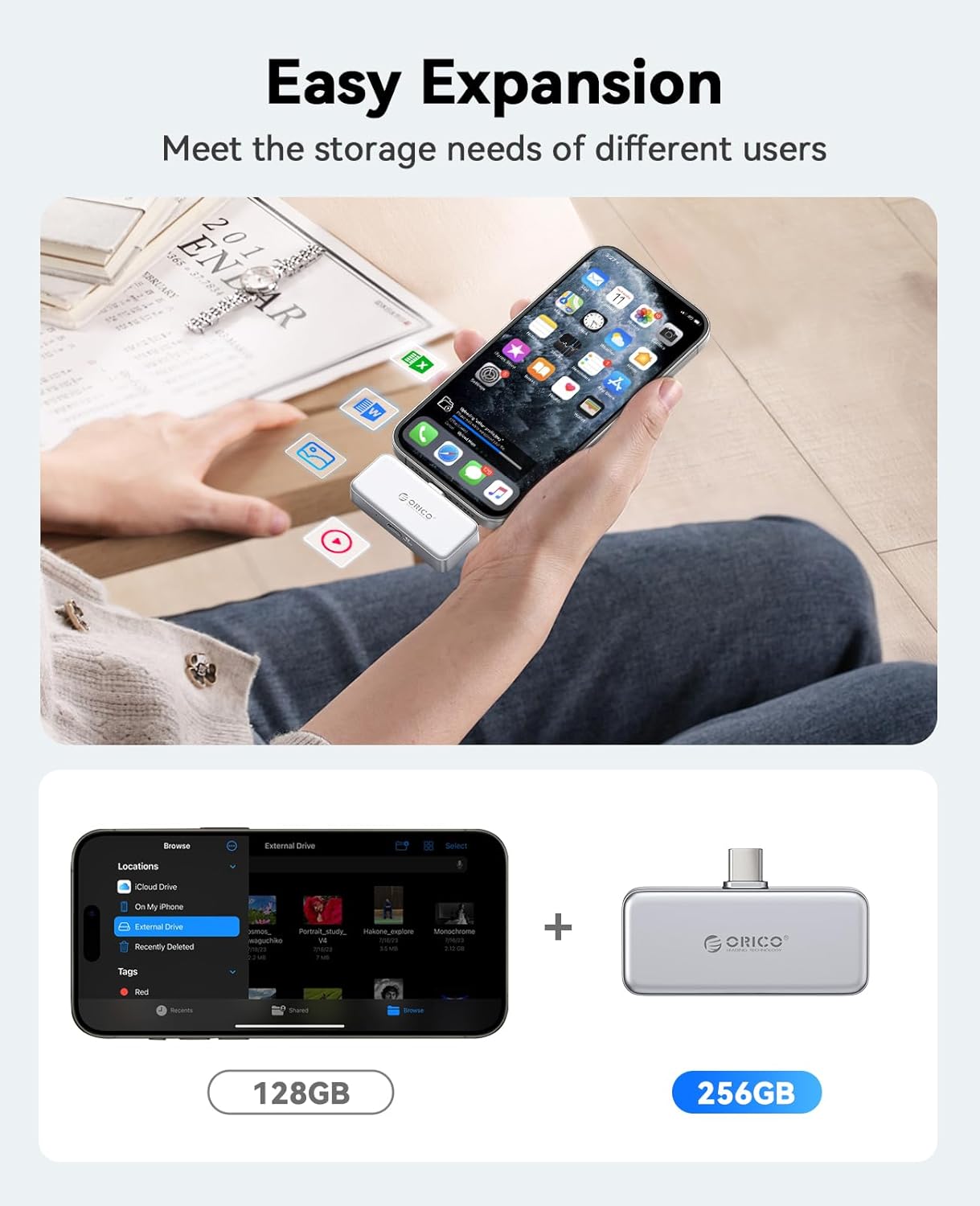
Image: Visual representation of how the ORICO S5 Portable SSD expands storage, comparing typical phone storage (128GB) with the SSD's capacity (256GB).
Operating Instructions
1. Data Backup and Charging
The ORICO S5 Portable SSD is equipped with a PD100W charging port, enabling simultaneous data backup and device charging. This prevents interruptions during large data transfers due to low battery.
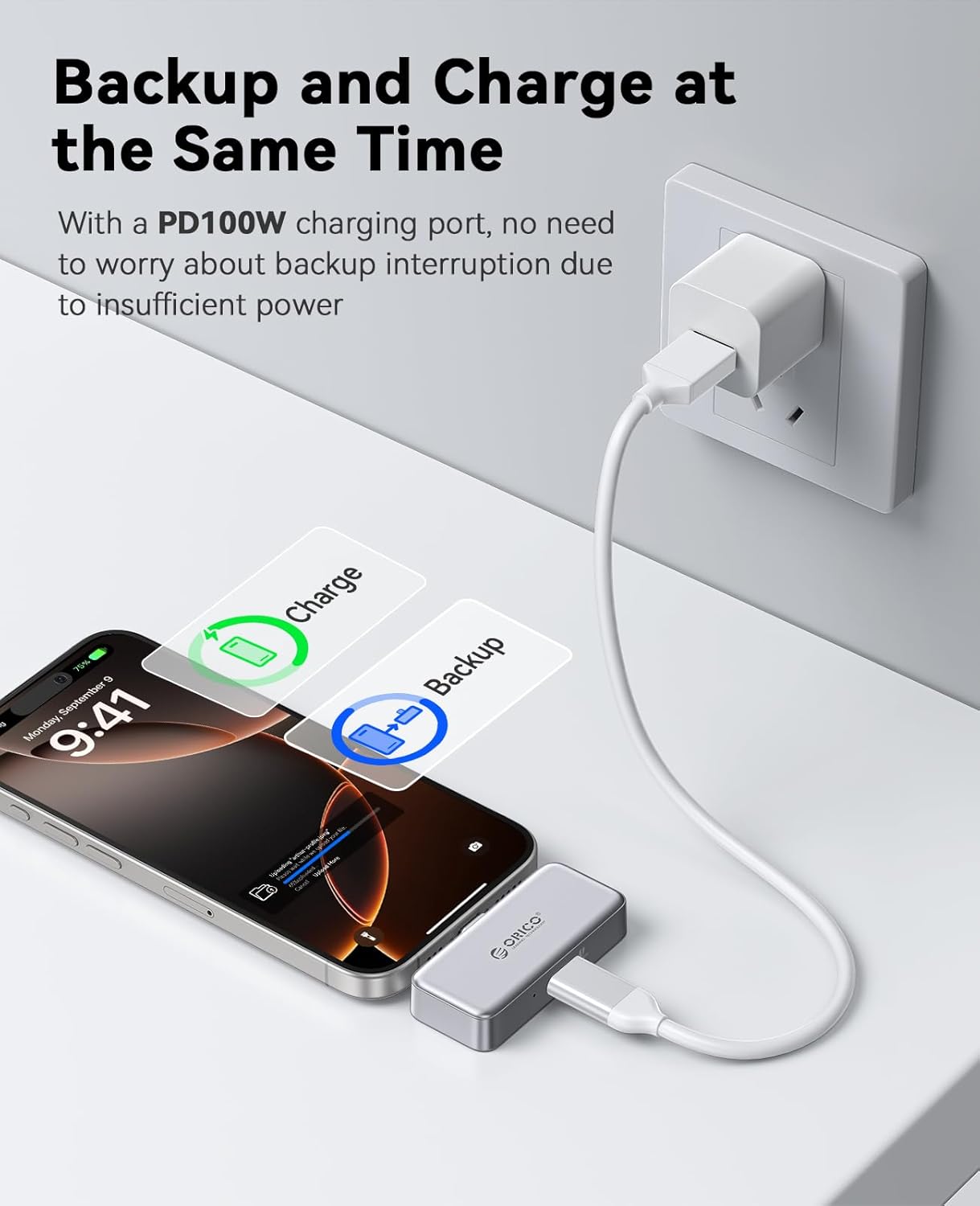
Image: The ORICO S5 Portable SSD connected to both an iPhone and a power adapter, demonstrating its ability to charge the phone while backing up data.
2. Data Transfer for Mobile Phones (iPhone 15/16 Series)
Follow these steps to transfer photos and videos from your iPhone to the ORICO S5 SSD:
- Step 1: Connect the ORICO S5 SSD to your iPhone 15/16 series device.
- Step 2: Open your Photos app, select the desired photos/videos, and click the "Share" icon.
- Step 3: From the share options, click "Save to Files".
- Step 4: In the Files app, click "Browse".
- Step 5: Locate and click on "ORICO" under Locations.
- Step 6: Click "Save" to transfer the selected files to the SSD.
Note: This functionality is specifically for iPhone 15/16 series. Not applicable for iPhone 14, iPhone 13, iPhone 12, iPhone 11, iPhone XS, iPhone XR, iPhone X, or iPhone SE.

Image: Step-by-step guide for transferring data from iPhone 15/16 series to the ORICO S5 Portable SSD.
3. Data Transfer for Android Phones
Follow these steps to transfer photos and videos from your Android phone to the ORICO S5 SSD:
- Step 1: Connect the ORICO S5 SSD to your Android phone.
- Step 2: Open your "Files" app or file manager.
- Step 3: Click "Images" or navigate to the folder containing your desired files.
- Step 4: Select the photos/videos you wish to transfer and click "Copy".
- Step 5: Navigate to the "ORICO" external storage device.
- Step 6: Click "Paste" (represented by a checkmark or similar icon) to transfer the files.

Image: Step-by-step guide for transferring data from an Android phone to the ORICO S5 Portable SSD.
4. Usage with Laptops and Tablets
The ORICO S5 SSD can also be used with laptops and tablets for expanded storage and convenient data access.
- Laptop Use: Connect the SSD to your laptop's USB-C port to manage files, edit projects, or store large media files, preventing "insufficient storage space" issues.
- Tablet Use: Connect to your tablet to store and access movies, documents, or other media, effectively turning your tablet into a portable entertainment hub.

Image: The ORICO S5 Portable SSD connected to a laptop, mobile phone, and tablet, highlighting its multi-device compatibility for easy data expansion and transmission.
Maintenance
To ensure the longevity and optimal performance of your ORICO S5 Portable SSD, follow these maintenance guidelines:
- Handle with Care: Although durable, avoid dropping the SSD or subjecting it to strong impacts.
- Keep Dry: Protect the device from moisture and liquids.
- Clean Gently: Use a soft, dry cloth to clean the exterior. Do not use harsh chemicals or abrasive materials.
- Proper Ejection: Always safely eject the SSD from your device before disconnecting it to prevent data corruption.
- Temperature: Store and operate the SSD within recommended temperature ranges (typically 0°C to 70°C or 32°F to 158°F) to ensure stable performance.
Troubleshooting
If you encounter issues with your ORICO S5 Portable SSD, refer to the following common troubleshooting steps:
| Problem | Possible Solution |
|---|---|
| SSD not recognized by device |
|
| Slow read/write speeds |
|
| Files not transferring |
|
Specifications
Key technical specifications for the ORICO S5 Portable SSD:
| Feature | Detail |
|---|---|
| Model Name | S5 |
| Item Model Number | S5-256GB |
| Brand | ORICO |
| Memory Storage Capacity | 256 GB |
| Hard Drive Type | SSD (Solid State Drive) |
| Flash Memory Type | NAND |
| Read Speed | 180 Megabytes Per Second |
| Write Speed | 100 MB/s |
| Connectivity Technology | USB |
| Hardware Interface | USB 3.0 |
| Hardware Connectivity Technology | USB Type A, USB Type C |
| Color | Silver |
| Item Weight | 3.17 ounces |
| Package Dimensions | 3.94 x 3.15 x 0.79 inches |
| Special Feature | Portable |
| Manufacturer | SHENZHEN ORICO TECHNOLOGIES CO.,LTD |
| Date First Available | December 30, 2024 |
Warranty and Support
ORICO products are designed for reliability and performance. For warranty information, technical support, or customer service inquiries, please refer to the official ORICO website or contact their customer support directly.
You can typically find support contact details on the product packaging or by visiting the ORICO Store on Amazon or the manufacturer's official website.
Related documentsS5-256GB


Ask a question about this manual
Ask about setup, troubleshooting, compatibility, parts, safety, or missing instructions. Manuals+ will review the question and use this page’s manual context to help answer it.