
1. Introduction
Thank you for choosing the CZEview 4MP Outdoor PTZ Solar Security Camera ZY-G6. This manual provides essential information for the proper installation, operation, and maintenance of your security camera. Please read this manual thoroughly before use and retain it for future reference.

Image 1.1: CZEview 4MP Outdoor PTZ Solar Security Camera ZY-G6 with solar panel.
2. What's in the Box
Verify that all components are present in the package:
- 1x CZEview Camera
- 1x Mounting Bracket
- 1x Solar Panel
- 1x Power Cable
- 1x User Manual
3. Product Overview
3.1 Key Features
- 100% Wireless & Solar Powered: Equipped with a rechargeable battery and an integrated solar panel for continuous power.
- Dual Lenses & 360° PTZ Coverage: Features upper and lower cameras with 355° horizontal and 120° vertical rotation for comprehensive monitoring. Includes 5x digital zoom.
- 1080P HD & Color Night Vision: Delivers clear 1080P HD resolution and smooth live streams. Infrared LEDs and white light provide detailed color night vision.
- AI-Powered PIR Motion Detection: Accurately detects people, vehicles, pets, and packages, sending instant notifications to your mobile device.
- Two-Way Audio & Smart Siren: Real-time two-way audio via built-in microphone and speaker. An integrated siren and flashing light deter intruders.
- Privacy Protection: Supports both SD card and cloud storage (7-day rolling cloud storage included), secured by AES 256 encryption.
3.2 Camera Components
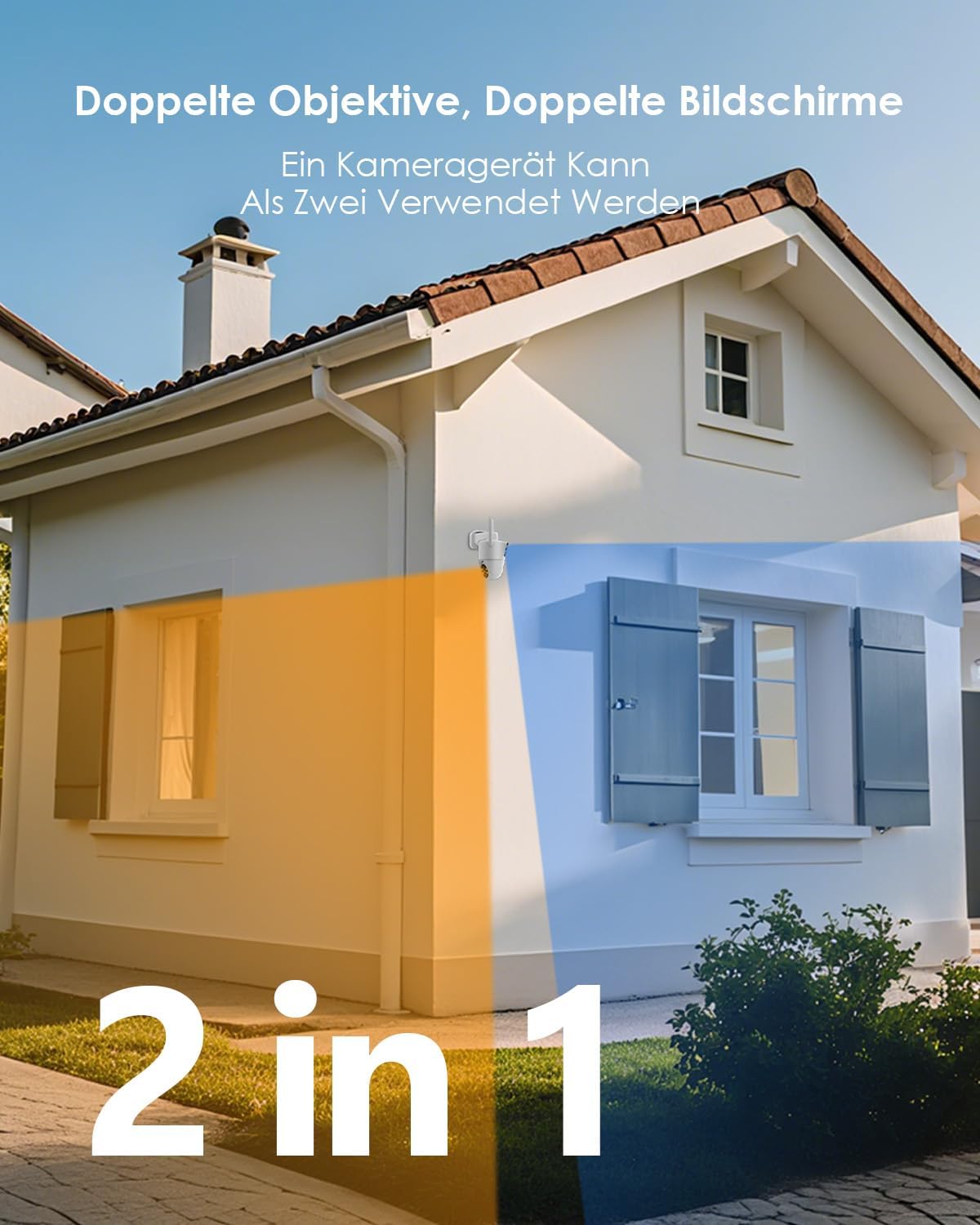
Image 3.2.1: Front view of the CZEview ZY-G6 camera, showing lenses, sensors, and antennas.
The camera features dual lenses for enhanced coverage. The upper lens provides a fixed wide-angle view, while the lower lens offers 360° PTZ (Pan-Tilt-Zoom) capabilities.

Image 3.2.2: Illustration of the dual-lens system, showing a fixed wide-angle view and a PTZ-controlled view.
The camera's PTZ function allows for 355° horizontal pan and 120° vertical tilt, providing extensive coverage of your monitored area.

Image 3.2.3: Diagram illustrating the 355° pan and 120° tilt rotation capabilities of the camera.
4. Setup Instructions
4.1 Charging the Camera
Before initial use, ensure the camera's internal battery is fully charged. Connect the camera to the solar panel and place the solar panel in direct sunlight for optimal charging. Alternatively, use the provided power cable to charge the camera via a standard USB power adapter (not included).

Image 4.1.1: The camera connected to its solar panel for continuous power.

Image 4.1.2: Example of a solar panel mounted to capture maximum sunlight.
4.2 App Installation and Pairing
- Download the CZEview App: Search for "CZEview" in your mobile device's app store (iOS or Android) and install the application.
- Create an Account: Open the app and follow the on-screen instructions to register a new account.
- Add Device: Power on the camera. In the CZEview app, select "Add Device" or the '+' icon.
- Scan QR Code: Use the app to scan the QR code located on the camera body or in the user manual.
- Connect to Wi-Fi: Follow the app prompts to connect the camera to your 2.4GHz Wi-Fi network. Ensure your Wi-Fi signal is strong at the installation location.
- Complete Setup: Once connected, name your camera and complete the setup process.

Image 4.2.1: Visual guide for connecting the camera to the CZEview app via QR code and Wi-Fi.
4.3 Mounting the Camera
Select a suitable outdoor location that provides the desired viewing angle and receives adequate sunlight for the solar panel. Use the provided mounting bracket and screws to securely attach the camera to a wall or other stable surface.
5. Operating Instructions
5.1 Live View and PTZ Control
Open the CZEview app and select your camera to access the live view. Use the on-screen controls to pan, tilt, and digitally zoom the camera to adjust your viewing area.
5.2 Motion Detection and Alerts
The camera utilizes AI-powered PIR motion detection to identify people, vehicles, pets, and packages. When motion is detected, you will receive instant notifications on your mobile device.

Image 5.2.1: The camera's AI distinguishing between people, animals, and vehicles.
You can customize detection zones within the app to focus on specific areas and reduce irrelevant alerts.

Image 5.2.2: Setting up specific detection zones to monitor critical areas.
5.3 Two-Way Audio and Siren
Use the two-way audio feature in the app to communicate with visitors or deter unwanted guests. Activate the smart siren and flashing light directly from the app when an intruder is detected.

Image 5.3.1: The camera's siren and spotlight activating to deter an approaching figure.

Image 5.3.2: Demonstrating two-way audio communication with a delivery person via the app.
5.4 Night Vision Modes
The camera offers color night vision, providing clear and detailed images even in low-light conditions. It utilizes 4 IR LEDs for a night vision range of up to 15 meters.

Image 5.4.1: A dog visible in color night vision, demonstrating the camera's low-light capabilities.

Image 5.4.2: Comparison of daytime and color night vision footage from the camera.
6. Maintenance
6.1 Cleaning
Regularly clean the camera lenses and solar panel with a soft, damp cloth to ensure optimal image quality and charging efficiency. Avoid using harsh chemicals or abrasive materials.
6.2 Battery Management
The camera is designed for continuous operation with its solar panel. In periods of prolonged low sunlight, the battery may deplete. Ensure the solar panel is positioned to receive maximum sunlight. If the battery level becomes critically low, you may need to temporarily charge the camera using the power cable.
6.3 Weather Resistance
The camera is IP65 rated, making it water-resistant and suitable for outdoor use in various weather conditions, including rain and snow. It is designed to operate in temperatures ranging from -20°C to 50°C.

Image 6.3.1: The camera demonstrating its resistance to rain, snow, and dust, with an operating temperature range indicated.
7. Troubleshooting
- Camera not powering on: Ensure the battery is charged. Connect the camera to the power cable or place the solar panel in direct sunlight for several hours.
- Cannot connect to Wi-Fi:
- Ensure your Wi-Fi network is 2.4GHz. The camera does not support 5GHz Wi-Fi.
- Check Wi-Fi signal strength at the camera's location. Move the camera closer to the router if necessary.
- Verify the Wi-Fi password entered is correct.
- Restart your router and the camera, then attempt pairing again.
- Poor image quality: Clean the camera lens. Ensure there are no obstructions in the camera's field of view. Check your internet connection speed.
- Motion alerts not received:
- Check app notification settings on your phone and within the CZEview app.
- Ensure motion detection is enabled in the app.
- Adjust motion detection sensitivity if needed.
- Two-way audio not working: Ensure microphone and speaker permissions are granted to the CZEview app on your phone. Check the volume settings on your phone and within the app.
8. Specifications
| Feature | Specification |
|---|---|
| Model Name | ZY-G6 |
| Brand | CZEview |
| Connectivity Technology | Wireless (2.4GHz Wi-Fi) |
| Video Capture Resolution | 1080p (4MP) |
| Special Features | 2-Way Audio, Motion Sensor, Color Night Vision, PTZ Technology |
| Usage Environment | Outdoor |
| Power Source | Battery Powered (17.5 Wh), Solar Panel |
| Water Resistance Level | Water Resistant (IP65) |
| Optical Zoom | 5x |
| Night Vision Range | 15 Meters |
| Number of IR LEDs | 4 |
| Material | Acrylonitrile Butadiene Styrene (ABS) |
| Item Dimensions | 10 x 10 x 15 cm |
9. Warranty and Support
For warranty information and technical support, please refer to the official CZEview website or contact their customer service directly. Contact details are typically provided on the product packaging or within the CZEview app.
Please retain your proof of purchase for any warranty claims.


