
1. Introduction
This manual provides detailed instructions for the proper use and maintenance of your ORICO A101 Portable Solid State Drive. The ORICO A101 is a high-performance external SSD designed for fast and reliable data storage and transfer across various devices, including smartphones, computers, and other compatible systems.

Figure 1.1: ORICO A101 Portable SSD (USB-A and USB-C configurations)
2. Key Features
- Lightning-Fast Transfer Speeds: Achieve transfer speeds of up to 1050MB/s, ideal for handling large files such as high-resolution videos, photos, and design projects.
- Massive Storage Capacity: The 512GB capacity provides ample space for extensive data backups, media libraries, and critical files.
- Versatile Dual Interface Design: Features both USB-C and USB-A connectors with a 360-degree rotation and 90-degree click-stop mechanism, ensuring broad compatibility and secure connections.
- 4K 120 fps ProRes Support: Directly supports 4K ProRes recording for iPhone 16 Pro Max and similar devices, enabling high-quality video capture and editing.
- Durable Zinc Alloy Casing: Constructed with a robust zinc alloy shell, providing shockproof protection and efficient heat dissipation for enhanced durability and data safety.

Figure 2.1: High-speed data transfer capabilities

Figure 2.2: Storage capacity overview

Figure 2.3: Dual-interface and rotation mechanism
3. Package Contents
Please check the package for the following items:
- 1 x ORICO A101 Portable Solid State Drive (512GB)
- 1 x User Manual (this document)
4. Setup and Connection
The ORICO A101 SSD is designed for plug-and-play functionality. It features both USB-A and USB-C connectors for wide compatibility.
4.1 Connecting to Devices
To connect the SSD, rotate the metal casing to expose either the USB-A or USB-C connector, then insert it into the corresponding port on your device.
- USB-A Connection: For traditional USB ports found on most laptops, desktop PCs, and older smart TVs.
- USB-C Connection: For modern devices such as iPhone 15/16 series, Android smartphones, MacBooks, iPads, and newer laptops.
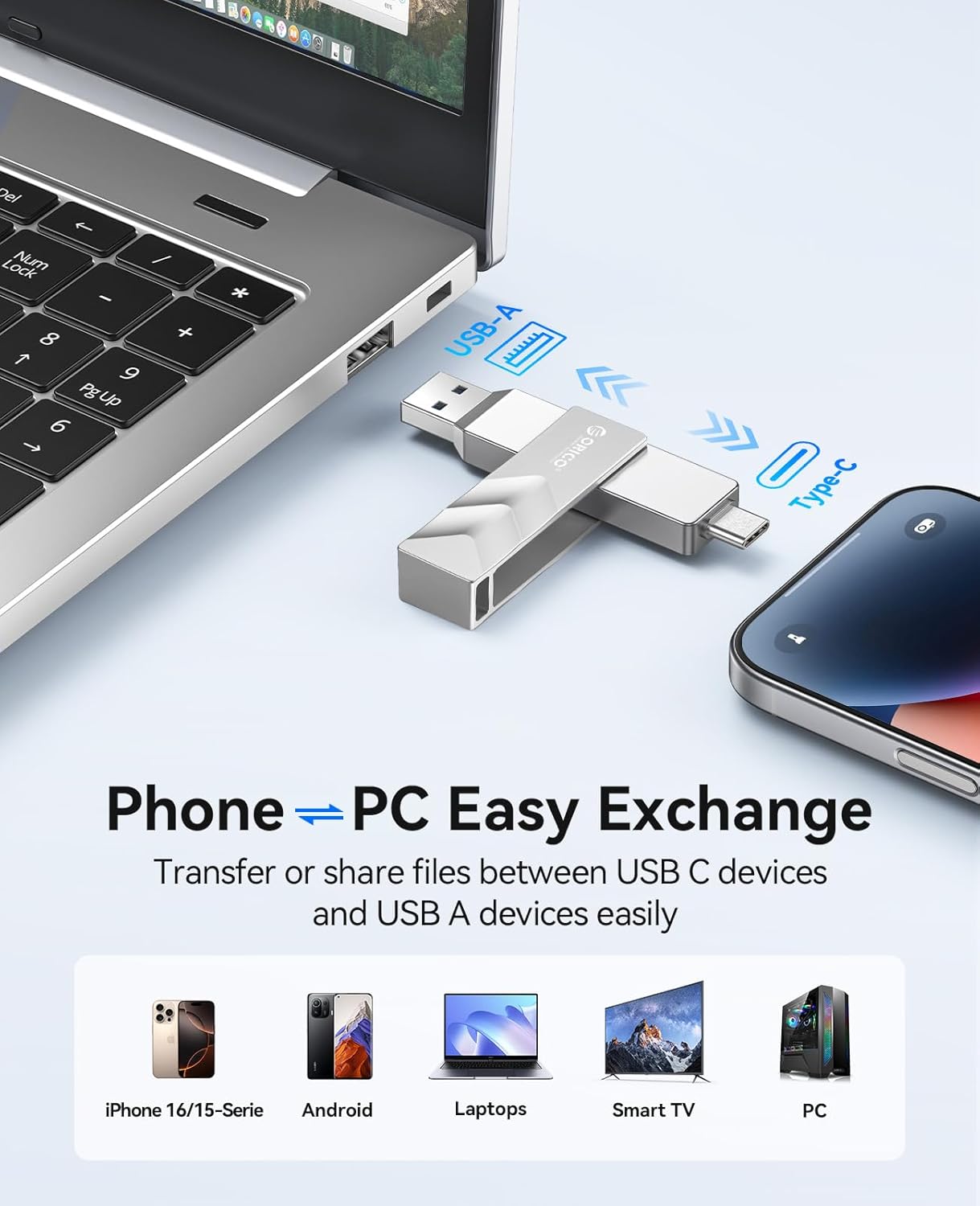
Figure 4.1: Connecting to various devices
4.2 Initial Use and Formatting (if necessary)
Upon first connection, your device should recognize the SSD. If prompted, you may need to format the drive to a compatible file system (e.g., exFAT, NTFS, APFS) depending on your operating system (Windows, macOS, Linux). Always back up any existing data on the drive before formatting.
5. Operating Instructions
5.1 File Transfer
Once connected and recognized, the ORICO A101 SSD functions like any other external storage device. You can drag and drop files, copy and paste, or use your device's file management system to transfer data to and from the SSD.
5.2 Using with iPhone (15/16 Series)
The ORICO A101 is ideal for expanding storage on compatible iPhones, especially for direct 4K ProRes video recording.
- Connect: Plug the ORICO A101 SSD into your iPhone's USB-C port.
- Access Files: Use the 'Files' app on your iPhone to browse and manage files on the SSD.
- 4K ProRes Recording: For direct recording, ensure your iPhone model supports 4K ProRes (e.g., iPhone 15 Pro/Pro Max, iPhone 16 Pro/Pro Max). Enable ProRes recording in your iPhone's camera settings.

Figure 5.1: iPhone file transfer steps

Figure 5.2: Enabling 4K ProRes HDR Recording on iPhone
5.3 Using with Android Phones
- Connect: Plug the ORICO A101 SSD into your Android phone's USB-C port.
- Access Files: Open your phone's 'Files' or 'File Manager' app. The SSD should appear as an external storage device.
- Transfer: Navigate to the desired files and use the copy/move function to transfer them to or from the SSD.

Figure 5.3: Android file transfer steps
6. Maintenance and Care
To ensure the longevity and optimal performance of your ORICO A101 Portable SSD, follow these guidelines:
- Handle with Care: While the zinc alloy casing provides durability, avoid dropping the device or subjecting it to excessive force.
- Keep Dry: Protect the SSD from water and moisture. Do not expose it to liquids.
- Temperature: Avoid extreme temperatures. Store and operate the device within recommended environmental conditions.
- Clean Gently: Use a soft, dry cloth to clean the exterior. Do not use harsh chemicals or abrasive materials.
- Safe Ejection: Always safely eject the SSD from your computer or device before disconnecting it to prevent data corruption.

Figure 6.1: Durable design for everyday use
7. Troubleshooting
If you encounter issues with your ORICO A101 Portable SSD, please refer to the following common solutions:
- Device Not Recognized:
- Ensure the SSD is fully inserted into the USB port.
- Try a different USB port on your device.
- Try connecting to a different computer or smartphone to rule out device-specific issues.
- Check your device's Disk Management (Windows) or Disk Utility (macOS) to see if the drive is detected but unformatted or uninitialized.
- Slow Transfer Speeds:
- Ensure you are using a USB 3.0/3.1/3.2 compatible port on your host device for optimal speeds. Older USB 2.0 ports will result in significantly slower transfers.
- Close other applications that might be using system resources or performing background transfers.
- Ensure your device's drivers are up to date.
- Data Corruption or Errors:
- Always safely eject the drive before disconnecting.
- Run a disk check or repair utility on your operating system (e.g., 'chkdsk' on Windows, 'First Aid' in Disk Utility on macOS).
- If issues persist, consider backing up data and reformatting the drive.
If these steps do not resolve the issue, please contact ORICO customer support for further assistance.
8. Specifications
| Model Number | A101-512GB |
| Digital Storage Capacity | 512 GB |
| Read Speed | Up to 1050 MB/s |
| Hard Disk Interface | USB 3.0 (compatible with USB 3.1/3.2) |
| Connectivity Technology | USB (Type-A and Type-C) |
| Special Feature | Portable, Dual-Port Rotating Design |
| Hard Disk Description | Solid State Drive (SSD) |
| Compatible Devices | Smartphones (iPhone 15/16 series, Android), Mac, PC, Audio devices, Vehicle infotainment systems |
| Installation Type | External Hard Drive |
| Item Weight | 3.17 ounces (approx. 90g) |
| Package Dimensions | 3.94 x 3.15 x 0.79 inches |
| Manufacturer | SHENZHEN ORICO TECHNOLOGIES CO.,LTD |
9. Warranty and Support
ORICO products are designed for reliability and performance. For warranty information and technical support, please refer to the official ORICO website or contact their customer service directly.
ORICO Customer Support: Please visit the official ORICO website for the most up-to-date support contact information, FAQs, and driver downloads.


