
X88 H96 MAX Android 14.0 TV Stick
X88 H96 MAX Android 14.0 TV Stick User Manual
Model: H96 MAX Android 14.0 TV Stick | Brand: X88
1. Introduction
This manual provides detailed instructions for setting up, operating, and maintaining your X88 H96 MAX Android 14.0 TV Stick. Please read this manual thoroughly before using the device to ensure optimal performance and safety.
1.1. Package Contents
Verify that all items listed below are included in your package:
- 1 x H96 MAX Android 14.0 TV Stick
- 1 x Remote Control
- 1 x Power Cable (USB)
- 1 x User Manual

Image 1: The package contents, including the TV stick, remote control, power cable, and user manual.
2. Product Overview
The X88 H96 MAX Android 14.0 TV Stick is a compact media streaming device designed to transform your television into a smart TV. It features a powerful processor, ample memory, and advanced connectivity options for a seamless entertainment experience.
2.1. Key Features
- Android 14.0 Operating System: Provides a fast, efficient, and stable user experience with access to a wide range of applications.
- Allwinner H313 Quad Core Processor: Ensures smooth performance for streaming, gaming, and multitasking.
- 2GB RAM + 16GB ROM: Sufficient memory for running applications and storing media content. Storage can be expanded via external USB devices or microSD cards.
- Dual-Band WiFi 6 (2.4G/5.8G): Offers stable and high-speed wireless connectivity for streaming 4K content.
- Bluetooth 5.0: Allows connection to compatible wireless accessories such as remote controls, headphones, and game controllers.
- 4K AV1 Ultra HD Support: Delivers stunning visual quality with support for 4K resolution and advanced video decoding.
- Voice Control: The included remote control supports voice commands for easy navigation and content search.
- Chromecast Built-in: Enables casting content from your smartphone or tablet directly to your TV screen.
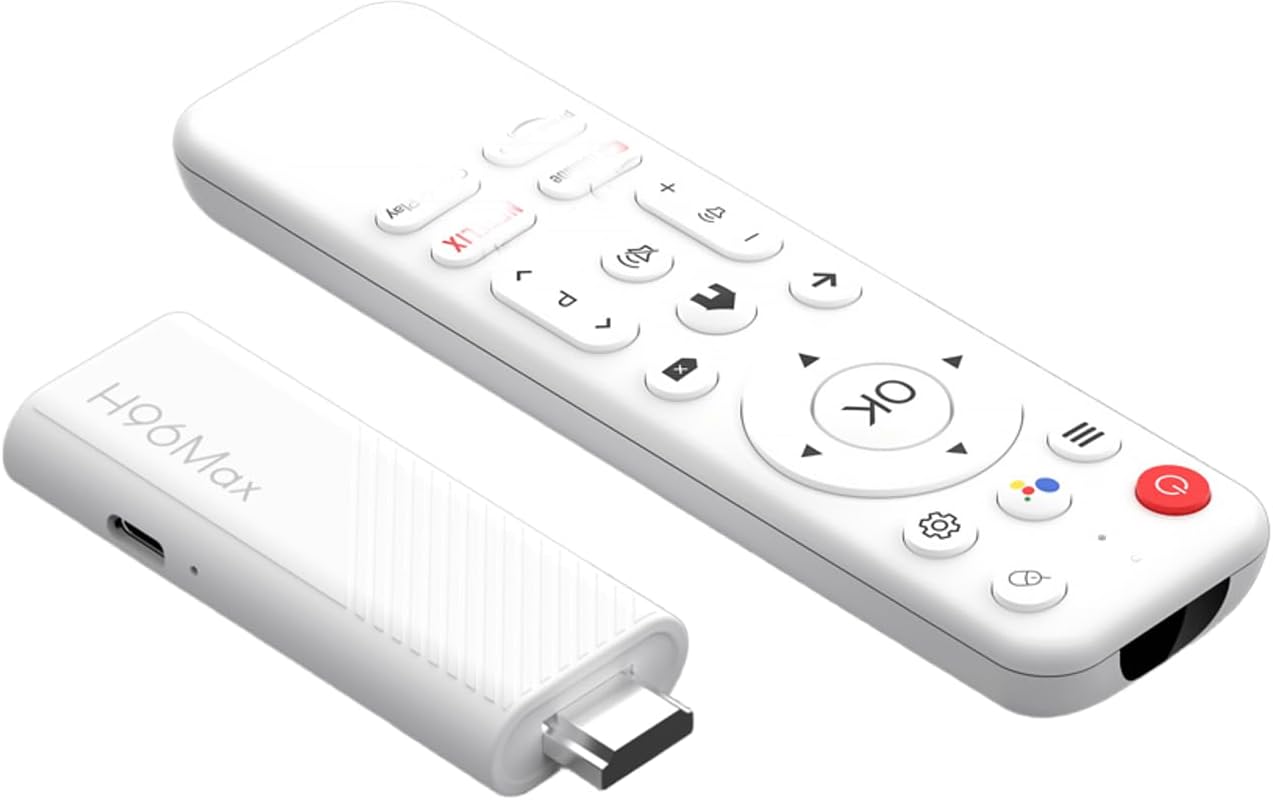
Image 2: The H96 MAX Android TV Stick and its accompanying remote control.

Image 3: The TV stick and remote control shown with a television displaying the Android TV home screen, highlighting popular streaming services.

Image 4: A visual representation of the Android TV interface, showcasing a selection of available streaming applications like HBO Max, Netflix, Disney+, and YouTube.

Image 5: An illustration emphasizing the Android 14.0 operating system, indicating its advanced features compared to previous Android versions.
3. Setup Guide
Follow these steps to set up your H96 MAX Android 14.0 TV Stick:
- Connect the TV Stick: Plug the H96 MAX TV Stick directly into an available HDMI port on your television.
- Connect Power: Connect the provided USB power cable to the TV Stick's power input port and then to a USB power adapter (not always included, use a standard 5V/2A adapter) or a powered USB port on your TV.
- Select HDMI Input: Turn on your television and use its remote control to select the correct HDMI input source that corresponds to the port where the TV Stick is connected.
- Initial Setup: The TV Stick will boot up. Follow the on-screen instructions to complete the initial setup, which typically includes:
- Selecting your preferred language.
- Connecting to your Wi-Fi network (enter your Wi-Fi password).
- Signing in with your Google Account (required for accessing Google Play Store and other Google services).
- Accepting terms and conditions.
- Install Apps: Once the setup is complete, you will be taken to the Android TV home screen. You can now download and install your favorite streaming applications from the Google Play Store.
4. Operating Instructions
4.1. Remote Control Functions
The included remote control allows you to navigate the Android TV interface and control media playback. Ensure the remote has batteries installed.
- Power Button: Turns the TV Stick on or off (standby mode).
- Navigation Pad (Directional Buttons): Use to move up, down, left, or right through menus and content.
- OK Button: Selects an item or confirms an action.
- Back Button: Returns to the previous screen or menu.
- Home Button: Returns to the Android TV home screen.
- Volume Buttons (+/-): Adjusts the volume.
- Voice Control Button: Activates the voice assistant (Google Assistant). Press and hold to speak your command.
- App Shortcut Buttons: Dedicated buttons for popular streaming services (e.g., Netflix, YouTube).
4.2. Using Voice Control
The H96 MAX TV Stick supports voice commands via the remote control. This feature allows for hands-free navigation and content search.
- Press and hold the Voice Control Button on your remote.
- Speak clearly into the microphone on the remote. For example, say "Open Netflix," "Search for action movies," or "Play music."
- Release the button when you are finished speaking. The TV Stick will process your command.

Image 6: A user demonstrating the voice control feature, holding the remote and speaking a command to the Google Assistant.
4.3. Casting Content (Chromecast)
With Chromecast built-in, you can easily cast videos, photos, and music from your compatible smartphone or tablet to your TV.
- Ensure your smartphone/tablet and the H96 MAX TV Stick are connected to the same Wi-Fi network.
- Open a Chromecast-enabled app (e.g., YouTube, Netflix, Google Photos) on your mobile device.
- Tap the Cast icon (usually a rectangle with a Wi-Fi symbol) within the app.
- Select your H96 MAX TV Stick from the list of available devices.
- The content will begin playing on your television. You can control playback from your mobile device.

Image 7: A smartphone screen mirroring a game to a television, illustrating the Chromecast built-in feature of the H96 MAX TV Stick.
5. Specifications
Below are the technical specifications for the X88 H96 MAX Android 14.0 TV Stick:
| Feature | Specification |
|---|---|
| Model Name | H96 MAX Android 14.0 TV Stick (H96STICK16G) |
| Operating System | Android 14.0 |
| Processor | Allwinner H313 Quad Core ARM Cortex A53 |
| Graphics Processor | Mali-450 |
| RAM | 2GB DDR3 |
| Internal Storage (ROM) | 16GB eMMC |
| Wi-Fi | WiFi 6 (IEEE 802.11 a/b/g/n/ac/ax) 2.4G/5.8G Dual-Band |
| Bluetooth | BT5.0 |
| Video Output | HDMI 2.0 (4K x 2K resolution) |
| USB Port | 1 x USB 2.0 |
| Video Decoder Support | MPEG-1, MPEG-2, MPEG-4 H.263, H.264/AVC, H.265/HEVC, MVC VC-1 AVS, AVS+, AVS2 |
| HDR Support | HDR10+, HLG HDR, Vivid HDR |
| Special Features | Chromecast Built-in, Voice Control |
| Supported Internet Services | Netflix, Disney+, Google Play Store, YouTube, Prime Video, etc. |
| Dimensions | 7.8L x 3.1W x 1.3H centimeters |
| Color | White |

Image 8: A visual comparison illustrating the faster speeds and improved performance of WiFi 6 technology compared to WiFi 5, as supported by the TV stick.

Image 9: A television screen showcasing a crystal-clear 4K Ultra HD image, demonstrating the high-resolution capabilities of the H96 MAX TV Stick.
6. Troubleshooting
If you encounter issues with your H96 MAX Android 14.0 TV Stick, refer to the following common problems and solutions:
- No Power / Device Not Turning On:
- Ensure the power cable is securely connected to both the TV Stick and a working power source.
- Verify that the power adapter (if used) is functioning correctly and provides sufficient power (5V/2A recommended).
- Try a different USB port or power adapter.
- No Signal / Blank Screen:
- Confirm the TV Stick is fully inserted into the HDMI port.
- On your TV, select the correct HDMI input source.
- Try a different HDMI port on your TV.
- Restart the TV Stick by unplugging and re-plugging the power cable.
- Wi-Fi Connection Issues:
- Ensure your Wi-Fi router is on and functioning.
- Check that you have entered the correct Wi-Fi password.
- Move the TV Stick closer to your Wi-Fi router to improve signal strength.
- Restart your Wi-Fi router and the TV Stick.
- Remote Control Not Responding:
- Replace the batteries in the remote control.
- Ensure there are no obstructions between the remote and the TV Stick.
- If it's a Bluetooth remote, ensure it is paired correctly. Refer to the initial setup steps or the device settings for pairing instructions.
- Applications Crashing or Freezing:
- Close and reopen the application.
- Clear the cache and data for the problematic app in the device settings (Settings > Apps > [App Name] > Storage > Clear Cache/Clear Data).
- Ensure the TV Stick's software and the application are up to date.
- Restart the TV Stick.
7. Maintenance
Proper care and maintenance will extend the lifespan of your H96 MAX Android 14.0 TV Stick:
- Cleaning: Use a soft, dry, lint-free cloth to clean the device. Do not use liquid cleaners or abrasive materials.
- Ventilation: Ensure the TV Stick is placed in a well-ventilated area to prevent overheating. Do not cover the device.
- Software Updates: Periodically check for system updates in the device settings (Settings > About > System Update) to ensure optimal performance and security.
- Storage Management: Regularly clear unnecessary app caches and uninstall unused applications to free up internal storage and maintain performance.
- Environmental Conditions: Avoid exposing the device to extreme temperatures, humidity, or direct sunlight.
8. Warranty and Support
8.1. Warranty Information
The X88 H96 MAX Android 14.0 TV Stick typically comes with a standard manufacturer's warranty. Please refer to the warranty card included in your package or contact your retailer for specific warranty terms and conditions. Spare parts availability is generally supported for up to 5 years.
8.2. Technical Support
For further assistance or if you encounter issues not covered in this manual, please contact the seller or manufacturer's customer support. Contact information can usually be found on the product packaging or the seller's website.
Related documentsH96 MAX Android 14.0 TV Stick


Ask a question about this manual
Ask about setup, troubleshooting, compatibility, parts, safety, or missing instructions. Manuals+ will review the question and use this page’s manual context to help answer it.