
TIMNUT Q60pro
TIMNUT Q60pro Action Camera User Manual
4K60fps Waterproof Action Camera with Touchscreen and 6-Axis Stabilization
1. Introduction
Thank you for choosing the TIMNUT Q60pro 4K60fps Waterproof Action Camera. This manual provides essential information for setting up, operating, and maintaining your camera to ensure optimal performance and longevity. The Q60pro is designed to capture high-quality video and photos in various environments, including underwater, with its bare-metal waterproof design and advanced stabilization features.

Figure 1.1: TIMNUT Q60pro Action Camera and Accessories
This image displays the TIMNUT Q60pro action camera, featuring a large touchscreen that shows an underwater scene with a sea turtle and a diver. Below the camera are its key accessories: two rechargeable batteries, a 64GB SD card, and a compact remote control. The camera itself is black with a prominent lens and "4K 60FPS" text on its side.
2. Safety Information
- Waterproof Usage: The camera is waterproof to 10 meters (33 feet) without an additional case. For depths beyond 10 meters, up to 40 meters (131 feet), use the provided waterproof housing. Ensure all ports and covers are securely closed before submerging the camera.
- Battery Safety: Use only specified batteries. Do not expose batteries to high temperatures or dispose of them in fire. Keep batteries out of reach of children.
- Operating Temperature: Avoid using the camera in extreme temperatures. Refer to specifications for operating temperature range.
- Cleaning: Do not use harsh chemicals or solvents for cleaning. Wipe with a soft, damp cloth.
- Storage: Store the camera in a cool, dry place when not in use.
3. Setup Guide
3.1. Battery Installation and Charging
- Locate the battery compartment on the camera.
- Insert the two 1350 mAh batteries into the battery charger.
- Connect the battery charger to a power source using the provided USB cable. The indicator light will show charging status.
- Once fully charged, remove the batteries from the charger and insert them into the camera's battery compartment, ensuring correct polarity.
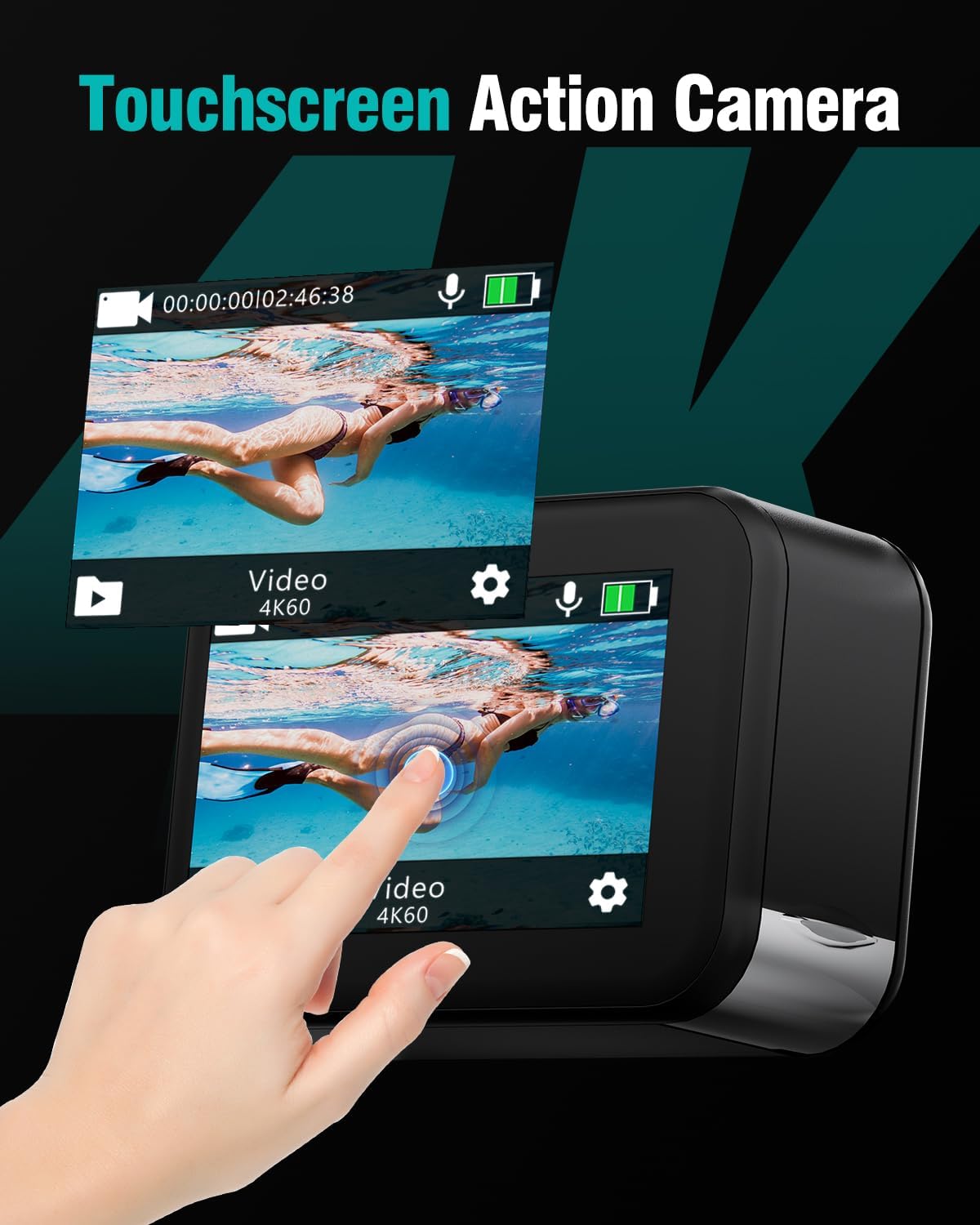
Figure 3.1: Internal Structure of TIMNUT Q60pro Camera
This image provides an exploded view of the TIMNUT Q60pro action camera, illustrating its internal components, particularly the lens system and the compact design. This highlights the camera's engineering for high-quality video capture.
3.2. Micro SD Card Insertion
- The camera package includes a 64GB SD card.
- Locate the Micro SD card slot on the side of the camera.
- Insert the Micro SD card with the gold contacts facing down until it clicks into place.
- To remove, gently push the card in until it springs out.
- Note: A Class 10 or UHS-I (U1) or higher speed Micro SD card is recommended for optimal performance, especially for 4K recording.
3.3. Powering On/Off
- To power on, press and hold the Power/Mode button until the screen illuminates.
- To power off, press and hold the Power/Mode button until the screen turns off.
4. Operating Instructions
4.1. Basic Controls and Touchscreen Navigation
The TIMNUT Q60pro features a 2-inch IPS touchscreen for intuitive control and preview. Navigate menus and settings by swiping and tapping on the screen.
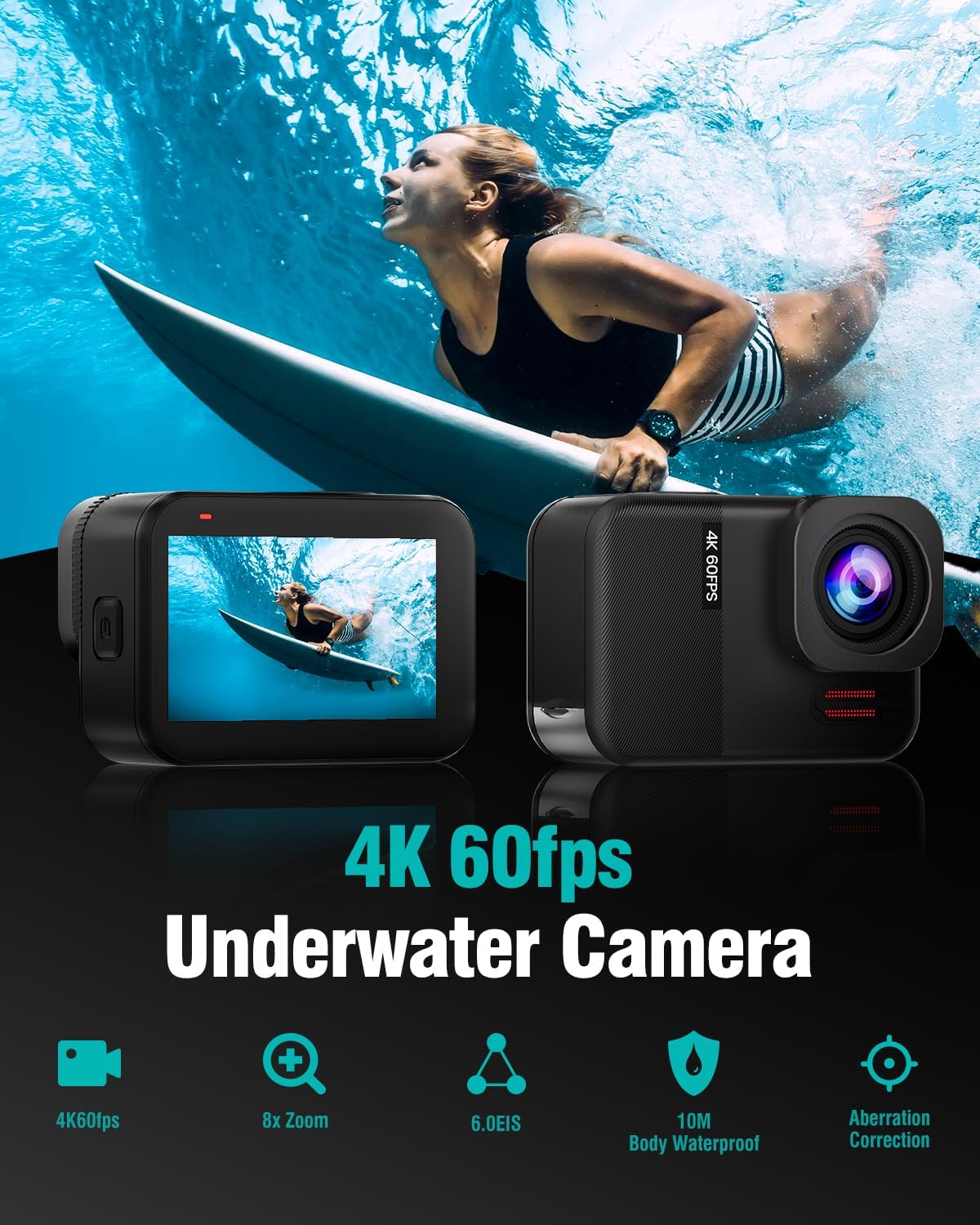
Figure 4.1: Touchscreen Interface
This image highlights the responsive touchscreen of the TIMNUT Q60pro action camera. A hand is shown interacting with the display, which is playing back a clear underwater video, demonstrating the ease of navigation and review directly on the device.
4.2. Video Recording
- From the main screen, tap the video icon to enter video recording mode.
- Tap the record button to start recording. Tap again to stop.
- The camera supports 4K resolution at 60 frames per second (4K60fps) for high-quality, smooth video.
- 6-Axis Stabilization: The built-in 6-axis stabilization system automatically reduces shakes and vibrations, ensuring stable footage even during dynamic activities.
- 8X Digital Zoom: While recording or in preview, use the zoom function to get closer to the action.

Figure 4.2: 4K High Quality Video
This image illustrates the superior video quality of the TIMNUT Q60pro, showcasing a side-by-side comparison. The left panel, labeled "Real 4K," displays a sharp, detailed image of a skydiver, while the right panel, labeled "Other Brand's Fake 4K," shows a noticeably blurrier and less defined image of a similar scene, emphasizing the Q60pro's true 4K capabilities.

Figure 4.3: EIS Enhanced for Cycling
This image demonstrates the effectiveness of the camera's Electronic Image Stabilization (EIS). It shows two frames from a cycling video: the left frame, with EIS off, is blurry and shaky, while the right frame, with EIS on, is clear and stable, highlighting how the feature prevents screen shake and captures smooth images.
4.3. Photo Capture
- Switch to photo mode by tapping the camera icon on the touchscreen.
- Tap the shutter button to take a 48MP still image.
- The camera supports various photo modes including Burst Photo, Timed Photo, Photo Lapse, and Interval Photo.

Figure 4.4: Photo Modes
This image displays a collage showcasing various photo modes available on the camera. It includes examples of Burst Photo capturing a skateboarder's movement, Timed Photo with a group jumping, Photo Lapse showing star trails, and Interval Photo illustrating a sequence of a motocross rider's jump, demonstrating the camera's versatility in still photography.
4.4. Waterproof Capabilities
The TIMNUT Q60pro is designed to be waterproof up to 10 meters (33 feet) without any additional housing. For deeper dives, up to 40 meters (131 feet), use the included waterproof case.
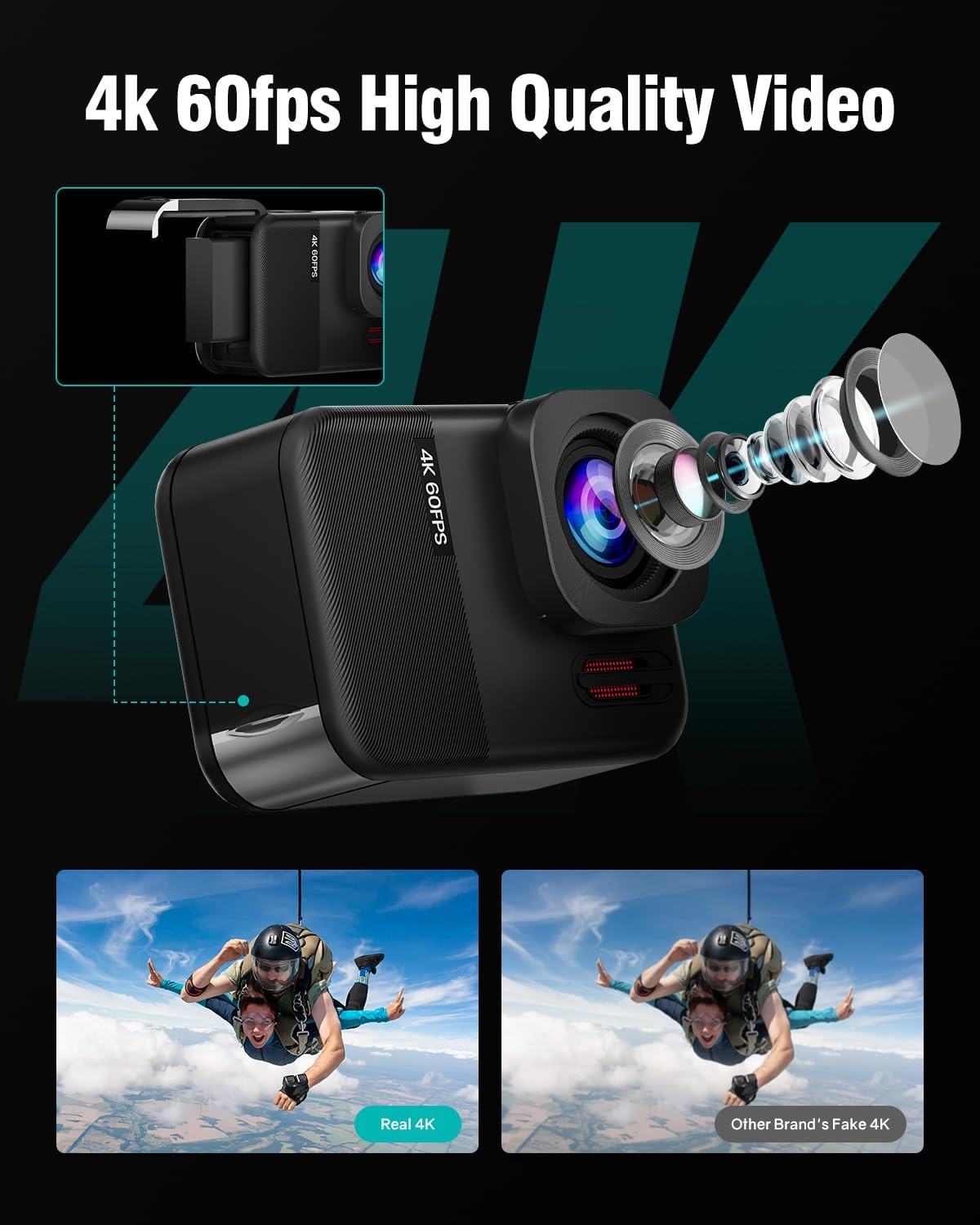
Figure 4.5: Underwater Action Camera
This image features the TIMNUT Q60pro action camera partially submerged in water, with water droplets splashing around it. Text overlays indicate its waterproof capabilities: "10M waterproof without case" and "Diving 40m with case," emphasizing its readiness for various underwater activities.
4.5. Wi-Fi Connectivity and Remote Control
- Wi-Fi: Connect the camera to your smartphone via Wi-Fi using the dedicated app (e.g., FUN DV APP). This allows for remote control, live preview, and easy content offloading.
- Remote Control: Use the included 2.4GHz wireless remote control to start/stop recording or take photos from a distance of up to 20 meters.

Figure 4.6: Remote Control Functionality
This image depicts a person kayaking in a scenic water body, with a close-up inset showing a hand operating the camera's remote control. The text "2.4GHz wireless remote control supports up to 20m" and "You can easily control your action camera to take photos or videos by this remote control!" highlights the convenience of remote operation for capturing moments during activities.

Figure 4.7: Content Offloading Options
This diagram illustrates the various methods for offloading content from the TIMNUT Q60pro camera. It shows the camera connecting to a laptop via a USB cable (with a Micro SD card adapter visible), and wirelessly to a smartphone running the "FUN DV APP," emphasizing the ease of transferring photos and videos.
4.6. Multi-Function Modes
The Q60pro offers a variety of specialized modes to enhance your recording experience:
- Loop Recording: Records continuously, overwriting the oldest files when the memory card is full.
- Slow Motion Photography: Captures high-speed action in slow motion for dramatic effect.
- Driving Mode: Functions as a dash cam, automatically starting recording when the vehicle moves.
- Image Flipping: Flips the image 180 degrees, useful when mounting the camera upside down.
- Time-Lapse Photo: Captures a series of still images at set intervals to create a time-lapse video.
- Exposure Adjustment: Manually adjust exposure settings for different lighting conditions.
- White Balance Adjustment: Adjust white balance to ensure accurate color representation.

Figure 4.8: Multi-Function Video Modes
This image presents a collage illustrating various multi-function video modes. It includes examples of Video+Photo capturing a mountain biker, Video Lapse showing city traffic, Loop Recording from a car's perspective, Slow Motion of a skateboarder, and Car Mode displaying a driver's view, demonstrating the camera's diverse recording capabilities.
5. Maintenance
5.1. Cleaning the Camera
- After use, especially in saltwater, rinse the camera with fresh water. Do not use soap or detergents.
- Wipe the camera body with a soft, lint-free cloth.
- For the lens, use a lens cleaning cloth and solution designed for optical surfaces. Avoid touching the lens with your fingers.
- Ensure the camera is completely dry before opening any compartments or charging.
5.2. Battery Care
- Store batteries in a cool, dry place.
- Do not store fully charged batteries for extended periods. Discharge them to about 50% for long-term storage.
- If batteries are not used for a long time, charge and discharge them every 3 months to maintain battery health.
5.3. Storage
- When storing the camera for extended periods, remove the batteries.
- Keep the camera in its original packaging or a protective case to prevent dust and damage.
6. Troubleshooting
| Problem | Possible Cause | Solution |
|---|---|---|
| Camera does not power on. | Low or no battery charge. Incorrect battery insertion. | Charge batteries fully. Ensure batteries are inserted with correct polarity. |
| Cannot record video/take photos. | SD card full or not inserted correctly. SD card error. | Check SD card insertion. Format SD card (this will erase all data). Replace SD card if necessary. |
| Poor video/photo quality. | Dirty lens. Low light conditions. Incorrect settings. | Clean the lens. Adjust exposure/white balance settings. Ensure sufficient lighting. |
| Camera freezes or becomes unresponsive. | Software glitch. | Remove and reinsert the battery to reset the camera. If problem persists, contact support. |
| Wi-Fi connection issues. | Incorrect Wi-Fi settings. App issues. | Ensure Wi-Fi is enabled on camera and phone. Restart both devices. Reinstall the app. |
7. Specifications
| Feature | Detail |
|---|---|
| Brand | TIMNUT |
| Model Name | Q60pro |
| Video Resolution | Up to 4K at 60fps |
| Photo Resolution | 48MP |
| Waterproof Depth (Bare Metal) | 10 meters (33 feet) |
| Waterproof Depth (With Case) | 40 meters (131 feet) |
| Display | 2-inch IPS Touchscreen (5.08 cm) |
| Stabilization | 6-Axis Stabilization (EIS) |
| Zoom | 8X Digital Zoom |
| Connectivity | Wi-Fi |
| Battery | 2 x 1350 mAh (rechargeable) |
| Storage | Supports Micro SD card (up to 64GB included) |
| Item Weight | Approx. 1.01 pounds (0.46 kg) |
| Color | Black |
8. Warranty and Support
TIMNUT is committed to providing high-quality products and excellent customer service. Your Q60pro Action Camera comes with the following support:
- 30-Day Refund: If you are not satisfied with your purchase, you may be eligible for a refund within 30 days.
- 365-Day Replacement: The product is covered for replacement for 365 days from the date of purchase against manufacturing defects.
- 24-Hour Troubleshooting: Access to 24-hour support for technical assistance and troubleshooting.
- Lifetime Support: TIMNUT provides lifetime technical support for your product.
For any inquiries or support, please visit the official TIMNUT store on Amazon or contact their customer service directly.

Figure 8.1: TIMNUT Brand Logo
This image displays the official TIMNUT brand logo, a stylized text logo in black, representing the manufacturer of the action camera.
Related documentsQ60pro

Ask a question about this manual
Ask about setup, troubleshooting, compatibility, parts, safety, or missing instructions. Manuals+ will review the question and use this page’s manual context to help answer it.