
1. Product Overview
The imokin USB C Docking Station (MOUC0516) is a versatile 7-in-1 multiport adapter designed to expand the connectivity of your USB-C enabled laptop. It provides dual HDMI outputs, a VGA port, USB-C and USB-A data ports, and 100W Power Delivery charging, enabling enhanced productivity with multiple displays and peripherals.
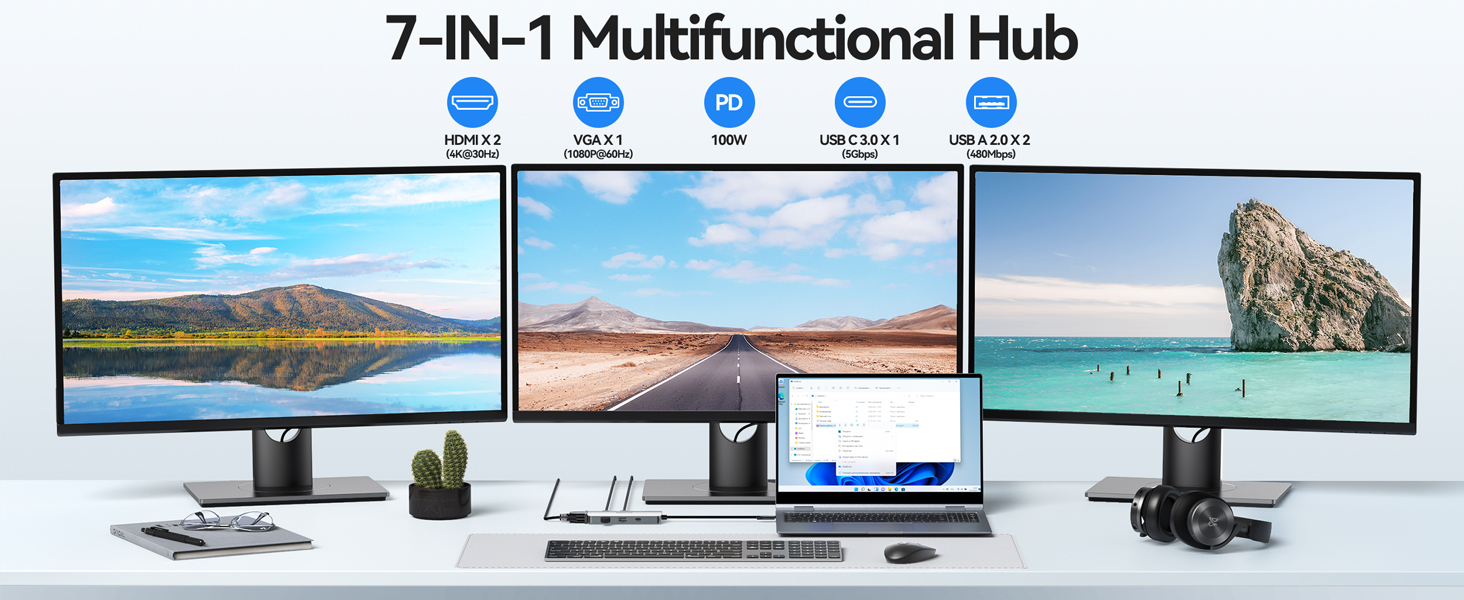
Image: Overview of the imokin USB C Docking Station, highlighting its various ports including PD 3.0 (100W), HDMI 1 (4K@60Hz), HDMI 2 (4K@30Hz), VGA (1080P@60Hz), USB A 2.0 (480Mbps), and USB C 3.0 Data (5Gbps).
2. Product Features
- Dual HDMI Output: Connect up to two HDMI displays. HDMI 1 supports up to 4K@60Hz (with DP1.4 source), HDMI 2 supports up to 4K@30Hz. When both HDMI ports are used simultaneously, resolution is up to 4K@30Hz.
- VGA Port: Connect a VGA display with resolution up to 1080P@60Hz. When HDMI 1 and VGA are used simultaneously, resolution is up to 1080P.
- 100W Power Delivery (PD): Supports up to 100W input for charging your laptop, with an output of up to 87W.
- USB-C 3.0 Data Port: Provides data transfer speeds up to 5Gbps.
- 2x USB-A 2.0 Ports: For connecting peripherals like keyboards and mice, offering data transfer speeds up to 480Mbps.
- Compact Design: Portable and easy to carry.
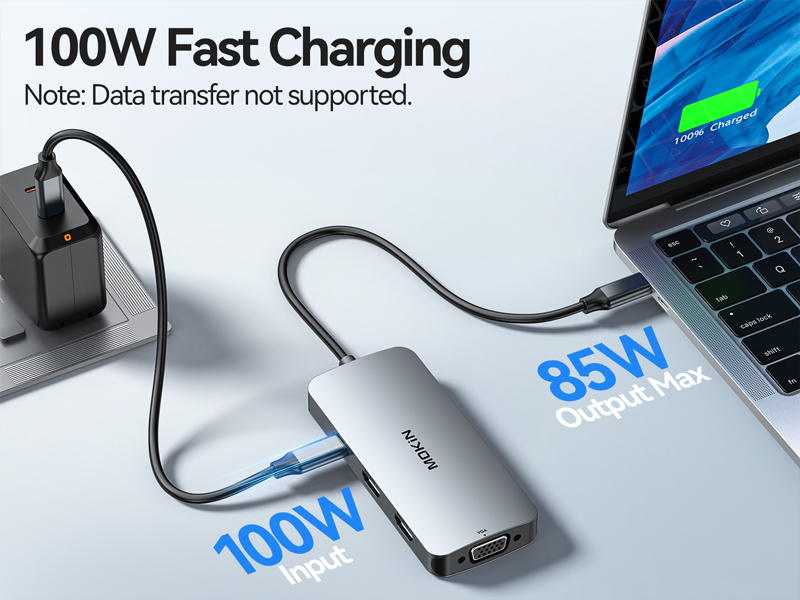
Image: The imokin docking station connected to a laptop, demonstrating multiple USB devices such as a mouse, keyboard, and USB flash drive connected to its USB-A and USB-C data ports.
3. Setup Instructions
- Connect to Laptop: Plug the USB-C connector of the docking station into a compatible USB-C port on your laptop. Ensure your laptop's USB-C port supports video output (DP Alt Mode) for display functionality.
- Connect Displays:
- For HDMI displays, connect HDMI cables from your monitors to the HDMI 1 and/or HDMI 2 ports on the docking station.
- For VGA displays, connect a VGA cable from your monitor to the VGA port on the docking station.
- Connect Power (Optional but Recommended): For stable operation and laptop charging, connect your laptop's USB-C power adapter (up to 100W) to the PD 3.0 port on the docking station.
- Connect Peripherals: Plug your USB devices (e.g., mouse, keyboard, USB drives) into the available USB-A 2.0 and USB-C 3.0 data ports.
Video: A demonstration of connecting the imokin USB C Docking Station to a laptop and various peripherals, including HDMI and VGA monitors, USB devices, and power delivery.
4. Operating Instructions
4.1 Display Modes
The docking station supports different display modes depending on your operating system.
- For Windows Laptops: Supports both SST (Single Stream Transport) and MST (Multi-Stream Transport) modes. This allows for extended displays with different content on each monitor.
- For macOS Laptops: Only supports mirror mode. Extended monitors will display the same content as your primary display. macOS does not support Multi-Stream Transport (MST) for extended displays with different content.
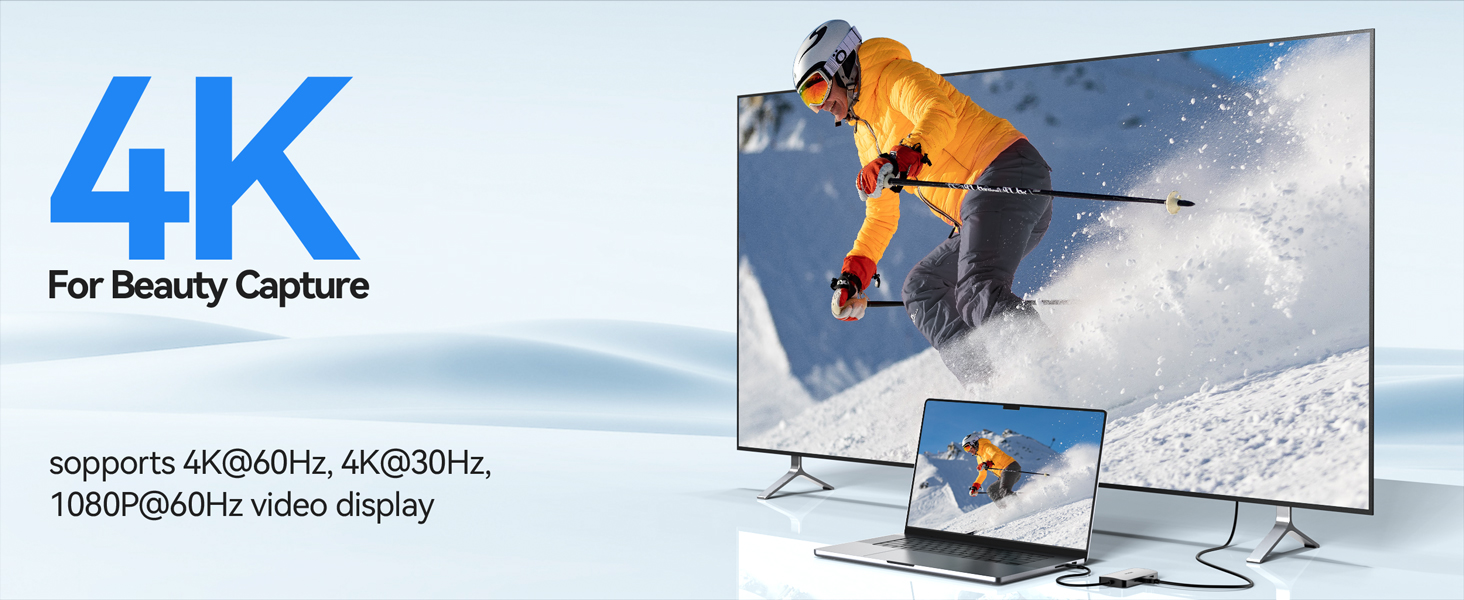
Image: Illustration of extended display modes for Windows laptops, showing dual and triple monitor setups with different content on each screen.
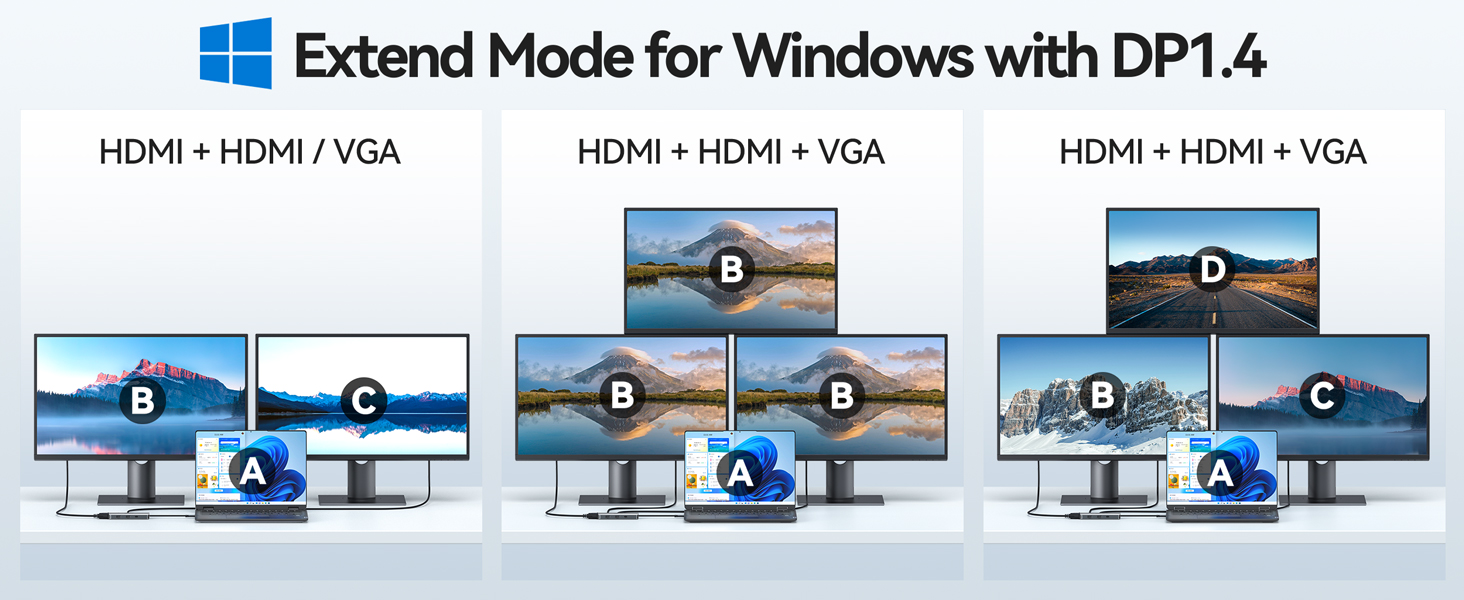
Image: Illustration of display modes for macOS laptops, showing that only mirrored displays are supported, not extended displays with different content.
4.2 Power Delivery
The USB-C PD port on the docking station allows you to charge your laptop while using the hub. Connect your laptop's original USB-C power adapter to the PD port. The docking station supports up to 100W input and provides up to 87W output to your laptop.
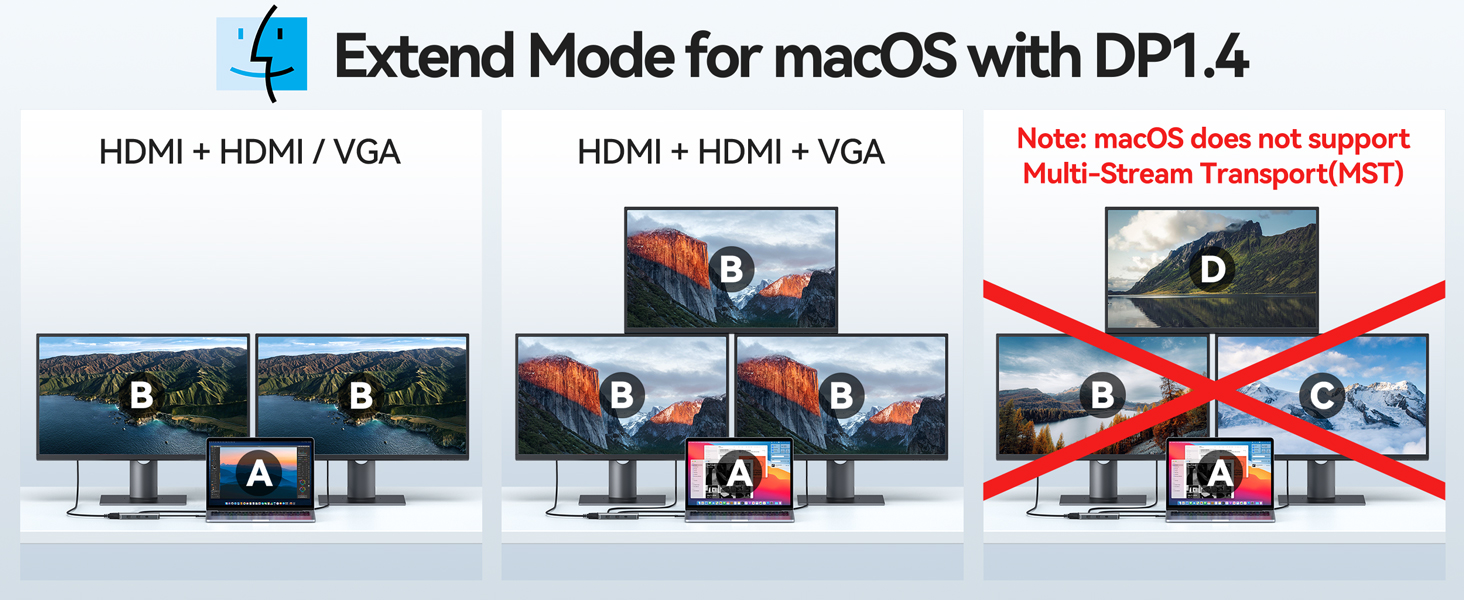
Image: A laptop being charged through the imokin docking station, illustrating 100W power input to the dock and 85W power output to the laptop.
4.3 Data Transfer
Utilize the USB-C 3.0 port for high-speed data transfer up to 5Gbps, ideal for external hard drives or SSDs. The two USB-A 2.0 ports are suitable for connecting standard peripherals like keyboards, mice, and USB flash drives, with speeds up to 480Mbps.
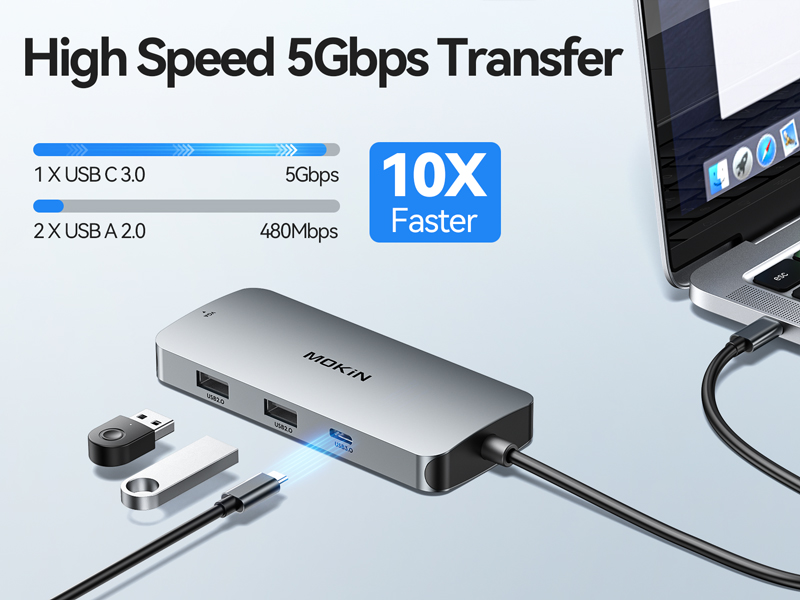
Image: Visual representation of high-speed data transfer capabilities, showing a USB-C 3.0 port with 5Gbps speed and USB-A 2.0 ports with 480Mbps speed.
5. Compatibility
This USB C docking station is compatible with a wide range of Type-C laptops that support Display Alt Mode and Power Delivery.
5.1 Compatible Operating Systems
- Windows (Windows 11, etc.)
- macOS
- Chrome OS
- Harmony OS
- Android
- iPad OS
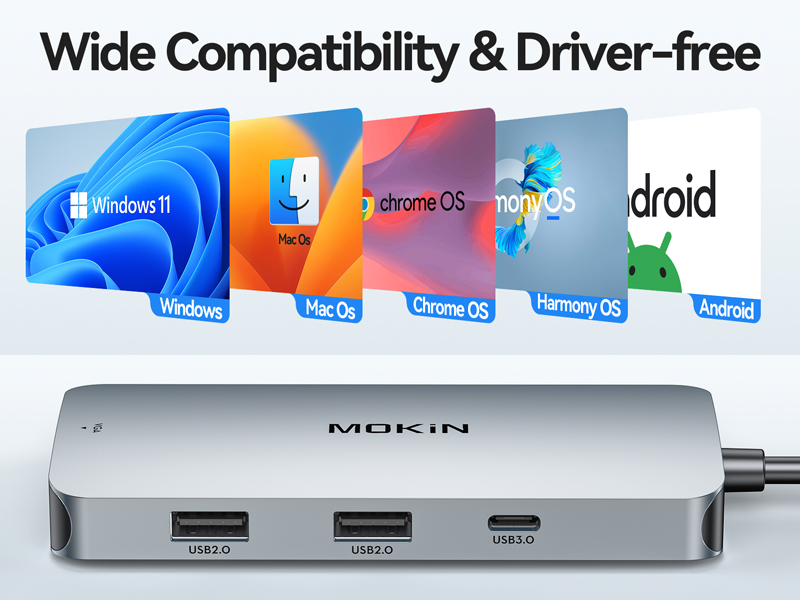
Image: The imokin docking station shown with logos of compatible operating systems: Windows, Mac OS, Chrome OS, Harmony OS, and Android.
5.2 Example Compatible Laptops (Not a full list)
- Dell: XPS13/15, Latitude (7410/5310), Precision (5550/7550), Inspiron (7506 2-in-1/5502), Vostro (5501/3491), Alienware (m15 R4/Area-51m)
- HP: Spectre (x360 13/15), Envy (x360 13/15), EliteBook (840 G8/x360 1030 G8), Pavilion (14/x360 15), ProBook (450 G8/x360 435 G8)
- Lenovo: ThinkPad (T14/T14s/P50/P52), IdeaPad (5/Flex 5), Yoga (9i/7i), Legion (5/7)
- Apple: MacBook Pro (2016-2022), MacBook Air/Mac mini (2018-2020), iMac (2020)/iMac Pro (2017-2019), iPad/Pro (2018-Newest)
- ASUS: ZenBook (14/Pro Duo), VivoBook (S15/Flip 14), ROG (Zephyrus G14/Strix Scar 15), TUF Gaming (A15/F15)
- Other: Microsoft Surface Book 2/Surface Go/Surface Laptop 3, Samsung Galaxy, Acer
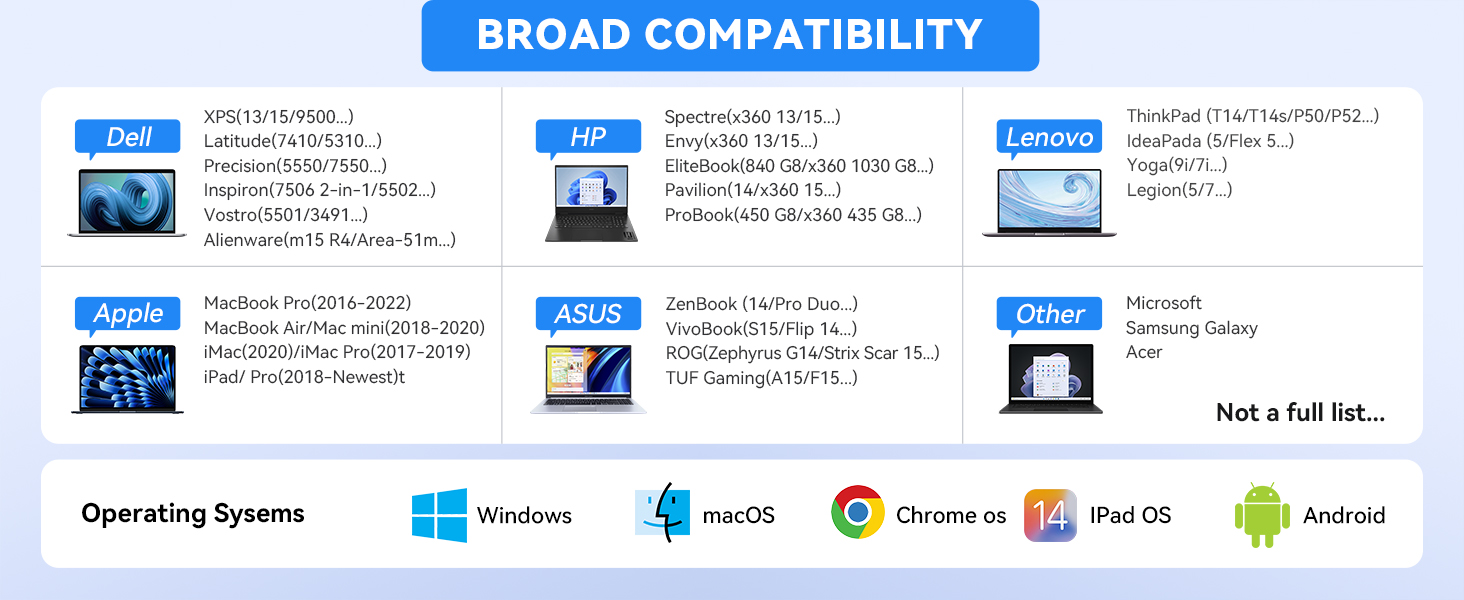
Image: A detailed chart listing various compatible laptop models from brands like Dell, HP, Lenovo, Apple, and ASUS, along with supported operating systems.
5.3 Incompatible Devices (Not a full list)
- MacBook Air (before 2018) / MacBook Pro 2015 / iMac 2021
- ASUS Vivobook series / ASUS Q547 / ASUS Q503U / ASUS Q526F / ASUS L203MA / ASUS TUF 17.3 Gaming Laptop
- ASUS Zenbook UX333FN / ASUS Zenbook UX330UA-AH55 / ASUS Zenbook Flip 14 UX461FN-DH74T / ASUS Zenbook Q407I
- Acer Aspire E5-575 / Acer Aspire R5-571T / Acer Aspire E5-576G / Acer Aspire R15 / Acer Aspire G3-571 / Acer Predator Helios 300 / Acer Swift X 14
- MSI Gl65 / MSI GF63 / MSI GF65 Thin 9SD-252 / MSI GEVR 7RF Apache Pro / MSI GS73VR 7RG Stealth Pro / MSI GE73 Raider 8RF
- Microsoft Surface Pro 3 / Microsoft Surface Pro 4 / Microsoft Surface Pro 6 / Microsoft Surface Book 3
- HP Spectre X360 13 / HP Spectre X360 14 / HP Spectre X360 15T
- HP EliteBook 840 G3 / HP EliteBook 840 G4 / HP EliteBook 820 G4 / HP EliteBook 745 G6 / HP EliteBook 800 G2
- HP ProBook 600 / HP ProBook 640 / HP ProBook 650 G2 / HP ProBook Folio 1020 B&O
- Earlier HP Pavilion series / HP 340S C7 / HP Envy 15 / EVGA SC15 / HP 7265NGW
- Dell Inspiron 17-5000 series / Dell Inspiron 15-5000 series / Dell Inspiron 14-5410 / Dell Inspiron 15-3000 / Dell Inspiron 15-3583 / Dell Inspiron 17-3793 Business
- Dell Latitude E7270 / Dell Latitude E7470 / Dell Latitude E7440 / Dell Latitude E7450 / Dell Latitude 3520
- Lenovo V330 / Lenovo ThinkPad T570 / Lenovo IdeaPad Y520 / Lenovo Yoga 520 / Lenovo Yoga 710
- Lenovo ThinkPad X1 Carbon (1490) / Lenovo ThinkPad E580
- Lenovo IdeaPad 3 / Lenovo IdeaPad 5 / Lenovo IdeaPad 330 / Lenovo IdeaPad L340 / Lenovo IdeaPad S340 / Lenovo IdeaPad 130S / Lenovo IdeaPad Flex-15WL / Lenovo IdeaPad Flex-14 / Lenovo IdeaPad Flex-6 14KB
- High-power equipment / USB Super Drive / CD/DVD player
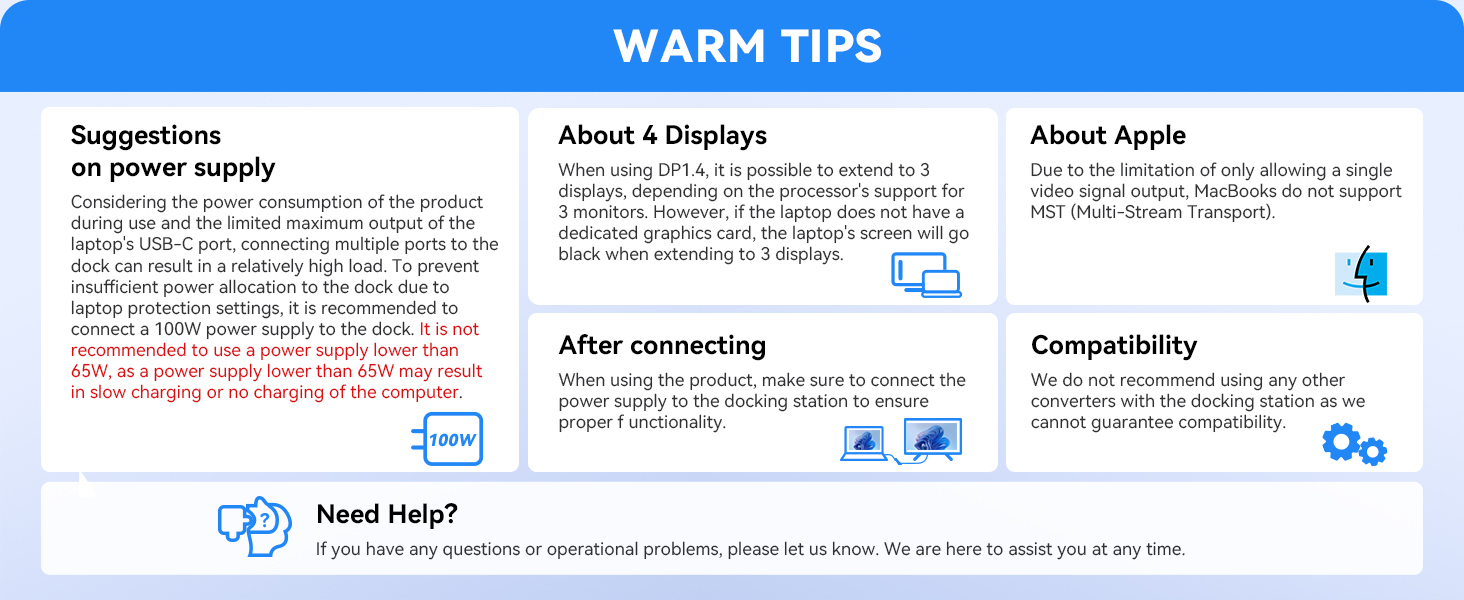
Image: A list of laptops and devices that are not compatible with the imokin USB C Docking Station.
6. Important Notes and Troubleshooting
- Power Supply: To prevent insufficient power allocation and ensure proper functionality, especially when connecting multiple ports, it is recommended to connect a 100W power supply to the dock. Using a power supply lower than 65W may result in slow charging or no charging of the computer.
- Display Limitations: When using DP1.4, it is possible to extend to 3 displays. However, if the laptop does not have a dedicated graphics card, the laptop's screen may go black when extending to 3 displays.
- macOS MST Limitation: Due to the limitation of only allowing a single video signal output, MacBooks do not support Multi-Stream Transport (MST).
- External Converters: We do not recommend using any other converters with the docking station as we cannot guarantee compatibility.
- HDMI DP Function: Not all USB-C port laptops support HDMI DP function. Confirm that your host device supports video output or DP Alt Mode for display functionality.

Image: A summary of important tips regarding power supply, display limitations, macOS compatibility, and the use of external converters.
7. Specifications
| Brand | imokin |
| Model Number | MOUC0516 |
| Hardware Interface | 2x HDMI, 1x VGA, 1x USB-C (PD), 1x USB-C 3.0 (Data), 2x USB-A 2.0 |
| Total Ports | 7 |
| Data Transfer Rate | USB-C 3.0: 5 Gbps, USB-A 2.0: 480 Mbps |
| Power Delivery | Up to 100W input, 87W output |
| Enclosure Material | Plastic |
| Item Weight | 0.1 Kilograms |
8. Warranty and Support
For warranty information or technical support, please refer to the product packaging or contact imokin customer service directly.