1. Introduction
Thank you for choosing the Bonsaii C277-C Cross-Cut Paper Shredder. This manual provides essential information for the safe and efficient operation, maintenance, and troubleshooting of your new shredder. Please read it thoroughly before use and retain it for future reference.
The Bonsaii C277-C is designed for home and small office use, offering P-4 security level cross-cut shredding for sensitive documents, credit cards, staples, and paper clips.
2. Important Safety Instructions
To reduce the risk of injury or damage, always follow basic safety precautions when using this product.
- Keep out of reach of children and pets.
- Keep loose clothing, jewelry, hair, and hands away from the paper entry slot.
- Do not spray any flammable products or lubricants into the shredder.
- Do not shred adhesive labels or items with glue, as this can cause jams and damage.
- Do not insert more than the specified maximum number of sheets (8 sheets of A4 80g/m²) at once.
- Unplug the shredder before moving, cleaning, or emptying the waste bin.
- Do not operate the shredder if the power cord is damaged.
- The shredder features a safety lock mechanism; ensure the shredder head is properly seated on the bin for operation.
3. Product Overview

Figure 1: Bonsaii C277-C Cross-Cut Paper Shredder. This image shows the overall design of the shredder, featuring a white body, a grey handle, and a transparent window on the waste bin to monitor shredded paper levels.
The Bonsaii C277-C is a compact and efficient cross-cut shredder designed for personal and small office use. Key features include:
- Shredding Capacity: Up to 8 sheets of A4 (80g/m²) paper per pass.
- Security Level: P-4 (cross-cut to 5x18mm particles).
- Shreds: Paper, credit cards, staples, and small paper clips.
- Waste Bin Capacity: 13 Liters with a transparent window.
- Overheat Protection: Automatic shutdown after 4 minutes of continuous operation.
- Safety Features: Auto-start/stop, manual reverse, and lid safety lock.
4. Setup
- Unpacking: Carefully remove the shredder from its packaging. Retain packaging materials for future transport or storage.
- Placement: Place the shredder on a flat, stable surface near a power outlet. Ensure there is adequate space around the unit for ventilation.
- Assemble Waste Bin: Ensure the 13L waste bin is clean and empty. Place the shredder head securely onto the waste bin. The shredder will not operate if the head is not correctly seated due to the safety interlock.
- Power Connection: Plug the power cord into a standard electrical outlet.
5. Operating Instructions
Control Panel
The control panel typically features a slide switch with three positions: FWD (Forward), AUTO (Automatic), and REV (Reverse).
- AUTO: The shredder is in standby mode. When paper is inserted, it will automatically start shredding.
- OFF: The shredder is powered off.
- REV: The shredder blades rotate in reverse, useful for clearing paper jams.
- FWD: The shredder blades rotate continuously forward, primarily used for clearing minor jams or for specific shredding tasks.
Shredding Documents

Figure 2: Powerful Shredding Performance. This image illustrates the shredder's capability to shred up to 8 sheets of A4 (80g) paper at once, with a continuous run time of 4 minutes.
- Set the slide switch to the AUTO position. The power indicator light should illuminate.
- Insert up to 8 sheets of A4 paper (80g/m²) straight into the paper entry slot. The shredder will automatically start and stop once shredding is complete.
- For shredding credit cards, insert one card at a time into the designated slot (if available, otherwise use the main paper entry).
- The shredder can also handle small staples and paper clips attached to documents.

Figure 3: High Security P-4 Level. This image demonstrates the 5x18mm cross-cut size, indicating the high security level of the shredded particles. It also shows that the shredder can process credit cards, staples, and paper clips.
6. Maintenance
Emptying the Waste Bin
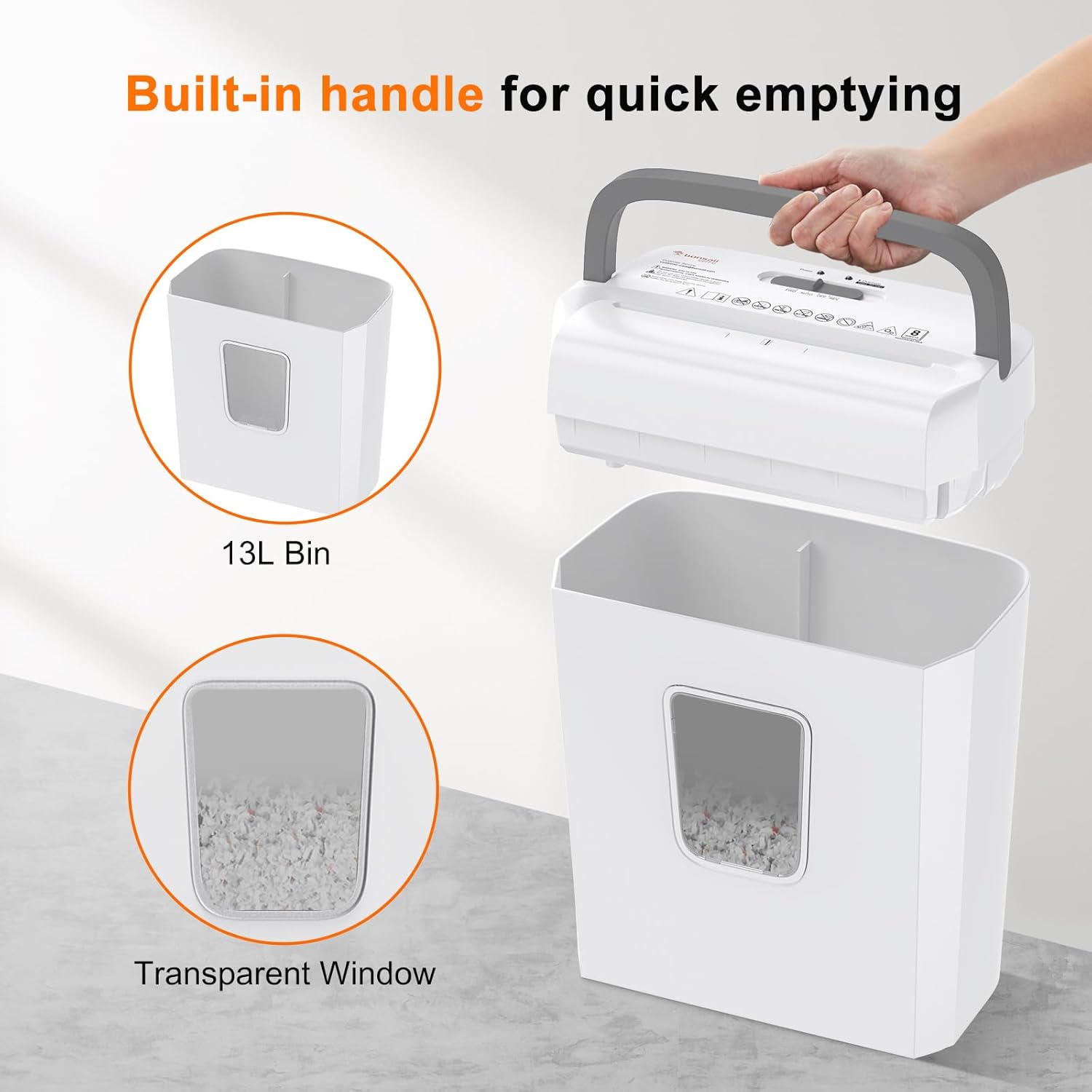
Figure 4: Built-in Handle for Quick Emptying. This image highlights the 13L waste bin with a transparent window and a convenient built-in handle on the shredder head for easy removal and emptying.
The 13L waste bin has a transparent window, allowing you to monitor the shredded paper level. Empty the bin regularly to prevent paper jams and ensure optimal performance.
- Set the slide switch to the OFF position and unplug the shredder from the power outlet.
- Lift the shredder head using the built-in handle.
- Carefully empty the shredded contents from the bin into a recycling receptacle.
- Replace the shredder head securely onto the waste bin.
- Plug the shredder back in.
Cleaning
Regular cleaning helps maintain the shredder's efficiency.
- Always unplug the shredder before cleaning.
- Wipe the exterior of the shredder with a soft, dry cloth. Do not use abrasive cleaners or solvents.
- Occasionally, use shredder oil sheets or liquid shredder oil (applied to a sheet of paper) to lubricate the cutting blades. Follow the instructions provided with the shredder oil.
7. Troubleshooting
Paper Jam
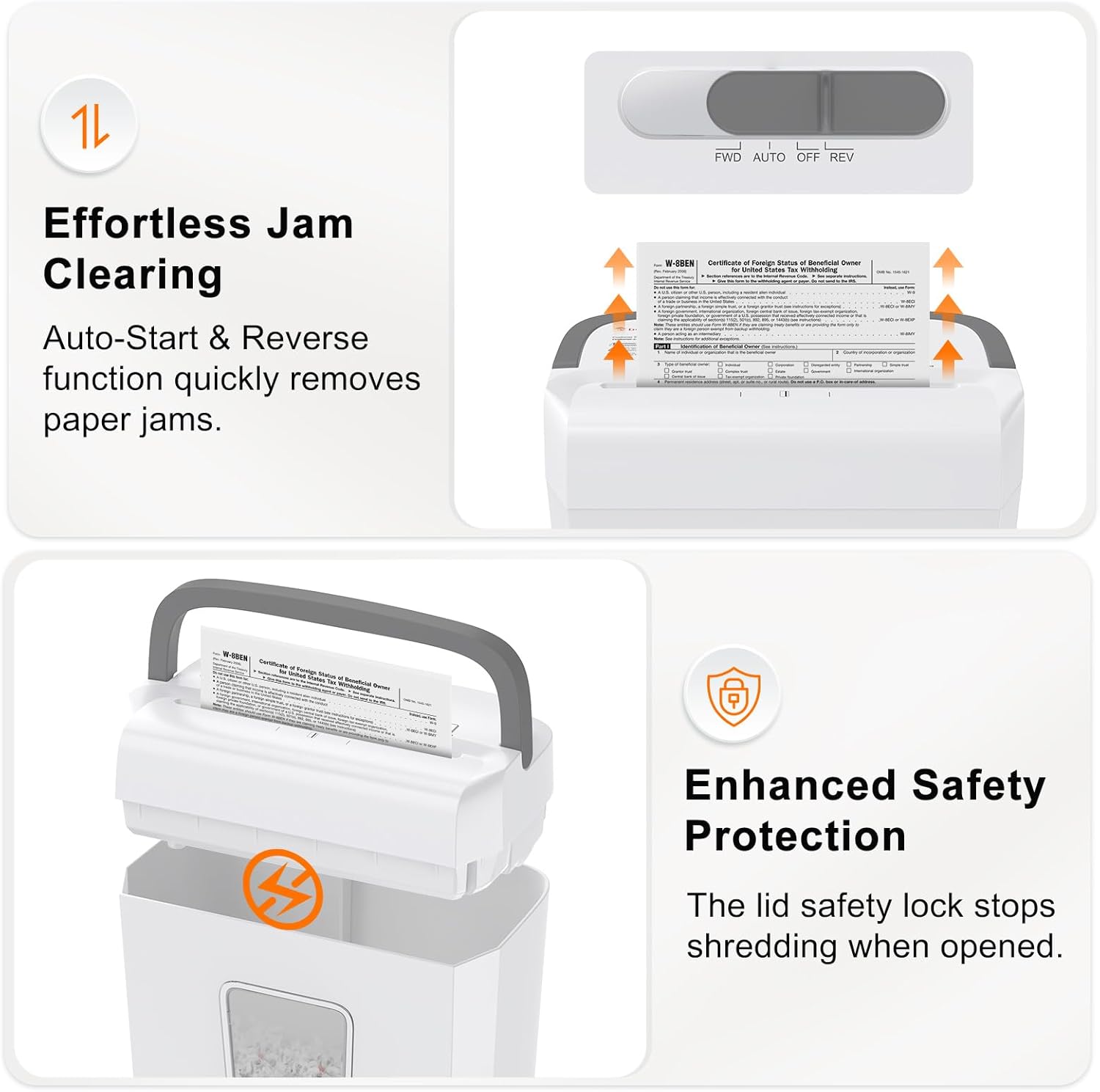
Figure 5: Effortless Jam Clearing and Enhanced Safety Protection. This image illustrates the auto-start and reverse function for quickly removing paper jams, and the lid safety lock that stops shredding when the head is opened.
If a paper jam occurs:
- Set the slide switch to the REV position. This will reverse the cutting blades, allowing you to pull the jammed paper out.
- If the paper does not clear, switch to FWD briefly, then back to REV. Repeat this cycle a few times.
- If the jam persists, unplug the shredder and carefully remove the shredder head. Manually clear any visible paper from the cutting blades using tweezers or pliers. Do not use your bare hands.
- Once cleared, replace the shredder head, plug it in, and resume operation.
Overheat Protection

Figure 6: Overheat Protection. This image shows the shredder's indicator lights, demonstrating that the shredder automatically stops after 4 minutes of continuous operation to prevent overheating. It indicates a 30-minute cooldown period.
The Bonsaii C277-C is equipped with an overheat protection system. If the shredder operates continuously for approximately 4 minutes, it will automatically shut down to prevent damage from overheating. The 'Overheat' indicator light will illuminate.
- If this occurs, turn the shredder off and unplug it.
- Allow the shredder to cool down for at least 30 minutes before resuming operation.
- After the cooling period, plug it back in, and the shredder should function normally.
8. Specifications
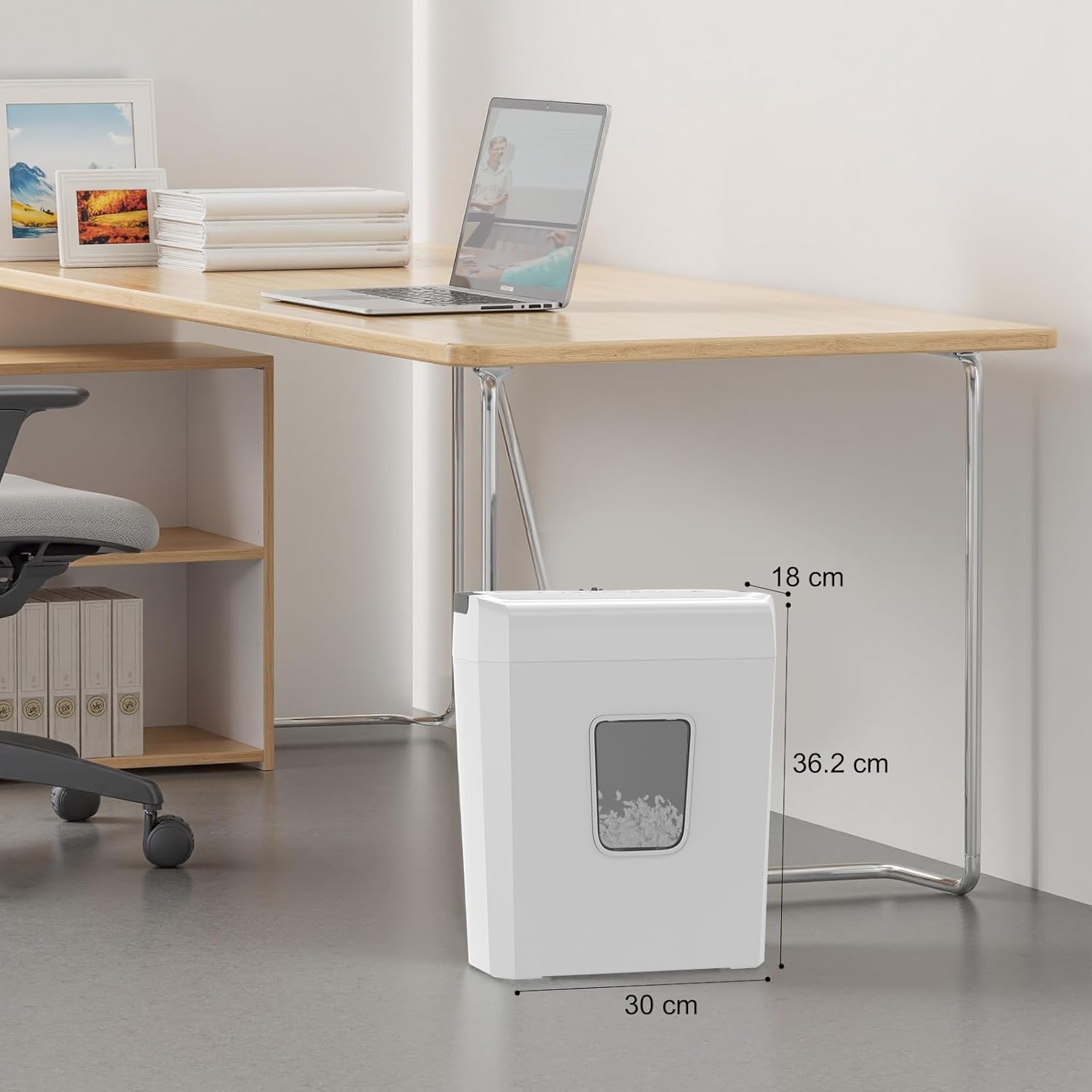
Figure 7: Bonsaii C277-C Dimensions. This image provides the physical dimensions of the shredder: 18 cm (depth) x 30 cm (width) x 36.2 cm (height).
| Feature | Specification |
|---|---|
| Brand | Bonsaii |
| Model Number | C277-C |
| Shredder Type | Cross-Cut |
| Shred Size | 5 x 18 mm |
| Security Level | P-4 |
| Sheet Capacity | 8 sheets (A4, 80g/m²) |
| Bin Capacity | 13 Liters |
| Continuous Run Time | 4 minutes |
| Cooldown Time | 30 minutes |
| Shreds | Paper, Credit Cards, Staples, Paper Clips |
| Special Features | Anti-jam, Auto Start/Stop, Manual Reverse, Portable, Safety Lock |
| Power Source | Electric Cord |
| Product Dimensions (D x W x H) | 18 cm x 30 cm x 36.2 cm |
9. Warranty and Support
For warranty information and customer support, please refer to the warranty card included with your product or visit the official Bonsaii website. Keep your purchase receipt as proof of purchase for any warranty claims.


