
1. Introduction
Thank you for choosing the Generic T10 Ultra Smartwatch Series 8. This manual provides essential information for setting up, operating, and maintaining your new smartwatch. Please read it carefully to ensure proper use and to fully utilize all its features.
2. Product Overview
The T10 Ultra Smartwatch Series 8 features a 49mm stunning large screen and a durable aluminum body. It is designed to assist you with health monitoring, fitness tracking, and communication.
2.1 Key Features
- 49mm large display
- Durable aluminum body with four screws and two strap locks
- ECG function, heart rate, blood pressure, blood oxygen, and sleep monitoring
- Bluetooth call and notification support (SMS, email, social media)
- Multiple sports modes for indoor and outdoor activities
- IP68 water resistance
- Stopwatch, music control, vibration support, NFC payments, and password protection
- Lithium-ion polymer battery
2.2 Included Components
- T10 Ultra Smartwatch Series 8
- Watch Strap
- Wireless Charger
- User Manual
2.3 Product Diagram
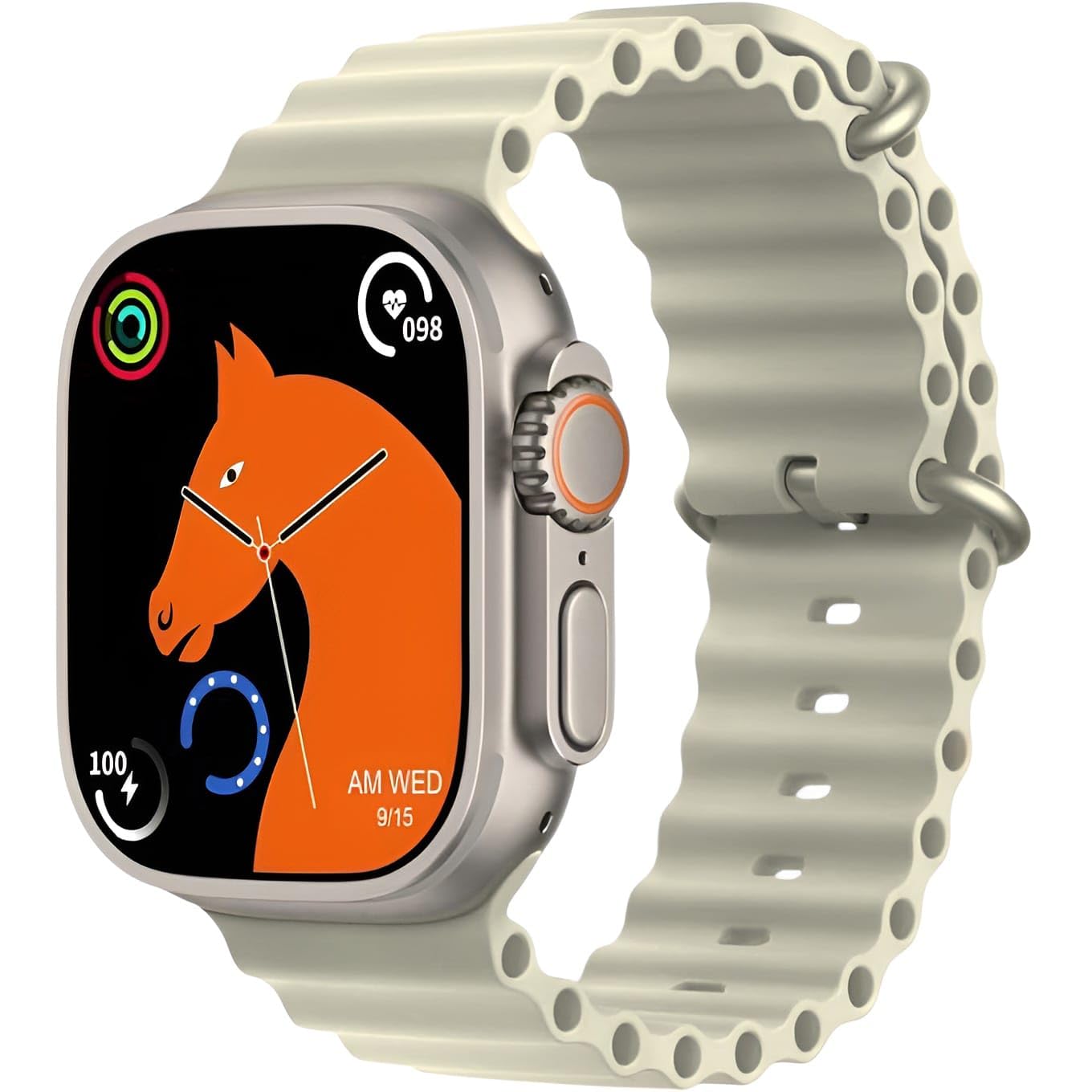
This image displays the T10 Ultra Smartwatch Series 8 in off-white. The watch features a large rectangular screen, a digital crown on the side, and a comfortable silicone strap. It highlights the sleek design and prominent display.
3. Setup
3.1 Initial Charging
Before first use, fully charge your smartwatch. Place the watch on the wireless charging pad. The screen will indicate charging status. A full charge typically takes 2-3 hours.
3.2 Power On/Off
- Power On: Press and hold the side button until the screen lights up.
- Power Off: Press and hold the side button, then select 'Power Off' on the screen.
3.3 Pairing with Your Smartphone
- Download the companion app (refer to the packaging or watch screen for app name) from your smartphone's app store.
- Ensure Bluetooth is enabled on your smartphone.
- Open the app and follow the on-screen instructions to create an account or log in.
- In the app, search for your smartwatch. Select 'T10 Ultra Series 8' from the list of available devices.
- Confirm the pairing request on both your smartphone and smartwatch.
4. Operating Instructions
4.1 Basic Navigation
- Touch Screen: Swipe left/right, up/down to navigate through menus and features. Tap to select.
- Side Button: Press to return to the home screen or wake the watch. Hold to access power options.
- Digital Crown: Rotate to scroll through lists or zoom in/out. Press to select or return to the previous screen.
4.2 Customizing Watch Faces
Long-press on the watch face to access watch face options. Swipe left or right to browse available designs and tap to select your preferred watch face. Additional watch faces may be available through the companion app.
5. Health Monitoring
The T10 Ultra Smartwatch provides various health monitoring features. For accurate readings, ensure the watch is worn snugly on your wrist.
5.1 Heart Rate Monitoring
Access the heart rate function from the main menu. The watch will automatically start measuring your heart rate. View real-time data on the watch screen or in the app.
5.2 Blood Pressure and Blood Oxygen (SpO2)
Navigate to the blood pressure or blood oxygen features. Remain still during measurement for best results. These measurements are for reference only and should not be used for medical diagnosis.
5.3 ECG Function
To use the ECG function, follow the instructions on the watch screen or in the companion app. This feature provides an electrocardiogram reading, which is for informational purposes and not a substitute for professional medical advice.
5.4 Sleep Tracking
Wear the smartwatch while sleeping to track your sleep patterns. The watch automatically detects sleep duration and quality, providing data on deep sleep, light sleep, and awake times in the companion app.
6. Communication & Notifications
6.1 Receiving Notifications
Once paired with your smartphone, the smartwatch will display notifications for incoming calls, SMS messages, emails, and various social media apps (e.g., Facebook, WhatsApp, WeChat). Ensure notification permissions are enabled in your phone's settings and the companion app.
6.2 Making and Answering Calls
You can make and answer calls directly from your smartwatch. When a call comes in, tap the answer icon on the watch screen. To make a call, access the dialer or contacts list on your watch.
7. Sports Modes
The smartwatch supports various sports modes to track your physical activity.
7.1 Indoor Sports
- Running
- Cycling
- Sit-ups
- Push-ups
- Free Movement
7.2 Outdoor Sports
- Walking
- Mountain Climbing
- Other Sports
In each mode, the watch tracks metrics such as steps, calories burned, and distance. Select your desired sport from the activity menu to begin tracking.
8. Other Features
8.1 IP68 Water Resistance
The smartwatch is IP68 rated for water resistance, meaning it can withstand dust and immersion in water up to 1.5 meters for 30 minutes. It is suitable for daily use and light water activities, but not recommended for swimming or diving.
8.2 Stopwatch
Access the stopwatch function from the menu to time activities.
8.3 Music Control
Control music playback on your paired smartphone directly from your watch. You can play, pause, skip tracks, and adjust volume.
8.4 Vibration Support
The watch provides vibration alerts for notifications, alarms, and other functions.
8.5 NFC Payments
The smartwatch supports NFC payments. Refer to the companion app or specific payment service instructions for setup and usage details.
8.6 Password Protection
Set a password on your smartwatch to protect your data and privacy. This can be configured in the watch settings.
9. Maintenance
9.1 Cleaning
Wipe the watch and strap regularly with a soft, dry cloth. For stubborn dirt, use a slightly damp cloth and then dry thoroughly. Avoid harsh chemicals or abrasive materials.
9.2 Storage
When not in use for extended periods, store the smartwatch in a cool, dry place. Ensure it has some charge to prevent deep discharge of the battery.
10. Troubleshooting
If you encounter issues with your smartwatch, try the following solutions:
- Watch not turning on: Ensure the watch is fully charged. Connect it to the wireless charger for at least 30 minutes.
- Cannot pair with smartphone: Make sure Bluetooth is enabled on your phone and the watch. Restart both devices and try pairing again. Check if the companion app has necessary permissions.
- Inaccurate health readings: Ensure the watch is worn snugly on your wrist, not too tight or too loose. Clean the sensors on the back of the watch.
- Notifications not appearing: Verify that notifications are enabled in your phone's settings and within the companion app. Ensure the watch is connected via Bluetooth.
- Short battery life: Reduce screen brightness, disable unnecessary features, and limit background app refresh.
If problems persist, consult the manufacturer's support resources or contact customer service.
11. Specifications
| Feature | Detail |
|---|---|
| Manufacturer | Generic |
| Country of Origin | China |
| Item Weight | 100 grams |
| ASIN | B0DRTLGS96 |
| Special Features | Email notifications |
| Connectivity Technology | Bluetooth |
| Brand Name | Generic |
| Color | Off-White |
| Included Components | Strap, Smartwatch, Wireless Charger |
12. Safety Information
- Do not attempt to disassemble or modify the smartwatch.
- Keep the device away from extreme temperatures, direct sunlight, and open flames.
- Avoid exposing the watch to strong impacts or drops.
- The health monitoring features are for general wellness and fitness purposes only and are not intended for medical diagnosis, treatment, or prevention of any disease. Consult a medical professional for health-related concerns.
- Keep the watch and its accessories out of reach of children.
- Use only the provided wireless charger or a compatible charger.
13. Warranty and Support
Specific warranty details and customer support contact information are not provided in the product data. Please refer to the product packaging, the seller's website, or contact the retailer for information regarding warranty coverage and technical support for your Generic T10 Ultra Smartwatch Series 8.