
1. Product Overview
The ZTUZAUTO Wireless CarPlay/Android Auto Retrofit Kit is designed to integrate advanced smartphone connectivity into your vehicle's original infotainment system without replacing the OEM screen. This kit enables wireless Apple CarPlay, wireless Android Auto, and mirroring functionalities, enhancing your driving experience with navigation, communication, and entertainment features.

Image: The ZTUZAUTO Wireless CarPlay/Android Auto Retrofit Kit module shown above a car's dashboard, illustrating how the system integrates with the original screen to display smartphone interfaces.
2. Compatibility
This retrofit kit is specifically designed for select Acura and Honda Odyssey models with dual-screen systems. Please verify your vehicle's model and year against the list below to ensure compatibility.

Image: A table detailing compatible car models and years, including Acura RDX, MDX, RLX, ILX, TLX, and Honda Odyssey, all requiring dual-screen versions.
Supported Models (Dual-Screens Version):
- Acura RDX (2014-2018)
- Acura MDX (2014-2018)
- Acura RLX (2013-2015)
- Acura ILX (2015-2018)
- Acura TLX (2015-2019)
- Honda Odyssey (2015-2018)
Important: Always check your car's screen configuration to ensure it matches the dual-screen requirement for this kit.
3. Package Contents
Upon opening the package, please verify that all the following components are included:
- CarPlay Box (Main Unit)
- Power Cable
- WiFi Antenna
- LVDS OUT&IN Cable
- Microphone Adapter Cable
- Installation Manual & Tool
- Magic Sticker

Image: Visual representation of the CarPlay box and its included accessories, along with a diagram showing the dimensions of the main unit.
4. Installation Guide
The ZTUZAUTO Wireless CarPlay/Android Auto Retrofit Kit is designed for a plug-and-play installation, requiring no cutting or breaking of original wires. It integrates seamlessly with your vehicle's existing wiring.
Precautions Before Installation:
- Before placing an order, ensure your car's model and year are compatible.
- Refer to the provided installation manual for the specific wiring diagram and dial code that matches your car's model.
- After installation, confirm that all functions of the module operate normally before reassembling the dashboard to avoid inconvenience.
Installation Steps Overview:
- Access the vehicle's infotainment system area, typically behind the dashboard.
- Disconnect necessary original cables and connect them to the CarPlay box using the provided adapter cables.
- Connect the CarPlay box to the vehicle's system. The design ensures a direct fit without modification to original wiring.
- Secure the CarPlay box and route cables neatly.
- Test the system before fully reassembling the dashboard.
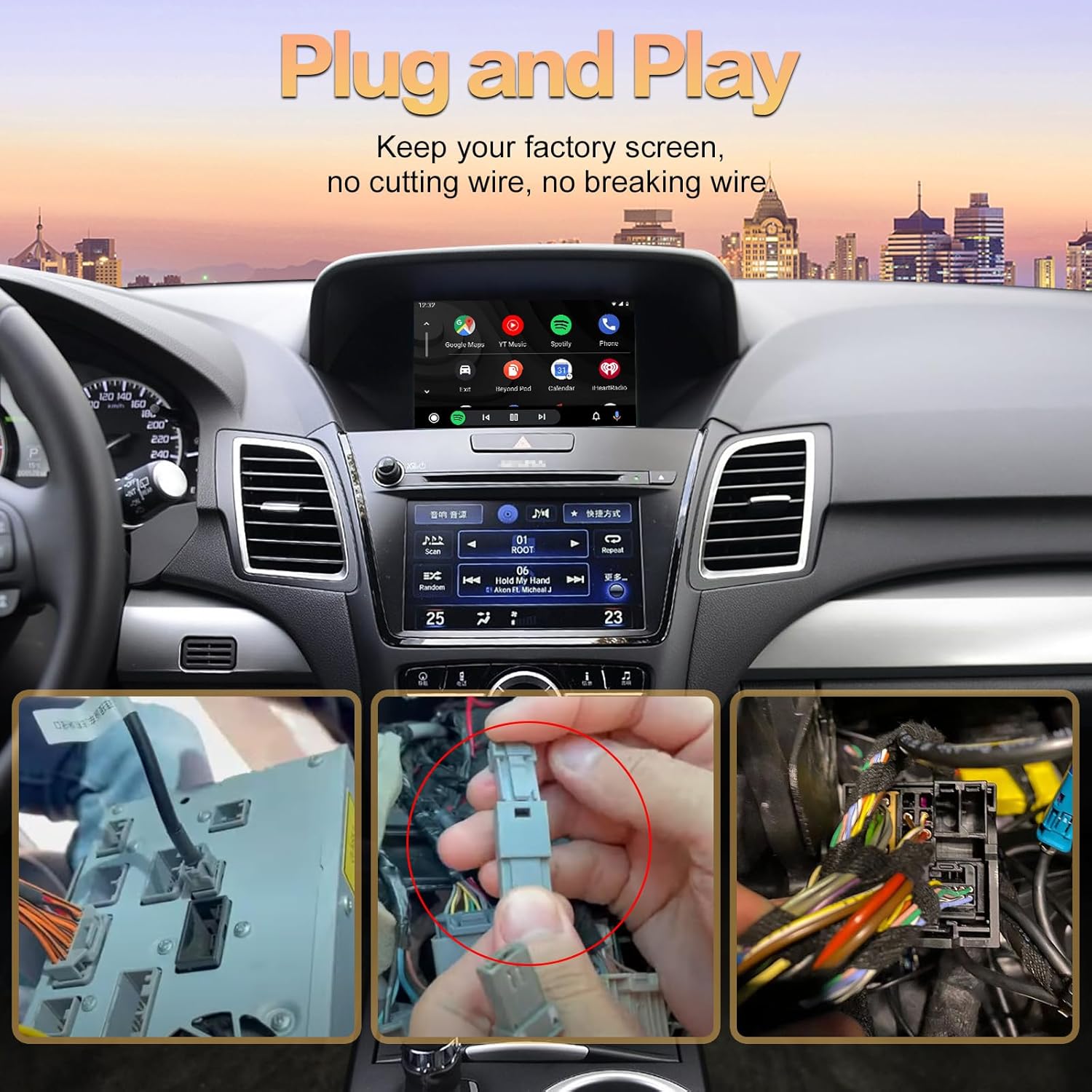
Image: A visual guide demonstrating the plug-and-play nature of the installation, showing cable connections without cutting wires.
Connecting Aftermarket Cameras:
The kit supports aftermarket reverse, front, and 360-degree cameras (AHD 720P, CVBS). For original backup cameras, no connection is needed; simply select "Factory Camera" in the settings.
For manual transmission vehicles, the reversing detection line needs to be connected to the car taillight 12V power supply.

Image: Instructions for connecting aftermarket cameras and configuring the audio output via AUX, including settings for original backup cameras.
5. Operating Instructions
Once installed, the retrofit kit allows you to seamlessly switch between your car's original system and the CarPlay/Android Auto interface.
Switching Between Systems:
To enter the CarPlay/Android Auto interface, press and hold the designated button (refer to your specific car model's instructions, often the "INFO" or "MENU" button) for approximately 2 seconds.

Image: A visual comparison of the car's display before and after installation, showing how to switch to the CarPlay interface by long-pressing a button.
Wireless Connectivity:
Establish a wireless connection with your smartphone via Wi-Fi and Bluetooth to utilize Apple CarPlay or Android Auto features. This allows access to phone contacts, music, navigation, and other applications.

Image: Diagram illustrating the wireless connection process via Wi-Fi and Bluetooth for both Apple CarPlay and Android Auto.
Key Features:
- Wireless/Wired Apple CarPlay & Android Auto: Access navigation, make calls, send messages, and play music directly from your phone on the car's screen.
- Wireless Airplay (iOS) / Wired AutoLink (Android): Mirror your phone's screen to the car display for viewing videos, photos, and other content.
- Reverse & Front & 360 Camera Support: Integrates with factory parking radar and supports aftermarket cameras (AHD 720P, CVBS). Dynamic guidance lines are supported with a front-facing camera DVR.
- USB Multimedia Playback: Play lossless audio, 720P video, and display pictures via USB.
- Original Car Functionality Retention: Supports original car MIC, steering wheel controls (volume, track skip), and central control panel for navigation and app control.
- Intelligent Voice System: Utilize Google Assistant or Siri for hands-free control of navigation, calls, music, and more.
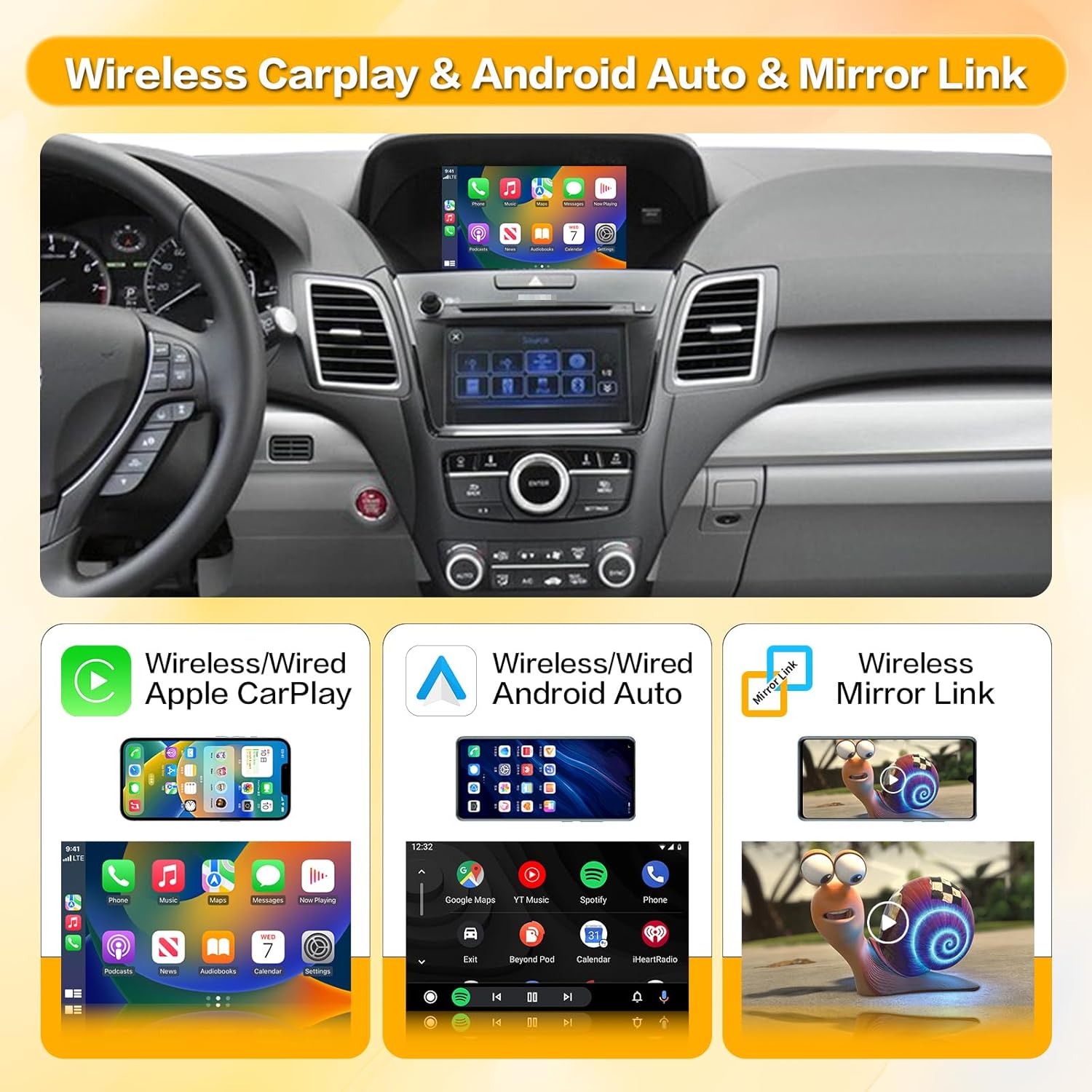
Image: A composite image showcasing the interfaces for Wireless Apple CarPlay, Wireless Android Auto, and Wireless Mirror Link on the car's display.

Image: An illustration of various popular applications like music streaming, navigation, and communication apps integrated into the car's display.

Image: Close-up views of the Music, Messages, Maps, and Phone interfaces as they appear on the car's screen through CarPlay.

Image: A panoramic view of a car's dashboard with numerous app icons floating above, signifying broad application support.

Image: Diagrams highlighting how the original steering wheel buttons and central control panel can be used to manage the CarPlay functions.

Image: A split-screen view demonstrating the use of Siri for Apple CarPlay and Google Assistant for Android Auto, showing voice commands and responses.
6. Troubleshooting
No Sound via AUX:
If you are using the AUX input for audio and experience no sound, you must set your car's original audio source to "AUX". Additionally, you may need to adjust settings within the CarPlay system:
- Disconnect Bluetooth between your phone and your car.
- Select the audio source of original car media to AUX.
- Access the Settings interface in the CarPlay system: Factory Mode > Phone Link Setting > Turn off the "Disable phone link audio" option > Reboot.
- Alternatively, after setting the car's audio to AUX, pair your smartphone with the original vehicle's Bluetooth. Select the original car Bluetooth for both phone and music sound sources in the original car media settings.
Image: Visual instructions for resolving no-sound issues when using AUX input and details on camera wiring.
General Connectivity Issues:
- Ensure your phone's Wi-Fi and Bluetooth are enabled and correctly paired with the CarPlay kit.
- Restart both your phone and the car's infotainment system.
- Verify that the CarPlay box has stable power and all cables are securely connected.
7. Specifications
| Feature | Detail |
|---|---|
| Item Weight | 2.42 pounds (1.1 Kilograms) |
| Package Dimensions | 8.78 x 5.83 x 3.88 inches |
| Model Number | For Acura MDX |
| Display Size Supported | 7 Inches (Original Car Screen) |
| Voice Command | Microphone (Siri, Google Assistant) |
| Connectivity Technology | Bluetooth, Wi-Fi |
| Special Features | Equalizer, Pandora, Spotify support, Mirroring, Camera Input |
| Mounting Type | Dashboard Mount (Internal) |
| Included Components | CarPlay box and all necessary cables |
8. Warranty and Support
ZTUZAUTO provides a 2-year warranty for this Wireless CarPlay Retrofit Kit.
For any questions regarding operation or installation, video operating and installation instructions are available. Please contact ZTUZAUTO customer support for technical assistance. We aim to respond to all inquiries within one business day.
