Download PDFFree PDF. The Save button below keeps a bookmark and private notes in your account.
Motorola G64 5G Smartphone User Manual
Model: XT2431-1
Introduction
Welcome to the user manual for your new Motorola G64 5G smartphone. This guide provides essential information on setting up, operating, maintaining, and troubleshooting your device. The Motorola G64 5G is designed for powerful performance and a seamless user experience, featuring a MediaTek Dimensity 7025 processor, a 50MP OIS camera, and a long-lasting 6000mAh battery.
Please read this manual thoroughly to ensure optimal use of your device.
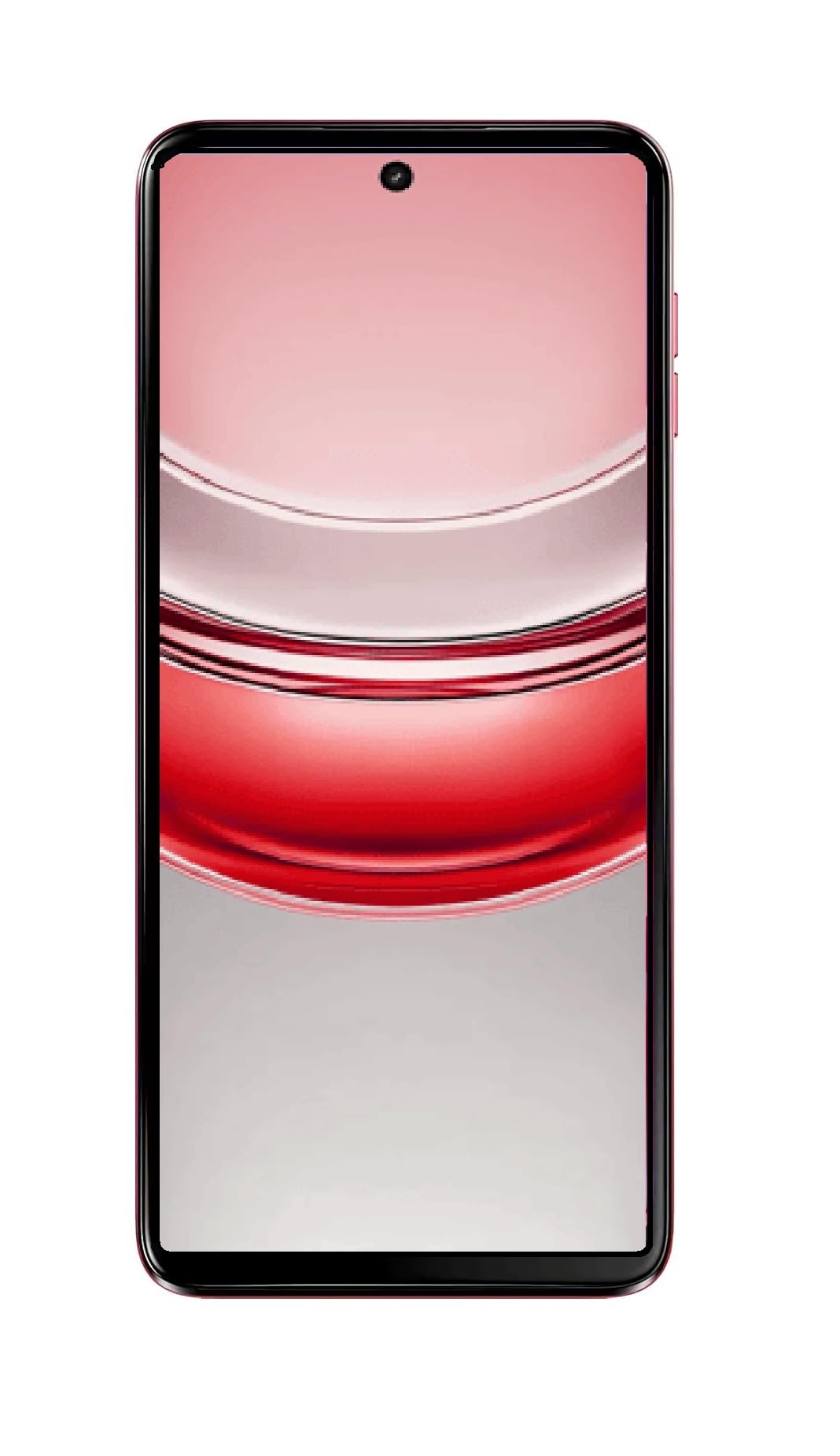
Image: The Motorola G64 5G smartphone, showcasing its sleek design and Red Berry finish from a slight angle, with the screen displaying the time.
Setup Guide
1. Unboxing and Initial Inspection
Carefully remove all items from the packaging. Verify that the following components are present:
Motorola G64 5G Smartphone
Charger (adapter and USB cable)
SIM Ejector Tool
Quick Start Guide (this manual provides more detail)
Inspect the device for any physical damage. If any components are missing or damaged, contact customer support immediately.
2. Inserting SIM and microSD Cards
Locate the SIM tray on the side of your phone.
Insert the SIM ejector tool into the small hole on the SIM tray and press firmly until the tray pops out.
Place your Nano-SIM card(s) and/or microSD card into the tray with the gold contacts facing down, ensuring they are correctly aligned. The device supports Dual SIM and expandable storage up to 2TB.
Gently push the tray back into the phone until it clicks into place.
Image: Left side view of the Motorola G64 5G, highlighting the location of the SIM card tray slot.
3. Charging the Battery
Before first use, it is recommended to fully charge your device. Use only the charger provided with your phone or a Motorola-approved charger.
Connect the USB cable to the charging adapter.
Plug the adapter into a power outlet.
Connect the USB-C end of the cable to the charging port at the bottom of your phone.
The battery indicator on the screen will show the charging status.
The Motorola G64 5G features a 6000mAh battery with fast charging support.
Image: Bottom view of the Motorola G64 5G, displaying the USB-C charging port and speaker grille.
4. Powering On and Initial Configuration
Press and hold the Power button (located on the right side) until the Motorola logo appears.
Follow the on-screen instructions to complete the initial setup, including selecting your language, connecting to Wi-Fi, setting up your Google account, and configuring security features.
Image: Right side view of the Motorola G64 5G, showing the power button (which also functions as a fingerprint sensor) and volume rocker.
Operating Your Device
1. Basic Navigation
Touchscreen Gestures: Tap to select, swipe to scroll, pinch to zoom.
Home Screen: Access apps, widgets, and notifications.
Notification Panel: Swipe down from the top of the screen to view notifications and quick settings.
App Drawer: Swipe up from the bottom of the screen to access all installed applications.
2. Camera Features
The Motorola G64 5G is equipped with a versatile camera system:
Rear Camera: 50MP main sensor with Optical Image Stabilization (OIS) for sharp, stable photos, and an 8MP ultra-wide lens for broader scenes.
Front Camera: 16MP for high-quality selfies and video calls.
To use the camera:
Open the Camera app from your home screen or app drawer.
Select your desired mode (Photo, Video, Portrait, Ultra-wide, etc.).
Tap the shutter button to capture a photo or start/stop recording a video.
Image: Rear view of the Motorola G64 5G, highlighting the dual camera module with 50MP OIS and Quad Pixel branding.
3. Battery Management
Your Motorola G64 5G comes with a 6000mAh battery for extended usage. To optimize battery life:
Adjust screen brightness.
Enable Battery Saver mode when needed.
Close unused apps running in the background.
Disable Wi-Fi, Bluetooth, and GPS when not in use.
4. Storage and Performance
The device offers 128GB of internal storage, expandable up to 2TB via microSD card. It also features 8GB RAM with RAM Boost technology, allowing expansion up to 24GB for enhanced multitasking.
Manage Storage: Regularly check your storage usage in Settings > Storage and delete unnecessary files or apps.
RAM Boost: This feature automatically optimizes RAM usage for smoother performance. You can manage it in Settings.
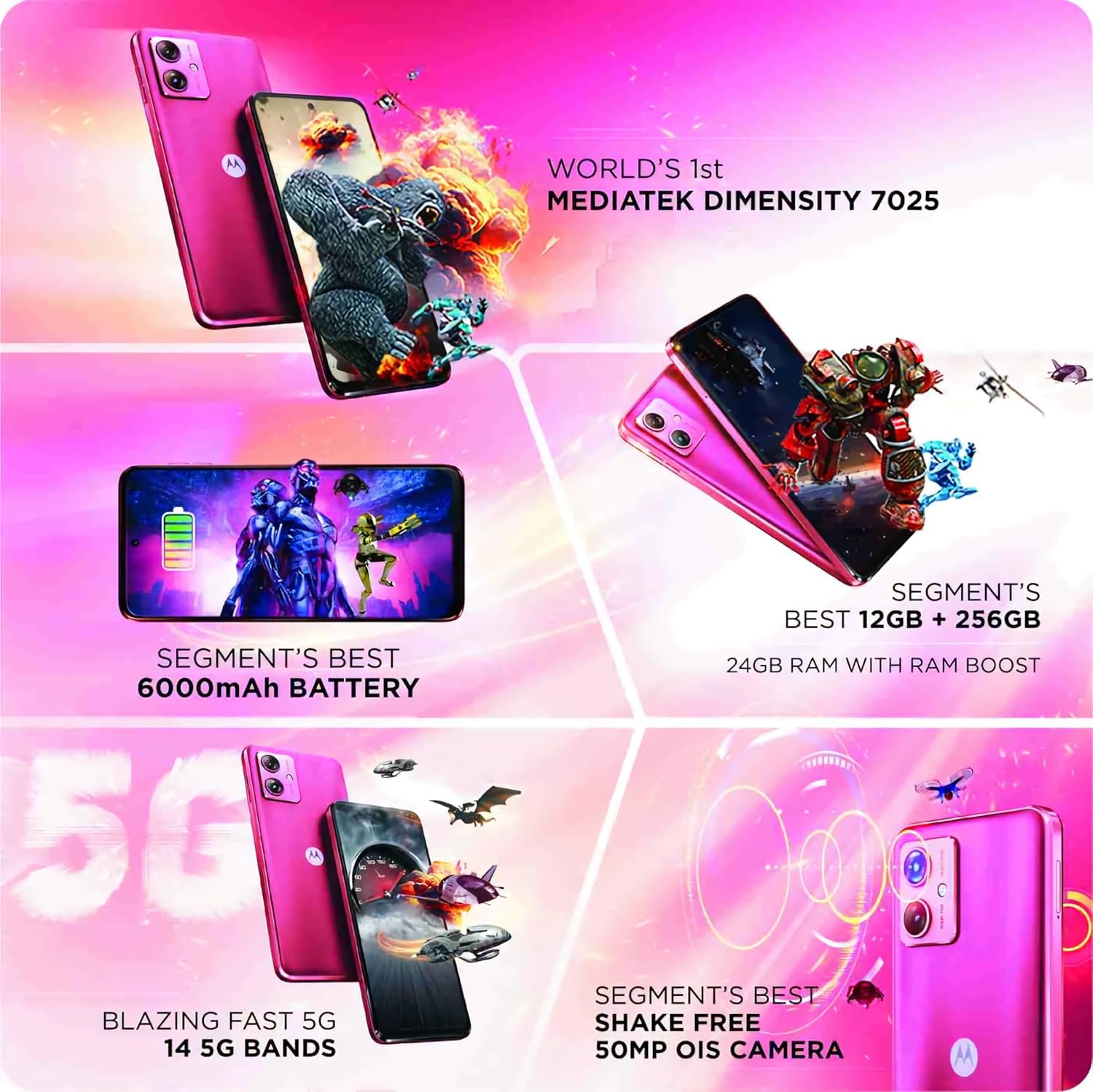
Image: A collage highlighting key features of the Motorola G64 5G, including the MediaTek Dimensity 7025 processor, 6000mAh battery, 24GB RAM with RAM Boost, 14 5G bands, and 50MP OIS camera.
5. Connectivity
Your device supports 5G connectivity for faster internet speeds, along with Wi-Fi and Bluetooth for local connections.
5G Network: Ensure your SIM card supports 5G and you are in a 5G coverage area.
Wi-Fi: Go to Settings > Network & internet > Wi-Fi to connect to available networks.
Bluetooth: Go to Settings > Connected devices > Bluetooth to pair with other Bluetooth devices.
Maintenance and Care
1. Cleaning Your Device
Use a soft, lint-free cloth to clean the screen and body of the phone.
Avoid using harsh chemicals, abrasive cleaners, or aerosol sprays.
For stubborn smudges, slightly dampen the cloth with water or a screen cleaner specifically designed for electronics.
2. Software Updates
Keep your device's software up to date to ensure optimal performance, security, and access to new features. You will receive notifications for available updates. To manually check for updates, go to Settings > System > System updates.
3. Battery Care
Avoid exposing the phone to extreme temperatures (very hot or very cold).
Do not leave the phone charging for excessively long periods after it's fully charged.
Use only original or certified chargers and cables.
Troubleshooting
Device Not Powering On
Ensure the battery is charged. Connect the charger and wait a few minutes before attempting to power on.
Press and hold the Power button for at least 10-15 seconds to perform a forced restart.
Charging Issues
Check if the charger and USB cable are securely connected to both the phone and the power outlet.
Try using a different charger and cable to rule out faulty accessories.
Inspect the charging port for any debris or damage.
Network/Connectivity Problems
No Signal/Poor Signal: Ensure your SIM card is correctly inserted. Try restarting the phone. Check if you are in a network coverage area.
Wi-Fi Connection Issues: Restart your Wi-Fi router. Forget the network on your phone and reconnect.
Bluetooth Pairing Issues: Ensure both devices are in pairing mode and within range. Try restarting both devices.
Camera Not Working
Restart the phone.
Clear the cache and data of the Camera app (Settings > Apps > Camera > Storage & cache).
Ensure no other app is currently using the camera.
Performing a Factory Reset
If you encounter persistent issues, a factory reset may resolve them. Warning: This will erase all data on your phone. Back up important data before proceeding.
Go to Settings > System > Reset options.
Select "Erase all data (factory reset)".
Confirm your decision and follow the on-screen prompts.
Technical Specifications
Model Number
XT2431-1
Operating System
Android 14
Processor
MediaTek Dimensity 7025
RAM
8 GB (Expandable up to 24 GB with RAM Boost)
Internal Storage
128 GB
Expandable Storage
Up to 2 TB via microSD card
Display
6.7-inch Full HD+ (1920 x 1080 resolution)
Rear Camera
50MP (OIS) + 8MP (Ultra-wide)
Front Camera
16MP
Battery Capacity
6000 mAh (Typical)
Connectivity
5G, Wi-Fi, Bluetooth, GPS
SIM Type
Dual Nano-SIM
Dimensions (LxWxH)
16.18 x 7.43 x 0.86 cm
Weight
420 g
Audio Jack
No headphone jack
Color
Berry Red
Warranty Information
Your Motorola G64 5G smartphone comes with a limited manufacturer's warranty. The specific terms and conditions of the warranty may vary by region and retailer. Please refer to the warranty card included in your product packaging or visit the official Motorola website for detailed information regarding warranty coverage, duration, and service procedures.
Keep your proof of purchase (receipt or invoice) as it will be required for any warranty claims.
Customer Support
For further assistance, technical support, or service inquiries, please contact Motorola customer support. You can find contact information and frequently asked questions (FAQs) on the official Motorola support website.
Ask about setup, troubleshooting, compatibility, parts, safety, or missing instructions. Manuals+ will review the question and use this page’s manual context to help answer it.