
1. Introduction
Thank you for purchasing the REES52 FLYSKY FS-SM600 6CH USB Powered Controller. This advanced 6-channel controller is designed to provide a realistic and immersive experience for virtual pilots using flight simulator software. Equipped with the SuperSimX simulator, the FS-SM600 offers precise control and authentic feedback, making it ideal for both beginners learning flight basics and experienced virtual pilots. This manual provides detailed instructions on setting up, operating, and maintaining your controller.
2. Package Contents
Please verify that all items listed below are included in your package:
- 1 x FLYSKY FS-SM600 6CH USB Powered Controller
- 1 x Attached USB Cable
3. Product Overview
The FS-SM600 controller features a layout mirroring professional RC transmitters, aiding in the development of muscle memory transferable to real RC flying. Below are key components and their functions.
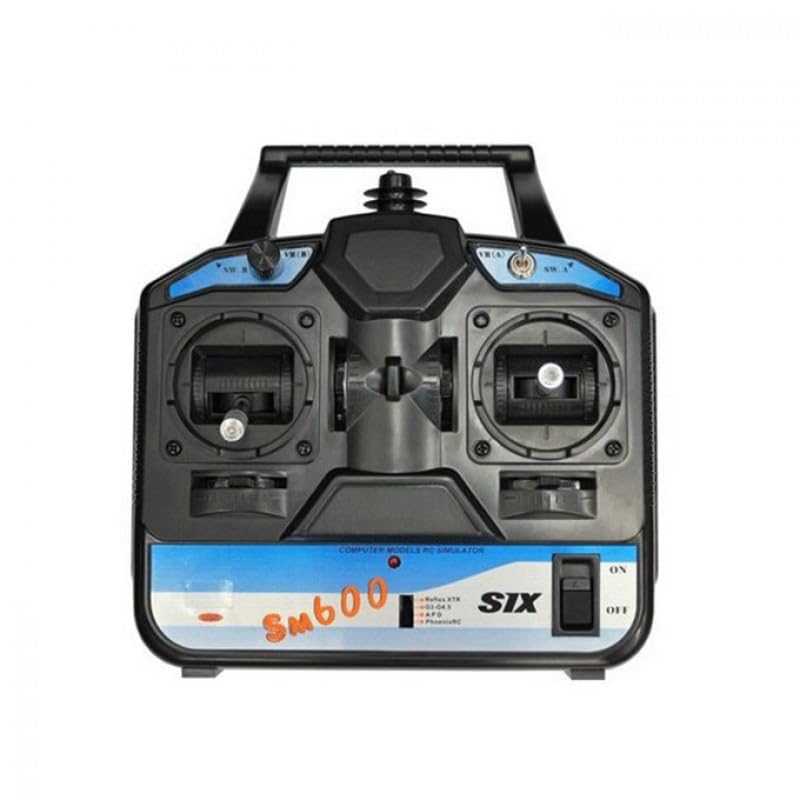
Figure 3.1: Front view of the FS-SM600 controller. This image displays the main control sticks (gimbals), various switches (SW A, SW B), and rotary potentiometers (VR A, VR B) on the top panel. The "ON/OFF" switch is visible on the right side, and the "SM600" model designation is clearly printed on the blue and black casing.
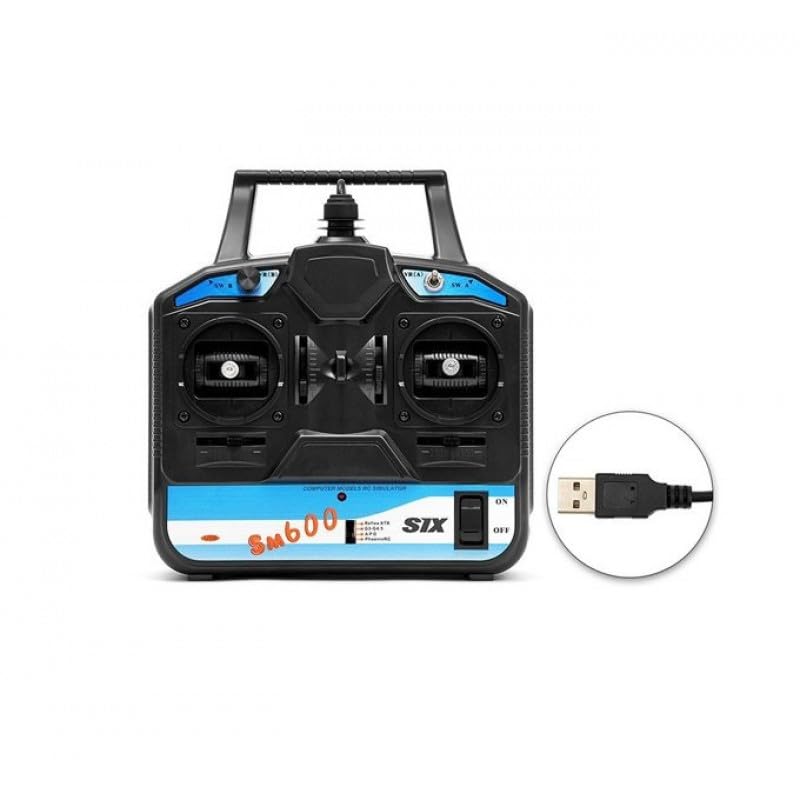
Figure 3.2: Front view of the FS-SM600 controller, highlighting the USB cable connection. An inset shows a close-up of the standard USB-A connector, emphasizing the plug-and-play nature of the device. The main body of the controller shows the gimbals and switches, with the USB cable extending from the top.
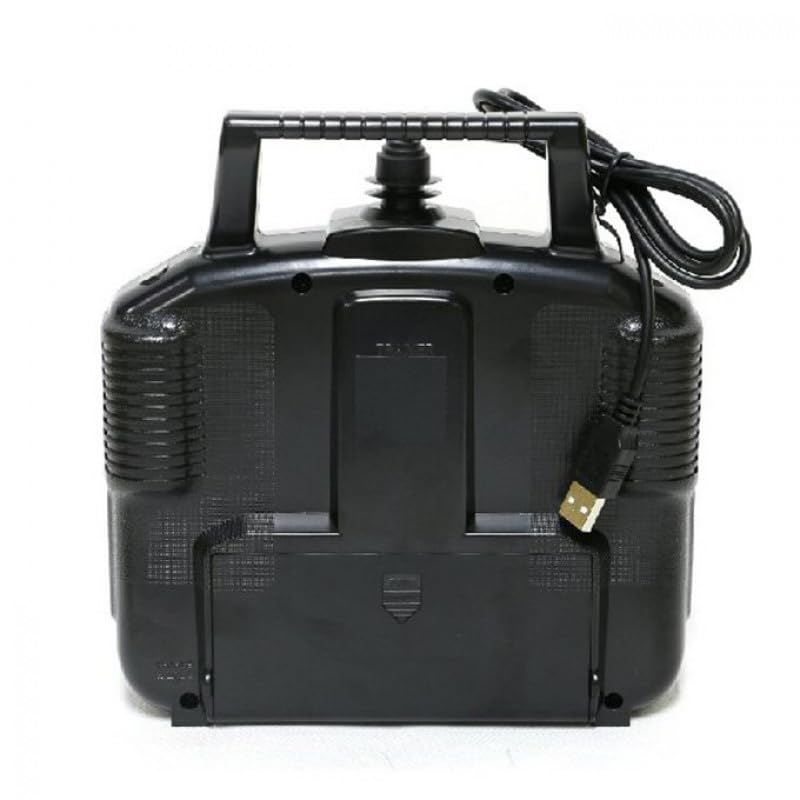
Figure 3.3: Rear view of the FS-SM600 controller. This perspective shows the ergonomic design of the back casing, including textured grips for comfortable handling. The attached USB cable is visible extending from the top, and a battery compartment cover (though not used for power in this USB-powered model) is present at the bottom.
Key Components:
- Gimbals (Control Sticks): Provide precise control over aircraft movements (throttle, aileron, elevator, rudder). Configured in Mode 2.
- Switches (SW A, SW B): Assignable switches for various functions within the simulator.
- Rotary Potentiometers (VR A, VR B): Adjustable knobs for fine-tuning simulator parameters.
- USB Cable: Integrated cable for power and data connection to your computer.
- Power Switch (ON/OFF): Controls the power to the controller.
4. Setup Instructions
Follow these steps to set up your FS-SM600 controller:
- Connect to Computer: Plug the USB cable of the FS-SM600 controller into an available USB port on your computer. The controller is USB-powered and does not require an external power source.
- Power On: Flip the "ON/OFF" switch on the controller to the "ON" position.
- Driver Installation: Your operating system (Windows 10, 8, 7, Vista, XP) should automatically detect and install the necessary drivers. If prompted, allow the system to search for and install drivers.
- Simulator Software: Install your preferred flight simulator software (e.g., SuperSimX, Reflex XTR, G3~G4.5, APD, PhoenixRC). Ensure the software is compatible with USB controllers.
- Calibration: Once the controller is recognized by your computer and simulator software, navigate to the controller settings or calibration menu within the simulator. Follow the on-screen instructions to calibrate the gimbals and switches for optimal performance.
5. Operating Instructions
The FS-SM600 operates in Mode 2 configuration. Familiarize yourself with the control layout:
- Left Stick (Mode 2):
- Vertical Movement: Controls Throttle (power/altitude).
- Horizontal Movement: Controls Rudder (yaw/directional control).
- Right Stick (Mode 2):
- Vertical Movement: Controls Elevator (pitch/nose up/down).
- Horizontal Movement: Controls Aileron (roll/wing tilt).
- Switches (SW A, SW B): These are typically used for auxiliary functions such as landing gear, flaps, or flight modes, depending on the simulator and aircraft model. Refer to your simulator's documentation for specific assignments.
- Rotary Potentiometers (VR A, VR B): Can be assigned to fine-tune various parameters like trim, gain, or other auxiliary controls within the simulator.
Always start your simulation sessions with the throttle stick in the lowest position to prevent unexpected acceleration. Practice basic maneuvers before attempting complex flight patterns.
6. Compatibility
The FS-SM600 controller is compatible with a wide range of operating systems and flight simulators:
- Operating Systems: Windows 10, Windows 8, Windows 7, Windows Vista, Windows XP (both 32-bit and 64-bit versions).
- Simulators: SuperSimX, Reflex XTR, G3~G4.5, APD, PhoenixRC.
For optimal performance, ensure your simulator software is updated to the latest version.
7. Maintenance
To ensure the longevity and optimal performance of your FS-SM600 controller, follow these maintenance guidelines:
- Cleaning: Use a soft, dry cloth to wipe the surface of the controller. For stubborn dirt, slightly dampen the cloth with water. Avoid using harsh chemicals or abrasive cleaners.
- Storage: Store the controller in a cool, dry place away from direct sunlight and extreme temperatures. Keep it free from dust and moisture.
- Cable Care: Do not bend or crimp the USB cable excessively. Always grasp the plug, not the cable, when disconnecting from your computer.
- Avoid Impact: Protect the controller from drops or impacts, as this can damage internal components or the gimbals.
8. Troubleshooting
If you encounter issues with your FS-SM600 controller, refer to the following common problems and solutions:
| Problem | Possible Cause | Solution |
|---|---|---|
| Controller not recognized by computer. | USB connection issue, driver problem, controller not powered on. |
|
| Controls are unresponsive or erratic in simulator. | Incorrect calibration, simulator settings, conflicting software. |
|
| Simulator does not detect the controller. | Simulator compatibility, outdated simulator software. |
|
9. Specifications
| Brand Name | FLYSKY (Product by REES52) |
| Model Number | FS-SM600 |
| Channels | 6CH |
| Power Source | USB Powered |
| Control Mode | Mode 2 |
| Model Type | Heli/Glid/Airplane |
| Compatibility (OS) | Windows 10, 8, 7, Vista, XP (32 & 64 bit) |
| Compatible Simulators | SuperSimX, Reflex XTR, G3~G4.5, APD, PhoenixRC |
| Product Dimensions | 5 x 4 x 3 cm |
| Item Weight | 100 g |
| Country of Origin | China |
| Manufacturer | FLYSKY |
10. Warranty and Support
For warranty information and technical support, please refer to the documentation provided with your purchase or contact the retailer where the product was acquired. Keep your proof of purchase for any warranty claims.
