1. Introduction
This manual provides comprehensive instructions for the installation, operation, and maintenance of your Sapphire Pulse AMD Radeon RX 9070 XT Gaming Graphics Card. Please read this manual thoroughly before installation and use to ensure proper functionality and to prevent damage.
The Sapphire Pulse AMD Radeon RX 9070 XT is a high-performance graphics card designed for gaming and demanding graphical applications, featuring 16GB of GDDR6 memory, AMD RDNA 4 Architecture, and support for AMD FidelityFX Super Resolution 4 with AI Upscaling.
2. Package Contents
Verify that all items are present in the package. Typical contents include:
- Sapphire Pulse AMD Radeon RX 9070 XT Graphics Card
- Quick Installation Guide (this manual)
- Driver CD/DVD (or instructions for download)
- Additional accessories (e.g., power adapters, if required and not integrated)

Image 1: Front view of the Sapphire Pulse AMD Radeon RX 9070 XT retail packaging. The box features the Sapphire logo, Pulse branding, AMD Radeon RX 9070 XT model name, and indicates 16GB of memory with HDMI support.
3. System Requirements
Before installing the graphics card, ensure your system meets the following minimum requirements:
- PCI Express-compliant motherboard with one x16 graphics slot.
- Minimum Power Supply Unit (PSU): Consult your PSU manufacturer for compatibility. The card typically requires two 8-pin power connectors.
- Operating System: Windows 10/11 64-bit or Linux 64-bit.
- System Memory (RAM): 8GB or more recommended.
- Display: Monitor with DisplayPort or HDMI input.
- Internet Connection: For driver installation and updates.
4. Setup and Installation
Follow these steps carefully to install your graphics card:
- Preparation:
- Turn off your computer and disconnect the power cable.
- Open your computer case.
- Ground yourself to discharge any static electricity (e.g., by touching a metal part of the case).
- Remove Existing Graphics Card (if applicable):
- Unscrew any retaining screws holding the old card.
- Carefully unclip the PCI Express retention tab.
- Gently pull the old card straight out of the slot.
- Install the New Graphics Card:
- Locate an available PCI Express x16 slot on your motherboard.
- Remove the corresponding expansion slot cover(s) from your case.
- Align the graphics card with the slot and press it down firmly until it is fully seated and the retention tab clicks into place.
- Secure the card with the retaining screw(s).
- Connect Power Cables:
- Connect the required 8-pin PCI Express power connectors from your PSU to the graphics card. Ensure all connectors are securely attached.
- Close Case and Connect Peripherals:
- Close your computer case.
- Connect your monitor cable(s) to the graphics card's DisplayPort or HDMI outputs.
- Reconnect the power cable and other peripherals.
- Driver Installation:
- Power on your computer.
- Download the latest AMD Radeon drivers from the official AMD website (www.amd.com/en/support).
- Follow the on-screen instructions to install the drivers.
- Restart your computer after installation is complete.
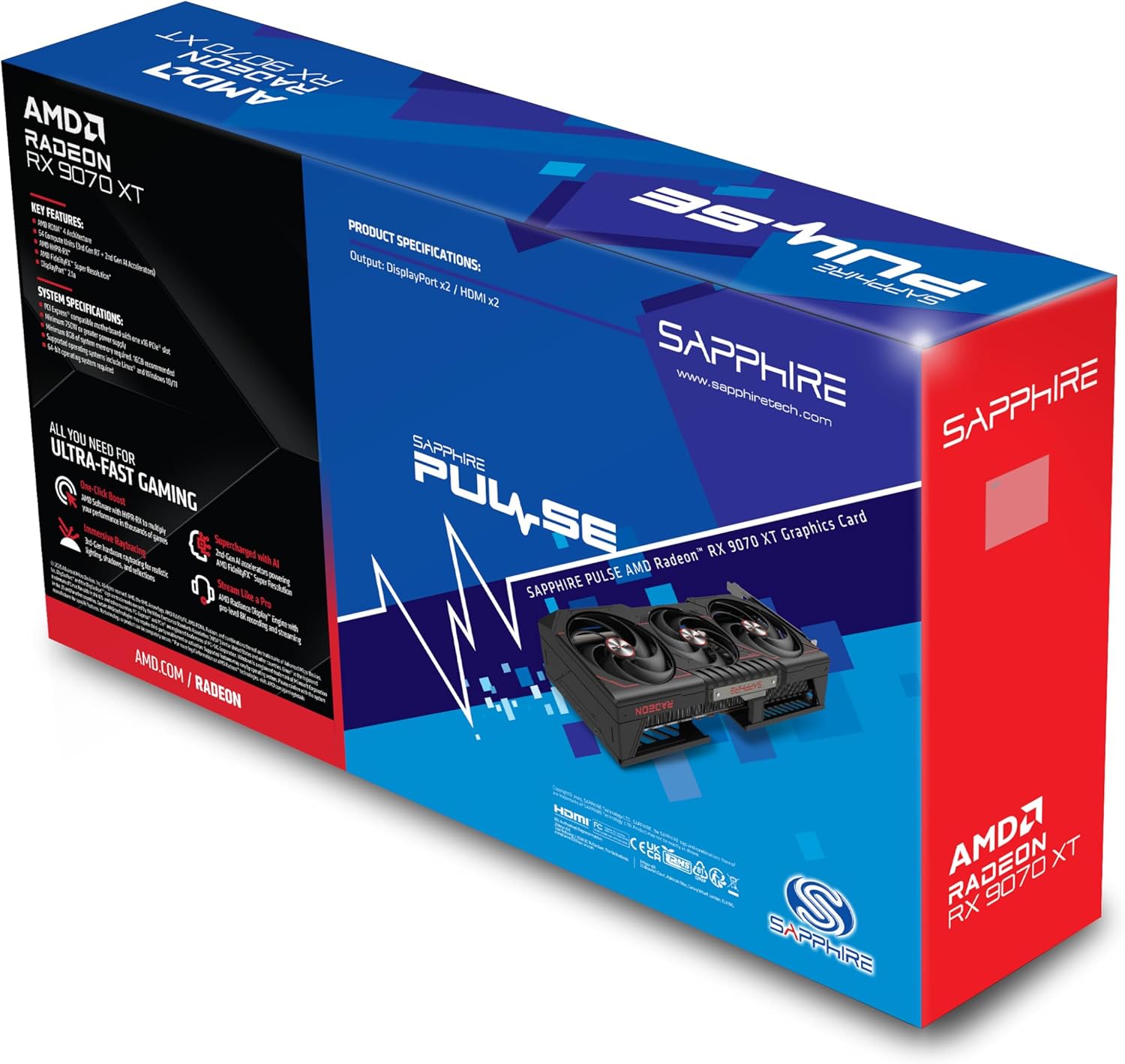
Image 2: Rear view of the Sapphire Pulse AMD Radeon RX 9070 XT retail packaging, showing key features, system specifications, and product specifications. The graphics card itself is visible within the box, highlighting its triple-fan cooling solution. Output ports are listed as DisplayPort x2 and HDMI x2.
5. Operating the Graphics Card
Once installed and drivers are updated, your Sapphire Pulse RX 9070 XT is ready for use. The card operates automatically with your system. For optimal performance and customization, utilize the AMD Software: Adrenalin Edition application.
5.1 AMD Software: Adrenalin Edition
This software provides a comprehensive suite of tools for managing your graphics card, including:
- Game Optimization: Automatically optimizes game settings for the best performance.
- Performance Monitoring: Real-time display of GPU usage, temperature, and clock speeds.
- Driver Updates: Notifications and easy installation of the latest drivers.
- Display Settings: Configuration of resolution, refresh rate, and color settings.
- AMD FidelityFX Super Resolution (FSR): Enable FSR for enhanced performance in supported games.
Refer to the AMD Software: Adrenalin Edition documentation for detailed usage instructions.
6. Maintenance
Proper maintenance ensures the longevity and optimal performance of your graphics card:
- Dust Removal: Periodically clean dust from the fans and heatsink using compressed air. Ensure the computer is powered off and unplugged before cleaning. Hold the fan blades gently to prevent them from spinning rapidly during cleaning.
- Driver Updates: Regularly update your graphics drivers to the latest version from the official AMD website to benefit from performance improvements and bug fixes.
- Temperature Monitoring: Use monitoring software (e.g., AMD Software: Adrenalin Edition) to keep an eye on GPU temperatures, especially during heavy loads. Ensure adequate airflow within your PC case.
7. Troubleshooting
If you encounter issues, refer to the following common troubleshooting steps:
- No Display Output:
- Ensure the monitor cable is securely connected to the graphics card and the monitor.
- Verify the graphics card is fully seated in the PCI Express slot.
- Check that all power connectors are securely attached to the graphics card.
- Test with a different monitor or cable if possible.
- Driver Issues / Crashes:
- Perform a clean installation of the latest AMD drivers. Use a driver uninstaller utility (like DDU) to remove old drivers before installing new ones.
- Ensure your operating system is up to date.
- Overheating:
- Check for dust buildup on the heatsink and fans. Clean if necessary.
- Ensure proper airflow within your PC case. Consider adding or repositioning case fans.
- Verify fan functionality on the graphics card.
- Low Performance in Games:
- Ensure you have the latest graphics drivers installed.
- Check in-game settings; reduce demanding options if necessary.
- Verify that your system meets the game's recommended specifications.
- Monitor GPU usage and clock speeds using AMD Software: Adrenalin Edition to ensure the card is boosting correctly.
8. Specifications
| Feature | Detail |
|---|---|
| Model | 11348-03-20G |
| Graphics Coprocessor | AMD Radeon VII (Note: Product title indicates RX 9070 XT) |
| Chipset Brand | AMD |
| Graphics Card RAM Size | 16 GB GDDR6 |
| Memory Bus | 256-bit |
| Architecture | AMD RDNA 4 |
| Compute Units | 64 |
| Video Output Interface | DisplayPort, HDMI (Dual HDMI / Dual DP) |
| Max Screen Resolution | 3840x2160 |
| Item Weight | 3.3 pounds |
| Product Dimensions (LxWxH) | 11.81 x 11.81 x 0.04 inches (Note: These dimensions likely refer to packaging) |
| Typical Power Consumption | 304 Watts |
| Power Connectors | Two 8-pin |
Note: Some specifications, such as typical power consumption and power connectors, are derived from customer reviews due to lack of explicit listing in product specifications. Product dimensions may refer to packaging.
9. Warranty and Support
For warranty information, please refer to the official Sapphire website or the warranty card included with your product. Sapphire provides technical support for its products. For assistance, visit the Sapphire support page or contact their customer service.
- Sapphire Official Website: www.sapphiretech.com
- AMD Support: For driver-related issues and software support, visit www.amd.com/en/support


