
Introduction
This manual provides detailed instructions for the installation, operation, and maintenance of your Mio MiVue 935W 4K UHD Dashcam. Please read this manual thoroughly before using the device to ensure proper functionality and safety.
Key Features
- 4K 2160P Ultra High Definition Recording: Captures video with four times the resolution of Full HD for exceptional detail.
- Sony STARVIS CMOS Sensor: Ensures clear, high-contrast videos with rich colors, even in low-light conditions.
- High Dynamic Range (HDR): Automatically combines multiple exposures to produce clearer, sharper images with reduced noise, especially in challenging lighting.
- Integrated High-Speed Wi-Fi: Enables fast video transfers and easy connection to the MiVue Pro app via QR code.
- Integrated GPS: Provides location data, speed camera alerts (where permitted), and lane departure warnings.
- G-Sensor: Detects sudden movements or impacts and automatically protects the current recording.
- Compact Design: Discreetly fits into your vehicle's interior.
Package Contents
Verify that all items listed below are included in your package:
- Mio MiVue 935W Dashcam
- Car Charger
- 3M Adhesive Mount
- Static Window Sticker
- User Manual (this document)
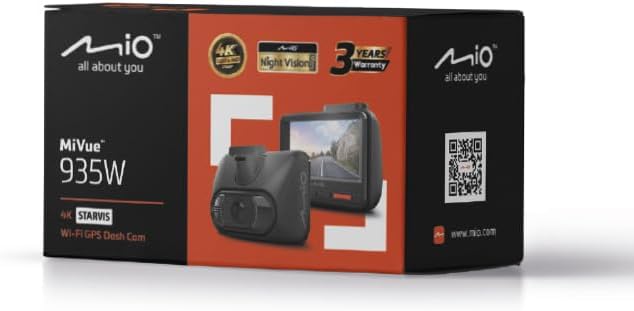
Image: Retail packaging of the Mio MiVue 935W Dashcam, showing the box contents and key features.
Product Overview
Familiarize yourself with the components of your MiVue 935W dashcam.
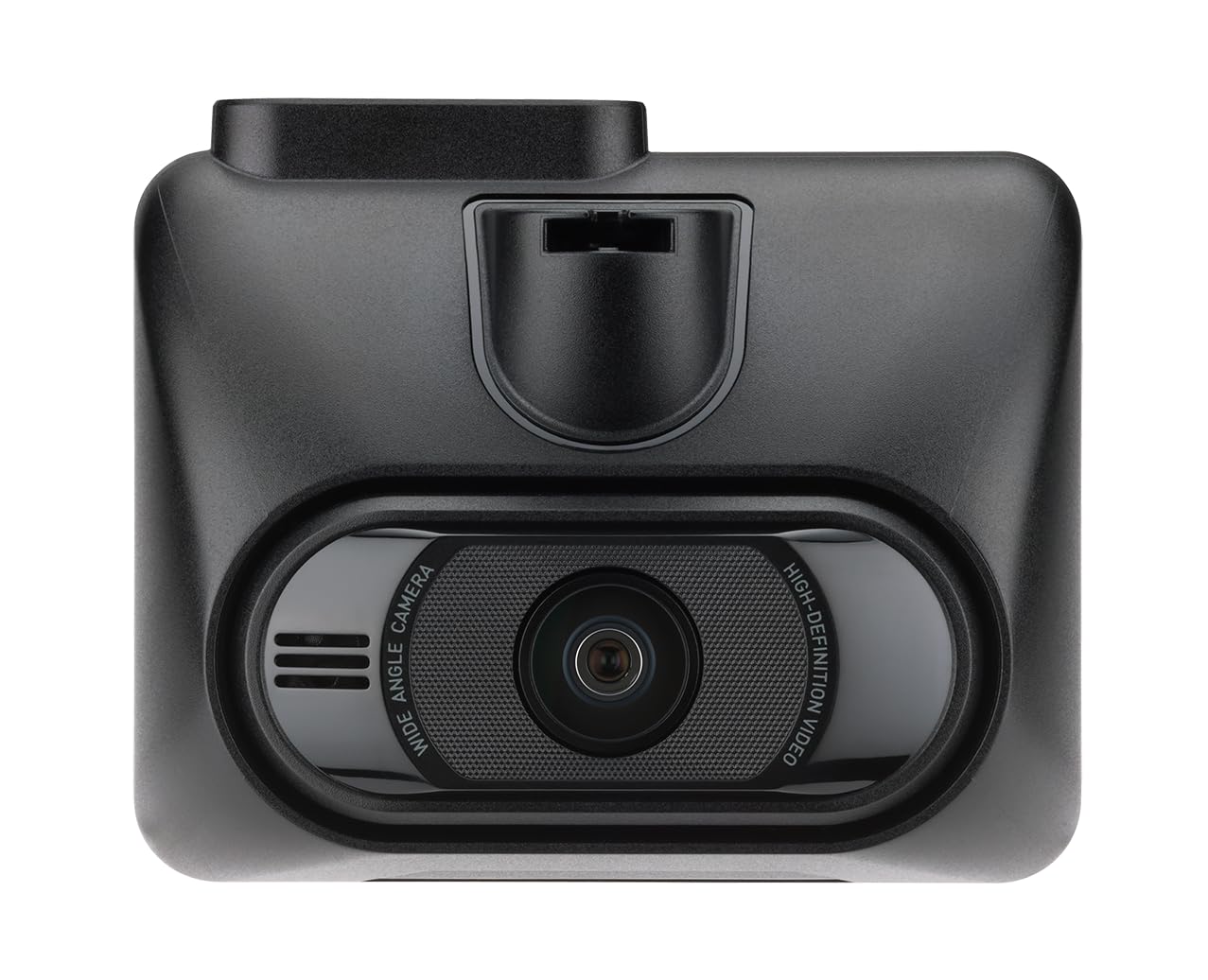
Image: Front view of the MiVue 935W dashcam, displaying the screen and control buttons below it.

Image: Top view of the MiVue 935W dashcam, highlighting the power input and rear camera connection ports.

Image: The 3M adhesive mount for securing the dashcam to the windshield.
Setup
1. Installing the Dashcam
- Clean the area on your windshield where you intend to mount the dashcam. Ensure it does not obstruct your view.
- Apply the static window sticker to the chosen area on the windshield. This helps protect your windshield and allows for easier repositioning.
- Attach the 3M adhesive mount to the static sticker. Press firmly for secure adhesion.
- Slide the MiVue 935W dashcam onto the mount until it clicks into place.
- Adjust the camera angle to ensure it captures the road ahead clearly.
2. Inserting a MicroSD Card
A MicroSD card (not included) is required for recording. The device supports cards up to 256GB. Ensure the card is formatted before first use.
- With the dashcam powered off, locate the MicroSD card slot.
- Insert the MicroSD card with the contacts facing the screen until it clicks into place.
- To remove, gently push the card until it springs out.
3. Power Connection
- Connect the car charger to the dashcam's power input port (usually located on top).
- Plug the other end of the car charger into your vehicle's 12V power outlet (cigarette lighter socket).
- The dashcam will automatically power on and begin recording when your vehicle starts.
Operating Instructions
Basic Operation
- Power On/Off: The dashcam powers on automatically with vehicle ignition and powers off shortly after the engine is turned off. You can also manually power it on/off using the power button.
- Recording: The dashcam automatically starts continuous loop recording when powered on.
- Emergency Recording: The built-in G-sensor detects sudden impacts or harsh braking and automatically saves the current recording to a protected folder, preventing it from being overwritten.
Wi-Fi Connectivity
The integrated high-speed Wi-Fi allows for quick video transfers and easy management via the MiVue Pro app.
- Download the MiVue Pro app from your smartphone's app store.
- On the MiVue 935W, navigate to the Wi-Fi settings and enable it. A QR code will be displayed on the dashcam screen.
- Open the MiVue Pro app on your smartphone and use the app to scan the QR code displayed on the dashcam.
- Once connected, you can view live footage, transfer recordings, and adjust settings directly from your smartphone.
GPS Functions
The integrated GPS module provides accurate location and speed data, enhancing your driving records.
- Speed Camera Alerts: The MiVue 935W provides alerts for speed cameras, displaying the distance, time, speed limit, and your average speed. Note: Speed camera alerts are not active in France, Germany, Switzerland, and Turkey due to local regulations.
- Lane Departure Warning: This feature helps monitor your lane position and provides alerts if you unintentionally drift from your lane.
HDR (High Dynamic Range)
The HDR function improves video clarity in challenging lighting conditions.
- The dashcam automatically captures multiple images at different exposure levels and combines them into a single, optimized image.
- The 2.5K 1440P/Auto HDR mode automatically switches the image sensor between day and night settings for optimal video quality.
Parking Surveillance Mode
When properly configured and with a continuous power supply (e.g., via a hardwire kit, sold separately), the dashcam can monitor your vehicle while parked.
- The dashcam will automatically record if it detects motion or an impact while your vehicle is stationary.
Maintenance
Cleaning the Device
- Use a soft, dry cloth to clean the dashcam's exterior.
- For the lens, use a specialized lens cleaning cloth to avoid scratches.
- Do not use chemical cleaners or solvents, as they may damage the device.
MicroSD Card Care
- Regularly format your MicroSD card (at least once a month) to maintain optimal recording performance and prevent data corruption.
- Replace the MicroSD card periodically, especially if you notice recording errors or reduced performance, as memory cards have a limited lifespan.
Firmware Updates
Check the official Mio website (www.mio.com) for available firmware updates. Keeping your dashcam's firmware up-to-date ensures optimal performance and access to new features.
Troubleshooting
| Problem | Possible Cause | Solution |
|---|---|---|
| Dashcam does not power on. | No power supply or faulty connection. | Check car charger connection to both the dashcam and the vehicle's 12V outlet. Ensure the vehicle's ignition is on. |
| Recording stops unexpectedly. | MicroSD card error or full. | Format the MicroSD card. Replace the card if the issue persists. Ensure the card is Class 10 or higher. |
| Poor video quality. | Dirty lens or incorrect settings. | Clean the camera lens. Check video resolution settings in the menu. Ensure HDR is enabled for challenging light. |
| Wi-Fi connection issues. | Incorrect password or app issue. | Ensure Wi-Fi is enabled on the dashcam and you are scanning the correct QR code. Restart both the dashcam and your smartphone. |
| GPS not working. | Poor satellite signal. | Ensure the dashcam has a clear view of the sky. Avoid mounting near metallic objects that might block the signal. |
Specifications
| Feature | Detail |
|---|---|
| Model Name | Mio MiVue 935W |
| Screen Size | 2.7 inches IPS |
| Recording Resolution | 4K (2160P) / 30fps |
| Video Sensor | Sony STARVIS CMOS Sensor |
| Aperture | F1.8 |
| Recording Format | SuperMP4 (H.265) |
| Wide Angle Lens | 140 degrees |
| Connectivity | Integrated Wi-Fi, GPS |
| Special Features | Compact Design, G-Sensor, Speed Camera Alerts, Lane Departure Warning, HDR |
| Power Source | 1 Lithium-polymer battery (included) |
| Dimensions (W x H x D) | 63 x 76.5 x 41.2 mm |
| Weight | 99.94 g |
| Compatible Vehicle Type | Car, Truck, Motorcycle |
| Mounting Type | Self-adhesive mount |
| Color | Black |
Warranty and Support
Warranty Information
The Mio MiVue 935W Dashcam comes with a 3-year warranty. Please retain your proof of purchase for warranty claims.
Customer Support
For technical assistance, firmware updates, or further information, please visit the official Mio website:
Mio products are tested in a TAF-accredited laboratory by MITAC, ensuring high quality and reliability.


