
UGREEN 55767
Contents
UGREEN Revodok Pro 12-in-1 Triple 4K Docking Station
Model: 55767
Introduction
The UGREEN Revodok Pro 12-in-1 Triple 4K Docking Station is designed to expand the connectivity of your laptop, providing a comprehensive solution for enhanced productivity and entertainment. This versatile hub allows you to connect multiple displays, high-speed peripherals, network, and power your device through a single USB-C connection.
Key Features
- 12-in-1 Connectivity: Includes 2 HDMI ports, 1 DisplayPort, 2x USB-C 3.2 (10Gbps), 2x USB-A 2.0, SD/TF card reader, 100W Power Delivery, 1000Mbps Ethernet, and a 3.5mm audio jack.
- Triple 4K Display: Supports single-screen 4K@144Hz, dual-screen 4K@60Hz, and triple-screen 4K@30Hz ultra-clear resolution for various setups.
- Ultra-Fast Data Transfer: Achieve 10Gbps data transfer speeds via USB-C ports, ideal for large file transfers.
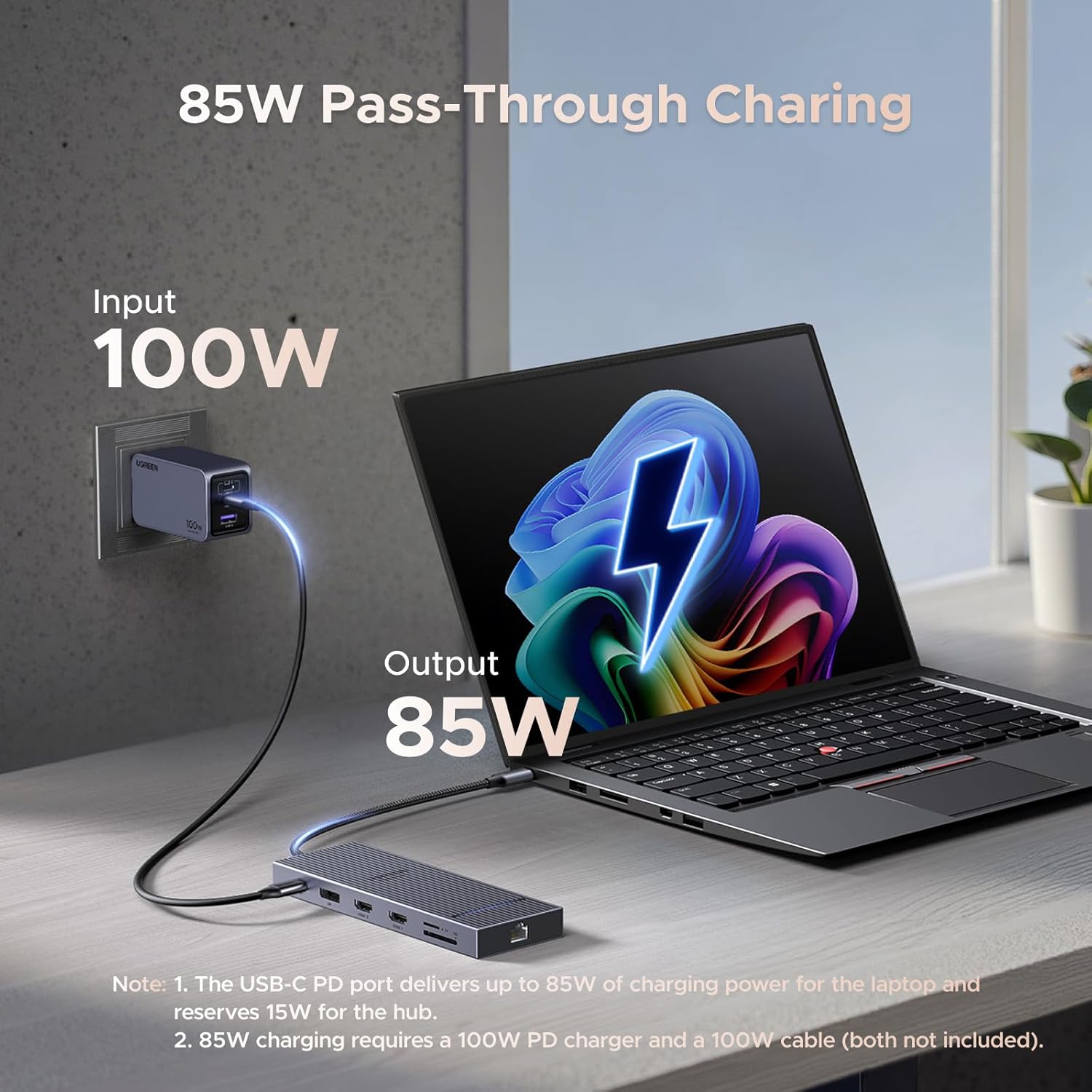
- 100W Power Delivery: Provides up to 85W pass-through charging to your laptop, reserving 15W for the docking station's operation.
- Gigabit Ethernet: Ensures stable and high-speed wired network connectivity at 1000Mbps.
- Universal Compatibility: Compatible with a wide range of laptops including MacBook, Dell, HP, and more, running Windows 11/10.
Setup Guide
Follow these steps to set up your UGREEN Revodok Pro Docking Station:
- Connect Power (Optional but Recommended): If your laptop requires charging, connect a 100W USB-C PD charger (not included) to the PD input port on the docking station.
- Connect to Laptop: Use the integrated USB-C cable from the docking station to connect to a compatible USB-C port on your laptop. Ensure your laptop's USB-C port supports Power Delivery and DisplayPort Alternate Mode.
- Connect Displays: Connect your monitors to the HDMI 1, HDMI 2, and/or DisplayPort outputs on the docking station using appropriate cables.
- Connect Peripherals: Plug in your USB devices (keyboard, mouse, external drives) into the USB-A 2.0 or USB-C 3.2 data ports.
- Connect Network: For a stable wired connection, plug an Ethernet cable into the RJ45 Gigabit Ethernet port.
- Connect Audio: If desired, connect headphones or speakers to the 3.5mm audio jack.


Operating Instructions
Multi-Display Modes
The docking station supports various display configurations depending on your operating system:
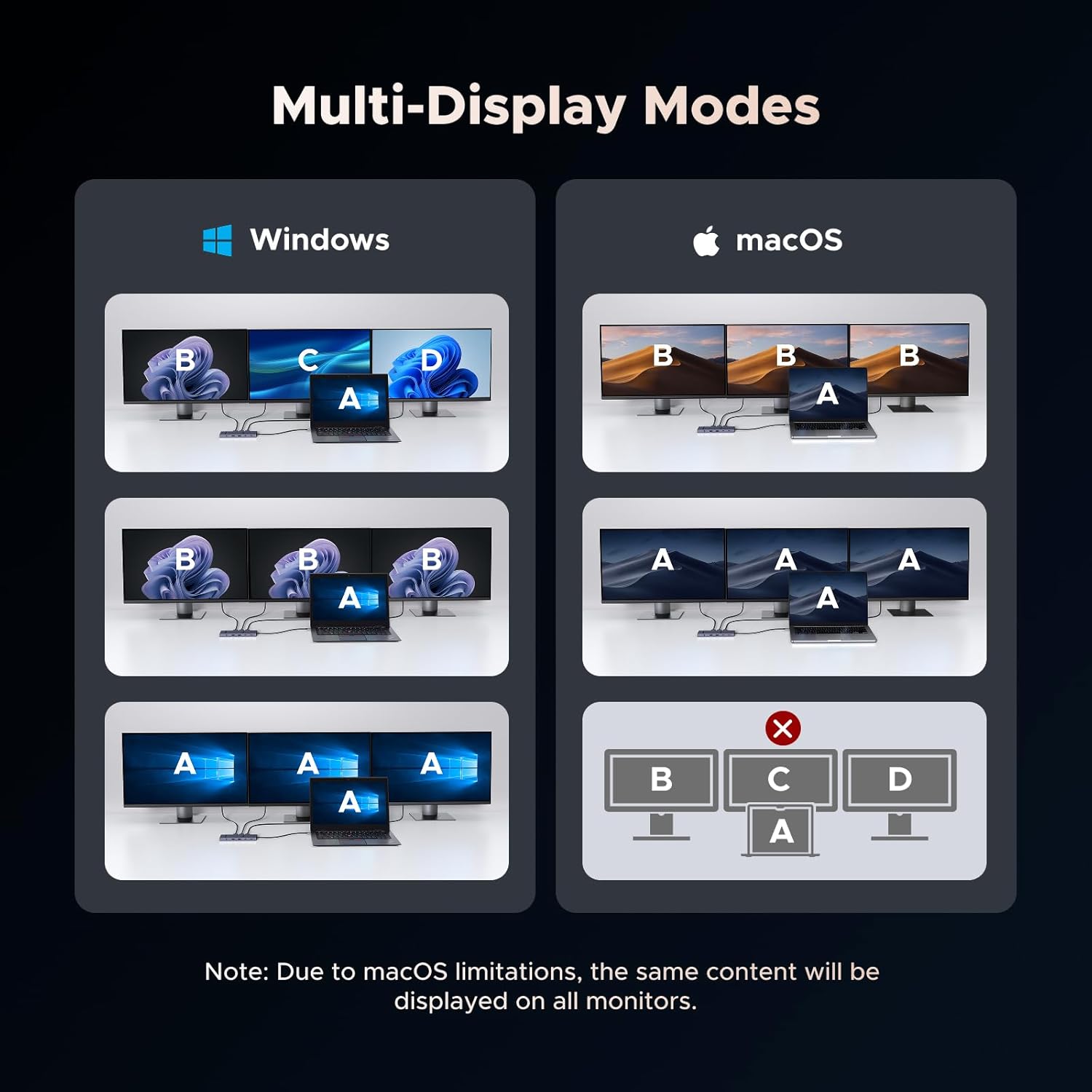

Note for macOS Users: Due to macOS limitations, external monitors connected via this docking station will display the same content (mirrored) when extending multiple displays. For full compatibility and independent displays, ensure your USB-C port supports Power Delivery and DisplayPort 1.2/1.4, as well as either USB4 or Thunderbolt 3/4/5.
Data Transfer
Utilize the 10Gbps USB-C 3.2 ports for rapid data transfer, perfect for external SSDs or high-speed storage devices. The USB-A 2.0 ports are suitable for connecting standard peripherals like keyboards, mice, and USB flash drives.

Power Delivery
The dedicated USB-C PD port supports up to 100W input, providing 85W pass-through charging to your connected laptop. This allows you to power your laptop and all connected devices simultaneously through the docking station.
Network Connectivity
The integrated 1000Mbps Gigabit Ethernet port provides a stable and faster internet connection compared to wireless, ensuring smooth online activities and large downloads.

Card Reader Functionality
The SD and TF card slots support speeds up to 104MB/s, allowing for quick transfer of photos and videos from your camera or drone to your computer.
Audio Output
The 3.5mm audio jack supports 192KHz 24bit output, providing high-quality audio for headphones or external speakers.

Specifications
| Feature | Detail |
|---|---|
| Model Number | 55767 |
| Package Dimensions | 7.72 x 4.33 x 0.94 inches |
| Item Weight | 7.7 ounces (0.22 Kilograms) |
| Hardware Interface | 3.5mm Audio, DisplayPort, Ethernet, HDMI, MicroSD, USB, USB Type C |
| Compatible Devices | USB Flash Drives, Tablets, Mouse, Keyboards, Laptops |
| Total USB Ports | 4 (2x USB-C 3.2, 2x USB-A 2.0) |
| Number of Ports | 12 |
| Total HDMI Ports | 2 |
| Wattage | 100.0 W (Power Delivery Input) |
Troubleshooting
Why does the docking station get warm during usage?
The docking station may generate heat for the following reasons:
- Power Consumption: When connected to a USB-C laptop, all functional modules of the product are activated, even if HDMI, SD card, network cables, or USB devices are not connected. This constant activity draws power and generates heat.
- Material Design: The aluminum case is designed for better heat dissipation compared to plastic. The heat from the electronic components and circuitry is more effectively conducted away from the device, ensuring safer operation. This is a common feature in devices with metal enclosures and is part of ensuring the overall safety and reliability of the hub.

Maintenance
- Keep the docking station in a dry environment and away from direct sunlight.
- Avoid exposing the device to extreme temperatures or humidity.
- Clean the surface with a soft, dry cloth. Do not use liquid cleaners or aerosols.
- Ensure proper ventilation around the device during operation.
Warranty and Support
UGREEN products come with a standard manufacturer's warranty. For detailed warranty information, technical support, or service inquiries, please visit the official UGREEN website or contact their customer support directly. Please retain your proof of purchase for warranty claims.
Ask a question about this manual
Ask about setup, troubleshooting, compatibility, parts, safety, or missing instructions. Manuals+ will review the question and use this page’s manual context to help answer it.