1. Introduction
Thank you for choosing the Lian Li UNI FAN TL WIRELESS 3x120mm Case Fan. This product is designed to provide efficient cooling and customizable RGB lighting for your computer system. This manual will guide you through the installation, operation, and maintenance of your new fans.
2. Safety Information
- Always disconnect power from your computer before installing or servicing any components.
- Handle components with care to avoid damage.
- Ensure proper grounding to prevent electrostatic discharge (ESD).
- Keep out of reach of children.
- Do not attempt to modify the product. Unauthorized modifications may void your warranty and pose safety risks.
3. Package Contents
Please verify that all items are present in your package:
- 3 x UNI FAN TL 120mm Fans
- 1 x UNI FAN TL Wireless Controller
- Necessary cables (SATA power, PWM, ARGB sync cables)
- Mounting Screws
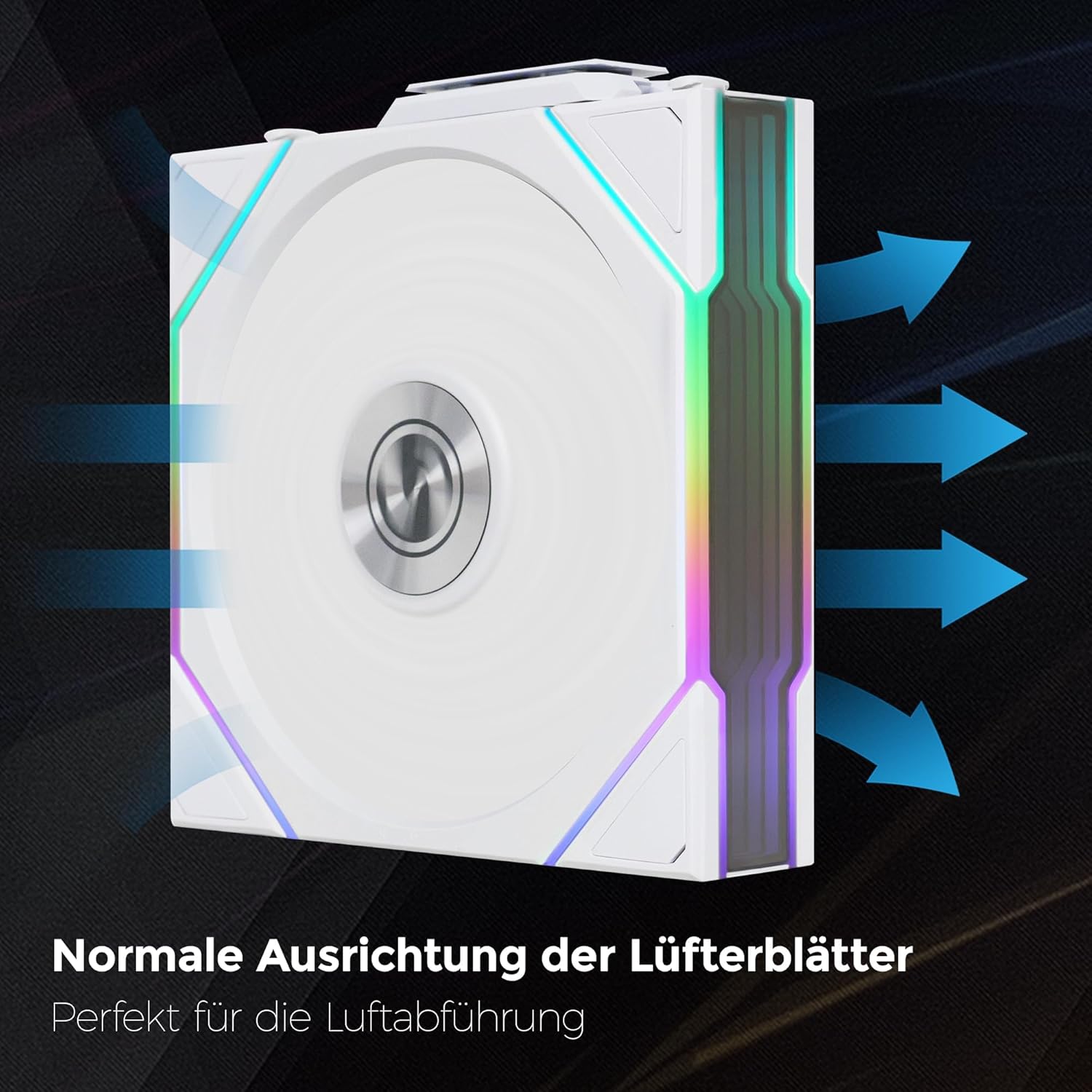
Image: Overview of the Lian Li UNI FAN TL 3x120mm fan kit components.
4. Setup and Installation
4.1 Physical Installation
- Identify the desired mounting locations within your PC case (e.g., front, top, rear, bottom).
- Secure each fan to the case using the provided mounting screws. Ensure the fan is oriented correctly for desired airflow (intake or exhaust).

Image: Fan with arrows indicating normal airflow direction for exhaust.
4.2 Daisy-Chain Connection
The UNI FAN TL features a daisy-chain design, allowing multiple fans to connect to each other, reducing cable clutter.
- Connect the fans to each other using the interlocking mechanism on the sides of the fan frames.
- Ensure a secure connection between each fan in the chain.
4.3 Controller Connection
Connect the daisy-chained fans to the UNI FAN TL Wireless Controller. The controller manages both fan speed (PWM) and RGB lighting synchronization.
- Connect the main cable from the last fan in your daisy chain to the designated port on the wireless controller.
- Connect the SATA power cable from your power supply unit (PSU) to the wireless controller.
- Connect the 4-pin PWM cable from the controller to an available fan header on your motherboard.
- Connect the ARGB sync cable from the controller to an available 3-pin 5V ARGB header on your motherboard (if you wish to synchronize lighting with motherboard software).
- Mount the wireless controller in a suitable location within your PC case.

Image: Fans installed in a PC case, demonstrating reduced cable clutter.
5. Operating Instructions
5.1 Wireless Control
The UNI FAN TL Wireless Controller allows for convenient adjustment of fan speeds and RGB lighting effects via a radio signal.
- Once the system is powered on, the controller will automatically detect the connected fans.
- Use the dedicated Lian Li software (L-Connect, typically downloaded from the official Lian Li website) to manage fan profiles, adjust RPM, and customize RGB lighting effects.
- The wireless signal ensures seamless communication between the software and the fan controller.

Image: The wireless controller for fan and RGB synchronization.
5.2 RGB Lighting Synchronization
The fans support Addressable RGB (ARGB) lighting. You can control the lighting through:
- Lian Li L-Connect Software: Provides extensive customization options for individual fan lighting, effects, and colors.
- Motherboard ARGB Software: If connected to your motherboard's ARGB header, you can synchronize the fan lighting with other compatible components using your motherboard's proprietary RGB software (e.g., ASUS Aura Sync, MSI Mystic Light, Gigabyte RGB Fusion, ASRock Polychrome Sync).
6. Maintenance
Regular maintenance ensures optimal performance and longevity of your fans.
- Cleaning: Periodically clean the fan blades and frames to remove dust buildup. Use a soft brush or compressed air. Ensure the system is powered off before cleaning.
- Inspection: Check cables for any signs of wear or damage. Ensure all connections are secure.
- Software Updates: Keep your Lian Li L-Connect software updated to the latest version for new features and bug fixes.
7. Troubleshooting
- Fans not spinning:
- Check if the SATA power cable is securely connected to the controller and the PSU.
- Ensure the fan cables are properly connected to the controller.
- Verify the 4-pin PWM cable is connected to the motherboard.
- RGB lighting not working:
- Ensure the ARGB sync cable is correctly connected to a 3-pin 5V ARGB header on the motherboard (if using motherboard control).
- Check the Lian Li L-Connect software settings for lighting effects.
- Confirm the SATA power cable is connected to the controller.
- Fans making unusual noise:
- Check for any obstructions (e.g., cables) hitting the fan blades.
- Ensure mounting screws are tightened properly.
- Clean any dust buildup on the fan blades.
8. Specifications
| Brand | Lian Li |
| Model Number | UF-TL120-WLS-3W |
| Fan Size | 120mm |
| Maximum Rotational Speed | 2000 RPM |
| Air Flow Capacity | 72.72 Cubic Feet Per Minute (CFM) |
| Noise Level | 33 Decibels (dB) |
| Power Connector Type | 4-Pin (PWM) |
| Voltage | 12 Volts |
| Wattage | 5.8 watts |
| Cooling Method | Forced Air |
| Compatible Devices | Desktop |
| Material | PBT Plastic, Rubber |
| Product Dimensions | 4.88 x 4.72 x 1.1 inches |
| Item Weight | 1.87 pounds |
9. Warranty and Support
Lian Li products are manufactured to high-quality standards. For specific warranty terms and conditions, please refer to the warranty information provided with your product packaging or visit the official Lian Li website.
For technical support, troubleshooting assistance, or to download the latest software and drivers, please visit the official Lian Li support page:
Lian Li Official Website: https://www.lian-li.com/


