
CHESONA iPad Pro 11 (M4) 2024 Keyboard Case
CHESONA Rugged Keyboard Case for iPad Pro 11 (M4) 2024 User Manual
Model: iPad Pro 11 (M4) 2024 Keyboard Case

Image: The CHESONA Rugged Keyboard Case for iPad Pro 11 (M4) 2024, shown with an iPad inserted, highlighting its keyboard, trackpad, and adjustable stand features.
1. Compatibility
This keyboard case is specifically designed for the iPad Pro 11-inch (M4) 2024. To ensure proper fit, verify your iPad's model numbers. Compatible model numbers include A2836, A2837, and A3006. This case is not compatible with the iPad Air 11-inch (M2) 2024 or any other iPad models.

Image: A visual guide illustrating the compatible iPad Pro 11 (M4) 2024 model and its corresponding model numbers (A2836, A2837, A3006), alongside an incompatible iPad Air 11 (M2) 2024 model.
2. What's in the Box
Upon opening your package, please ensure all the following items are present:
- 1 x CHESONA Rugged Case for iPad Pro 11 (M4) (Tablet NOT included)
- 1 x Wireless Keyboard
- 1 x USB Charging Cable (No Charger)
- 1 x User Manual

Image: An overhead view displaying the CHESONA keyboard, magnetic case, USB charging cable, user manual, and product packaging box.
3. Setup Guide
Follow these steps to set up your CHESONA Rugged Keyboard Case:
3.1. Step 1: Adjust the Kickstand
Bend the integrated kickstand to achieve your desired viewing angle. The stand is designed to be adjustable from 15° to 180° for optimal comfort.
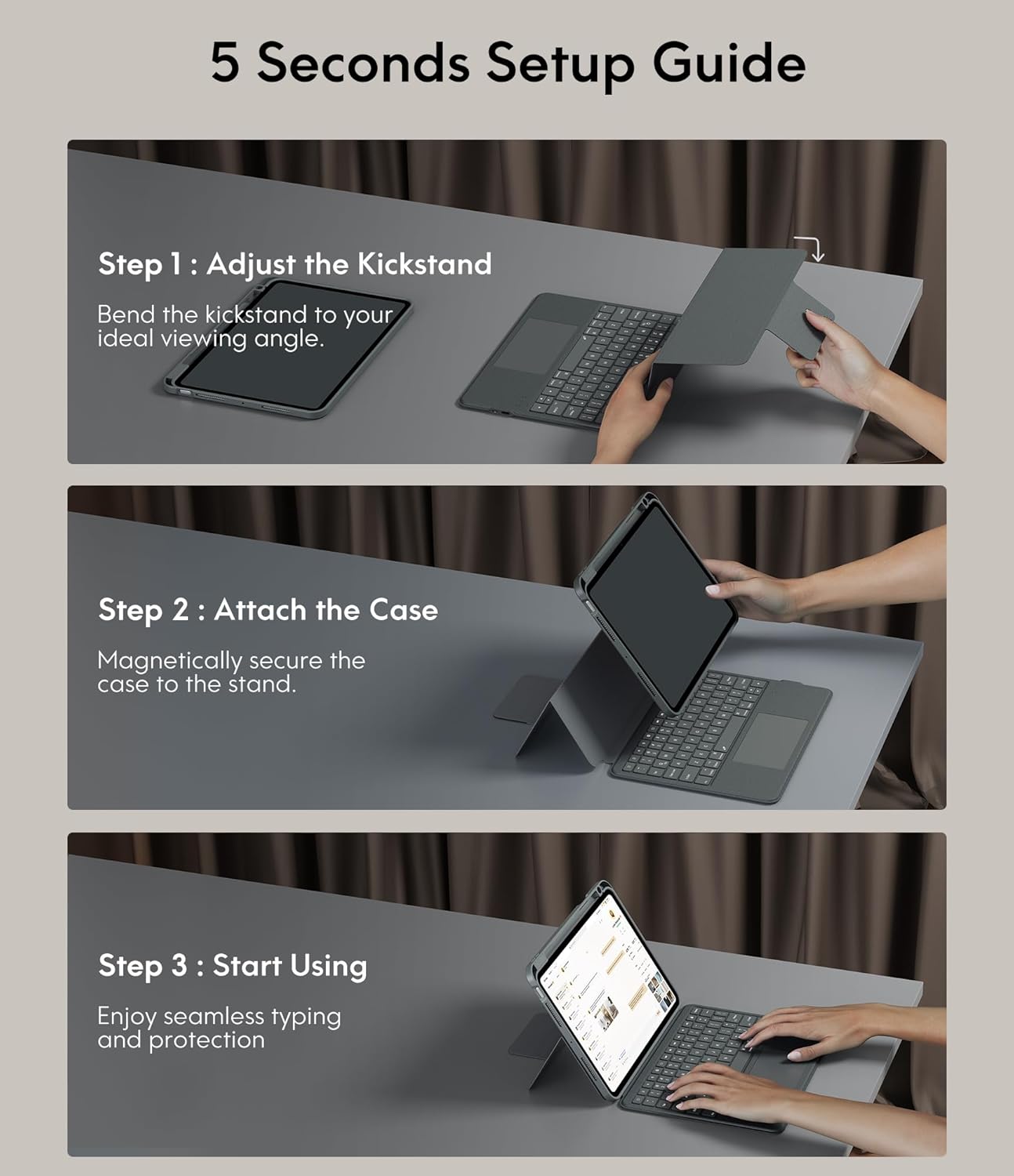
Image: A three-step visual guide showing how to adjust the kickstand, attach the iPad to the magnetic case, and begin using the keyboard.
3.2. Step 2: Attach the Case
Securely place your iPad into the protective case. The case features strong magnets that will hold the iPad firmly in place on the stand.
3.3. Step 3: Start Using
Once the iPad is securely attached and the kickstand is adjusted, you can begin using your keyboard case for typing and protection.
3.4. Bluetooth Pairing
- Ensure the keyboard is charged.
- Turn on the keyboard using the power switch.
- On your iPad, go to Settings > Bluetooth and turn Bluetooth on.
- Select the keyboard from the list of available devices (it may appear as 'CHESONA Keyboard' or similar).
- Confirm the pairing code if prompted. The keyboard will now be connected.
4. Operating Instructions
4.1. Magnetic Detachable Keyboard
The keyboard is magnetically attached to the case, allowing for easy detachment. This feature enables you to switch between a laptop-like setup and a standalone tablet experience. Simply pull the keyboard away from the case when not needed, or reattach it when typing is required.

Image: A hand detaching the magnetic keyboard from the iPad case, illustrating the strong magnetic connection.
4.2. Adjustable Stand and Viewing Modes
The case offers a wide range of adjustable angles (15°-180°) and supports multiple placement modes for various activities:
- Typing Mode: Use with the keyboard for productivity.
- Drawing Mode: Lay the iPad flat or at a low angle for creative tasks.
- Reading Mode: Detach the keyboard and hold the iPad comfortably.
- Viewing Mode: Adjust the stand for watching videos or video calls.

Image: A visual representation of five different usage modes: Video Call, Draw, To Read, Writing Documents, and Watch Movies, demonstrating the case's versatility.
4.3. Keyboard Backlight Control
The keyboard features 7-color backlighting and 3 levels of brightness, enhancing visibility in various lighting conditions.
- To change backlight color: Press Shift + Return.
- To adjust brightness: Press Shift + Shift (or dedicated brightness keys if available).

Image: The keyboard illuminated with various backlight colors, demonstrating the 7-color options and the keys used to adjust brightness and color.
4.4. Trackpad Functionality
The integrated multi-touch trackpad provides precise navigation and supports various gestures for enhanced productivity:
- Drag: Tap and hold an item, then drag to move it.
- Swipe: Use two fingers to scroll up/down or left/right.
- Zoom In/Out: Pinch with two fingers to zoom.
- App Publication (App Switcher): Swipe up with three fingers to reveal open applications.
- Swipe between full screen apps: Swipe left or right with three fingers to switch between full-screen applications.

Image: A close-up of the trackpad with illustrations of common multi-touch gestures like drag, swipe, zoom in/out, app publication, and switching between full-screen apps.
4.5. Function Keys and Shortcuts
The keyboard includes a dedicated row of function keys for quick access to common iPad features:
- Home: Return to the home screen.
- Search: Activate iPad search.
- Brightness Control: Adjust screen brightness.
- Media Controls: Play/pause, previous track, next track.
- Volume Control: Mute, volume down, volume up.
- Lock Screen: Lock your iPad.

Image: A detailed view of the keyboard's top row, highlighting the function keys for media control, volume, brightness, and other shortcuts.
5. Protection Features
The CHESONA Rugged Keyboard Case provides comprehensive protection for your iPad Pro 11 (M4) 2024:
- Hard-Shell Design: The premium hard-shell design protects all sides of your tablet.
- 360° Protection: The included compatible camera case ensures 360° protection against accidental drops, scratches, and dust.
- Pen Slot: A dedicated pen slot securely holds your Apple Pencil, preventing loss and allowing for convenient charging.
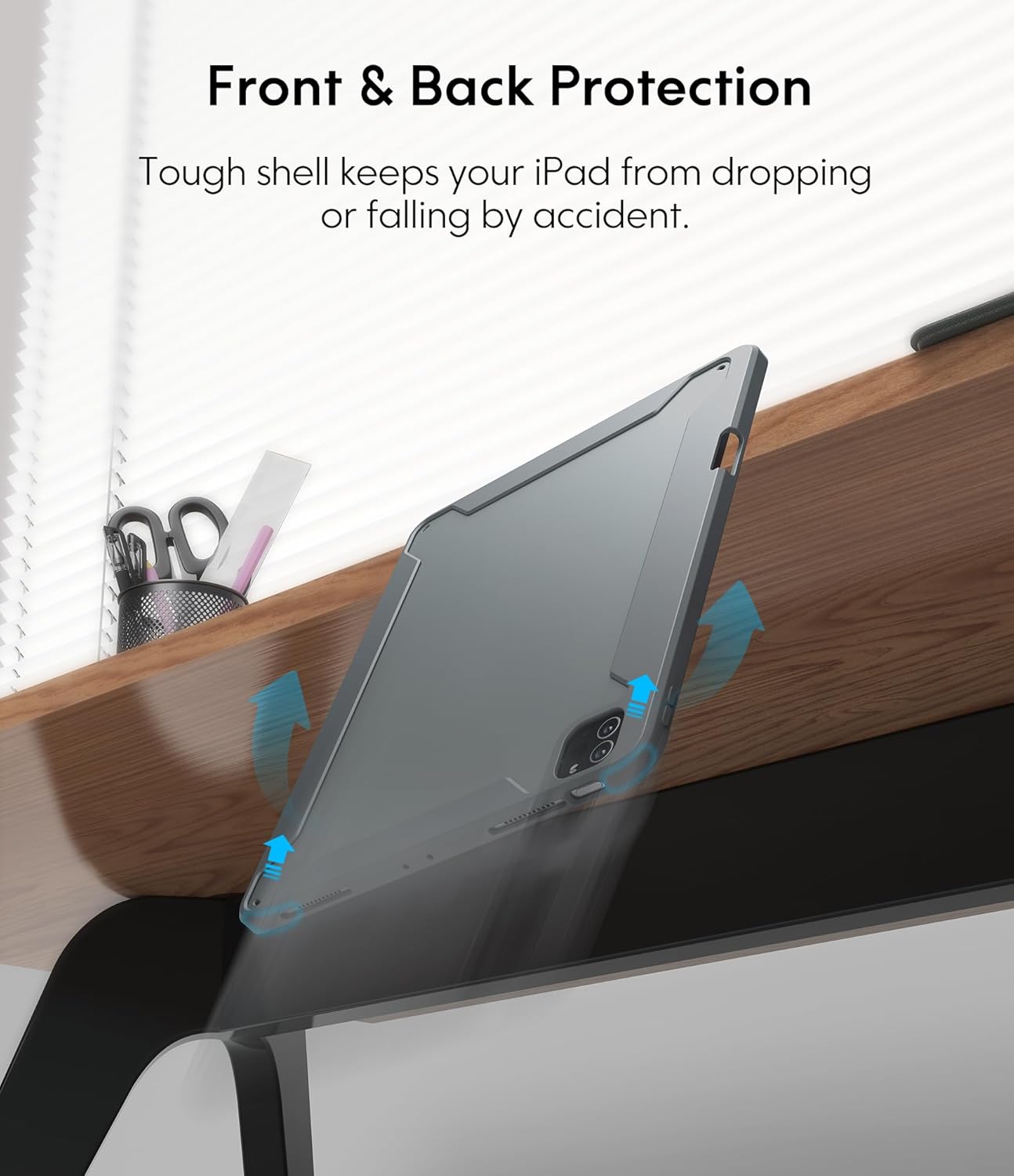
Image: An illustration showing the iPad case protecting the device from a fall, emphasizing its tough shell and front and back protection.
6. Battery and Power Management
The keyboard features a built-in rechargeable battery designed for extended use:
- Battery Life: A full charge provides over 50 hours of working time.
- Charging Time: Approximately 2-3 hours for a full charge using the provided USB charging cable.
- Sleep Mode: If the keyboard is inactive for 10 minutes, it will enter sleep mode and disconnect from your iPad to conserve power. Press any key to wake it up and automatically reconnect.
7. Maintenance
To ensure the longevity and optimal performance of your keyboard case, follow these maintenance guidelines:
- Cleaning: Use a soft, damp cloth to wipe the exterior of the case and keyboard. Avoid harsh chemicals or abrasive materials.
- Storage: When not in use for extended periods, store the keyboard case in a cool, dry place.
- Avoid Liquids: Keep the keyboard away from liquids to prevent damage to electronic components.
8. Troubleshooting
If you encounter any issues, refer to the following troubleshooting tips:
- Keyboard Not Connecting:
- Ensure the keyboard is charged and powered on.
- Verify Bluetooth is enabled on your iPad.
- Forget the device in your iPad's Bluetooth settings and attempt to re-pair.
- Restart both your iPad and the keyboard.
- Trackpad Not Responding:
- Ensure the keyboard is connected via Bluetooth.
- Check if the trackpad is enabled in your iPad's settings (Settings > Accessibility > Touch > AssistiveTouch).
- Clean the trackpad surface for any debris.
- Backlight Not Working:
- Ensure the keyboard has sufficient battery charge.
- Press the backlight adjustment keys (Shift + Shift or dedicated keys) to cycle through brightness levels.
- Keys Not Responding:
- Check Bluetooth connection.
- Ensure the keyboard is not in sleep mode.
- Recharge the keyboard.
9. Product Specifications
| Product Dimensions | 10.04 x 7.68 x 0.83 inches |
| Item Weight | 1.72 pounds |
| Brand | CHESONA |
| Compatible Devices | iPad Pro 11 (M4) 2024 |
| Connectivity Technology | Wireless (Bluetooth) |
| Keyboard Description | Multi Functional |
| Special Feature | Backlit, Trackpad |
| Color | Grey |
| Power Source | Battery Powered |
| Batteries | 1 P76 battery (included) |
10. Warranty and Support
CHESONA products are designed for durability and performance. For information regarding warranty coverage, product support, or to report any issues, please refer to the contact information provided with your purchase or visit the official CHESONA website. Please retain your proof of purchase for warranty claims.
Related documentsiPad Pro 11 (M4) 2024 Keyboard Case


Ask a question about this manual
Ask about setup, troubleshooting, compatibility, parts, safety, or missing instructions. Manuals+ will review the question and use this page’s manual context to help answer it.