1. Introduction
Thank you for choosing the CAMECHO 7-inch Android 15 Car Stereo. This manual provides detailed instructions for the installation, operation, and maintenance of your new car multimedia system. Please read this manual thoroughly before use to ensure proper installation and optimal performance. Keep this manual for future reference.
2. Safety Information
- Professional Installation Recommended: Due to the complexity of car electrical systems, professional installation is highly recommended to prevent damage to the unit or your vehicle.
- Power Supply: Ensure the unit is connected to a 12V DC power supply with a negative ground. Incorrect voltage can cause damage.
- Avoid Water and Moisture: Do not expose the unit to water or excessive moisture. This can lead to electric shock or malfunction.
- Temperature: Operate the unit within the specified temperature range (-20°C to 75°C).
- Driving Safety: Do not operate the unit in a way that distracts you from driving. Always prioritize road safety.
- Ventilation: Ensure adequate ventilation around the unit to prevent overheating.
3. Package Contents
Verify that all items listed below are included in your package:
- 1 x Android Car Stereo Player
- 1 x Low Allocation Vehicle Power Cable
- 1 x High Allocation Vehicle Power Cable
- 2 x USB Cables
- 1 x Radio Antenna
- 1 x GPS Antenna
- 1 x CANBUS Decoder
- 1 x Rear Camera Input Cable
- 1 x RCA Cable
- 1 x User Manual
- 1 x Rear Camera
- 1 x External Microphone

Image: Overview of the CAMECHO car stereo unit, its dimensions (225mm/8.8inch width, 140mm/5.5inch height, 215mm/8.4inch bottom width), and a visual representation of all included accessories and their respective cables. Key ports are labeled: 1. Power Cable, 2. RCA Input/Output, 3. Reversing Camera Input, 4. USB Cable, 5. GPS Antenna, 6. Radio Antenna.
4. Product Overview
The CAMECHO 7-inch Android 15 Car Stereo is a high-performance multimedia system designed for select VW, Skoda, and Seat vehicles. It features a responsive touchscreen, powerful processor, and a range of connectivity options to enhance your driving experience.
Key Features:
- Android 15 Operating System
- 4GB RAM + 64GB ROM for smooth performance and ample storage
- 8-Core Processor
- 7-inch IPS Touchscreen Display (1024*600 resolution)
- Wireless Carplay and Android Auto support
- Built-in Bluetooth 5.0, WiFi, and GPS Navigation
- FM/RDS Radio with DSP sound processing
- Steering Wheel Control compatibility
- Rear Camera input (AHD/CVBS) with included backup camera
- Mirror Link function for iOS and Android devices
- Split-Screen multitasking
- Voice Control capabilities
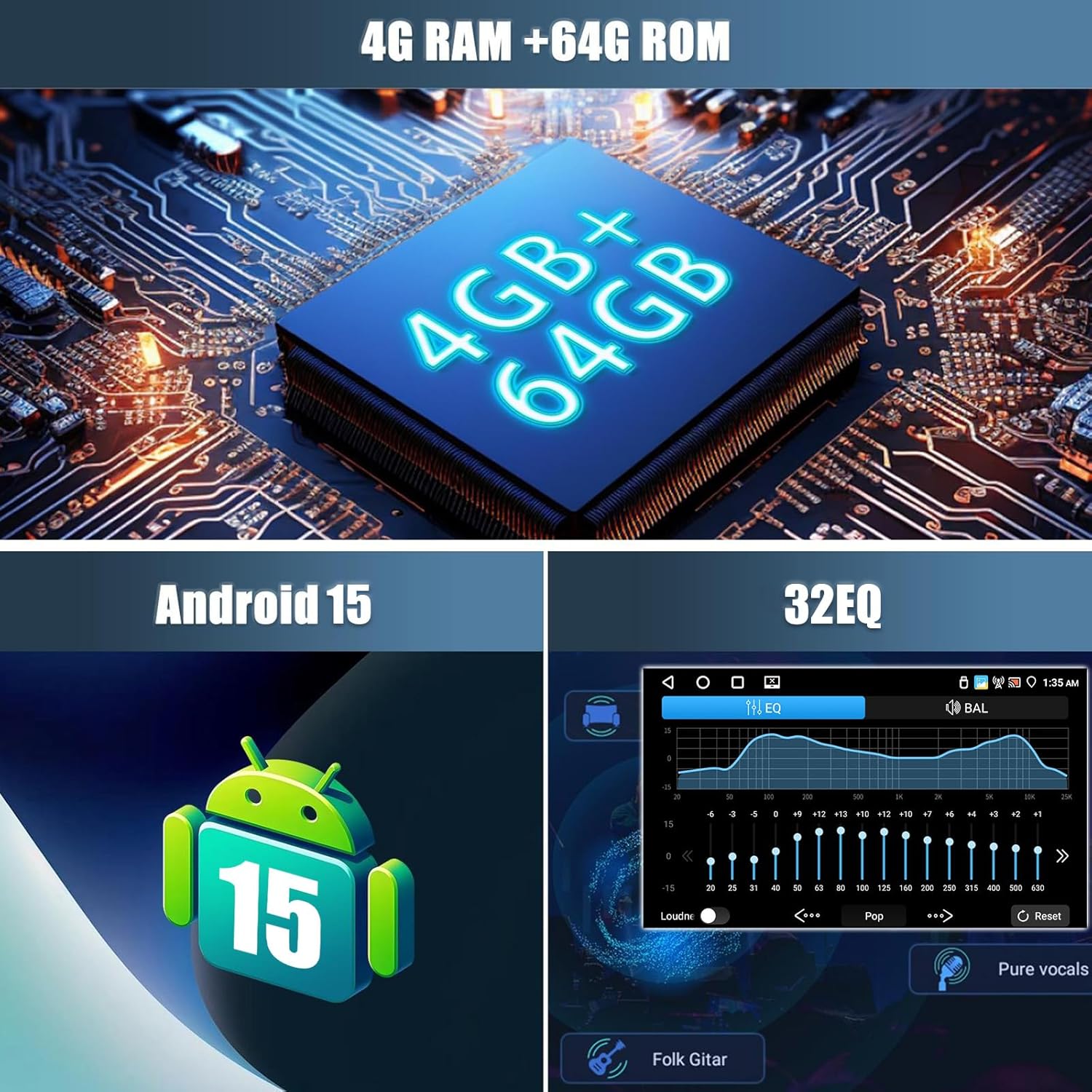
Image: Visual representation of the car stereo's core specifications, highlighting 4GB RAM + 64GB ROM, Android 15 operating system, and a 32-band Equalizer (EQ) for audio customization.
5. Installation
5.1. Vehicle Compatibility
This car stereo is designed to be compatible with various VW, Skoda, and Seat models. Please verify your vehicle's compatibility before proceeding with installation.
- For VW: SAGITAR/JATTA/JETTA, MAGOTAN/MAGOTAN V6, a part of VW/TS/TRANSPORTER, PASSAT B6, PASSAT V6, MAGOTAN VARIANT, PASSAT B7, PASSAT NMS, PASSAT VARIANT, PASSAT CC, PASSAT TSI, GOLF BLUE MOTION, GOLF VI, GOLF VARIANT, VW/TIGUAN/TIGUAN GP, SHARAN, CADDY, POLO, EOS, SCIROCCO, TOURAN, R36 VARIANT, BEETLE, MULTZVAN, GOLF CROSS, GOLF V, SPORTLINE, BORA, AMAROK.
- For SKODA: LIMOUSINE AB 02/2007 BIS 2012, FABIA COMBI AB 04/2007 BIS 2012, PRAKTIK AB 04/2007 BIS 2012, ROOMSTER AB 04/2006 BIS 2012, OCTAVIA COMBI 06/2004 BIS FACELIFT, OCTAVIA LIMOUSINE AB 06/2004 BIS FACELIFT, OCTAVIA II 2 & III3, YETI AB 2009 BIS 2012.
- For SEAT: ALTEA AB 05/2004, TOLEDO AB 12/2004, LEON AB 09/2005, ALTEA XL AB 04/2007 ALHAMBRA AB 2010.
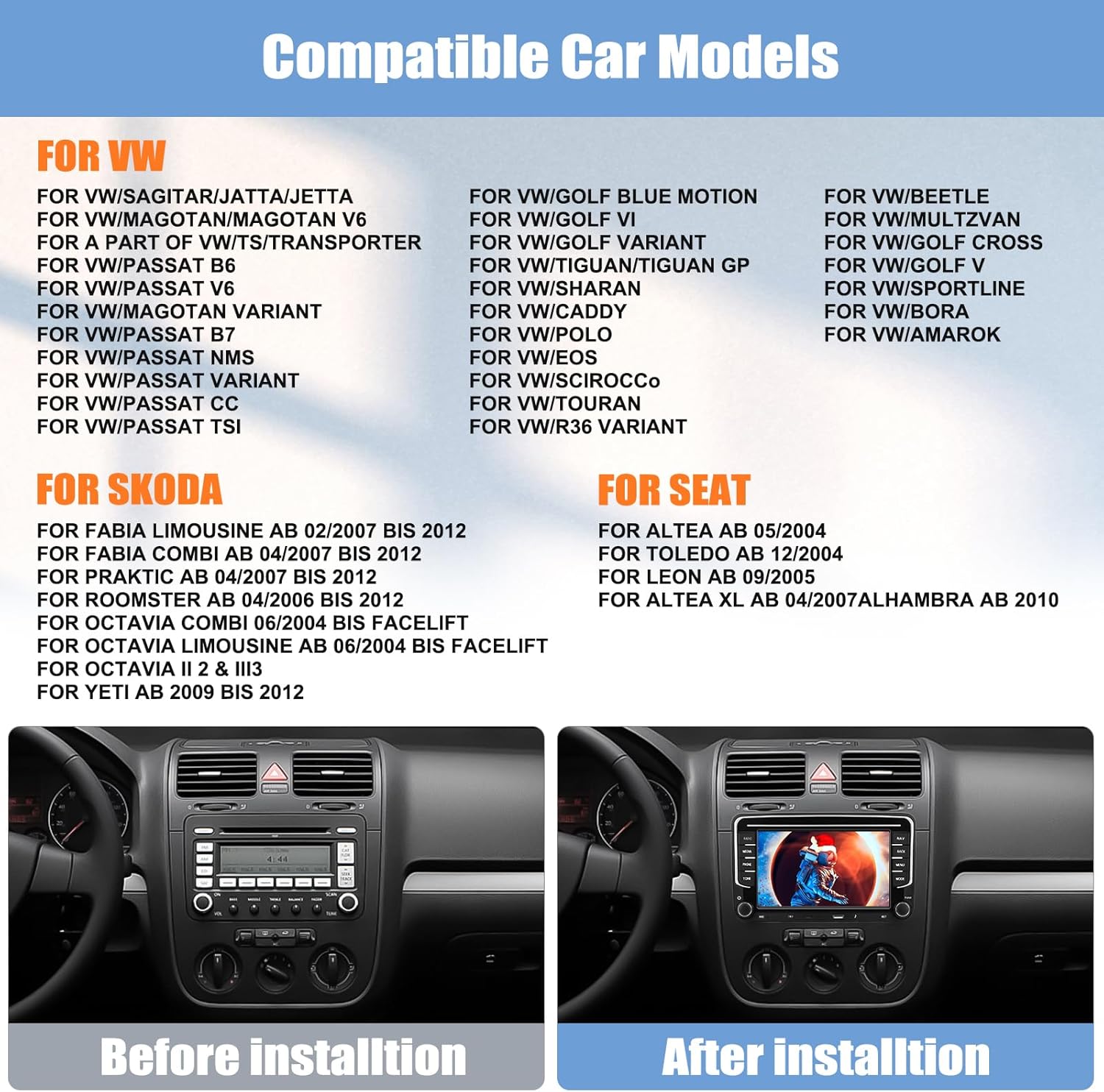
Image: A list of compatible car models for VW, Skoda, and Seat vehicles. Below the list, a comparison shows a car's dashboard before and after the installation of the CAMECHO car stereo, demonstrating a seamless fit.
5.2. Wiring Diagram
Refer to the included wiring diagram in the user manual and the labels on the unit itself for correct connections. Ensure all cables are securely connected to prevent intermittent issues.
5.3. Installation Steps
- Disconnect Battery: Before starting, disconnect the vehicle's negative battery terminal to prevent electrical shorts.
- Remove Old Unit: Carefully remove your existing car stereo unit from the dashboard.
- Connect Wiring: Connect the power cables, speaker wires, GPS antenna, radio antenna, USB cables, CANBUS decoder, rear camera input, and RCA cables to the new CAMECHO unit according to the wiring diagram.
- Test Connections: Before fully mounting, reconnect the battery and briefly test the unit's basic functions (power on, radio, sound) to ensure all connections are correct.
- Mount Unit: Securely mount the CAMECHO car stereo into the dashboard opening.
- Final Assembly: Reassemble any removed dashboard panels or trim.
6. Operating Instructions
6.1. Basic Operation
- Power On/Off: Press the power button to turn the unit on or off.
- Volume Control: Use the volume knob or touchscreen controls to adjust the audio level.
- Home Screen: Tap the Home icon to return to the main Android interface.
6.2. Wireless Carplay & Android Auto
Connect your smartphone wirelessly or via USB to access Carplay (for iPhone) or Android Auto (for Android phones). This allows seamless integration of phone features like navigation, calls, messages, and music directly on the car stereo display.
- Ensure Bluetooth is enabled on your phone and the car stereo.
- Pair your phone with the car stereo via Bluetooth.
- Once paired, Carplay or Android Auto should automatically launch. For wired connection, connect your phone via a USB cable.
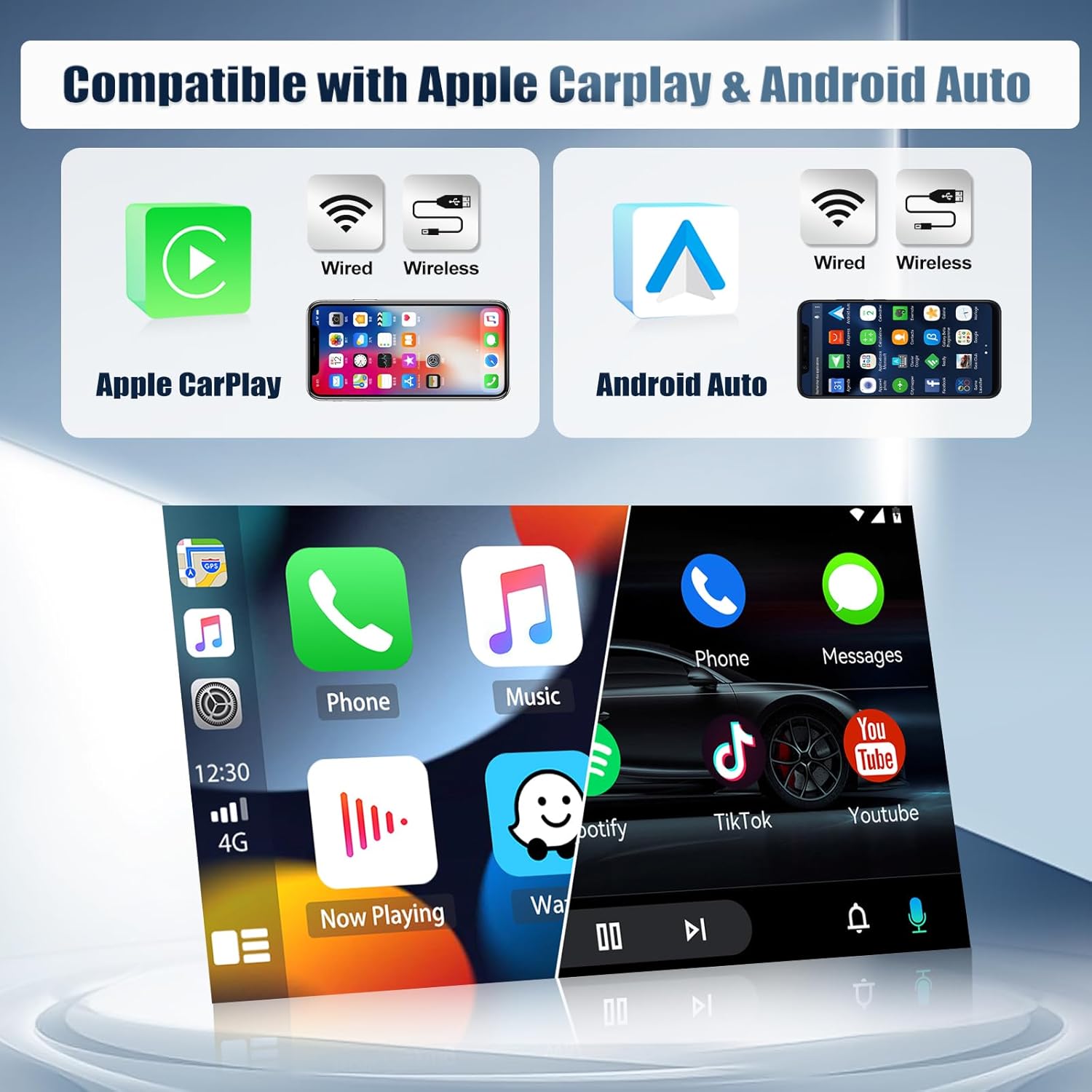
Image: Displays the compatibility of the car stereo with both Apple Carplay and Android Auto, showing options for both wired and wireless connections. The image illustrates the user interface of both systems on the stereo screen.
6.3. Bluetooth Connectivity
Bluetooth 5.0 allows for hands-free calling and wireless audio streaming.
- Go to the Bluetooth settings on the car stereo.
- Enable Bluetooth on your phone and search for available devices.
- Select the car stereo from the list and pair.
- Once connected, you can make/receive calls and play music wirelessly.

Image: A multi-panel display showing various functions of the CAMECHO car stereo: the FM/RDS radio interface, the WiFi interface displaying online content, the Bluetooth dial pad for phone calls, and the rear camera view with safety features.
6.4. WiFi & GPS Navigation
Connect to a WiFi hotspot to access online maps, stream media, and download apps from the Play Store. The built-in GPS module provides accurate navigation.
- Go to Settings > Network & Internet > Wi-Fi to connect to a network.
- Open the pre-installed navigation app or download your preferred map application.
- The unit supports both online and offline maps (offline maps require prior download).
6.5. FM/RDS Radio
Tune into your favorite radio stations with FM/RDS functionality. The RDS (Radio Data System) displays station information where available.
- Select the 'Radio' application from the main menu.
- Use the scan function to automatically find and save stations, or manually tune to a frequency.
- Preset up to 18 stations for quick access.
6.6. Mirror Link
Mirror Link allows you to display your smartphone's screen on the car stereo. Android phones support two-way control, while iPhones support one-way control (display only).
- Open the 'Mirror Link' app on the car stereo.
- Follow the on-screen instructions to connect your iOS or Android device via WiFi or USB.

Image: Illustrates the iOS/Android Mirror Link feature, showing a smartphone screen being mirrored onto the car stereo display, enabling content sharing and control.
6.7. Steering Wheel Control
The unit supports steering wheel controls, allowing you to manage audio and other functions without taking your hands off the wheel. This requires proper CANBUS connection and configuration.
- Access the 'Steering Wheel Control' settings in the unit's menu.
- Follow the on-screen prompts to program each button on your steering wheel to the desired function.

Image: Shows the interface for setting up steering wheel controls, allowing users to assign functions to their vehicle's steering wheel buttons. Also displays the Equalizer (EQ) adjustment screen for customizing audio output.
6.8. Rear Camera Function
When the vehicle is shifted into reverse, the car stereo automatically displays the view from the included rear camera, assisting with parking and maneuvering.
- Ensure the rear camera is correctly installed and connected to the 'Reversing Camera Input' port.
- The camera features night vision, auxiliary lines, waterproof protection, and a wide 170° angle.
6.9. Voice Control
Utilize voice commands for various functions, enhancing convenience and safety while driving.
- Activate the voice control feature (usually by a dedicated button or voice command).
- Speak clear commands for navigation, music playback, calls, etc.
6.10. Split-Screen
Multitask by running two applications simultaneously on the screen, such as navigation and music player.
- Open the first application.
- Long-press the recent apps button or drag from the side (depending on UI) to activate split-screen mode.
- Select the second application to display alongside the first.
7. Maintenance
- Cleaning the Screen: Use a soft, lint-free cloth to gently wipe the touchscreen. Do not use abrasive cleaners or solvents.
- Software Updates: Periodically check for software updates to ensure optimal performance and access to new features. Updates can usually be found in the system settings or on the manufacturer's website.
- Avoid Extreme Temperatures: Do not leave the unit exposed to direct sunlight or extreme cold for extended periods.
- Cable Connections: Ensure all cables remain securely connected. Loose connections can lead to intermittent issues.
8. Troubleshooting
If you encounter any issues with your CAMECHO car stereo, refer to the following common problems and solutions:
| Problem | Possible Cause | Solution |
|---|---|---|
| Unit does not power on | Incorrect wiring, blown fuse, insufficient power supply. | Check power cable connections. Verify vehicle fuse and unit's fuse. Ensure 12V DC power. |
| No sound | Speaker wires disconnected, volume too low, mute function active, incorrect audio output settings. | Check speaker wire connections. Increase volume. Disable mute. Check audio settings. |
| Steering wheel controls not working | CANBUS not connected or configured, incorrect programming. | Ensure CANBUS decoder is correctly installed. Re-program steering wheel controls in settings. |
| Bluetooth connection issues | Bluetooth off, pairing failed, interference. | Ensure Bluetooth is enabled on both devices. Delete previous pairings and re-pair. Move closer to the unit. |
| GPS signal lost or inaccurate | GPS antenna not connected, antenna obstructed, poor satellite reception. | Ensure GPS antenna is securely connected and placed in a clear area (e.g., dashboard). Move to an open area. |
| Screen unresponsive or frozen | Software glitch, temporary system error. | Perform a soft reset (refer to the unit's specific reset method, usually a small reset button). If persistent, disconnect power for a few minutes. |
| Rear camera not displaying | Camera input cable loose, camera faulty, reverse trigger wire not connected. | Check rear camera input cable. Ensure reverse trigger wire is correctly connected to the vehicle's reverse light circuit. |
If the problem persists after trying these solutions, please contact CAMECHO customer support for further assistance.
9. Specifications
| Feature | Specification |
|---|---|
| System | Android 15 |
| Chipset | 8257 (8-Core) |
| Screen Size | 7 inches |
| Memory | 4GB RAM + 64GB ROM |
| Screen Resolution | 1024*600 |
| Radio Chip | 8035 |
| Output Power | 4*45W |
| Bluetooth Version | 5.0 |
| Working Temperature | -20 ℃ to 75 ℃ |
| Steering Wheel Control | Supported |
| Power Amplifier Chip | YD7388 |
| Radio Band | FM/RDS |
| Video Output | Supported |
| Reversing Input | AHD/CVBS |
| External Microphone | Supported |
| Split Screen | Supported |
| Maps | Built-in offline maps (requires Internet for data download) |
| WIFI | Supported |
| USB Interface | Dual USB |
| Audio Formats | APE/FLAC/WAV/MP3/WMA etc. |
| Video Formats | MKV/RMVB/AVI/MP4/MDV etc. |
| Image Formats | PNG/JPEG/JPG/GIF/WBMP/BNP etc. |
| Factory Setting Keyword | 1234 |
| Languages | Multi-language support including English, French, German, Spanish, etc. |
| Weight | 1.3 Kilograms |
| Connectivity Technology | Bluetooth, USB, Wi-Fi |
| Compatible Devices | Smartphone |
10. Warranty and Support
CAMECHO provides the following warranty and support for this product:
- Manufacturer Warranty: 2-year warranty from the date of purchase.
- Returns: 30-day return policy.
- Customer Support: Response to inquiries within 24 hours.
For technical assistance, warranty claims, or any other support needs, please contact CAMECHO customer service through the platform where you purchased the product or refer to the contact information provided in your purchase documentation.


