Introduction
Welcome to the user manual for your GravaStar Mercury X Wireless Gaming Mouse. This manual provides detailed instructions on setting up, operating, and maintaining your device to ensure optimal performance and longevity. The Mercury X is designed for high-performance gaming, featuring an ultra-lightweight magnesium alloy build, a high-precision PAW3950 sensor, and versatile tri-mode connectivity.

Image: GravaStar Mercury X Wireless Gaming Mouse, highlighting its unique skeletal design and internal RGB illumination.
Key Features
- Ultra-Lightweight Magnesium Build: Weighing only 49g, crafted from premium magnesium alloy for extreme durability and comfort during extended gaming sessions.
- High-Performance PAW3950 Sensor: Equipped with an ultra-precise optical sensor offering up to 32,000 DPI and a 1000 Hz polling rate for pixel-perfect accuracy and rapid response.
- Tri-Mode Connectivity: Seamlessly switch between Bluetooth, ultra-low-latency 2.4GHz wireless, and USB-C wired connection for ultimate flexibility across various devices.
- Custom RGB Lighting & 5 Programmable Buttons: Personalize your gaming setup with dynamic RGB lighting and configure five programmable buttons for macros and custom functions via intuitive web-based software.
- Ergonomic & Ventilated Design: The hollowed-out design ensures optimal airflow to reduce hand sweat and fatigue, providing a comfortable grip for marathon gaming.

Image: The high-performance PAW3950 optical sensor, central to the mouse's precision and responsiveness.
Package Contents
Please ensure all items are present in your package:
- GravaStar Mercury X Wireless Gaming Mouse
- 2.4GHz Wireless Receiver (USB Dongle)
- USB-C to USB-A Charging/Data Cable
- Additional Grip Tapes (textured)
- User Manual (this document)
Setup
1. Charging the Mouse
Before first use, it is recommended to fully charge the mouse. Connect the provided USB-C cable to the mouse's USB-C port and the other end to a USB power source (e.g., computer USB port, wall adapter). The RGB lighting may indicate charging status.
2. Connecting via 2.4GHz Wireless (Recommended for Gaming)
- Locate the 2.4GHz wireless receiver (USB dongle).
- Plug the receiver into an available USB port on your computer.
- Turn on the mouse using the power switch located on the underside. Ensure it is set to 2.4G mode.
- The mouse should automatically connect to the receiver. The indicator light on the mouse will confirm connection.
3. Connecting via Bluetooth
- Turn on the mouse and set the switch on the underside to Bluetooth mode.
- Press and hold the Bluetooth pairing button (refer to diagram in Operating section for location) until the indicator light flashes rapidly, indicating pairing mode.
- On your computer or device, go to Bluetooth settings and search for "GravaStar Mercury X".
- Select the mouse to pair. The indicator light will become solid once connected.
4. Connecting via USB-C Wired
Connect the USB-C cable directly from the mouse to your computer's USB port. The mouse will function in wired mode and charge simultaneously. No drivers are typically required for basic wired functionality.
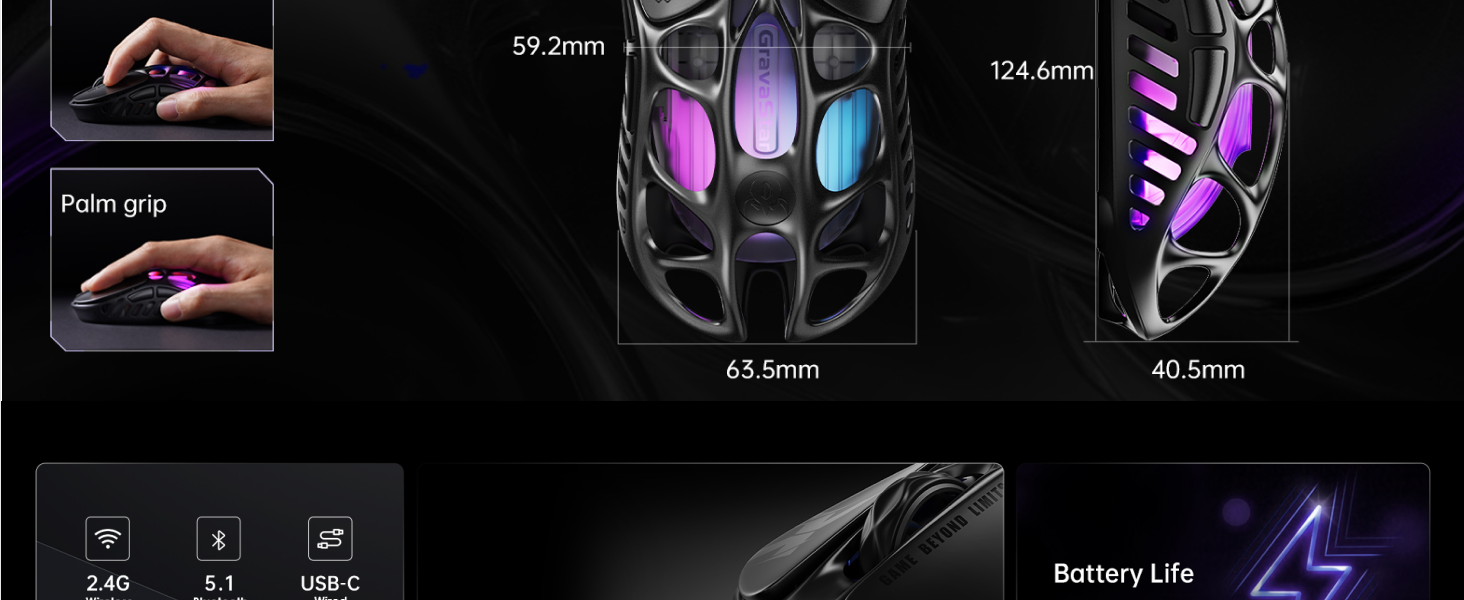
Image: The Mercury X mouse illustrating its versatile tri-mode connectivity options.
Operating the Mouse
Button Functions
| Button | Default Function |
|---|---|
| 1. Left Click | Primary click function. |
| 2. Right Click | Secondary click function (context menu). |
| 3. Wheel Click | Middle click, often used for opening links in new tabs or auto-scrolling. |
| 4. Forward Button | Navigates forward in web browsers or file explorers. |
| 5. Backward Button | Navigates backward in web browsers or file explorers. |
| 6. DPI Loop Button | Cycles through preset DPI sensitivity levels. |
Note: All 5 programmable buttons can be customized via the Control HUB WEB software.
DPI Adjustment
Press the DPI Loop button (Button 6) to cycle through the pre-configured DPI settings. The default DPI stages are typically set to common values, but can be fully customized using the web-based software.
RGB Lighting Control
The Mercury X features customizable RGB lighting. Lighting effects and colors can be adjusted through the Control HUB WEB software. This allows for personalization to match your gaming setup or mood.
Control HUB WEB Software
The GravaStar Mercury X utilizes an intuitive web-based software for configuration, eliminating the need for downloads. To access:
- Ensure your mouse is connected to your computer (wired or wireless).
- Open a web browser (e.g., Chrome, Edge).
- Navigate to the official GravaStar support website or the specific Control HUB WEB URL provided in the quick start guide (if available).
- From the web interface, you can:
- Reassign button functions.
- Adjust DPI stages and polling rate.
- Customize RGB lighting effects.
- Create and manage profiles.
- Update firmware (if available).

Image: GravaStar Control HUB WEB software interface, demonstrating button remapping and profile management.
Maintenance
Cleaning
To maintain the performance and appearance of your mouse:
- Use a soft, dry, lint-free cloth to wipe the surface of the mouse.
- For hard-to-reach areas or the hollow frame, use compressed air or a soft brush to remove dust and debris.
- Avoid using harsh chemicals, abrasive cleaners, or excessive moisture, as these can damage the mouse.
Battery Care
- Avoid fully discharging the battery frequently.
- Store the mouse in a cool, dry place when not in use for extended periods.
- If the mouse will not be used for a long time, charge it to about 50% before storing.
Troubleshooting
| Problem | Possible Solution |
|---|---|
| Mouse not responding (Wireless) |
|
| Lag or Disconnections |
|
| DPI/Sensitivity issues |
|
| Buttons not working |
|
| RGB lighting not working |
|
Specifications
| Feature | Detail |
|---|---|
| Model Number | X Pro |
| Sensor | PAW3950 Optical Sensor |
| DPI Range | Up to 32,000 DPI |
| Polling Rate | 1000Hz (1K Polling Rate variant) |
| Connectivity | 2.4GHz Wireless, Bluetooth, USB-C Wired |
| Weight | Approximately 49g (1.73 oz) |
| Dimensions | 6.57 x 3.74 x 3.19 inches (Package) |
| Buttons | 5 Programmable Buttons |
| Battery | Rechargeable Lithium-ion (internal, via USB-C) |
| Color | Gray |
Warranty and Support
GravaStar products come with a standard manufacturer's warranty. For detailed warranty information, technical support, or service inquiries, please visit the official GravaStar website or contact their customer support directly. Keep your proof of purchase for warranty claims.
Official GravaStar Store on Amazon: GravaStar Store
Important Note on Videos
No official product video URLs were provided in the source data. Therefore, no videos could be embedded in this manual.


