
1. Introduction
This manual provides detailed instructions for the installation, setup, and operation of your ikasus Android 13 Car Stereo Radio. Designed specifically for Ford Escape models from 2013 to 2016, this multimedia player features a 9-inch HD touchscreen, wireless CarPlay and Android Auto, built-in WiFi, Bluetooth, GPS navigation, and support for a backup camera. Please read this manual thoroughly before installation and use to ensure proper functionality and safety.
2. What's in the Box
Carefully unpack all items and check against the list below. If any items are missing or damaged, please contact customer support.
- Main Head Unit with 9-inch Touch Screen
- Audio Cover / Frame
- Power Cable
- RCA Input/Output Cables
- USB Cables
- Camera Input Cable
- Radio Extension Cable
- GPS Antenna
- Instruction Manual (this document)
- USB Adapter
- Canbus Box
- Installation Tools (plastic pry tools)
- Gloves
- Rear Camera (Gift)
Video: Unboxing and overview of the ikasus Car Radio for Ford Escape 2013-2018, showing the main unit, audio cover, and various accessories included in the package.
3. Installation Guide
3.1. Compatibility Check
Ensure your vehicle's dashboard matches the 'Fit' configurations shown below. This unit is designed for Ford Escape 2013-2016 models. Some factory systems, particularly those with a large built-in screen, may not be compatible.
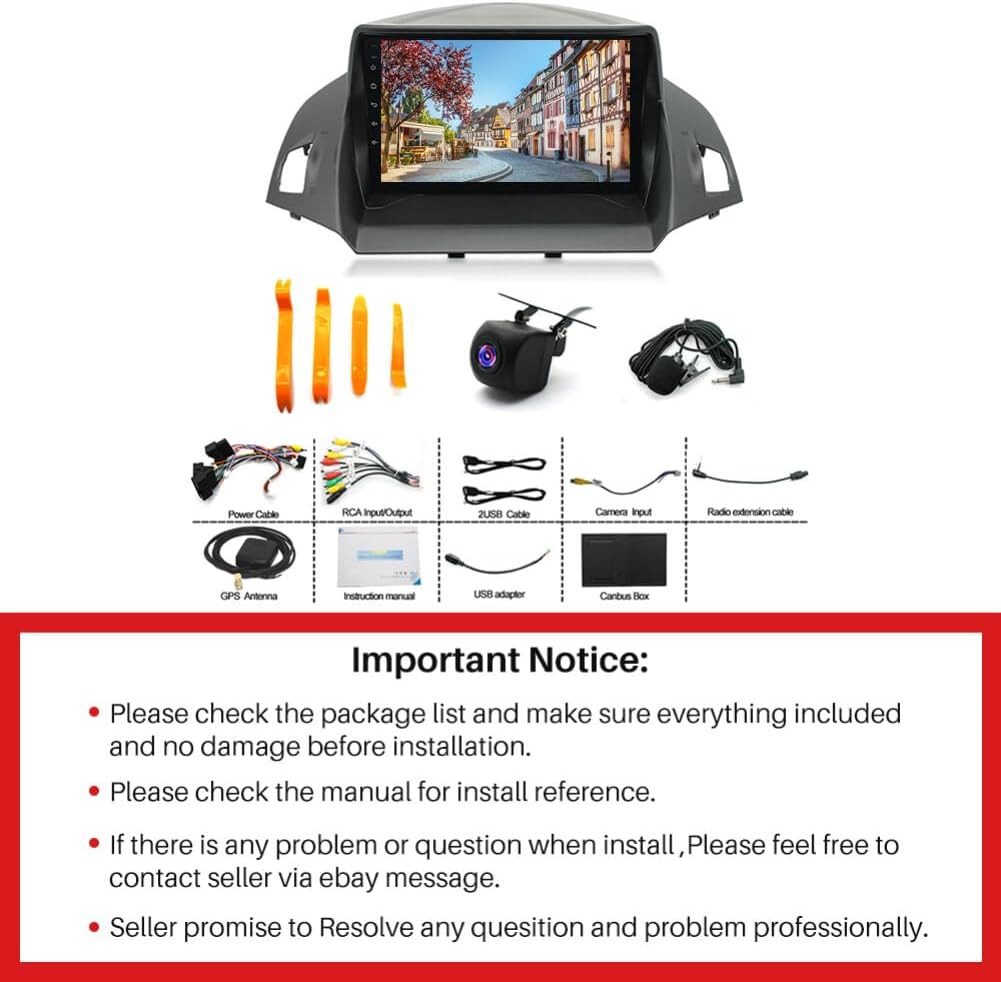
Image: Visual guide for dashboard compatibility, illustrating which Ford Escape 2013-2016 dashboard configurations are suitable for installation.
3.2. Wiring Connections
Follow the wiring diagrams carefully. Incorrect connections can damage the unit or vehicle electronics. Ensure all cables are securely connected.

Image: Detailed diagram illustrating the correct connection of the camera input cable, highlighting the white plug connection for Bluetooth and WiFi signals.
Video: Step-by-step guide on how to connect the car stereo radio, including various wiring connections and ensuring proper setup.
Video: Demonstrates the car radio connection process, providing visual instructions for wiring and component integration.
3.3. Mounting the Unit
Once wiring is complete, carefully mount the head unit into the dashboard opening. Secure it using the provided brackets and screws. Reassemble any removed dashboard panels.
4. Setup & Initial Configuration
4.1. Power On/Off
Turn on your vehicle's ignition. The unit should power on automatically. To turn off, simply turn off the ignition. A long press on the power button (if available) may also power off the unit.
4.2. Bluetooth Connection
To enable hands-free calling and audio streaming, connect your smartphone via Bluetooth.
- On the car stereo, navigate to the Bluetooth settings.
- Enable Bluetooth on your smartphone and search for available devices.
- Select 'CarBT' (or similar device name) from the list on your phone.
- Enter the PIN (usually '0000') if prompted.
- Confirm the connection.
Video: Demonstrates Bluetooth connection and hands-free calling functionality on the car stereo.
4.3. Wi-Fi Connection
Connect to a Wi-Fi network for online navigation, app downloads, and internet browsing.
- Go to 'Settings' on the car stereo.
- Select 'Network & Internet' and then 'Wi-Fi'.
- Turn on Wi-Fi and select your desired network.
- Enter the password if required and connect.
4.4. Wireless CarPlay & Android Auto Setup
This unit supports both wireless CarPlay and Android Auto for seamless smartphone integration.
- Ensure Bluetooth and Wi-Fi are enabled on both your phone and the car stereo.
- Open the 'ZLINK' application on the car stereo.
- Follow the on-screen prompts to connect your iPhone (for CarPlay) or Android phone (for Android Auto).
- Grant necessary permissions on your phone.
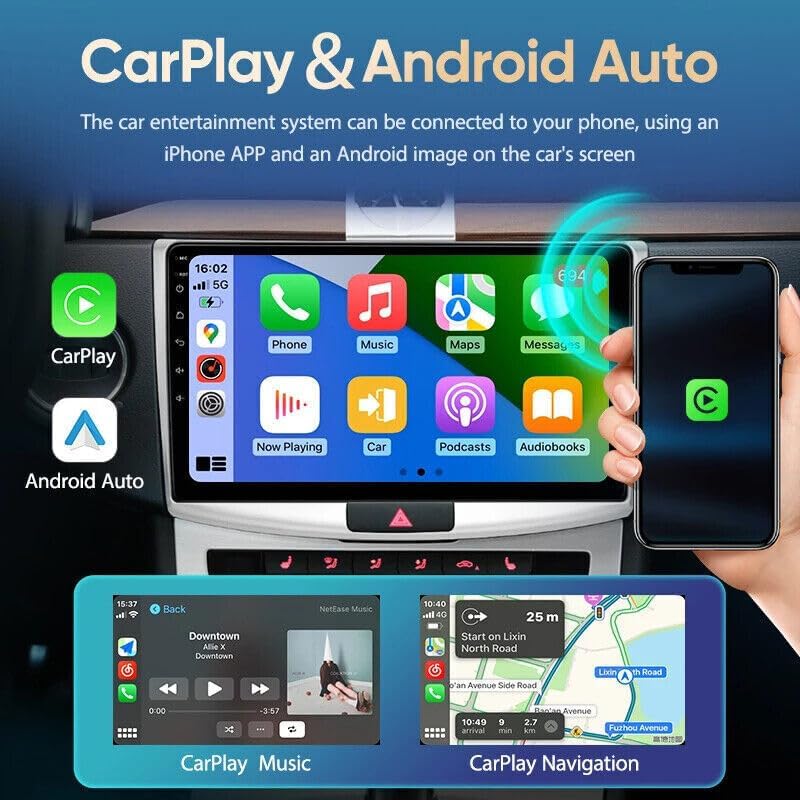
Image: Display of the CarPlay and Android Auto interfaces, demonstrating smartphone integration for navigation, music, and calls.
Video: A short preview demonstrating the connection process for ZLINK, which enables CarPlay and Android Auto functionality.
4.5. UI Customization
You can customize the user interface (UI) and homepage layout to suit your preferences.
- Navigate to 'Settings' and look for 'Theme' or 'UI Design' options.
- Select from various pre-installed themes or customize individual elements.
Video: Guide on how to change the UI and customize the homepage of the car stereo, showing different theme options and layout adjustments.
5. Operating Instructions
5.1. Basic Navigation
The home screen provides quick access to frequently used functions. Swipe left or right to access additional app pages. Tap on an icon to launch an application.
5.2. GPS Navigation
The unit comes with built-in GPS and supports popular navigation apps like Google Maps, Waze, and Here Maps. You can also download offline maps.
- Tap the 'Navigation' or 'Maps' icon on the home screen.
- Enter your destination using the on-screen keyboard or voice command.
- Select your preferred route and start navigation.

Image: Display of the GPS navigation system, showing map functionality and various online services accessible via Wi-Fi.
5.3. Radio (FM/RDS)
Access the radio function to listen to FM/AM stations. The RDS (Radio Data System) provides additional information like station name and traffic updates.
- Tap the 'Radio' icon.
- Use the arrow buttons to manually tune or the 'Search' function for automatic scanning.
- Save your favorite stations for quick access.
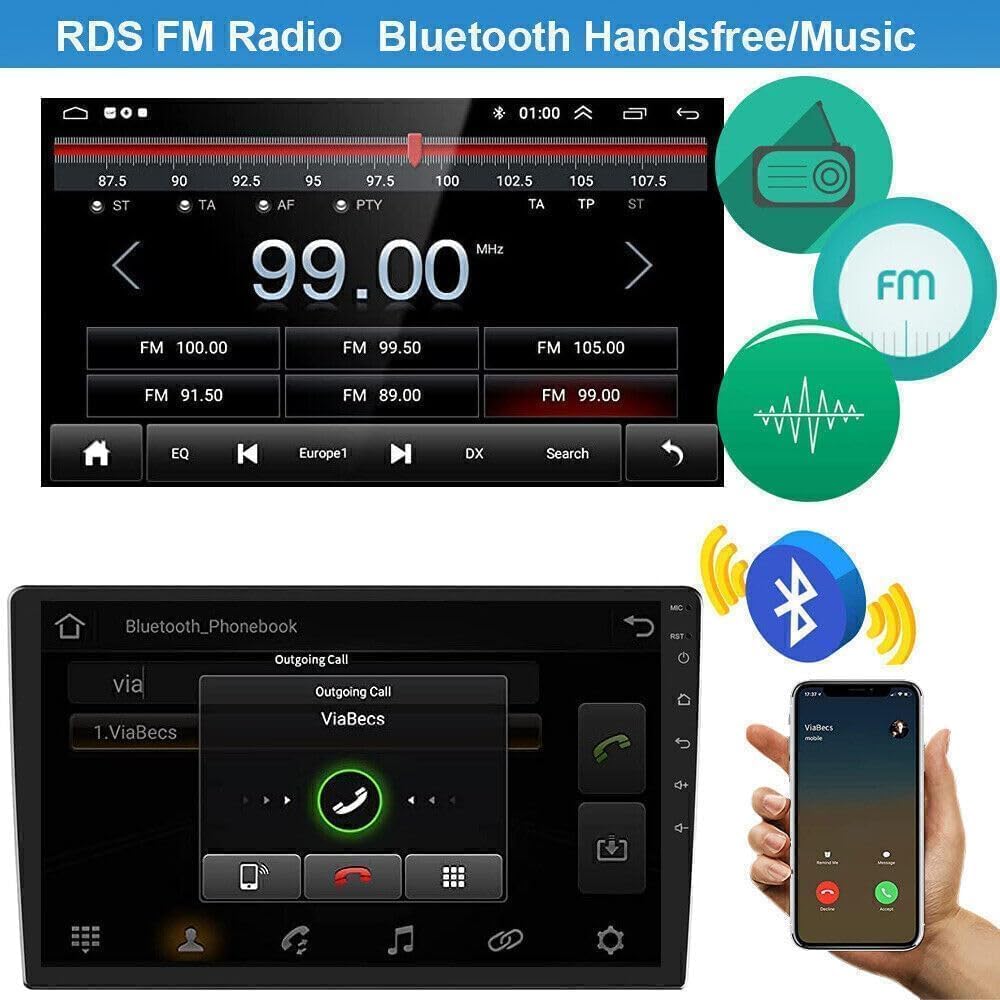
Image: The FM/RDS radio interface, showing frequency selection and options for Bluetooth hands-free calls and music streaming.
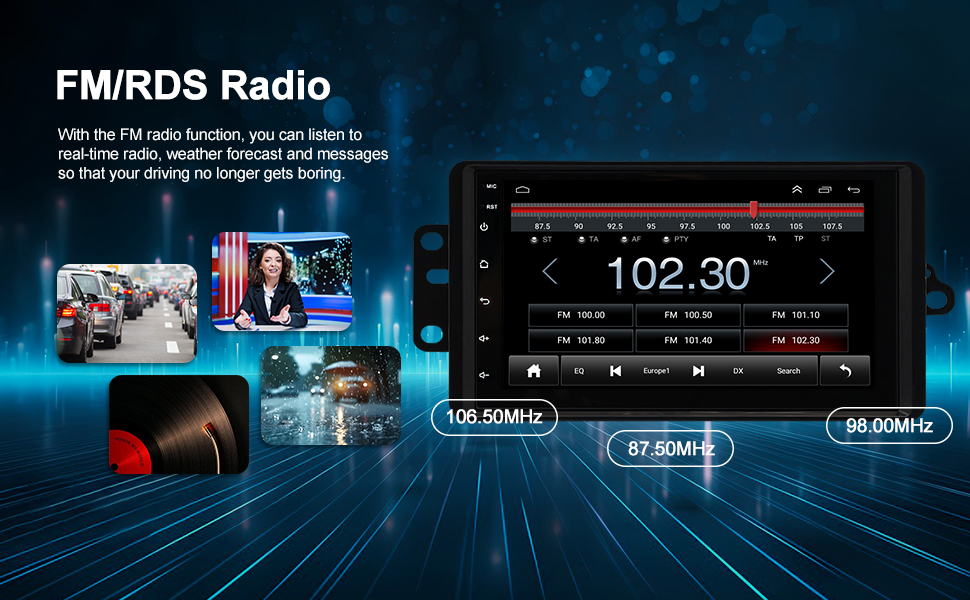
Image: Detailed view of the FM/RDS radio interface, highlighting features for real-time radio, weather forecasts, and messages.
5.4. Media Playback (Music, Video)
Play music and videos from various sources, including USB, Bluetooth, or streaming apps.
- Tap the 'Music' or 'Video' icon.
- Select your desired media source and file.
- Use the on-screen controls for playback, pause, skip, and volume adjustment.
5.5. Steering Wheel Controls
The unit retains your original steering wheel control functions for convenience and safety.
- Access 'Steering Wheel Learning' in the settings menu.
- Follow the on-screen instructions to map your steering wheel buttons to the corresponding functions on the stereo.

Image: Interface for configuring steering wheel controls, allowing users to map physical buttons to various stereo functions.
5.6. Split Screen Function
Utilize the split-screen feature to run two applications simultaneously, such as navigation and music playback.
- Open the first application you wish to use.
- Swipe up from the bottom of the screen or use the multi-tasking button to access recent apps.
- Drag the second desired application to one side of the screen to activate split-screen mode.

Image: Demonstration of the split-screen feature, allowing two applications to be viewed and operated concurrently on the display.
Video: Tutorial on how to operate the split-screen function, enabling users to multitask with different applications on the car stereo.
5.7. Backup Camera
When properly installed, the backup camera automatically displays the rear view when the vehicle is in reverse gear, enhancing safety during parking and maneuvering.
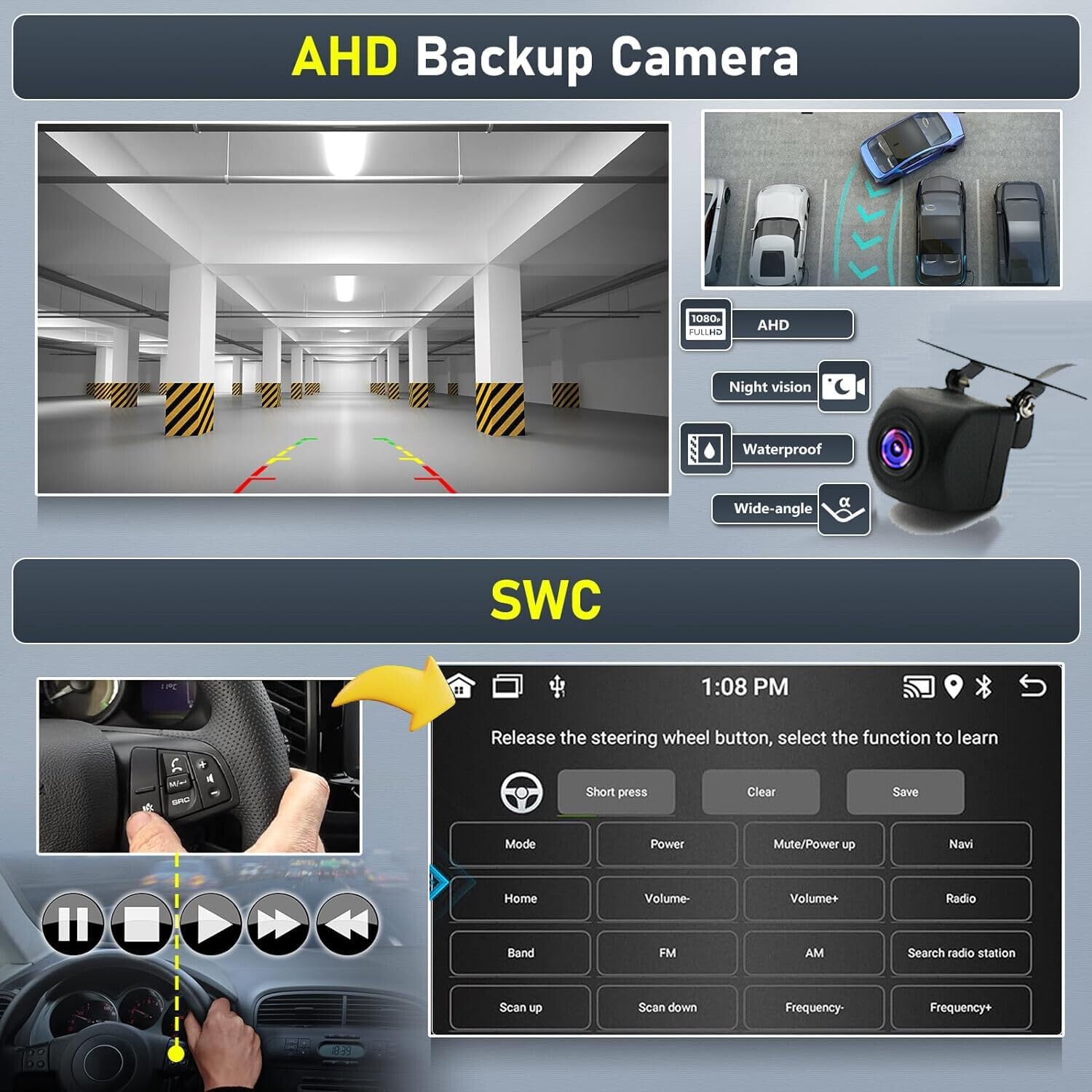
Image: Display of the backup camera view on the car stereo, complete with dynamic parking guidelines for assistance.

Image: Visual representation of the rear view camera in action, showing a car backing up with parking assistance lines on the screen.
6. Maintenance
To ensure the longevity and optimal performance of your car stereo, follow these maintenance guidelines:
- Cleaning: Use a soft, dry cloth to clean the screen and exterior. Avoid abrasive cleaners or solvents.
- Software Updates: Periodically check for software updates through the system settings to ensure you have the latest features and bug fixes.
- Temperature: Avoid exposing the unit to extreme temperatures, which can affect performance and lifespan.
- Power Supply: Ensure a stable power supply to prevent electrical damage.
7. Troubleshooting
If you encounter any issues, please refer to the following common troubleshooting steps:
- No Power: Check all power connections and vehicle's fuse box. Ensure the ignition is on.
- No Sound: Verify speaker connections, volume levels, and audio source selection. Check equalizer settings.
- Bluetooth/Wi-Fi Connection Issues: Ensure both devices have Bluetooth/Wi-Fi enabled. Try restarting both the stereo and your phone. For Wi-Fi, ensure correct password entry.
- GPS Signal Loss: Ensure the GPS antenna is properly installed and has a clear view of the sky.
- Touch Screen Unresponsive: Try restarting the unit. If the issue persists, a factory reset might be necessary (note: this will erase all user data).
- White Plug Warning: If you experience Bluetooth or WiFi signal issues, ensure the white plug for the camera input cable is securely connected to the main device.
8. Specifications
| Feature | Detail |
|---|---|
| Model Number | AUTO-QA1377X-WJYQ-12 |
| Operating System | Android 13.0 |
| RAM | 2GB |
| ROM (Memory Storage) | 32GB |
| Display Size | 9 Inches |
| Screen Resolution | 1024*600 |
| Touch Screen Type | Capacitive |
| Connectivity Technology | Wi-Fi, Bluetooth |
| Navigation | Built-in GPS, supports Google Maps, Waze, Here Maps |
| Car Integration | Wireless CarPlay & Android Auto, Steering Wheel Control |
| Included Components | Car Compass (as per product listing) |
| Item Weight | 5.49 pounds |
| Product Dimensions | 19.29 x 12.6 x 7.87 inches |
9. Warranty & Support
Your ikasus Car Stereo Radio comes with a standard manufacturer's warranty. For specific warranty details, technical support, or service inquiries, please refer to the warranty card included in your package or contact the seller directly. Keep your purchase receipt as proof of purchase.