1. Introduction
This manual provides comprehensive instructions for the setup, operation, maintenance, and troubleshooting of your YUNZII AL65 Wireless Mechanical Keyboard. Please read this manual carefully to ensure proper use and to maximize your keyboard's potential.

Image: The YUNZII AL65 Wireless Mechanical Keyboard, showcasing its white keycaps, transparent accent keycaps, and illuminated side profile.
2. Package Contents
Verify that all items are present in your package:
- YUNZII AL65 Mechanical Keyboard
- Dust Cover
- 2.4G Wireless Receiver
- USB-C Cable
- User Manual (this document)
- Extra Keycaps and Switches
3. Product Features
The YUNZII AL65 keyboard offers a range of advanced features:
- 65% Layout: Compact design with 68 keys, including arrow keys, optimizing desk space.
- Full Aluminum CNC Frame: Durable and aesthetically pleasing construction.
- Tri-Mode Connectivity: Supports Bluetooth, 2.4GHz wireless, and USB-C wired connections.
- QMK/VIA Programmable: Allows for extensive key remapping, macro creation, and RGB customization.
- Gasket-Mounted Structure: Provides a cushioned typing experience and reduces vibration.
- Hot-Swappable PCB: Compatible with 3-pin and 5-pin mechanical switches for easy customization without soldering.
- Dynamic RGB Backlighting: Features 16.8 million colors, south-facing LEDs, and 360° surround lighting.
- 8000mAh Battery: High-capacity battery for extended wireless usage.
- N-Key Rollover (NKRO): Ensures all key presses are registered accurately, even during rapid typing.

Image: Diagram illustrating the YUNZII AL65's key features such as 65% layout, CNC aluminum frame, tri-mode connectivity, QMK/VIA support, hot-swappable PCB, Mac/Win/Linux/Android system compatibility, south-facing RGB, 8000mAh battery, N-Key Rollover, and extra transparent keycaps. Dimensions are shown as 12.57 inches length, 4.33 inches width, and 1.57 inches height.

Image: Exploded view diagram of the YUNZII AL65's gasket-mounted structure, detailing layers such as the keyboard case, keycaps, mechanical switches, switch toggle, gaskets, PC plate, sandwich foam, switch pad, transparent film, PCBA, switch socket, switch foam, PET film, transparent frame, batteries, keyboard bottom case, and non-slip bottom silicone.
4. Setup and Connectivity
The AL65 supports three connection modes: USB-C wired, 2.4GHz wireless, and Bluetooth.
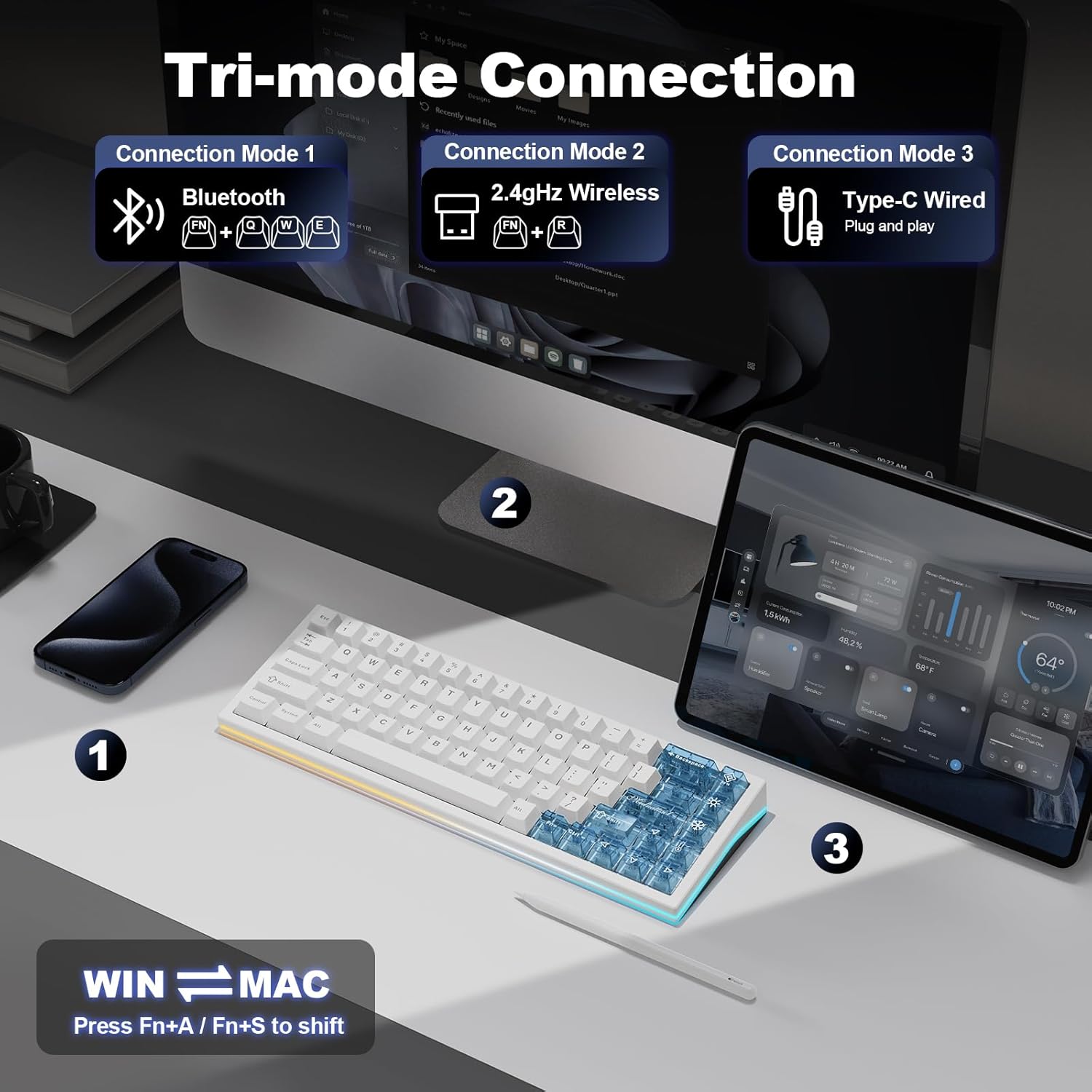
Image: Visual representation of the three connection modes: Bluetooth (FN+Q/W/E), 2.4GHz Wireless (FN+R), and Type-C Wired (Plug and Play). The image also shows compatibility with various devices like PC, laptop, tablet, phone, Switch, and Xbox.
4.1. Wired Connection
- Connect the provided USB-C cable to the keyboard's USB-C port.
- Plug the other end of the cable into a USB port on your computer.
- The keyboard will automatically be recognized and ready for use.
4.2. 2.4GHz Wireless Connection
- Locate the mode switch on the keyboard and set it to the 2.4G Wireless mode.
- Press FN + R simultaneously. The R key will flash green slowly.
- Insert the 2.4G wireless receiver into a USB port on your device.
- Once connected, the R key will flash green quickly, then the RGB lighting will remain on, indicating a successful connection.
Image: Step-by-step guide for 2.4GHz wireless connection, showing the mode switch, FN+R key combination, inserting the dongle, and successful connection.
4.3. Bluetooth Connection
The AL65 can connect to up to 3 Bluetooth devices.
- Locate the mode switch on the keyboard and set it to the Bluetooth mode.
- Short press FN + Q, FN + W, or FN + E to select a Bluetooth channel. The corresponding key (Q, W, or E) will flash blue, yellow, or red slowly.
- On your device (e.g., computer, tablet, phone), enable Bluetooth and search for new devices. Select "YUNZII AL65 BT1/BT2/BT3" from the list.
- For pairing, long press FN + Q, FN + W, or FN + E. The selected key will flash quickly, indicating pairing mode.
- Once connected, the RGB lighting will remain on, indicating a successful connection.
Image: Step-by-step guide for Bluetooth connection, showing the mode switch, FN+Q/W/E key combinations, device pairing, and successful connection.
4.4. Switching Between Windows and Mac Modes
The keyboard supports both Windows and macOS layouts.
- To switch to Mac mode, press FN + A.
- To switch to Windows mode, press FN + S.
5. Operation
5.1. Basic Key Functions
The 65% layout utilizes the FN key for accessing additional functions, including the F1-F12 keys.
- To toggle the number row to function as F1-F12 keys, double-tap the FN key. Double-tap again to revert to number row functionality.
5.2. RGB Lighting Control
Customize the keyboard's 16.8 million color RGB backlighting and 360° side-surround illumination using the following FN key combinations:

Image: Diagram showing FN key combinations for RGB lighting control, including turning effects on/off, changing effect speed, changing backlight effect, changing backlight color, changing side-light effect, and adjusting brightness for both main and side lights.
- FN + Backspace: Toggle Backlight Effect ON/OFF or Blinking Speed Up.
- FN + \|: Change Backlight Effect.
- FN + Enter: Change Backlight Color.
- FN + Up Arrow: Increase Backlight Brightness.
- FN + Down Arrow: Decrease Backlight Brightness.
- FN + >: Increase Blinking Speed.
- FN + <: Decrease Blinking Speed.
- FN + P: Change Side-Light Effect.
- FN + PgUp: Increase Side-Light Brightness.
- FN + PgDn: Decrease Side-Light Brightness.
5.3. QMK/VIA Customization
The YUNZII AL65 supports QMK/VIA software for advanced customization of key mappings, macros, and RGB lighting. This open-source platform provides extensive flexibility.
- Connect the keyboard to your computer using the USB-C cable.
- Visit the official YUNZII website to download the specific JSON file for the AL65 model.
- Open the VIA software (or access the VIA website).
- Click "Authorize device" to connect the keyboard.
- Go to "SETTINGS" and enable "Show Design Tab".
- In the "DESIGN" tab, upload the downloaded AL65 JSON file.
- Once the JSON file is loaded, you can customize key assignments, create macros, and adjust RGB settings. Changes are applied in real-time.

Image: Screenshot of the QMK/VIA software interface, demonstrating options for remapping keys, macro editing, and RGB design customization.
Image: Visual guide detailing the steps to customize the keyboard using QMK/VIA software, including connecting, downloading the JSON file, authorizing the device, enabling the design tab, and uploading the JSON file.
6. Battery Management
The YUNZII AL65 is equipped with an 8000mAh battery for extended wireless use.
- Battery Life: Approximately 36 hours with RGB lighting on, and up to 130 hours with RGB lighting off.
- Charging Time: A full charge typically takes around 18 hours.
- Always use the provided USB-C cable for charging to ensure compatibility and safety.

Image: Graphic illustrating the 8000mAh battery capacity and estimated usage times: 36 hours with RGB on, 130 hours with RGB off, and 18 hours for charging.
7. Maintenance
7.1. Cleaning
- Disconnect the keyboard from all power sources before cleaning.
- Use a soft, lint-free cloth slightly dampened with water or a mild cleaning solution to wipe the keycaps and frame.
- For deeper cleaning, keycaps can be removed using a keycap puller.
- Use compressed air to remove dust and debris from between the keys.
7.2. Switch and Keycap Replacement
The AL65 features a hot-swappable PCB, allowing for easy replacement of mechanical switches and keycaps without soldering.
- Use the provided keycap puller to gently remove the desired keycap.
- Use the provided switch puller to carefully extract the mechanical switch from the PCB.
- Align the pins of the new switch with the holes on the PCB and press firmly until it clicks into place. Ensure pins are not bent.
- Place the new keycap onto the switch stem and press down until secure.

Image: Close-up view of a hot-swappable mechanical switch being removed from the keyboard, highlighting the ease of customization.
8. Troubleshooting
- Keyboard not responding: Ensure the keyboard is charged and properly connected (wired, 2.4GHz, or Bluetooth). Try restarting the keyboard and your device.
- 2.4GHz wireless connection unstable: Ensure the 2.4G receiver is within close proximity to the keyboard (ideally within 2 feet) and not obstructed by metal objects. Try connecting the receiver to a different USB port or using a USB extension cable.
- Bluetooth pairing issues: Ensure the keyboard is in pairing mode (FN+Q/W/E flashing quickly). Remove previous pairings from your device's Bluetooth settings and try pairing again.
- QMK/VIA software not detecting keyboard: Ensure the keyboard is connected via USB-C. Verify that you have downloaded the correct JSON file for the AL65 model from the YUNZII official website. Ensure "Show Design Tab" is enabled in VIA settings.
- RGB lighting not working: Check if RGB is turned off (FN + Backspace). Adjust brightness settings (FN + Up/Down Arrow).
- Keys not registering: If specific keys are not working, the switch may be faulty or improperly seated. Try replacing the switch using the hot-swap feature.
9. Specifications
| Feature | Detail |
|---|---|
| Model | AL65 |
| Layout | 65% (68 keys) |
| Material | Aluminum (CNC) |
| Connectivity | Bluetooth, 2.4GHz Wireless, USB-C Wired |
| Battery Capacity | 8000mAh |
| RGB Backlighting | 16.8 Million Colors, South-facing LEDs, 360° Surround Light |
| Hot-Swappable | Yes (3-pin and 5-pin switches) |
| Programmability | QMK/VIA Support |
| Compatible Devices | Laptop, PC, Smartphone, Tablet |
| Operating Systems | Mac, Windows, Linux, Android |
| Dimensions (L x W x H) | 12.57 x 4.33 x 1.57 inches (approx.) |
| Weight | 3.41 pounds (approx.) |
10. Warranty and Support
YUNZII products are manufactured to high-quality standards. For warranty information, please refer to the documentation included with your purchase or visit the official YUNZII website.
If you encounter any issues or require technical assistance, please contact YUNZII customer support through their official channels. When contacting support, please provide your product model (AL65) and a detailed description of the issue.


