
1. Introduction
This manual provides comprehensive instructions for the safe and effective use of the Autel MaxiSys MS906MAX Diagnostic Scan Tool. Please read this manual thoroughly before operating the device to ensure proper functionality and to prevent damage. Keep this manual for future reference.
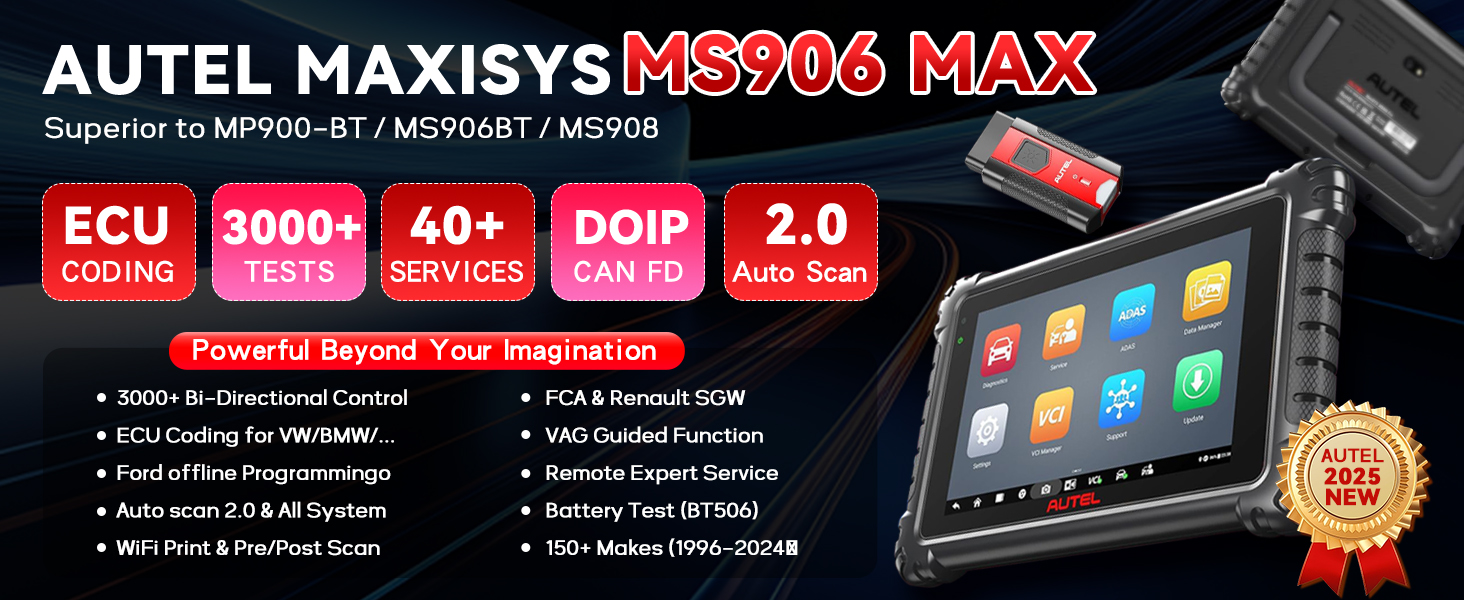
Image: The Autel MaxiSys MS906MAX device, showcasing its large 10-inch screen, Octa-core processor, and Android 10.0 operating system, indicating an upgrade from previous models.
2. Product Overview
The Autel MaxiSys MS906MAX is an advanced diagnostic scan tool designed for comprehensive vehicle analysis and maintenance. It features a robust hardware platform and extensive software capabilities.
2.1 Key Features
- Operating System: Android 10.0 for enhanced performance and user experience.
- Processor: Fast Octa-core processor for quick diagnostics.
- Display: 10.1-inch touchscreen with 1920x1200 resolution for clear data visualization.
- Memory & Storage: 4GB RAM and 128GB internal storage.
- Battery: 11600mAh battery providing up to 10 hours of continuous use.
- Connectivity: 2.4 & 5GHz Wi-Fi, Bluetooth (MaxiVCI V200 interface).
- Vehicle Communication: Supports standard and advanced protocols including CAN FD and DoIP.
- Diagnostic Functions: All-System Diagnostics, Bi-directional Control, Active Tests (3000+), ECU Coding & Adaptation.
- Service Functions: Over 40 essential service and maintenance functions.
- Additional Features: Auto Scan 2.0, Remote Expert, Cloud Services, Wi-Fi Printing, Customer Management.

Image: The Autel MaxiSys MS906MAX tablet with its main interface, highlighting its extensive capabilities such as over 40 service functions, bi-directional control, and advanced ECU coding.
2.2 What's in the Box
The standard package includes:
- Autel MaxiSys MS906MAX Tablet
- MaxiVCI V200 Bluetooth Interface
- Power Adapter
- USB Cable
- User Manual (this document)
- Carrying Case
3. Setup Guide
3.1 Initial Power On
- Unpack all components from the carrying case.
- Press and hold the Power button on the tablet until the Autel logo appears.
- Follow the on-screen instructions to select your language, region, and Wi-Fi network.
- Register your device with Autel to activate warranty and software updates.
3.2 Connecting the MaxiVCI V200
The MaxiVCI V200 is the vehicle communication interface that connects wirelessly to the MS906MAX tablet.
- Locate the vehicle's OBDII port (usually under the dashboard).
- Plug the MaxiVCI V200 into the vehicle's OBDII port. The VCI's LED indicator will illuminate.
- On the MS906MAX tablet, navigate to VCI Manager.
- Select Bluetooth as the connection method.
- The tablet will search for available VCI devices. Select your MaxiVCI V200 from the list to pair.
- Once paired, the VCI's status LED on the tablet will indicate a successful connection.
3.3 Software Updates
Regular software updates ensure your tool has the latest vehicle coverage and diagnostic functions.
- Ensure the tablet is connected to a stable Wi-Fi network.
- From the main menu, tap the Update icon.
- Select the available software updates and tap Download.
- After downloading, tap Install to apply the updates. The tablet may restart during this process.
4. Operating Instructions
4.1 Vehicle Diagnostics
This function allows you to read and clear diagnostic trouble codes (DTCs), view live data, and perform various system tests.
- Connect the MaxiVCI V200 to the vehicle and ensure it's paired with the tablet.
- From the main menu, tap Diagnostics.
- Select the vehicle manufacturer, model, and year. The tool supports Auto VIN for automatic vehicle identification.
- Choose Auto Scan to perform a comprehensive scan of all available systems or select a specific system (e.g., Engine, ABS, Airbag).
- Review the scan results, including DTCs, live data streams, and freeze frame data.
- To clear codes, select the Erase Codes option after addressing the underlying issue.

Image: A visual representation of the Autel MaxiSys MS906MAX conducting an all-system diagnosis, illustrating its ability to access and analyze data from multiple vehicle control modules.
4.2 Bi-directional Control & Active Tests
This feature allows you to send commands to vehicle systems and components to test their functionality.
- After selecting the vehicle and system, navigate to the Active Test or Bi-directional Control section.
- Select the component or system you wish to test (e.g., fuel pump, ABS motor, window motor).
- Follow the on-screen prompts to activate or deactivate the component and observe its response.
- This helps in quickly identifying faulty components without manual disassembly.

Image: The Autel MaxiSys MS906MAX performing bi-directional control, showing various active tests such as sunroof operation, injector testing, and A/C system activation.
4.3 ECU Coding & Adaptation
ECU Coding allows for customization of vehicle settings and adaptation of new components.
- Access the ECU Coding or Adaptation function from the main menu or within a specific system diagnostic.
- Select the control module you wish to code or adapt.
- Follow the on-screen instructions carefully. Incorrect coding can lead to vehicle malfunctions.
- This function can be used to activate hidden features, match new components, or modify vehicle behavior.

Image: The Autel MaxiSys MS906MAX demonstrating OE-level ECU coding capabilities, including customizing vehicle settings and adapting new components.
4.4 Service Functions
The MS906MAX provides over 40 common service and maintenance functions.
- From the main menu, tap the Service icon.
- Select the desired service function (e.g., Oil Reset, EPB Reset, TPMS Relearn, DPF Regeneration, ABS Bleeding, SAS Reset, Injector Coding).
- Follow the specific on-screen instructions for each function.

Image: A display of over 40 service functions available on the Autel MaxiSys MS906MAX, such as Oil Reset, EPB Reset, and TPMS Relearn.
4.5 Data Management and Reporting
The tool allows for efficient management and sharing of diagnostic data.
- Saving Reports: Diagnostic reports can be saved to the device's internal storage.
- Wi-Fi Printing: Connect to a Wi-Fi enabled printer to print reports directly from the tablet.
- Cloud Management: Utilize Autel Cloud for data synchronization, backup, and long-term storage.
- Sharing: Reports can be shared via email, SMS, or QR code.

Image: Instructions for Wi-Fi printing from the Autel MaxiSys MS906MAX, showing the steps to access print settings and initiate printing.
5. Maintenance
5.1 Cleaning the Device
- Use a soft, damp cloth to clean the tablet screen and body.
- Avoid using abrasive cleaners or solvents that may damage the screen or casing.
- Ensure the device is powered off before cleaning.
5.2 Software and Firmware Updates
Regularly check for and install software and firmware updates as described in Section 3.3. These updates provide new features, vehicle coverage, and bug fixes.
5.3 Battery Care
- Charge the battery fully before first use.
- Avoid completely discharging the battery frequently.
- Store the device in a cool, dry place when not in use for extended periods.
6. Troubleshooting
| Issue | Possible Cause | Solution |
|---|---|---|
| Device does not power on | Low battery; Power button not pressed long enough | Charge the device for at least 30 minutes; Press and hold the Power button for 3-5 seconds. |
| VCI not connecting to tablet | VCI not plugged into OBDII port; Bluetooth off; VCI not paired | Ensure VCI is securely plugged in; Check tablet's Bluetooth settings; Re-pair VCI via VCI Manager. |
| No communication with vehicle | Incorrect vehicle selection; Faulty OBDII port; VCI connection issue | Verify vehicle information; Check vehicle's OBDII port with another tool; Re-establish VCI connection. |
| Software freezes or crashes | Outdated software; Insufficient memory; Software glitch | Perform software updates; Close unnecessary applications; Restart the tablet. |
7. Specifications
| Feature | Detail |
|---|---|
| Model | MS906MAX |
| Operating System | Android 10.0 |
| Processor | Octa-core |
| Display | 10.1-inch LCD, 1920x1200 resolution |
| Memory | 4GB RAM |
| Storage | 128GB |
| Battery | 11600mAh (up to 10 hours continuous use) |
| Connectivity | Wi-Fi (2.4 & 5GHz), Bluetooth (MaxiVCI V200) |
| Vehicle Protocols | CAN FD, DoIP, and others |
| Item Weight | 10.17 pounds |
| Package Dimensions | 16.89 x 13.62 x 6.06 inches |
| UPC | 792499188207 |

Image: A detailed comparison table outlining the technical specifications of the Autel MS906MAX, including its operating system, processor, memory, storage, and battery capacity.
8. Warranty and Support
8.1 Warranty Information
The Autel MaxiSys MS906MAX comes with:
- 1-Year Quality Backup: Covers manufacturing defects and hardware failures.
- 1-Year Free Software Updates: Provides access to the latest software versions and vehicle coverage for one year from activation.
Please retain your proof of purchase for warranty claims.
8.2 Technical Support
For technical assistance, software issues, or operational guidance, please contact Autel customer support. You can also utilize the built-in Remote Expert service for direct assistance from Autel technicians.
Visit the official Autel website for contact information and additional resources: www.autel.com
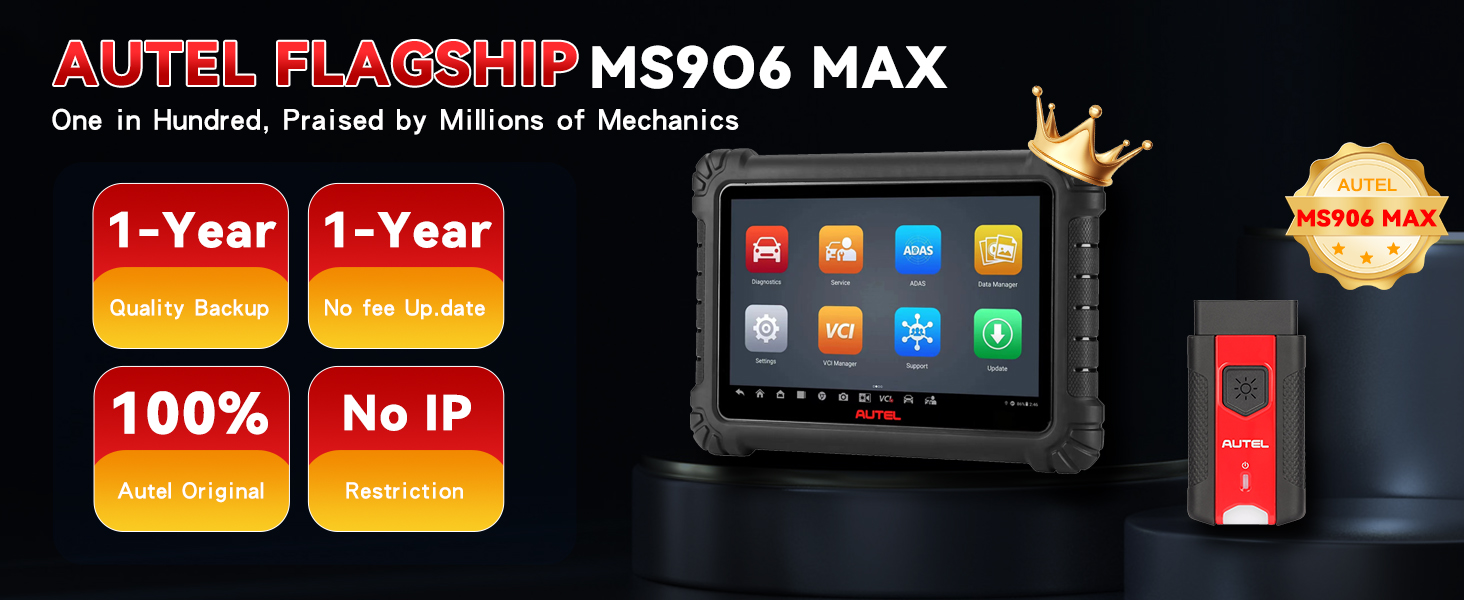
Image: The Autel MaxiSys MS906MAX highlighting its warranty and support benefits, including a one-year quality backup and free software updates.


