
Introduction
Welcome to your HZLIMJDQ JC400 Dashcam. This manual provides detailed instructions for the installation, operation, and maintenance of your device. The JC400 is a dual-camera system designed for comprehensive vehicle surveillance, offering front and rear recording, live streaming capabilities, and advanced tracking features.
Product Overview
The HZLIMJDQ JC400 Dashcam is equipped with a front camera and a rear camera (or inside camera, depending on the variant) to provide extensive coverage. Key features include 1080p HD recording, a built-in G-sensor for incident detection, 24-hour parking mode, and real-time vehicle tracking via a mobile application. It supports hotspot functionality for live stream viewing on multiple devices.

This image displays the main JC400 dashcam unit alongside the compact rear camera. The main unit features the front-facing lens, various ports, and ventilation.

This image shows the dashcam's 4G AiVision capabilities, illustrating its use within a vehicle with a family, and providing a clear view from the windshield.
Package Contents
Verify that all items are present in your package:
- JC400 Dashcam Main Unit
- Rear Camera (or Inside Camera, depending on variant)
- Power Cable
- Relay
- SOS Button
- SIM Card Lock
- User Manual (this document)
Setup and Installation
1. Inserting the SIM Card and SD Card
Locate the SIM card slot and SD card slot on the main dashcam unit. Insert a compatible SIM card (for network connectivity) and a Class 10 or higher microSD card (up to 256GB) for recording. Ensure the SIM card lock is securely fastened after insertion.
2. Mounting the Main Unit
Choose a location on your windshield that does not obstruct your view. The dashcam's hidden design allows for flexible placement. Secure the main unit using the provided adhesive or mounting bracket.
3. Installing the Rear Camera
Connect the rear camera to the main unit using the provided cable. Route the cable discreetly along the vehicle's interior. Mount the rear camera on the rear windshield or another suitable location to capture the desired view.
4. Power Connection
Connect the power cable to the dashcam and to your vehicle's power source (e.g., cigarette lighter socket or fuse box for continuous power). The dashcam will automatically power on and begin recording when the engine starts.
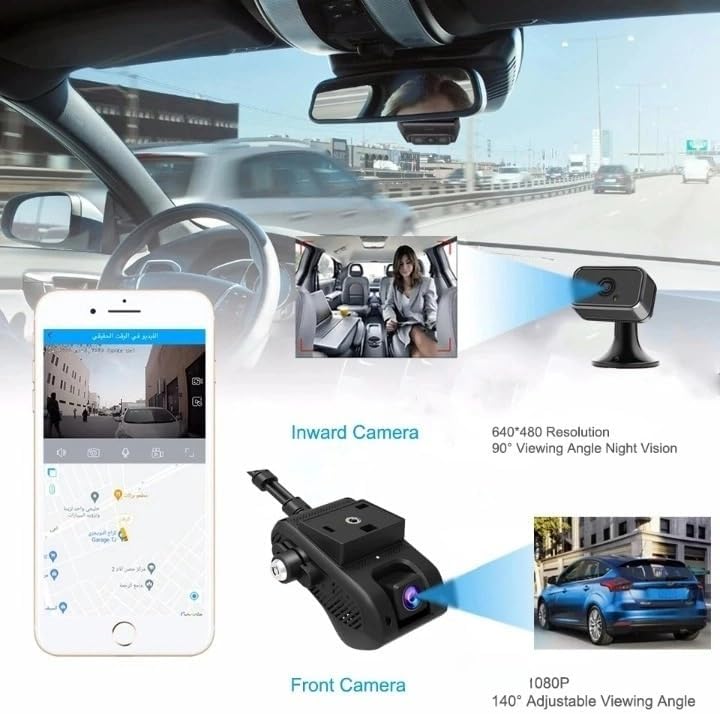
This diagram illustrates the typical installation of the front dashcam unit and an inward-facing camera, showing their respective viewing angles and resolutions. The front camera offers 1080P resolution and 140-degree adjustable viewing, while the inward camera provides 640x480 resolution with a 90-degree viewing angle and night vision.
Operating Instructions
Automatic Recording
The dashcam automatically begins recording when the vehicle's engine is started. Recording occurs in 3-minute loop cycles. When the SD card is full, the oldest videos will be overwritten by new recordings.
G-Sensor Function
The built-in G-sensor automatically detects sudden shakes or collisions. Upon detection, the footage is locked to prevent it from being overwritten, ensuring critical incident evidence is preserved.
24-Hour Parking Mode
When the engine is turned off, the dashcam automatically switches to parking mode. Utilizing time-lapse recording, it continuously monitors your vehicle with low power consumption, providing all-weather protection.
Live Stream and Tracking (via APP)
Download the official mobile application (compatible with Android 8.1 systems). Use the app to view live video streams from both cameras, track your vehicle's real-time position, and review recorded footage. The hotspot feature supports 5-6 cellphones for simultaneous viewing.

This image shows the JC400 dashcam unit next to a smartphone displaying the live video feed from the dashcam and a map with vehicle tracking information, demonstrating the mobile app's capabilities.
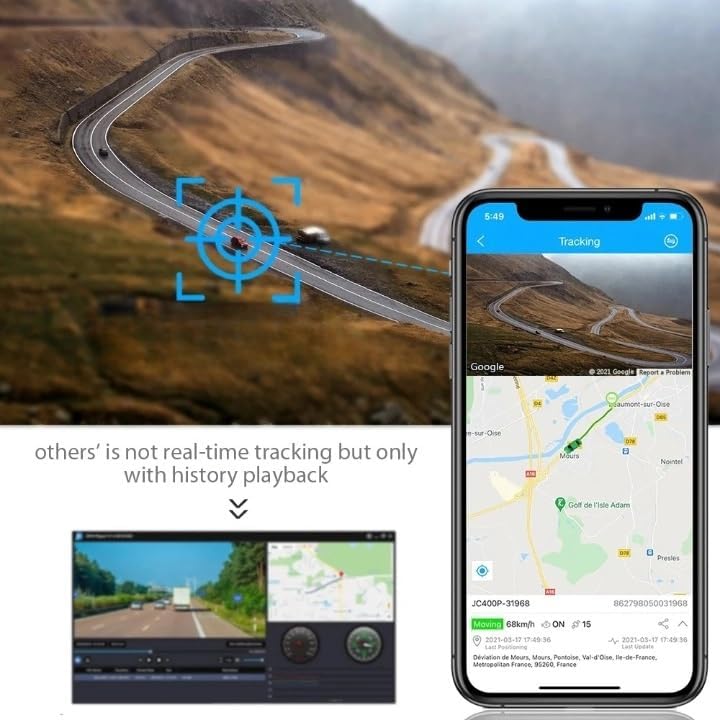
This image illustrates the real-time tracking feature of the dashcam, with a smartphone displaying a map interface that shows the vehicle's current location and speed.
Remote Fuel/Power Cut-off
In emergency situations, the dashcam supports remote fuel or power cut-off functionality via the mobile application.
Vibration Alarm
Receive instant vibration alerts on your mobile device if the dashcam detects unusual movement or impact while parked.
SOS Emergency Calling
Utilize the SOS button for emergency calling functionality.

This composite image highlights three key features: remote fuel/power cut-off controlled via a smartphone, parking monitoring with vibration alerts, and the G-sensor's ability to capture and lock footage during incidents.
Maintenance
SD Card Management
Regularly format the microSD card (at least once a month) to ensure optimal performance and prevent data corruption. Replace the SD card if you experience frequent recording errors or data loss.
Cleaning
Use a soft, dry cloth to clean the camera lenses and the dashcam body. Avoid using abrasive cleaners or solvents that could damage the device.
Firmware Updates
Check the official website or mobile application periodically for firmware updates. Keeping your dashcam's firmware up-to-date ensures access to the latest features and performance improvements.
Troubleshooting
Dashcam Not Powering On
- Check the power cable connection to both the dashcam and the vehicle's power source.
- Ensure the vehicle's ignition is on or that the power source provides continuous power.
Recording Errors / SD Card Full
- Format the microSD card. If errors persist, try a different Class 10 or higher microSD card.
- Ensure the SD card is inserted correctly.
Poor Video Quality
- Clean the camera lenses.
- Ensure the dashcam is securely mounted and not vibrating excessively.
- Check for obstructions in the camera's field of view.
App Connectivity Issues
- Ensure the dashcam has a working SIM card with an active data plan.
- Verify your mobile device has a stable internet connection.
- Restart both the dashcam and your mobile application.
G-Sensor Not Triggering / Too Sensitive
- Adjust the G-sensor sensitivity settings within the mobile application if available.
Specifications
| Feature | Detail |
|---|---|
| Model Name | JC400 Dashcam |
| Brand | HZLIMJDQ |
| Camera Resolution | 1920x1080 (Front) |
| Imaging Sensor | AR0230 |
| Pixels | 130 Mega |
| Number Of Lenses | 2 (Front and Rear/Inside) |
| View Angle | Front: 105°-140° (140° with 6 All-Glass Lenses), Inward: 100°, Rear: 110° |
| Frames Per Second | 30 |
| Video Code | H.264 |
| Video Format | MP4 |
| Max External Memory | 256GB |
| Memory Card Required Speed | Class 10 |
| Battery Capacity | 450mAH (External Battery) |
| Operating Voltage | 9-30V |
| Working Temperature | -20°C to 70°C |
| Dimensions (W x H x D) | 109 x 69 x 52 mm |
| Weight | 1 kg (Package Weight), 50 Grams (Item Weight) |
| Network Support | 2G/3G/4G |
| OSD Language | Arabic, Dutch, English, French, German, Greek, Hebrew, Hungarian, Polish, Portuguese, Russian, Spanish, Thai |
Warranty and Support
This product variant includes a 10-year service plan for the rear camera functionality. For technical support or warranty inquiries, please refer to the contact information provided at the point of purchase or visit the HZLIMJDQ official website.


