
1. Introduction

Image 1.1: Front and back view of the FJZKTEG Tuya WiFi Fingerprint Door Lock.
This manual provides detailed instructions for the installation, operation, and maintenance of your FJZKTEG Tuya WiFi Fingerprint Door Lock. This smart lock offers multiple unlocking methods, including fingerprint, password, IC card, mechanical key, and app control via Tuya WiFi or TT Lock Bluetooth. It is designed to enhance the security and convenience of your home or office.
Key Features:
- Smart WiFi and Bluetooth Connectivity: Remote control, real-time unlock records, and flexible access management via Tuya WiFi or TT Lock Bluetooth applications.
- Accurate Biometric Fingerprint Recognition: Fast and secure unlocking, preventing unauthorized access.
- Digital Keypad and Keyless Entry: Supports various password types (one-time, temporary, circular, permanent) for enhanced convenience and security.
- Robust Electronic Deadbolt Design: High-strength construction with anti-skid and anti-destructive features for reliable security.
- Smart Rights Management and History: Easily set access rights and view detailed unlock records through the TT Lock APP.
2. Package Contents
Please verify that all components listed below are included in your package. If any items are missing or damaged, contact customer support.
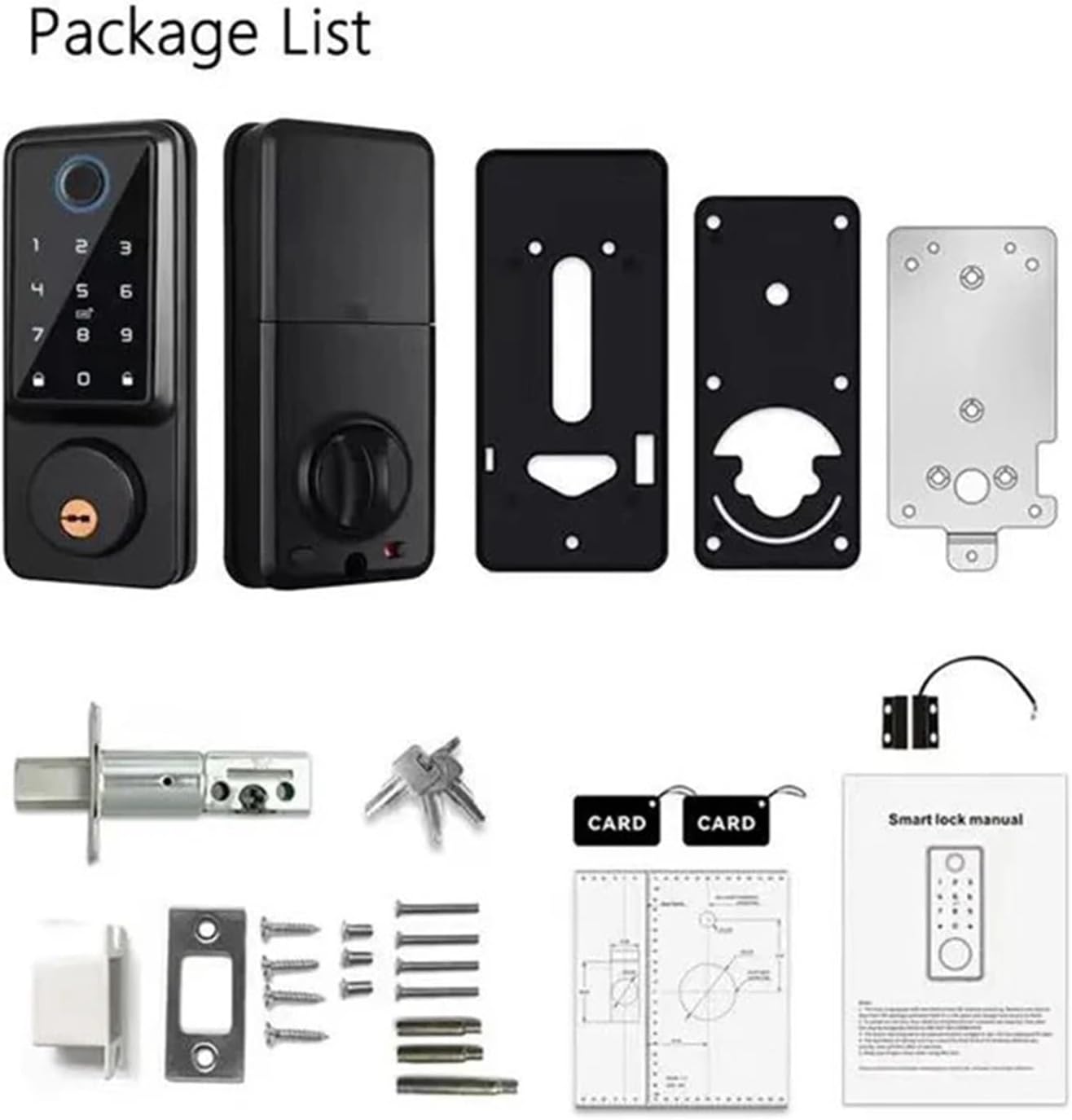
Image 2.1: Overview of the FJZKTEG Tuya WiFi Fingerprint Door Lock package contents, including the front and back lock panels, mounting plates, latch, keys, IC cards, screws, and the instruction manual.
- Front Lock Panel (with keypad and fingerprint sensor)
- Rear Lock Panel (with battery compartment and thumb turn)
- Adjustable Single Latch (60/70mm)
- Mounting Plates and Screws
- Mechanical Keys (x2)
- IC Cards (x2)
- Door Sensor (for auto-lock feature)
- Instruction Manual
3. Specifications
| Feature | Detail |
|---|---|
| Brand | FJZKTEG |
| Model Name | f17heceecc90 |
| Panel Material | Aluminum Alloy |
| Lock Body Material | Aluminum Alloy |
| Lock Cylinder Material | Copper |
| Finish Color | Silver |
| Applicable Door Thickness | 35-50mm |
| Power Supply | 4 x AA Batteries (not included) |
| Emergency Power | Type-C USB Port |
| Unlocking Methods | Fingerprint, Password, IC Card, Mechanical Key, Tuya App (WiFi), TT Lock App (Bluetooth) |
| Item Weight | Approximately 1.2 KG (2.6 lbs) |
4. Setup and Installation
Detailed installation instructions are provided in the physical manual included with your product. This section provides a general overview and important considerations.
4.1 Pre-Installation Checks
- Ensure your door thickness is between 35mm and 50mm.
- Verify the backset measurement (distance from door edge to center of bore hole) is compatible with the adjustable latch (60mm or 70mm).
- Confirm all package contents are present.
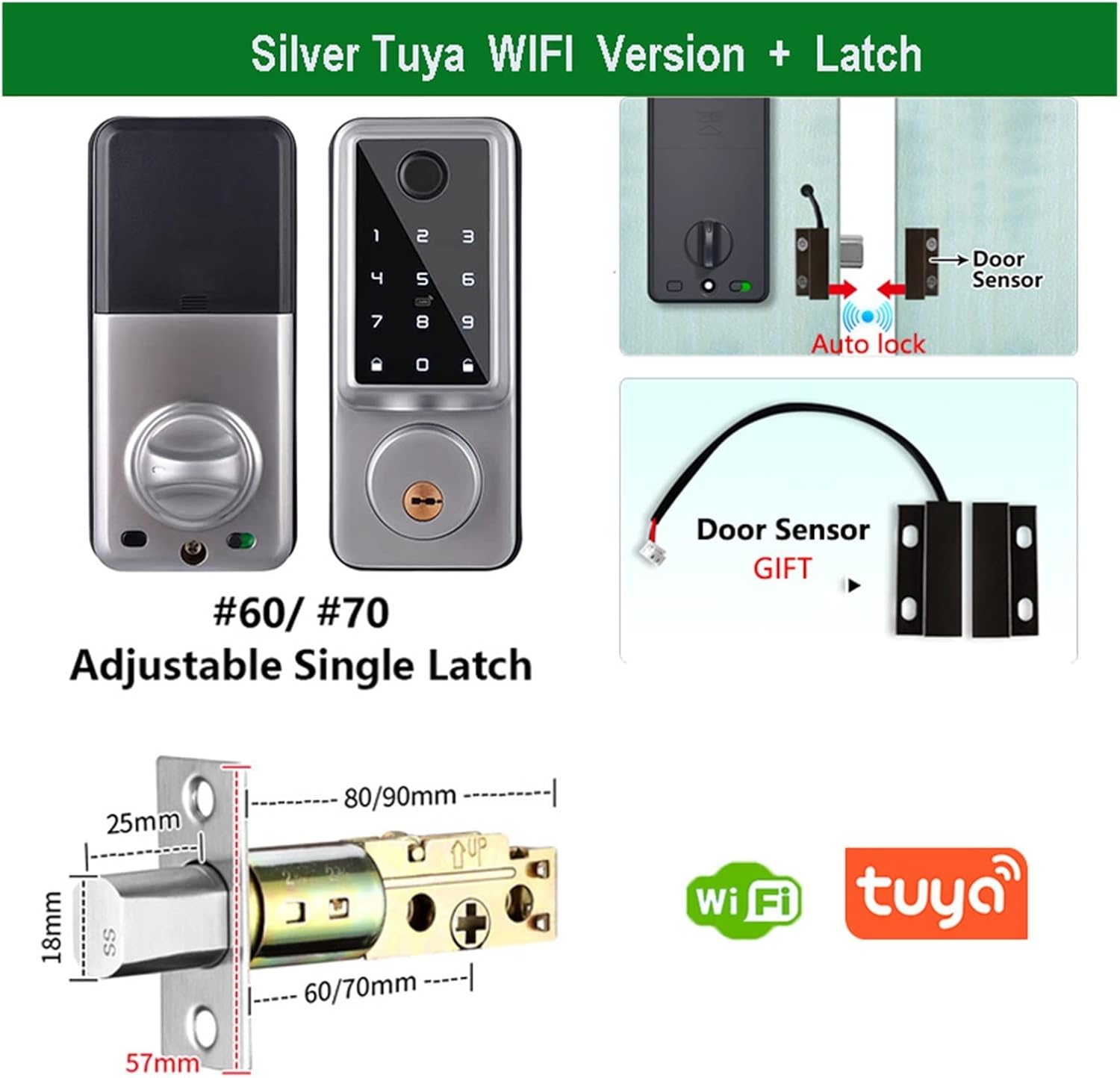
Image 4.1: Illustration of the adjustable single latch dimensions (60mm/70mm) and the included door sensor for auto-lock functionality.
4.2 Installation Steps (General)
- Prepare the door: Ensure existing holes are correctly sized and positioned.
- Install the latch: Adjust to 60mm or 70mm backset as required and secure it into the door edge.
- Install the front panel: Route the cable through the door and align the panel.
- Install the rear panel: Connect the cable, align the panel, and secure it with screws.
- Install batteries: Insert 4 AA batteries into the battery compartment.
- Test the lock: Verify mechanical and electronic functions.
- Install the door sensor: Position the sensor on the door frame and the magnet on the door for auto-lock functionality.
Important: Refer to the detailed diagrams and step-by-step instructions in the physical manual for precise installation. Incorrect installation may affect lock performance and security.
5. Operating Instructions
Your FJZKTEG smart lock offers multiple convenient ways to unlock and manage access.

Image 5.1: Visual representation of the various unlocking methods available for the smart lock, including Bluetooth, App, Fingerprint, Password, IC Card, and Mechanical Key.
5.1 Unlocking Methods
- Fingerprint Unlock: Place your registered finger on the fingerprint sensor. The lock will unlock upon successful recognition.
- Password Unlock: Enter your registered password on the digital keypad, then press the '#' key.
- IC Card Unlock: Present your registered IC card to the card reader area on the lock.
- Mechanical Key Unlock: Insert the mechanical key into the keyhole and turn to unlock. This is for emergency use.
- App Unlock (Tuya/TT Lock):
- Download and install the Tuya Smart App or TT Lock App from your device's app store.
- Follow the in-app instructions to pair your lock via Bluetooth or WiFi (Tuya version).
- Once paired, you can remotely unlock the door, manage users, and view access logs.
- For TT Lock version, a G2 gateway (sold separately) is required for remote WiFi control and integration with smart home assistants like Alexa or Google Home.
5.2 Password Management
The lock supports various password types for flexible access control.

Image 5.2: Display of the different password types available: One-time, Temporary, Circular, and Permanent, managed remotely via the Tuya or TT Lock applications.
- Permanent Password: Standard password for regular users.
- One-time Password: Valid for a single use.
- Temporary Password: Valid for a specified duration.
- Circular Password: Repeats validity on specific days/times.
All password types can be generated and managed through the Tuya or TT Lock applications. The lock also features an anti-peep function, allowing you to enter random digits before or after your actual password to prevent others from guessing it.
5.3 Battery and Emergency Power
The lock is powered by 4 AA batteries (not included).

Image 5.3: Illustration of the battery compartment for 4 AA batteries and the Type-C port for emergency power, highlighting the power-saving system and up to 180 days of battery life.
- Battery Life: Expect up to 180 days of battery life (based on 10 openings/closings per day). Actual battery life may vary based on usage.
- Low Battery Warning: The lock will provide an audible and/or visual alert when batteries are low. Replace batteries promptly.
- Emergency Power: If batteries completely drain, you can use a Type-C USB power bank to temporarily power the lock and gain entry. The Type-C port is located on the bottom of the front panel.
6. Maintenance
Proper maintenance ensures the longevity and optimal performance of your smart lock.
- Cleaning: Wipe the lock's surface with a soft, dry cloth. Avoid abrasive cleaners, solvents, or harsh chemicals that could damage the finish or electronic components.
- Fingerprint Sensor: Keep the fingerprint sensor clean and free of dirt or moisture for accurate recognition.
- Battery Replacement: Replace all 4 AA batteries simultaneously when the low battery warning appears. Do not mix old and new batteries or different battery types.
- Mechanical Keyhole: Ensure the mechanical keyhole remains unobstructed for emergency access.
- Firmware Updates: Regularly check the Tuya or TT Lock app for any available firmware updates for your lock to ensure optimal performance and security features.
7. Troubleshooting
If you encounter issues with your FJZKTEG smart lock, refer to the following common problems and solutions.
- Lock does not respond:
- Check battery level. Replace batteries if low or depleted.
- Ensure batteries are inserted correctly with correct polarity.
- Use the emergency Type-C power port to temporarily power the lock.
- Fingerprint not recognized:
- Ensure your finger is clean and dry.
- Try different angles or positions of your finger on the sensor.
- Re-register your fingerprint if recognition issues persist.
- Clean the fingerprint sensor surface.
- Password not working:
- Ensure you are entering the correct password.
- Press '#' after entering the password.
- Check if the password has expired (for temporary or one-time passwords).
- Try entering random digits before and after your password (anti-peep function).
- App connection issues:
- Ensure Bluetooth is enabled on your phone.
- For WiFi connection (Tuya), ensure the lock is within range of your WiFi router.
- For TT Lock remote access, ensure the G2 gateway is properly set up and connected to the internet.
- Restart the app and/or your phone.
- Re-pair the lock with the app if necessary.
- Lock is jammed or not locking/unlocking smoothly:
- Check for any obstructions in the door frame or latch bolt path.
- Ensure the latch is properly aligned with the strike plate.
- Verify that the lock was installed correctly and is not misaligned.
If the problem persists after trying these solutions, please contact customer support for further assistance.
8. Warranty and Support
Your FJZKTEG Tuya WiFi Fingerprint Door Lock is covered by a manufacturer's warranty. Please refer to the warranty card included in your product packaging for specific terms and conditions, including warranty duration and coverage details.
For technical support, troubleshooting assistance, or warranty claims, please contact FJZKTEG customer service through the contact information provided in your product documentation or on the official FJZKTEG website. When contacting support, please have your product model number (f17heceecc90) and purchase details ready.