
1. Introduction
The WAFTING Wallet Tracker Card is a slim, rechargeable Bluetooth tracking device designed to help you locate your important items using the Apple Find My network. This manual provides detailed instructions for setup, operation, maintenance, and troubleshooting to ensure optimal performance of your device.
Note: This device is compatible only with Apple iOS devices and the Apple Find My app. Android devices are not supported.
2. Product Overview
The WAFTING Wallet Tracker Card is engineered for convenience and reliability. Its ultra-thin design allows it to fit seamlessly into wallets, luggage, passport holders, or laptop sleeves without adding significant bulk.
Key Features:
- Apple Find My Network Integration: Utilize the extensive Apple device network for global tracking.
- Rechargeable Battery: Built-in rechargeable battery provides up to 5 months of use on a single charge.
- Left Behind Alerts: Receive instant notifications if you leave your tracked item behind.
- Audible Alarm: Activate a loud alarm sound from the card to locate nearby items.
- Lost Mode: Mark your item as lost to receive notifications when it's detected by another Apple device.
- Privacy Protection: Location data is anonymized and encrypted by the Find My network.
- Slim Design: At 2.6mm thick, it fits easily into most wallets.
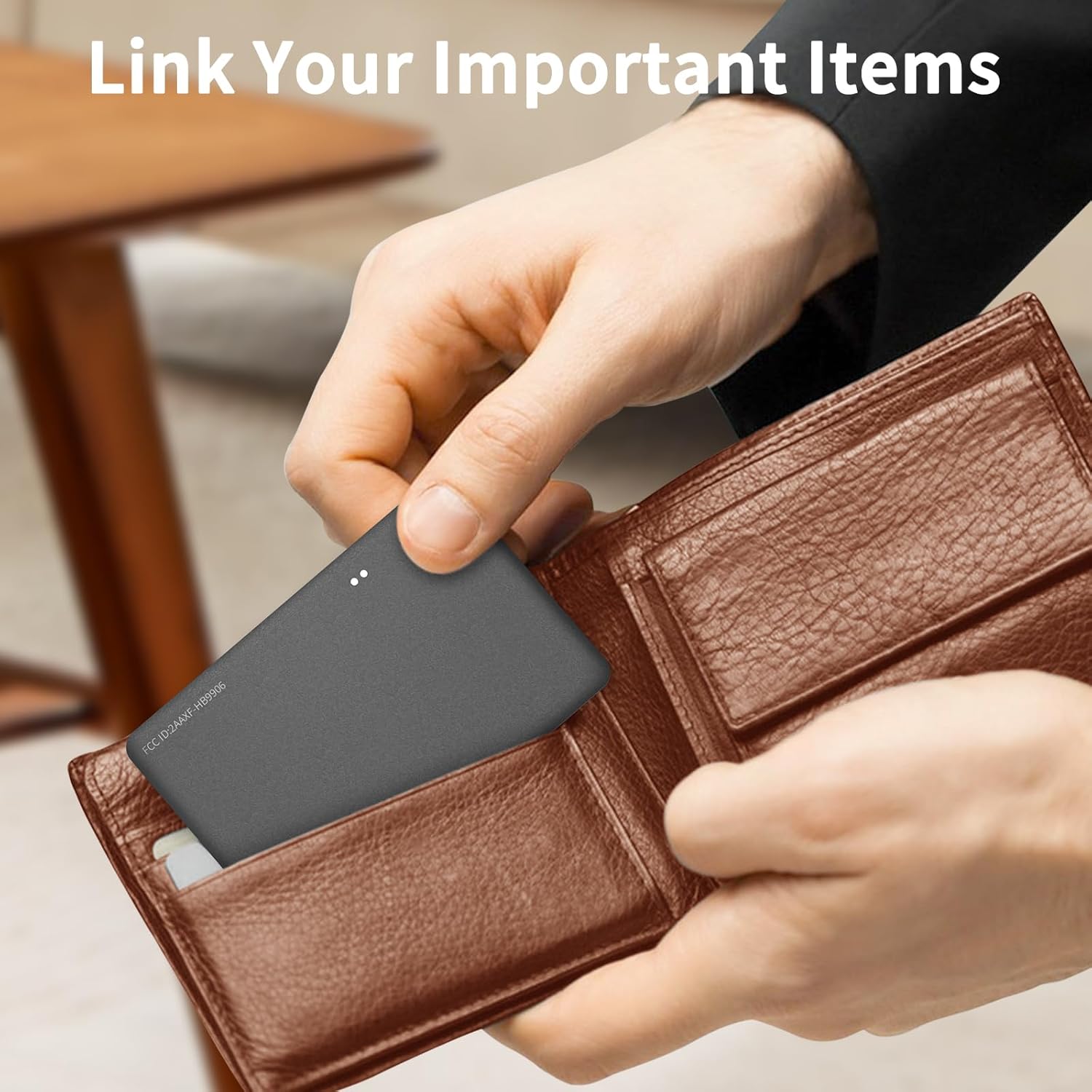
Image: The WAFTING Wallet Tracker Card fits discreetly into a standard wallet, demonstrating its slim profile.
3. Setup Instructions
3.1 Initial Charging
Before first use, fully charge your WAFTING Wallet Tracker Card. A magnetic charging cable is included. Connect the cable to the designated charging points on the card and to a standard USB power adapter (not included).

Image: The WAFTING Wallet Tracker Card connected to its magnetic charging cable, illustrating the charging process.
3.2 Powering On
Press and hold the power button on the tracker card until you hear a confirmation sound or see an indicator light, signifying it is powered on and ready for pairing.
3.3 Pairing with Apple Find My App
- Ensure your iOS device (iPhone, iPad, or iPod touch) is running a recent version of iOS.
- Open the Find My app on your iOS device.
- Navigate to the Items tab.
- Tap the + icon and select Add Other Item.
- Follow the on-screen instructions to detect and connect your WAFTING Wallet Tracker Card. You may be prompted to name your item.
- Once connected, the tracker card will appear in your Items list within the Find My app.

Image: A visual representation of the WAFTING Wallet Tracker Card integrated with the Apple Find My app interface on an iPhone.
4. Operating Instructions
4.1 Locating Nearby Items (Play Sound)
If your item is within Bluetooth range, you can make the tracker card emit an audible alarm to help you find it.
- Open the Find My app.
- Select the WAFTING Wallet Tracker Card from your Items list.
- Tap Play Sound. The card will emit a series of beeps.
- Tap Stop Sound once you have located your item.
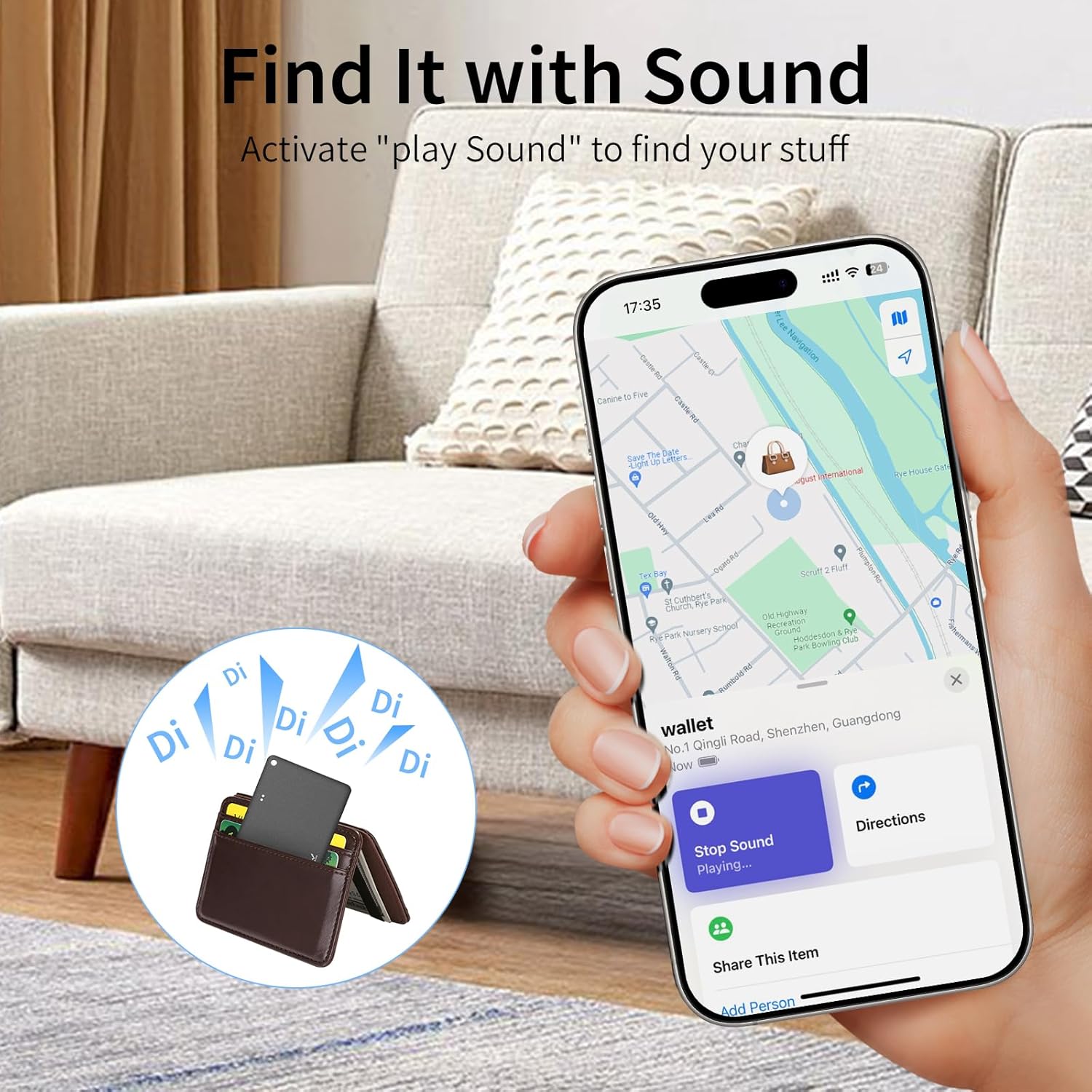
Image: An iPhone screen showing the 'Play Sound' feature in the Find My app, with an illustration of the tracker card beeping from inside a wallet.
4.2 Left Behind Alerts
Receive notifications on your iOS device if you accidentally leave your tracked item behind.
- In the Find My app, select your tracker card.
- Scroll down and enable Notify When Left Behind.
- You can also set up specific locations where you do not want to be notified (e.g., your home).

Image: An iPhone displaying a 'Left Behind' notification for the wallet tracker, indicating the item is no longer detected nearby.
4.3 Lost Mode
If your item is lost or stolen, activate Lost Mode to help recover it.
- In the Find My app, select your tracker card.
- Scroll down to Lost Mode and tap Enable.
- Follow the prompts to enter a contact phone number or email address.
- You will receive a notification if your item is detected by another Apple device on the Find My network, along with its location.
4.4 Global Tracking
Leverage the Apple Find My network to locate your items even when they are far away. The network anonymously uses millions of Apple devices to detect your tracker card's location and relay it to you.

Image: An iPhone displaying a map with multiple location pins, illustrating the global tracking capabilities of the Find My network for your item.
4.5 Sharing Your Item
You can share the location of your tracker card with friends and family, provided your iOS device is updated to iOS 18.2 or later.
5. Maintenance
5.1 Recharging the Battery
The WAFTING Wallet Tracker Card features a rechargeable Lithium Ion battery. A full charge can last up to 5 months. Recharge the device using the provided magnetic charging cable when the battery level is low. The Find My app will display the battery status.
5.2 Cleaning
To clean the tracker card, gently wipe it with a soft, dry cloth. Avoid using harsh chemicals or abrasive materials.
6. Troubleshooting
- Tracker not connecting to Find My app:
Ensure the tracker card is powered on and fully charged. Verify that your iOS device's Bluetooth is enabled. Try restarting both your iOS device and the tracker card. Make sure you select 'Add Other Item' and not 'Add AirTag' during the pairing process. - Inaccurate location or frequent 'Left Behind' alerts:
Ensure your iOS device's location services are enabled for the Find My app. Update your iOS to the latest version. In some environments, Bluetooth signal interference can affect accuracy. If the issue persists, try resetting the tracker card and re-pairing it. - Sound is not loud enough:
The audible alarm is designed to be heard in quiet indoor environments. If the item is heavily covered or in a noisy area, the sound may be difficult to perceive. Ensure the card is not obstructed by thick materials. - Battery not holding charge:
Ensure the magnetic charging cable is securely connected to both the card and the power source. Use a reliable USB power adapter. If the issue continues after multiple charges, contact customer support.
7. Specifications
| Feature | Detail |
|---|---|
| Model Number | HB12-A |
| Brand | WAFTING |
| Connectivity | Bluetooth |
| Battery Type | 1 Lithium Ion (included) |
| Battery Life | Up to 5 months on a single charge |
| Material | Acrylonitrile Butadiene Styrene (ABS) |
| Product Dimensions | 0.1"L x 0.1"W x 0.1"Th (approximately 2.6mm thick) |
| Item Weight | 1.76 ounces |
| Manufacturer | SHENZHEN HOMELEAD ELECTRONICS CO.,LTD. |
8. Warranty and Support
For warranty information and customer support, please refer to the documentation provided with your purchase or contact the manufacturer directly. The manufacturer of this product is SHENZHEN HOMELEAD ELECTRONICS CO.,LTD. Please retain your proof of purchase for any warranty claims.