
1. Introduction
The iDsonix i20 Portable SSD is a high-speed external solid-state drive designed for fast data transfer and reliable storage. It offers broad compatibility with various devices and operating systems, making it suitable for professionals, gamers, and everyday users. This manual provides essential information for setting up, operating, maintaining, and troubleshooting your iDsonix i20 Portable SSD.
2. What's in the Box
Please check the package contents upon unboxing to ensure all items are present:
- iDsonix i20 Portable SSD
- 2-in-1 USB-C to USB-C/USB-A Data Cable
- User Manual (this document)
Image: Package contents including the iDsonix i20 Portable SSD, the versatile 2-in-1 data cable, and the user manual.
3. Setup
3.1 Connecting the SSD
- Identify the appropriate port on your device (computer, game console, smartphone, etc.). The iDsonix i20 comes with a 2-in-1 USB-C data cable, allowing connection to both USB-C and USB-A ports.
- Connect the USB-C end of the cable to the iDsonix i20 Portable SSD.
- Connect the other end of the cable to your host device. Use the USB-C connector for USB-C ports or the integrated USB-A connector for USB-A ports.
- The LED indicator on the SSD will light up, indicating a successful connection.
3.2 Initial Formatting (Optional)
The SSD is typically pre-formatted for broad compatibility (e.g., exFAT). If you need to format it for a specific operating system or file system (e.g., NTFS for Windows, HFS+ or APFS for macOS), follow these steps:
- Windows: Open 'Disk Management', locate the iDsonix i20, right-click, and select 'Format'. Choose your desired file system.
- macOS: Open 'Disk Utility', select the iDsonix i20, and click 'Erase'. Choose your desired format (e.g., APFS, Mac OS Extended (Journaled)).
- Linux: Use disk utility tools like GParted or the `mkfs` command in the terminal.
Warning: Formatting the drive will erase all data on it. Ensure you back up any important data before proceeding.
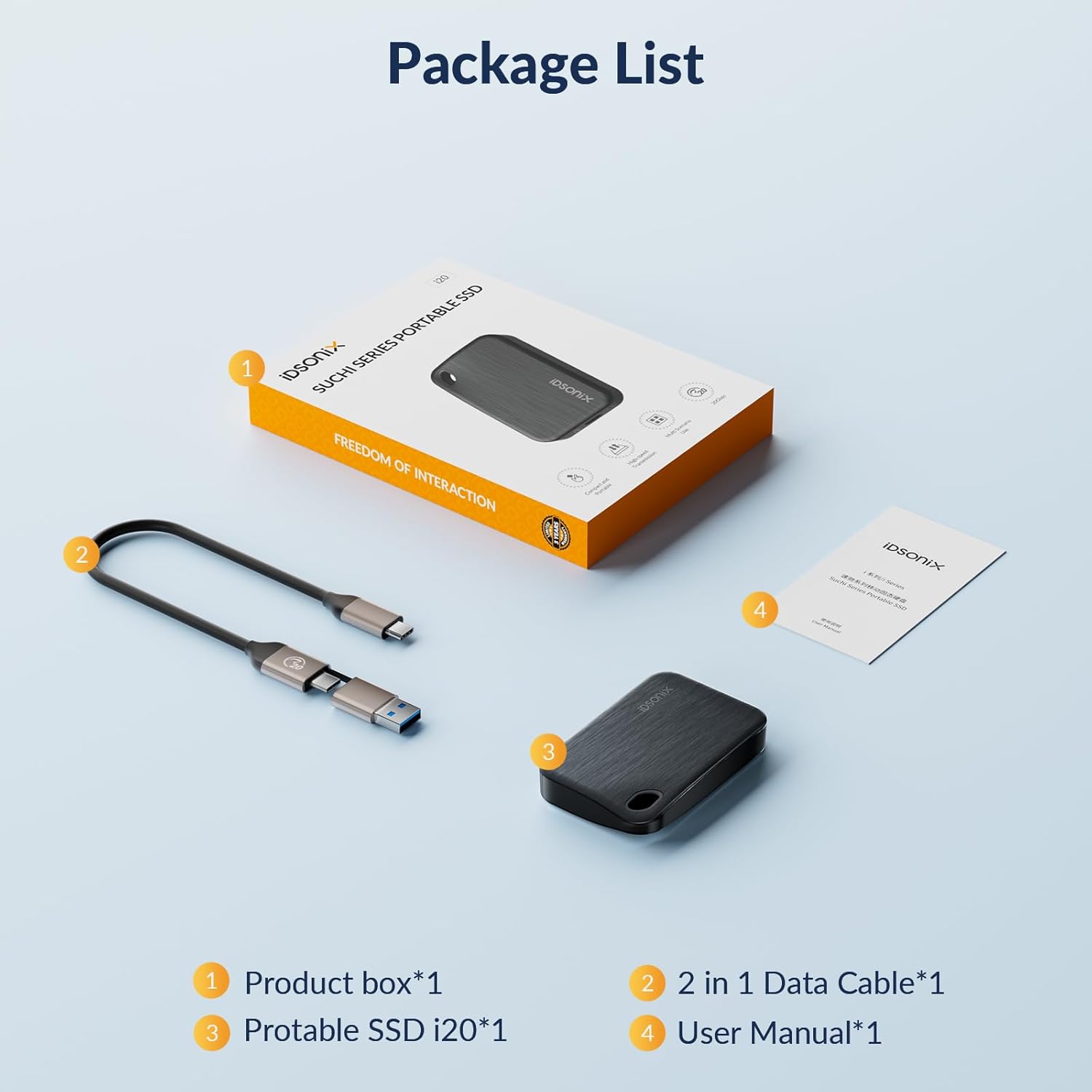
Image: The iDsonix i20 Portable SSD demonstrating universal compatibility with devices like PS5/Xbox, Windows Laptops, iMac, Tablets, Cameras, and Smartphones, and supporting Windows, macOS, Android, Linux, and ChromeOS. The included 2-in-1 USB-C and USB-A data cable is also shown.
4. Operating the SSD
4.1 Data Transfer
Once connected and recognized by your device, the iDsonix i20 Portable SSD functions like any other external storage device. You can drag and drop files, copy and paste, or use your system's backup software to transfer data.
- High-Speed Transfer: For optimal transfer speeds up to 2000 MB/s, ensure your host device has a USB 3.2 Gen 2x2 Type-C interface.
- Compatibility: The SSD is backward compatible with USB 3.2 Gen 2 (up to 1000 MB/s), USB 3.0, and USB 2.0 ports, though speeds will be limited by the host port's capabilities.
- Phone & Mac: Please note that for most phones and Mac devices, speeds may be limited to approximately 10Gbps (around 1000 MB/s) due to interface limitations.

Image: A visual representation of the iDsonix i20 Portable SSD's speed capabilities, highlighting up to 2000 MB/s with USB 3.2 Gen 2x2 and up to 1000 MB/s with USB 3.2. It also notes that Phone & Mac devices typically achieve up to 10Gbps.
4.2 LED Indicator
The iDsonix i20 features an LED indicator that provides visual feedback on its status:
- Solid Light: The SSD is connected and idle.
- Flashing Light: Data transfer is in progress. Do not disconnect the drive during this time to prevent data corruption.
4.3 Safe Ejection
Always safely eject the iDsonix i20 Portable SSD from your operating system before physically disconnecting it to prevent data loss or corruption.
- Windows: Click the 'Safely Remove Hardware and Eject Media' icon in the system tray, then select the iDsonix i20.
- macOS: Drag the SSD icon from your desktop to the Trash, or right-click the icon and select 'Eject'.
- Linux: Right-click the drive icon in your file manager and select 'Eject'.
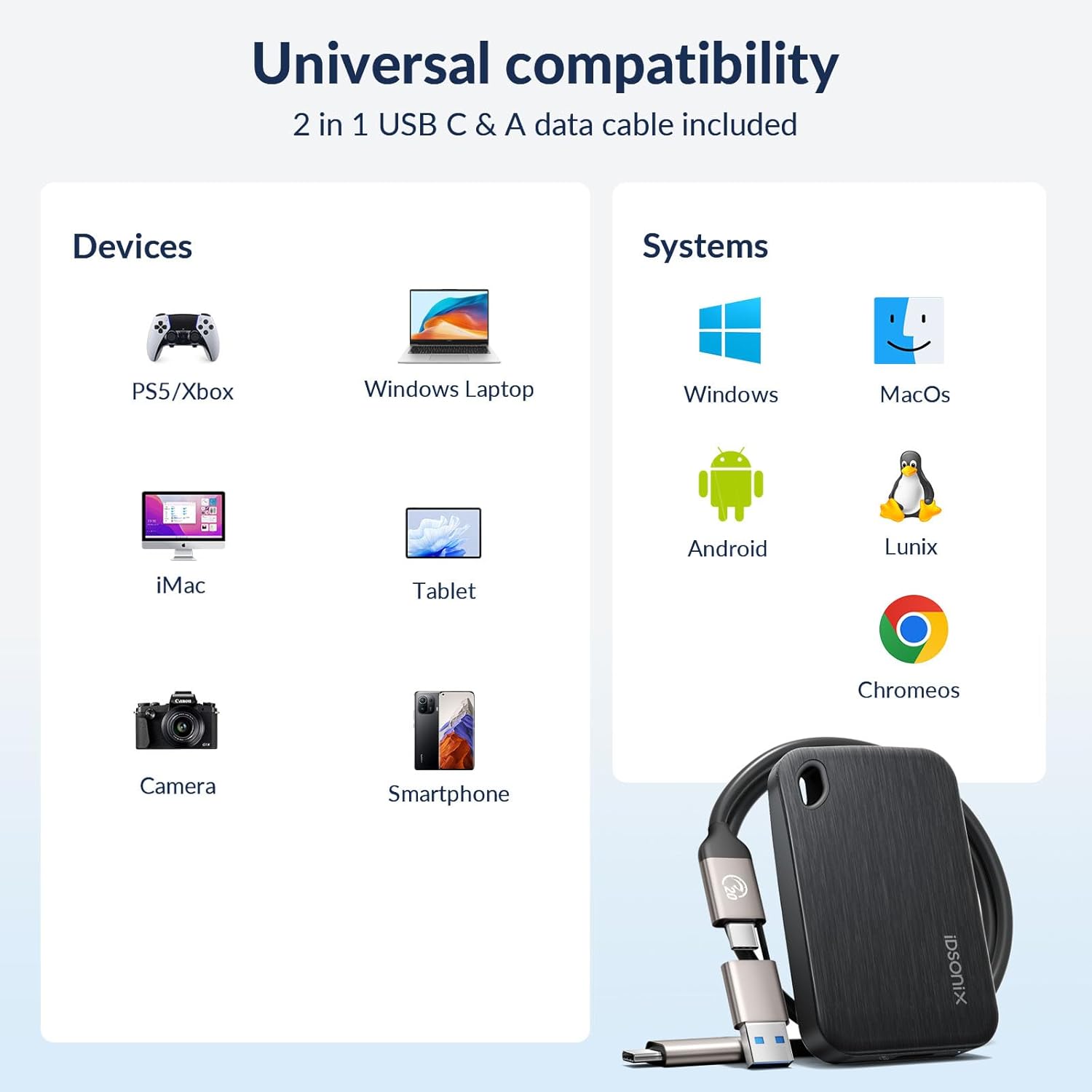
Image: The iDsonix i20 Portable SSD is displayed alongside its available capacities (512GB, 1TB, 2TB), illustrating its suitability for storing a wide range of digital content including games, high-resolution videos, photos, and important documents.
5. Maintenance
To ensure the longevity and optimal performance of your iDsonix i20 Portable SSD, consider the following maintenance tips:
- Physical Care: The SSD features a durable brushed texture surface that resists fingerprints, oil, and scratches. While robust, avoid dropping the device or exposing it to extreme temperatures or moisture.
- Cleaning: Use a soft, dry, lint-free cloth to clean the exterior of the SSD. Do not use liquid cleaners or solvents.
- Data Backup: Regularly back up important data stored on the SSD to another location to prevent data loss from unforeseen circumstances.
- Firmware Updates: Check the iDsonix official website periodically for any available firmware updates for your SSD model.

Image: The iDsonix i20 Portable SSD is depicted on a rugged, rocky terrain, highlighting its tough and durable construction, designed to withstand various environments.

Image: A person is shown easily placing the iDsonix i20 Portable SSD into a bag, demonstrating its compact size and lightweight design (0.13 Lb) with a convenient hanging hole for portability.
6. Troubleshooting
If you encounter issues with your iDsonix i20 Portable SSD, refer to the following common troubleshooting steps:
6.1 SSD Not Recognized
- Ensure the cable is securely connected to both the SSD and your device.
- Try connecting the SSD to a different USB port on your device.
- Test the SSD with a different USB cable, if available.
- Restart your computer or host device.
- Check 'Disk Management' (Windows) or 'Disk Utility' (macOS) to see if the drive is detected but unformatted or has a drive letter conflict.
6.2 Slow Transfer Speeds
- Verify that your host device's USB port supports USB 3.2 Gen 2x2 for maximum speeds. Lower-generation USB ports will result in slower transfers.
- Ensure you are using the provided 2-in-1 USB-C data cable, as some cables may not support high data transfer rates.
- Close any unnecessary applications running in the background that might be consuming system resources.
- Check your device's drivers to ensure they are up to date.
6.3 LED Indicator Not Lighting Up
- Confirm the SSD is properly connected to a powered USB port.
- Try a different USB port or host device.
- If the issue persists, the device may require service.
7. Specifications
| Model | i20 |
| Brand | iDsonix |
| Digital Storage Capacity | 512GB, 1TB, 2TB (depending on model) |
| Interface | USB 3.2 Gen 2x2 Type-C (backward compatible with USB 3.2 Gen 2, USB 3.0, USB 2.0) |
| Max Read Speed | Up to 2000 MB/s |
| Max Data Transfer Rate | 20 Gigabits per second (20Gbps) |
| Dimensions (L x W x H) | 6.99 x 4.5 x 1.19 cm |
| Weight | 60 grams (approx. 0.13 Lb) |
| Special Features | LED Indicator, Portable, Hanging Hole Design, Brushed Texture Surface |
| Compatible Devices | PC, Laptop, Mac, Smartphone, Tablet, Camera, Game Consoles (PS5, Xbox) |
| Compatible Operating Systems | Windows, macOS, Linux, Android, iOS, ChromeOS |
| Manufacturer | SHENZHEN ORICO TECHNOLOGIES CO., LTD. |
8. Warranty and Support
8.1 Warranty Information
The iDsonix i20 Portable SSD comes with a 3-year after-sales service. This warranty covers defects in materials and workmanship under normal use. Please retain your proof of purchase for warranty claims.
8.2 Customer Support
For technical assistance, warranty claims, or any other inquiries, please contact iDsonix customer support through their official website or the retailer where you purchased the product. Provide your model number (i20) and a detailed description of the issue to expedite support.