ICUIXIAN Video Wall Controller
Model: U1x4P - User Manual
Advanced 4K@60Hz HDMI Video Wall and Matrix Switcher
1. Introduction
The ICUIXIAN U1x4P Video Wall Controller is a versatile device designed for professional display applications. It functions as both a video wall processor and an HDMI matrix switcher, supporting 4K@60Hz input resolutions and offering various display configurations including 4x1, 3x1, 2x1, 1x2, 1x3, 1x4, and 2x2 video walls. Key features include 90, 180, and 270-degree image rotation, edge blending, and multiple control options for seamless operation.
2. Product Overview
The U1x4P integrates advanced video processing capabilities to create dynamic and flexible display solutions. It features multiple HDMI inputs and outputs, along with an RS-232 port for external control, and an audio output for synchronized sound.

Figure 2.1: ICUIXIAN U1x4P Video Wall Controller, remote control, and a conceptual curved video wall display.

Figure 2.2: Feature overview of the 4K Video Wall Controller, highlighting its dual functionality as a video wall processor and seamless matrix switcher.
3. Setup
Follow these steps to set up your ICUIXIAN Video Wall Controller.
- Connect Input Sources: Connect your HDMI or DisplayPort source devices (e.g., PC, TV box, game console) to the HDMI-1, HDMI-2, HDMI-3, HDMI-4, or DP input ports on the controller.
- Connect Display Outputs: Connect your display monitors (TVs, projectors, billboards) to the HDMI-1, HDMI-2, HDMI-3, HDMI-4 output ports. Ensure correct cabling for your desired video wall configuration.
- Connect Audio Output (Optional): If external audio is required, connect speakers or an audio system to the A-OUT 3.5mm stereo jack.
- Connect RS-232 (Optional): For advanced control via a computer or control system, connect an RS-232 cable to the RS-232 port.
- Power Connection: Connect the provided 12V DC power adapter to the DC 12V input port on the controller and then plug it into a power outlet. The LED indicator will illuminate.

Figure 3.1: Connection diagram illustrating input and output device connectivity.
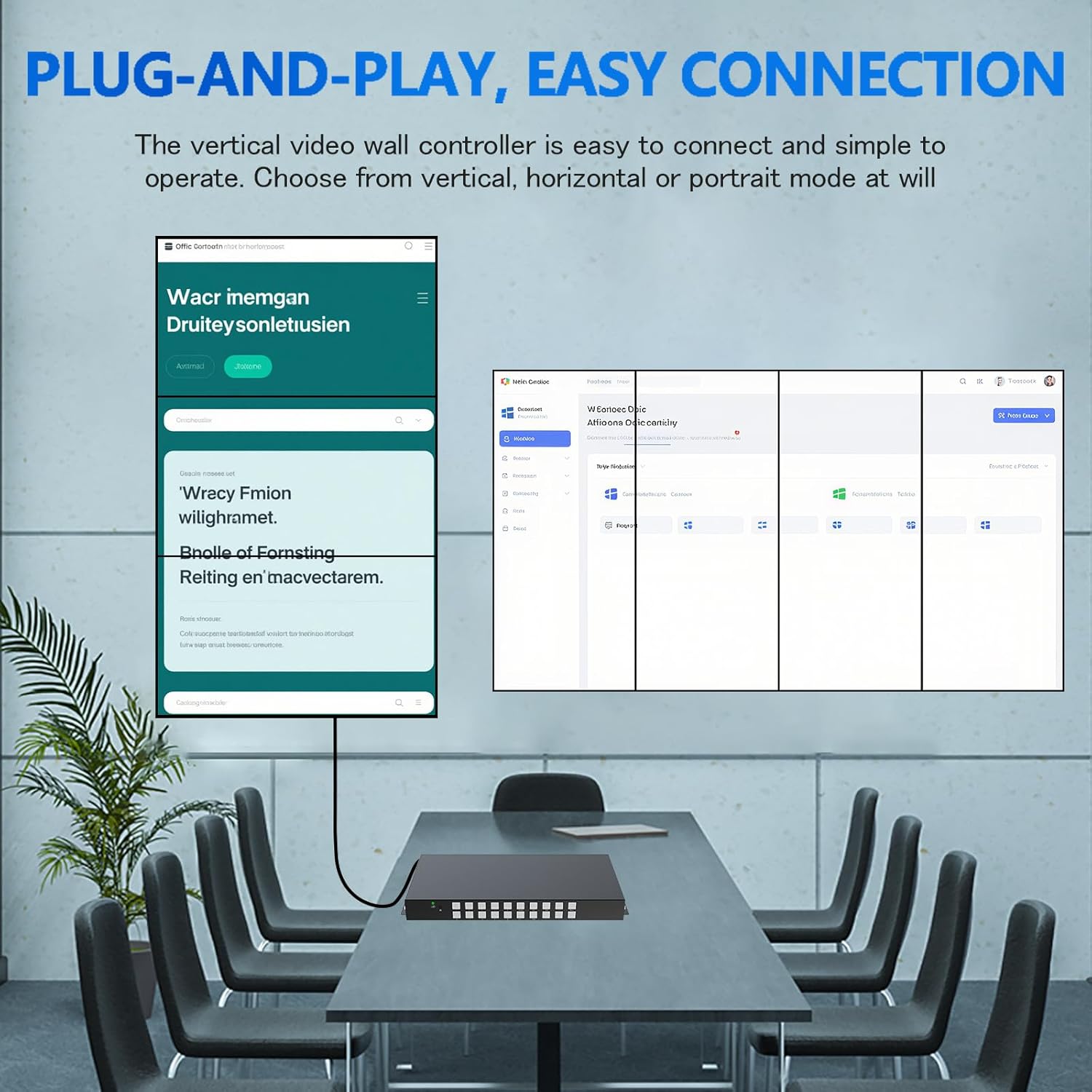
Figure 3.2: Example of a plug-and-play connection setup for the video wall controller.
4. Operating Modes and Features
The U1x4P supports two primary operating modes: Video Wall Mode and HDMI Matrix Mode.
4.1. Video Wall Mode
In Video Wall Mode, a single input source is displayed across multiple screens, forming a larger composite image. The controller supports various configurations and advanced display features.
- Supported Configurations: 4x1, 3x1, 2x1, 1x2, 1x3, 1x4, and 2x2.
- Image Rotation: Supports 90, 180, and 270-degree rotation for individual display units, enabling vertical or horizontal splicing.
- Edge Blending/Fusion: Adjusts the seam area between stitched images to minimize gaps and create a more seamless visual experience.
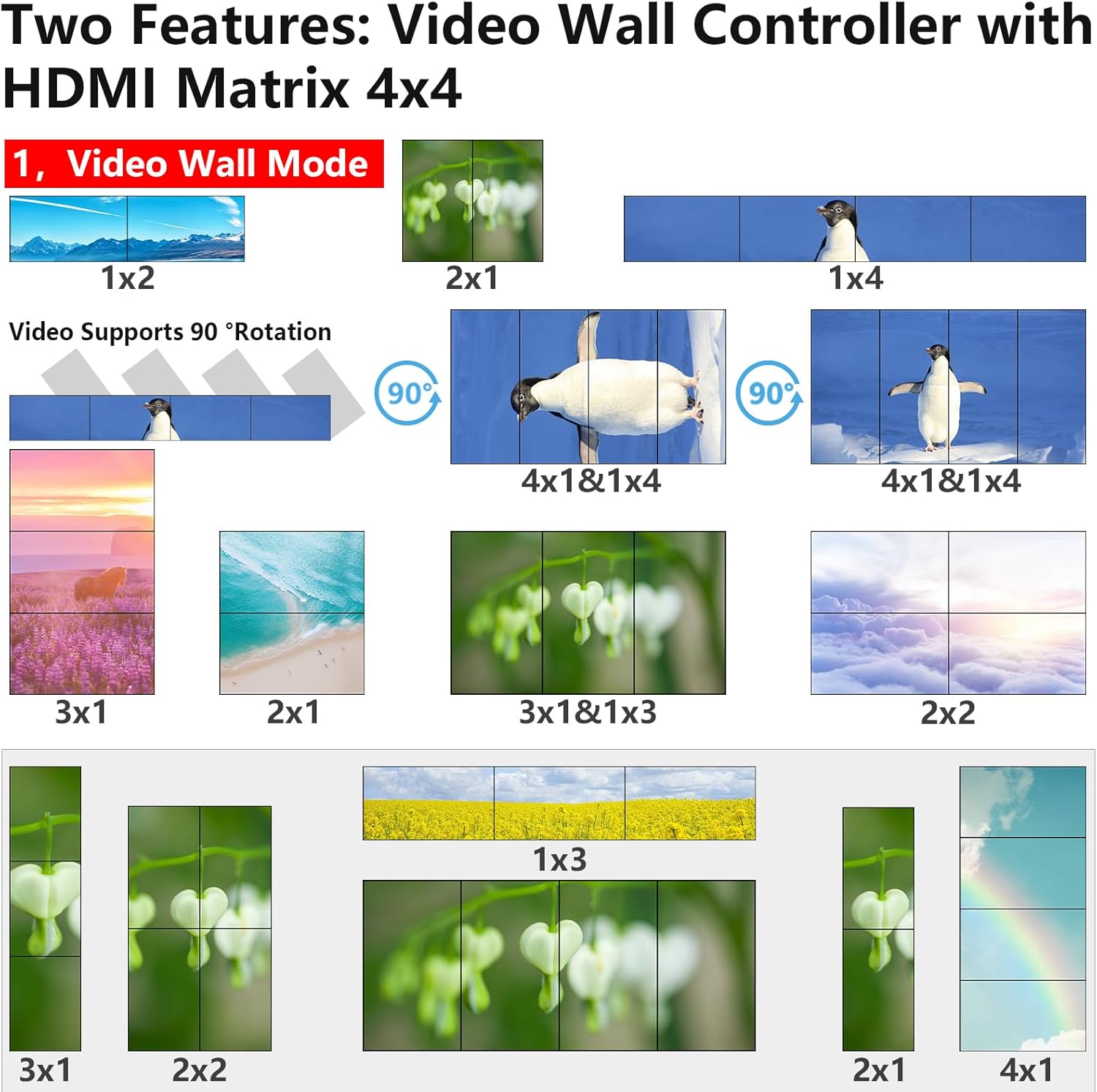
Figure 4.1: Various video wall configurations and 90-degree rotation capabilities.
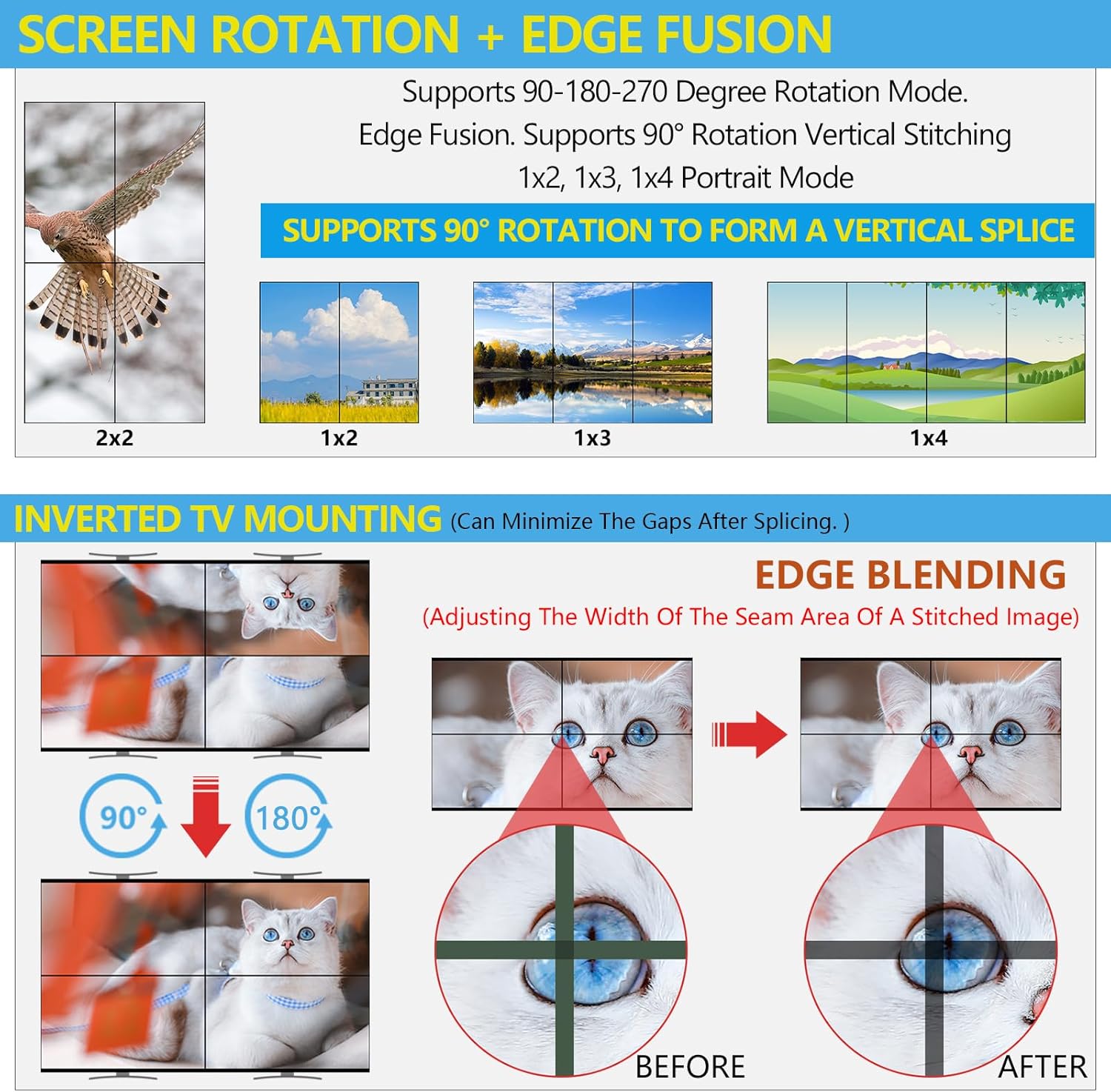
Figure 4.2: Screen rotation and edge fusion functionality for enhanced video wall display.

Figure 4.3: Detailed examples of individual and whole-screen rotation for seamless video walls.
4.2. HDMI Matrix Mode
In HDMI Matrix Mode, the controller allows any of the four input signals to be routed to any of the four output displays independently. It also supports multi-view split-screen display.
- Seamless Switching: Transition between input sources without black screens or delays.
- Multi-view Display: Each output can display a split screen of up to four input sources simultaneously.

Figure 4.4: Switching between Video Wall Mode and HDMI Matrix Mode.

Figure 4.5: Multi-view and matrix mode functionalities.
5. Control Methods
The U1x4P offers three methods for control:
- Infrared Remote Control: Use the included IR remote for convenient control of input switching, mode selection, and other functions from a distance.
- Front Panel Buttons: The device features buttons on its front panel for direct control, allowing for quick adjustments.
- RS-232 Software Control: For integration into professional control systems or for advanced configuration, the RS-232 port allows control via dedicated software.

Figure 5.1: Available control methods and audio output port.
6. Specifications
| Feature | Description |
|---|---|
| Model Number | U1x4P |
| Input Resolution | Up to 3840x2160@60Hz (4K@60Hz) |
| Output Resolution | 1920x1200@60Hz, 1920x1080@60Hz (Freely Switchable) |
| HDMI Version | HDMI 2.0 |
| Bandwidth | 18 Gbps |
| Inputs | 4 x HDMI, 1 x DisplayPort |
| Outputs | 4 x HDMI, 1 x 3.5mm Audio Out |
| Control Methods | IR Remote, Front Panel Buttons, RS-232 |
| Rotation Support | 90°, 180°, 270° for individual units |
| Dimensions | 6 x 12.5 x 3 inches |
| Item Weight | 5 pounds |
| Color | Black |

Figure 6.1: Input and output resolution capabilities.

Figure 6.2: Point-to-point resolution clarity comparison.
7. Maintenance
To ensure the longevity and optimal performance of your ICUIXIAN Video Wall Controller, follow these maintenance guidelines:
- Cleaning: Use a soft, dry cloth to clean the exterior of the device. Avoid abrasive cleaners or solvents.
- Ventilation: Ensure the device is placed in a well-ventilated area to prevent overheating. Do not block ventilation openings.
- Power: Disconnect power during lightning storms or when unused for long periods.
- Environment: Keep the device away from moisture, extreme temperatures, and direct sunlight.
8. Troubleshooting
If you encounter issues with your video wall controller, refer to the following common troubleshooting steps:
- No Signal/Display:
- Verify all HDMI/DP cables are securely connected to both source and display devices.
- Ensure the input source is powered on and outputting a signal.
- Check that the correct input is selected on the controller.
- Confirm display monitors are powered on and set to the correct input.
- Distorted Image:
- Check cable quality; use high-speed HDMI 2.0 cables for 4K signals.
- Ensure input and output resolutions are compatible with your displays.
- Adjust edge blending settings if the distortion is at screen seams.
- Remote Control Not Working:
- Check battery levels and replace if necessary.
- Ensure there are no obstructions between the remote and the IR receiver on the controller.
- No Audio:
- Verify external audio system is connected correctly and powered on.
- Check audio settings on the source device.
If problems persist, contact ICUIXIAN technical support for further assistance.
9. Warranty and Support
ICUIXIAN is committed to providing quality products and customer satisfaction. For each shipment, products undergo careful testing to ensure functionality. In the event of a product issue, ICUIXIAN offers professional technical staff to provide one-on-one communication and prompt assistance.
For detailed warranty information or technical support, please refer to the official ICUIXIAN website or contact their customer service directly. Protection plans may also be available for extended coverage.
