
Introduction
The OMBAR T1 4K 3 Channel Dash Cam is an advanced vehicle recording system designed to enhance driving safety and provide comprehensive surveillance. Equipped with STARVIS 2 IMX678 sensors, it offers superior video quality, including Micro-Light Full-Color Night Vision and 3-Channel HDR imaging. This manual provides detailed instructions for setting up, operating, and maintaining your dash cam.
What's in the Box
- OMBAR T1 Dash Cam (Front Camera)
- Rear Camera
- GPS Mount
- Rear Camera Cable
- Car Charger Adapter
- Crowbar (for cable tucking)
- 3M Adhesive Stickers (4x)
- Electrostatic Stickers (4x)
- User Manual
- 128GB SD Card (pre-installed or included)

Setup and Installation
1. Prepare the Windshield
Before mounting, ensure your windshield is clean and dry. Use the provided alcohol prep pads to thoroughly clean the mounting area for optimal adhesion of the electrostatic stickers and adhesive mounts.
2. Install the Front Dash Cam
Attach the GPS mount to the front dash cam. Apply an electrostatic sticker to your windshield, then firmly press the dash cam with its adhesive mount onto the electrostatic sticker. Position it to ensure a clear view of the road without obstructing your driving vision. The camera's angle can be adjusted for optimal recording.

3. Install the Rear Camera
Mount the rear camera on your rear windshield using an electrostatic sticker and adhesive. Connect the rear camera to the main dash cam using the provided long cable. Route the cable discreetly along the headliner and A-pillar, using the included crowbar and wire clips to tuck it away.

4. Power Connection
Connect the car charger adapter to your vehicle's cigarette lighter socket and plug the USB-C cable into the main dash cam. Ensure you use the original car charger and power cable for stable operation. Avoid third-party phone chargers or cords, as they may cause voltage issues.

The dash cam will automatically power on and begin recording when your vehicle starts. It will stop recording when power is disconnected.
Operating Instructions
1. Initial Setup and Settings
Upon first power-on, the dash cam will prompt you for initial setup, including language and time zone. Use the buttons on the device to navigate the menu. The large screen on the back makes menu navigation easy.
Video: This video demonstrates how to access and adjust settings on the OMBAR T1 Dash Cam's display, including resolution, loop recording, G-sensor, WiFi, and GPS settings.
2. RoadRec App Connection
Download the "RoadRec" app from the App Store (iOS) or Google Play (Android). Enable Wi-Fi on your dash cam and connect your smartphone to the dash cam's Wi-Fi network. The app allows for live view, video playback, file management, emergency lock, and GPS tracking. It also supports OTA firmware updates.

Video: A user demonstrates connecting the dash cam to the RoadRec app on a tablet, showing the live view and various app functions.
3. Recording Modes and Features
- Loop Recording: The dash cam automatically overwrites the oldest unlocked videos when the SD card is full, ensuring continuous recording.
- G-Sensor: Detects sudden impacts or collisions and automatically locks the current video footage to prevent it from being overwritten.
- Parking Mode: With the optional OMBAR hardware kit, the dash cam can continuously monitor your vehicle 24/7 for security and theft prevention, even when parked.
- Full-Color Night Vision: Utilizes STARVIS 2 IMX678 sensors and advanced AI processing for vivid, true-to-color footage in low-light conditions.
- Built-in GPS: Provides real-time route and location tracking, with optional speed stamps embedded in your footage.
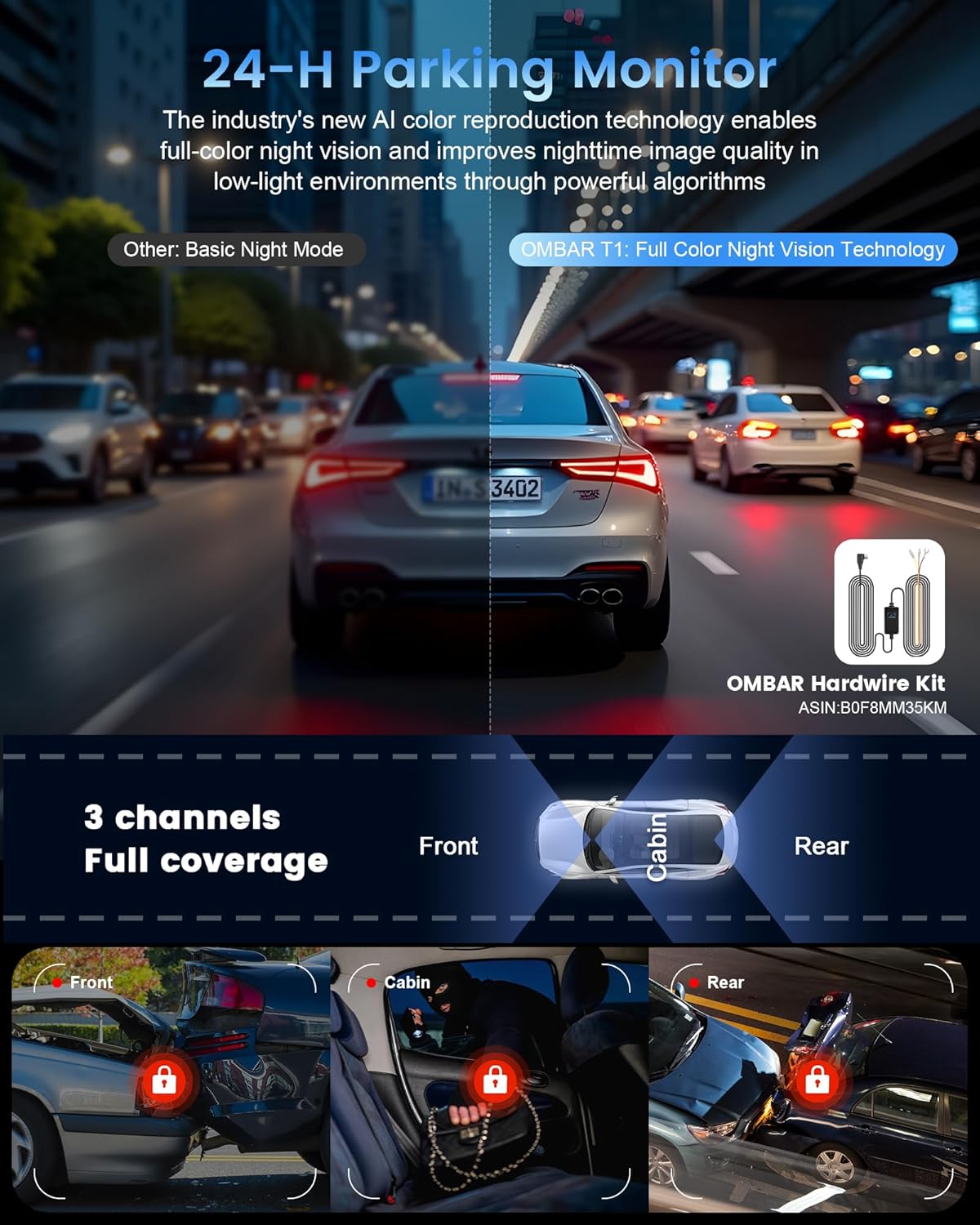
Video: This video demonstrates the OMBAR T1 Dash Cam's full-color night vision capabilities in various low-light driving scenarios.
Maintenance
- Regularly format the SD card (e.g., every 6 months) to prevent accumulation of false alarm footage and ensure optimal performance.
- Keep the camera lenses clean for clear recording quality.
- Always use the original power accessories to avoid potential voltage issues.
Specifications
| Feature | Detail |
|---|---|
| Model Name | T1 |
| Video Capture Resolution | 4K+1080P+1080P@30fps, 5K@25fps |
| Image Sensor | STARVIS 2 IMX678 (Front), Dual IMX307 (Rear & Cabin) |
| Night Vision | Micro-Light Full-Color Night Vision |
| Connectivity | 5GHz Wi-Fi, APP (RoadRec) |
| GPS | Built-in High-Precision Quad-Mode GPS (GPS, BeiDou, Galileo, GLONASS) |
| Storage | Supports up to 512GB MicroSD Card (128GB included) |
| Special Features | 4K HDR, 3-axis adjustable G-Sensor, OTA Firmware Update, Supercapacitor, Buffered Motion Detection, 24hrs parking mode |
| Product Dimensions | 0.39 x 0.39 x 0.39 inches |
| Item Weight | 1.92 pounds |
Warranty and Support
The OMBAR T1 Dash Cam comes with a standard warranty. For extended warranty options or technical support, please refer to the information provided with your product or contact OMBAR customer service.
For further assistance, please visit the OMBAR Store on Amazon.


