
1. Initial Setup
1.1 Package Contents
Before you begin, ensure all items are present in the package:
- ALLDOCUBE iPlay70S Tablet
- USB Type-C Cable
- Power Adapter (5V 3A compatible)
- User Manual
1.2 Charging the Tablet
It is recommended to fully charge the tablet before first use. Connect the provided USB Type-C cable to the charging-specific Type-C port on the tablet and the power adapter, then plug the adapter into a power outlet.

Image: Overview of the tablet's ports, including the 6000mAh battery, dedicated charging Type-C port, multi-function Type-C port, 3.5mm headphone jack, and SD card slot.
1.3 Powering On/Off
- To Power On: Press and hold the power button until the ALLDOCUBE logo appears.
- To Power Off: Press and hold the power button, then select "Power Off" from the options.
- To Restart: Press and hold the power button, then select "Restart" from the options.
1.4 Initial Configuration (Android 15)
Upon first startup, follow the on-screen prompts to configure your tablet:
- Select your preferred language.
- Connect to a Wi-Fi network.
- Sign in with your Google account or create a new one.
- Review and accept the terms and conditions.
Important Note:
- This is a Wi-Fi model tablet and does not support SIM cards for cellular data.
- GPS, fingerprint authentication, and face recognition are not supported on this device.
- Avoid directly transferring data from other tablets during initial setup, as this may cause errors.
2. Operating Your Tablet
2.1 AI Features
The iPlay70S integrates several AI-powered features to enhance user experience:
- AI Gestures: Perform actions like sliding up/down, taking screenshots, or returning to the previous page with simple hand gestures.
- Posture Reminder: An AI posture reminder alerts you if you maintain a hunched posture for extended periods, promoting better ergonomics.
- AI Video Upscaling (AISR): Upscales low-resolution videos to up to 4K quality, supporting both local and online content.
- Auto-Photo: The tablet can detect smiles or an "OK" sign and automatically capture photos, useful for solo travelers.
- Assistant: Use voice commands to check weather, news, or perform daily tasks, receiving instant feedback.
- Google Lens: Translate text, get homework help, identify products, plants, and places by simply pointing your camera.

Image: Visual representation of AI gestures for screen control (screenshot, scroll down, scroll up, back) and the AI posture reminder function.

Image: Comparison of video quality with AI upscaling off and on, alongside icons for smile and OK sign detection for the auto-photo feature.
2.2 Android 15 Features
The iPlay70S runs on the latest Android 15 OS, offering enhanced convenience:
- Clone App: Easily clone popular apps like WeChat, Facebook, Instagram, Messenger, and WhatsApp to log in with two accounts simultaneously, ideal for separating work and personal use.
- Split Screen: Display two applications simultaneously for efficient multitasking.
- Small Window Mode: Display apps in a small window, allowing you to perform other tasks without occupying the entire screen.
- Color Temperature Adjustment: Adjust the screen's color temperature for visual comfort, adapting to day and night environments.
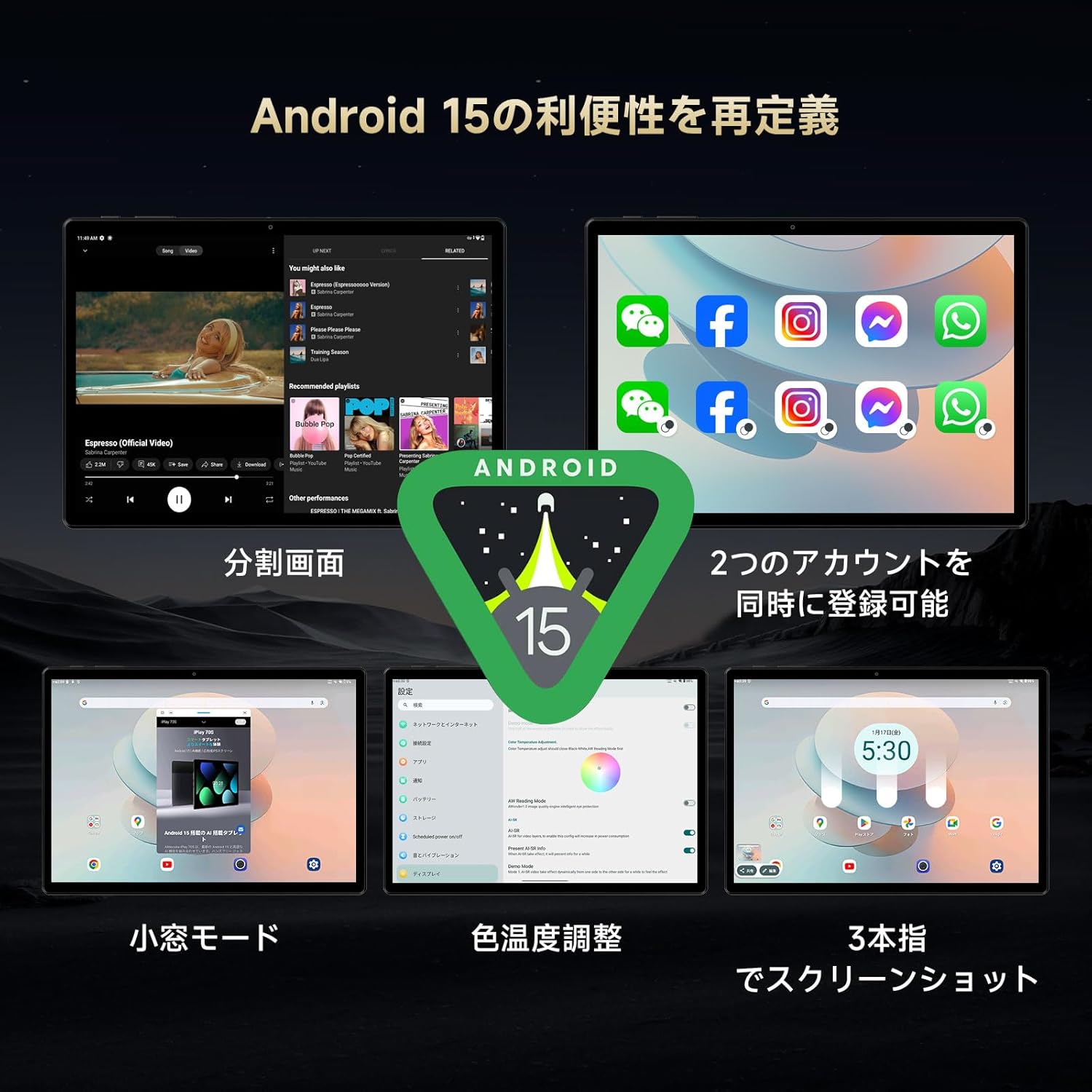
Image: A collage illustrating key Android 15 features on the tablet, including split screen, app cloning, small window mode, and color temperature settings.
2.3 Display
Experience vibrant visuals on the 10.5-inch display:
- Resolution: 1920x1280 pixels, providing clear and detailed images.
- Panel Type: IPS technology ensures vivid colors and clear viewing from various angles.
- Pixel Density: 220 PPI for sharp details.
- Brightness: Up to 400 cd/m², making the screen visible even outdoors during the day.
- Refresh Rate: 60Hz for smooth visuals.
- Touch: 10-point multi-touch for smooth and responsive interaction.
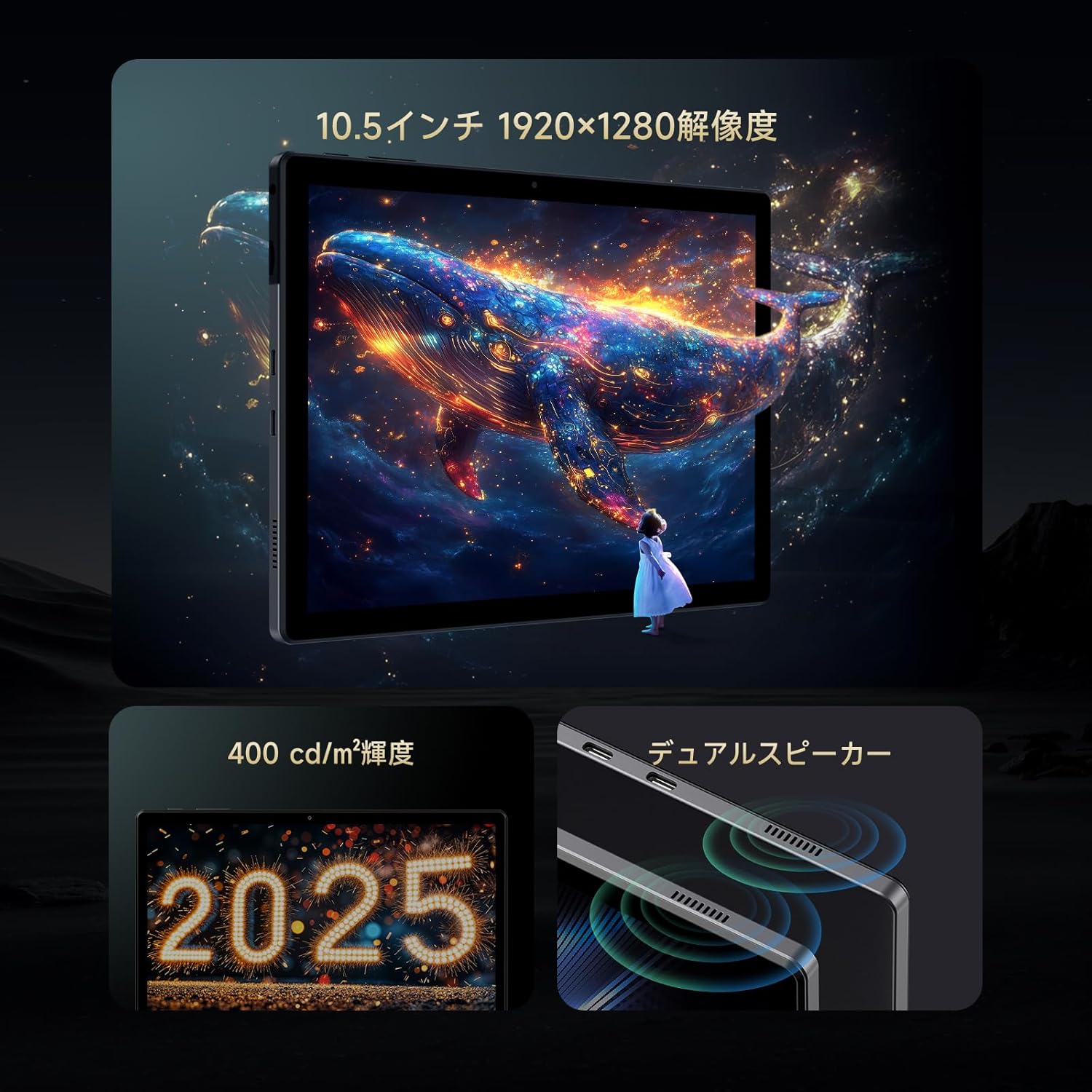
Image: The tablet screen displaying a vibrant image, with callouts for 10.5-inch 1920x1280 resolution, 400 cd/m² brightness, and dual speakers.
2.4 Performance and Storage
The iPlay70S is designed for smooth performance:
- Processor: Powerful A733MX-N3X 8-core processor (12nm process technology) with AI function support. Achieves over 320,000 points in AnTuTu benchmark.
- RAM: 12GB (4GB physical RAM + 8GB virtual memory) LPDDR4X, ensuring smooth multitasking.
- Internal Storage: 128GB UFS 2.2 for fast app and data access.
- Expandable Storage: Supports up to 1TB via microSD card (not included).

Image: Diagram illustrating the tablet's core specifications: A733MX-N3X CPU, AnTuTu benchmark score, Wi-Fi 6, Bluetooth 5.2, and the 12GB RAM + 128GB ROM configuration.
2.5 Connectivity
- Wi-Fi: Supports Wi-Fi 6 for faster and more stable internet connections, ideal for online streaming and gaming.
- Bluetooth: Bluetooth 5.2 for stable connections with wireless headphones, speakers, and other devices.
- USB Type-C Ports: One dedicated for charging, another multi-functional Type-C port supporting USB 3.1 for charging, OTG, data transfer, and HUB expansion (USB 3.0/2.0, RJ45).
2.6 Audio and Cameras
- Dual Speakers: Enjoy immersive audio for movies and music.
- 3.5mm Headphone Jack: Connect your favorite wired headphones or external speakers for high-quality audio.
- Front Camera: 2MP, suitable for online meetings and selfies.
- Rear Camera: 5MP, for capturing photos of your surroundings.
2.7 Sensors
- Gravity Sensor: Automatically adjusts screen orientation when you tilt the device.
- Light Sensor: Automatically adjusts screen brightness based on ambient light.
3. Maintenance
3.1 Battery Care
The tablet is equipped with a 6000mAh battery. To maximize battery life:
- Use the original charger and cable for optimal charging.
- Avoid extreme temperatures (hot or cold) as they can degrade battery performance.
- Do not let the battery completely drain frequently.
3.2 Software Updates
Keep your tablet's software up to date to ensure optimal performance and security. Updates may include bug fixes and new features. For example, the "U1035_B15_V1.0.20250218" update resolved clock drift issues.
3.3 Cleaning
Use a soft, lint-free cloth to clean the screen and body of the tablet. Avoid using harsh chemicals or abrasive materials.
4. Troubleshooting
If you encounter issues with your ALLDOCUBE iPlay70S, refer to the following common solutions:
| Problem | Possible Solution |
|---|---|
| Tablet does not power on | Ensure the battery is charged. Connect to the charger for at least 30 minutes before attempting to power on again. |
| Clock drifts or is inaccurate | Ensure your tablet's software is updated to the latest version (e.g., U1035_B15_V1.0.20250218 or newer). Check date and time settings to ensure automatic synchronization is enabled. |
| Apps freeze or crash frequently | Clear the cache of the problematic app. If the issue persists, uninstall and reinstall the app. Ensure sufficient free storage space. |
| Cannot connect to Wi-Fi | Restart the tablet and your Wi-Fi router. Ensure you are entering the correct password. Try connecting to a different Wi-Fi network if available. |
| Video playback issues with streaming services (e.g., Disney+) | Some streaming services may have specific DRM requirements that might not be fully supported. Ensure the app is updated. Try clearing the app's cache and data. |
| Slow performance | Close unnecessary background applications. Clear cached data. Consider reducing the number of widgets on your home screen. |
If these solutions do not resolve your issue, please contact customer support.
5. Product Specifications
| Feature | Detail |
|---|---|
| Brand | ALLDOCUBE |
| Model Name | iPlay 70 S |
| Operating System | Android 15 |
| Screen Size | 10.5 inches |
| Display Resolution | 1920 x 1280 pixels |
| CPU | A733MX-N3X 8-core, 1.8 GHz |
| RAM | 12 GB (4GB physical + 8GB virtual) LPDDR4X |
| Storage | 128 GB UFS 2.2 (expandable up to 1TB) |
| Connectivity | Wi-Fi 6, Bluetooth 5.2 |
| Battery Capacity | 6000 mAh |
| Cameras | Front: 2 MP, Rear: 5 MP |
| Ports | Dual Type-C (one charging-only, one multi-function USB 3.1), 3.5mm headphone jack, MicroSD card slot |
| Sensors | Gravity sensor, Light sensor |
| Dimensions | 28.5 x 24.5 x 3.4 cm |
| Weight | 940 g |
6. Warranty Information
The ALLDOCUBE iPlay70S comes with a 12-month product warranty from the date of purchase. Please retain your proof of purchase for warranty claims. The warranty covers manufacturing defects but typically excludes damage caused by misuse, accidents, or unauthorized modifications.
7. Customer Support
For any inquiries, technical assistance, or warranty claims, please contact ALLDOCUBE customer support through one of the following methods:
- Official LINE Account: @175lhsbh
- Via Amazon Product Page: Click on the store name on the product page, then select "Ask a question."
- Via Amazon Account: Go to "Your Orders," select the relevant order, and then click "Contact Seller."
Our customer support team is committed to providing solutions and improving our products based on your feedback.


