1. Introduction
This manual provides essential information for the proper use and maintenance of your ALLDOCUBE iPlay60 Lite 11-inch Android 15 Tablet. Please read it thoroughly before operating the device to ensure optimal performance and longevity. Keep this manual for future reference.
2. Product Overview
2.1 Package Contents
Verify that all items are present in the package:
- ALLDOCUBE iPlay60 Lite Tablet
- USB Type-C Cable
- SIM Card Pin
- Power Adapter (5V/2A)
- User Manual

Image: Contents of the ALLDOCUBE iPlay60 Lite tablet package, including the tablet, USB-C cable, SIM ejector tool, power adapter, and user manual.
2.2 Device Layout
Familiarize yourself with the physical components of your tablet:
- Front Camera: For video calls and selfies.
- Rear Cameras: Main camera for photos and videos.
- Power Switch: To turn the device on/off or lock/unlock the screen.
- Volume Buttons: To adjust audio volume.
- Charging Port (Type-C): For charging the device and data transfer.
- Speaker: For audio output.
- TF/SIM Card Slot: For inserting microSD and SIM cards.

Image: Diagram illustrating the physical layout of the ALLDOCUBE iPlay60 Lite tablet, highlighting the front camera, rear cameras, power switch, volume buttons, charging port, speaker, and TF/SIM card slot.
3. Setup
3.1 Inserting SIM and MicroSD Cards
- Locate the TF/SIM card slot on the side of the tablet.
- Insert the provided SIM card pin into the small hole next to the slot to eject the tray.
- Place your Nano-SIM card(s) and/or microSD card into the designated slots on the tray. Note that SIM2 shares a slot with the microSD card.
- Carefully reinsert the tray into the tablet.

Image: Close-up view of the SIM and microSD card tray, demonstrating how to insert the cards into the ALLDOCUBE iPlay60 Lite tablet.
3.2 Initial Power On and Android Setup
- Press and hold the Power button until the ALLDOCUBE logo appears.
- Follow the on-screen prompts to complete the initial Android 15 setup, including language selection, Wi-Fi connection, Google account login, and security settings.
- Ensure your tablet is sufficiently charged before starting the setup process.
4. Operating Instructions
4.1 Display Features and Media Playback
The 11-inch in-cell display with 1280x800 resolution is suitable for video viewing, reading, and gaming. It supports Widevine L1 DRM, allowing for high-definition 1080P playback on streaming services like Netflix, Hulu, Prime Video, and Disney+ without quality loss.

Image: The 11-inch display of the ALLDOCUBE iPlay60 Lite, highlighting its 1280x800 resolution, in-cell technology, 10-point touch, 350 cd/m² brightness, and Widevine L1 support for streaming services.
Adjust display settings for comfort:
- Eye Protection Mode: Reduces blue light to prevent eye strain.
- Night Mode: Darkens the interface for comfortable viewing in low light.
- Reading Mode: Optimizes the display for reading text.
- Color Temperature Adjustment: Customize the screen's color balance.

Image: Screenshots demonstrating various display modes available on the ALLDOCUBE iPlay60 Lite, including eye protection, night mode, reading mode, and color temperature adjustment.
4.2 Performance and Storage
The tablet is equipped with a T606 octa-core processor and Arm Mali G57 GPU, providing smooth multitasking and efficient power usage. It features 12GB RAM (4GB physical + 8GB virtual) and 128GB ROM, expandable up to 512GB with a microSD card, offering ample space for apps, photos, and videos.
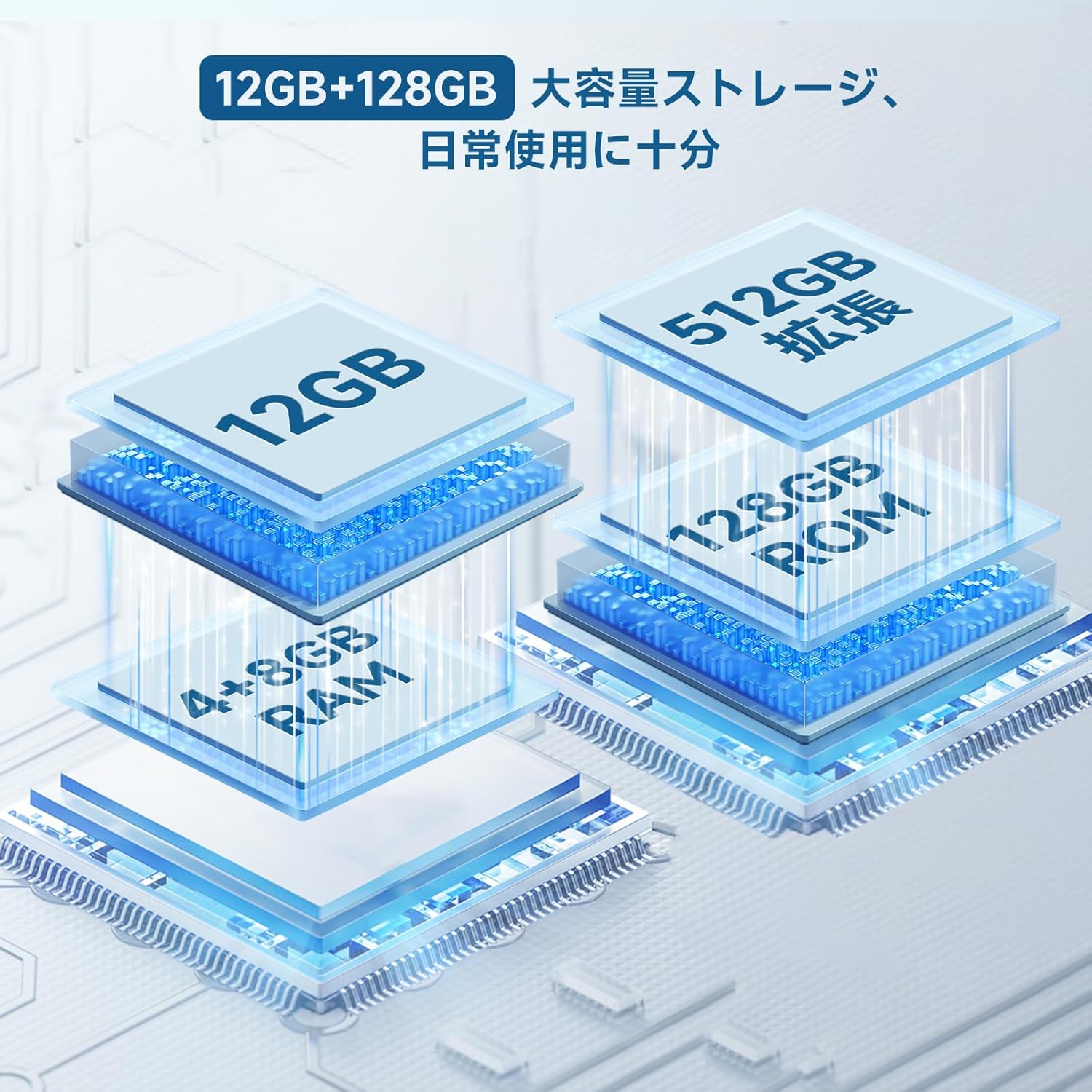
Image: Diagram illustrating the 12GB RAM (4GB + 8GB virtual) and 128GB ROM storage, expandable to 512GB, of the ALLDOCUBE iPlay60 Lite tablet.

Image: Graphic detailing the Unisoc T606 octa-core CPU and Arm Mali G57 GPU, highlighting its AnTuTu score of 290,000 points.
4.3 Connectivity
The iPlay60 Lite supports various connectivity options:
- 4G LTE: Dual SIM support for stable and high-speed mobile data and VoLTE calls.
- Dual-band Wi-Fi: Supports 2.4GHz and 5GHz for stable and fast internet connections.
- Bluetooth 5.0: For seamless connection with wireless accessories and file transfer.
- GPS: Integrated GPS (GPS/Beidou/Galileo/Glonass) for navigation.
Image: Visual representation of the ALLDOCUBE iPlay60 Lite's connectivity, including 4G LTE dual SIM, 2.4GHz/5GHz Wi-Fi, Bluetooth 5.0, and GPS, with examples of use cases like video calls, TV casting, and navigation.
4.4 Battery Life
The 8000mAh battery provides extended usage times:
- Up to 10 hours of continuous video playback.
- Up to 32 hours of music playback.
- Up to 16 hours of web browsing.

Image: Graphic illustrating the 8000mAh battery capacity and estimated usage times for video playback (10 hours), music playback (32 hours), and reading/web browsing (16 hours).
4.5 Android 15 Features
The tablet runs on Android 15, offering enhanced features for privacy, security, and data protection. It provides more control over app data usage and security functions, along with increased customization options.
- Privacy Protection: Enhanced controls over app permissions and data access.
- Parental Controls: Manage screen time and app usage for children.
- Split Screen: Perform multiple tasks simultaneously by dividing the screen.
- 3-Finger Screenshot: Quickly capture screenshots with a simple gesture.

Image: Screenshots showcasing key features of Android 15 on the ALLDOCUBE iPlay60 Lite, including privacy settings, parental controls, split-screen functionality, and the 3-finger screenshot gesture.
5. Maintenance
- Cleaning: Use a soft, lint-free cloth to clean the screen and body. Avoid abrasive cleaners or solvents.
- Storage: Store the tablet in a cool, dry place away from direct sunlight and extreme temperatures.
- Battery Care: To prolong battery life, avoid fully discharging the battery frequently. Charge the device using the provided charger or a compatible 5V/2A or PD18W charger.
- Software Updates: Regularly check for and install system updates to ensure optimal performance and security.
6. Troubleshooting
6.1 Data Transfer Warning
Important Note: If you purchased your tablet on or after April 20th, it comes with Android 15. Transferring data directly from another tablet to this device may cause errors. It is recommended to set up the new tablet as a fresh device and manually transfer data or use cloud services to avoid potential issues.
6.2 Common Issues
- Device not powering on: Ensure the battery is charged. Connect the charger and wait a few minutes before attempting to power on again.
- Screen unresponsive: Try restarting the device by holding the power button. If unresponsive, force restart by holding the power button for an extended period (usually 10-15 seconds).
- Wi-Fi/4G connectivity issues: Check if Wi-Fi is enabled and connected to the correct network. For 4G, ensure SIM cards are properly inserted and your plan is active. Try restarting the tablet and your router/modem.
- Apps crashing: Clear the cache of the problematic app or reinstall it. Ensure the tablet's software is up to date.
7. Specifications
| Feature | Specification |
|---|---|
| Brand | ALLDOCUBE |
| Model Name | iPlay 60 Lite |
| Operating System | Android 15 |
| Display Size | 11 inches |
| Display Resolution | 1280x800 pixels |
| CPU Brand | MediaTek (T606 Octa-core) |
| Graphics Card Type | Integrated (Arm Mali G57) |
| RAM | 12GB (4GB + 8GB Virtual) |
| Memory Storage Capacity | 128GB (Expandable up to 512GB via microSD) |
| Connectivity | Wi-Fi (802.11ac, 2.4/5GHz), Bluetooth 5.0, GPS (GPS/Beidou/Galileo/Glonass), 4G LTE |
| Battery Capacity | 8000mAh (3.8V, 30.4 Wh) |
| Rear Camera | 13MP (Autofocus) |
| Front Camera | 5MP |
| Product Weight | 940 g (Package weight, device weight approx. 306g) |
8. Warranty and Support
For warranty information and technical support, please refer to the official ALLDOCUBE website or contact their customer service directly. Details are typically provided with your purchase documentation or on the manufacturer's support pages.


