
YGiTK KTY038eu
Contents
YGiTK Mini Audio Mixer User Manual
Model: KTY038eu
Introduction
This user manual provides comprehensive instructions for the YGiTK 4-Channel Stereo Line Mixer. Designed for versatility and ease of use, this ultra-compact mixer allows you to combine audio signals from multiple sources into a single output, suitable for various applications including musical instruments, microphones, and mobile devices. Please read this manual thoroughly before operating the device to ensure proper usage and optimal performance.
Product Overview
The YGiTK Mini Audio Mixer is a compact and robust device featuring four input channels and one output channel. It supports both 6.35mm (1/4") and 3.5mm (1/8") audio jacks, making it compatible with a wide range of audio equipment. Each channel includes an independent volume control, and the unit offers a switchable stereo/mono mode for flexible audio management.

Figure 1: YGiTK 4-Channel Audio Mixer and Accessories. The package includes the mixer unit, a USB-C power cable, a 6.35mm audio cable, and a power adapter.
Key Features
- 4-Channel Input & 1-Channel Output: Mixes four audio signals into a single output.
- Dual Jack Support: Compatible with both 6.35mm (1/4") and 3.5mm (1/8") TSR audio input/output jacks, eliminating the need for adapters.
- Independent Volume Control: Each input channel and the master output channel feature dedicated volume adjustment knobs for precise control.
- Stereo/Mono Switching: Easily switch between stereo (S) and mono (M) modes to adapt to different audio sources and output requirements.
- Ultra-Low Noise Design: Engineered to provide excellent audio performance with minimal noise interference, even at maximum output levels. Includes a 5V certified power supply with a magnetic ring on the power cord to reduce external noise.
- Durable Metal Housing: Constructed with an all-metal shell for enhanced anti-electromagnetic interference performance and high strength. Features a scratch-resistant powder coating and non-slip pads for stability.
- Gold-Plated Connections: Professional gold-plated interfaces ensure stable and pure sound transmission.

Figure 2: Input and Output Compatibility. The mixer supports various input devices like laptops, phones, keyboards, and electric guitars, and connects to output devices such as headphones and amplifiers.

Figure 3: Independent Volume Control and Stereo/Mono Switch. Each input channel has its own volume knob, and a dedicated switch allows toggling between stereo and mono modes.

Figure 4: Electromagnetic Rings for Noise Reduction. The power cable is equipped with a magnetic ring to minimize external noise interference, ensuring a cleaner audio signal.
Setup Guide
- Power Connection: Connect the provided USB-C power cable to the DC 5V 2A port on the mixer and plug the power adapter into a suitable power outlet. The power indicator light will illuminate.
- Input Connections: Connect your audio sources (e.g., laptop, phone, keyboard, guitar, microphone) to the Input 1, Input 2, Input 3, or Input 4 jacks using appropriate 6.35mm or 3.5mm audio cables.
- Output Connection: Connect your headphones, speakers, or amplifier to the Output jack using a 6.35mm or 3.5mm audio cable.
- Mode Selection: Use the STEREO/MONO switch to select the desired output mode.
- STEREO (S): For stereo audio sources and output.
- MONO (M): For mono audio sources or to combine stereo inputs into a mono output.
- Initial Volume Adjustment: Before playing audio, set all input volume knobs (Level 1-4) and the master output volume knob (Level 5) to their minimum positions to prevent sudden loud sounds.

Video 1: Setup and Usage Demonstration. This video demonstrates how to connect various audio sources and output devices to the YGiTK Mini Audio Mixer, and how to adjust volume levels and switch between stereo and mono modes.
Operating Instructions
- Power On: Press the POWER button to turn on the mixer. The power indicator light will turn green.
- Adjust Input Volume: Slowly turn the individual input volume knobs (Level 1-4) clockwise to increase the volume of each connected audio source. Adjust them to achieve a balanced mix.
- Adjust Output Volume: Use the master output volume knob (Level 5) to control the overall volume sent to your headphones, speakers, or amplifier.
- Stereo/Mono Switching: Press the STEREO/MONO button to toggle between stereo and mono output. The LED indicator next to the switch will show the current mode.
- Mixing Audio: Play audio from your connected sources and adjust the individual input volumes and master output volume until you achieve the desired sound balance.
- Power Off: Press the POWER button again to turn off the mixer when not in use.

Figure 5: Easy Operation. The mixer's intuitive layout allows for straightforward adjustment of individual channel volumes and overall output.

Figure 6: Control Layout. This diagram highlights the four independent input volume controls (Level 1-4) and the master output volume control (Level 5).
Maintenance
- Cleaning: Use a soft, dry cloth to clean the exterior of the mixer. Do not use liquid cleaners or abrasive materials.
- Storage: Store the mixer in a cool, dry place away from direct sunlight and extreme temperatures.
- Handling: Avoid dropping the mixer or subjecting it to strong impacts, as this may damage internal components.
- Cable Care: Ensure all cables are connected securely and are not bent or kinked excessively to prevent damage.
Troubleshooting
| Problem | Possible Cause | Solution |
|---|---|---|
| No sound output. |
|
|
| Distorted or noisy sound. |
|
|
| Only one channel has sound in stereo mode. |
|
|
Specifications
| Feature | Detail |
|---|---|
| Item Weight | 1.41 pounds |
| Package Dimensions | 9.72 x 6.38 x 2.44 inches |
| Item Model Number | KTY038eu |
| Power Source | Corded Electric |
| Voltage | 5 Volts |
| Brand | YGiTK |
| Number of Channels | 4 |
| Connectivity Technology | Auxiliary |
| Output Connector Type | TRS |
| Input Type | 6.35 mm + 3.5 mm stereo interface |
| Input Impedance | 4.7 KΩ |
| Maximum Input Level | +16 dBu |
| Output Type | 6.35 mm + 3.5 mm stereo interface |
| Output Impedance | 80Ω |
| Maximum Output Level | +16 dBu |
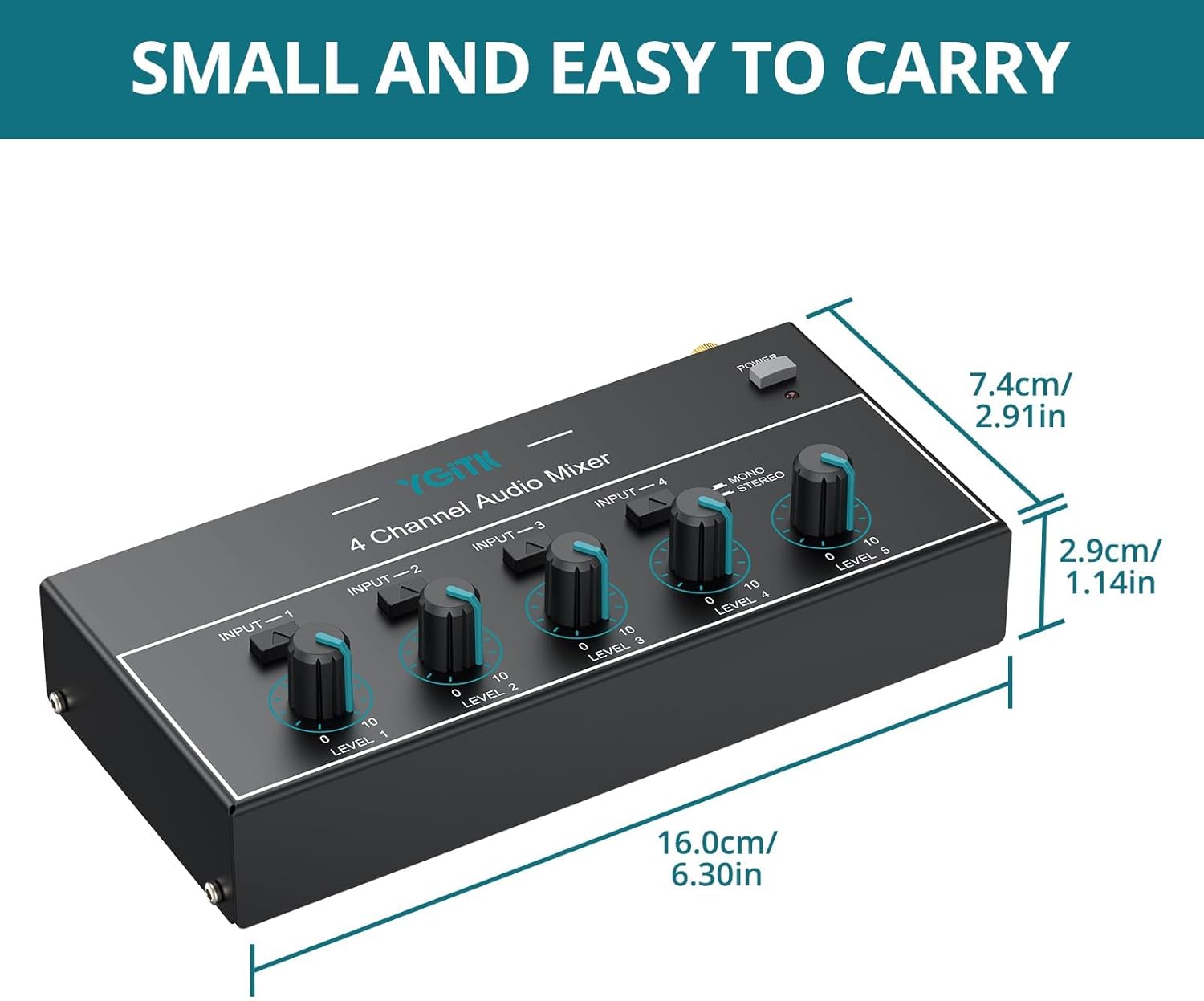
Figure 7: Product Dimensions. The compact size of the mixer makes it easy to integrate into various setups.
Warranty and Support
YGiTK products are manufactured to high-quality standards. For warranty information, technical support, or service inquiries, please refer to the contact information provided with your product packaging or visit the official YGiTK website. Keep your purchase receipt as proof of purchase for warranty claims.
For further assistance, you may contact YGiTK US directly via their Amazon store page: YGiTK Store.
Documents and downloads
Ask a question about this manual
Ask about setup, troubleshooting, compatibility, parts, safety, or missing instructions. Manuals+ will review the question and use this page’s manual context to help answer it.