
1. Introduction
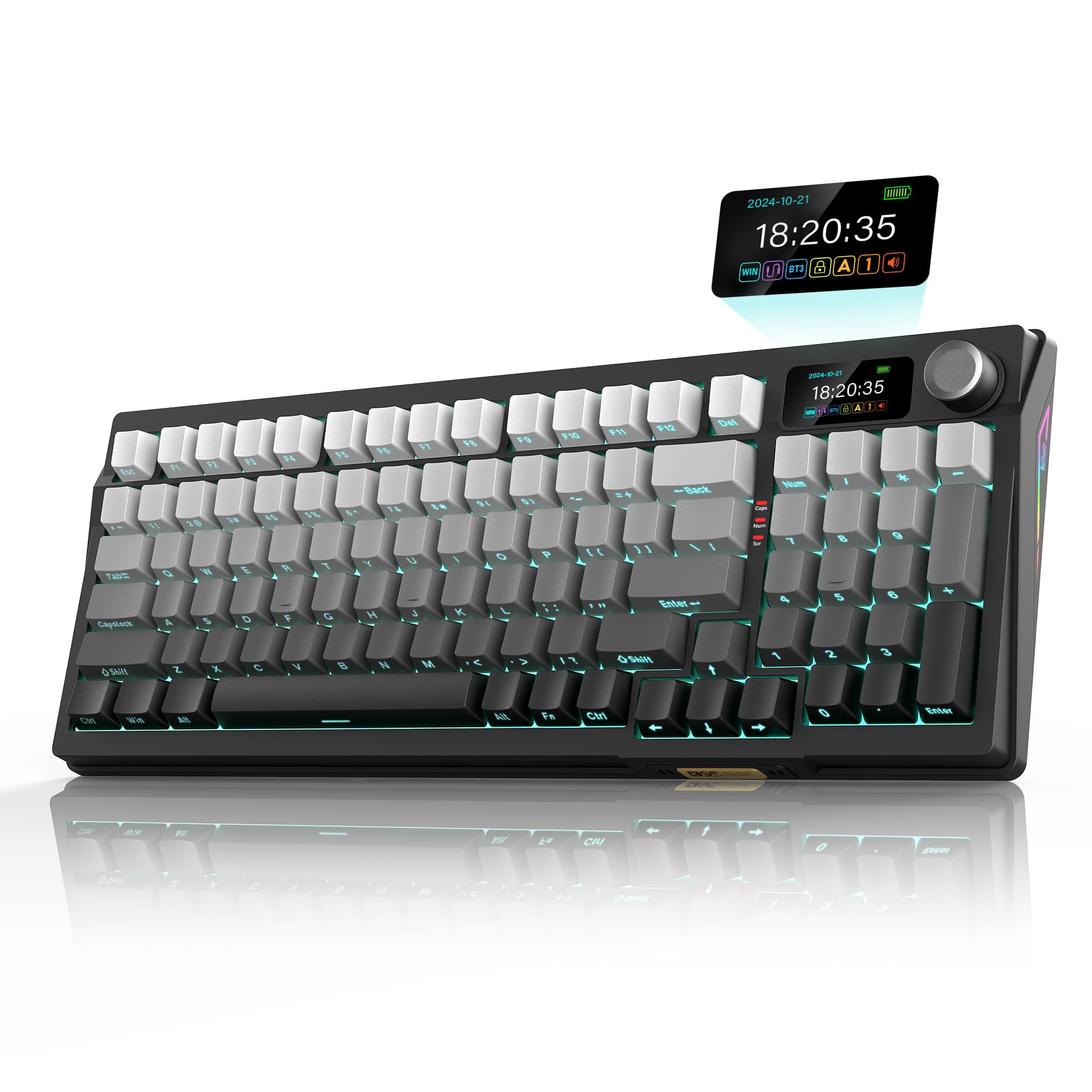
The RedThunder K95 is a versatile wireless mechanical keyboard designed for various uses, including gaming, business, and everyday tasks. It features a 90% compact layout, a 1.14-inch TFT screen, a CNC knob, tri-mode connectivity (wired, 2.4G wireless, Bluetooth), hot-swappable switches, RGB backlighting, and PBT keycaps.
Product Overview Video
Video 1: K95 Mechanical Keyboard Product Introduction. This video provides a general overview of the RedThunder K95 keyboard's features and design.
2. What's in the Box
Upon unboxing your RedThunder K95 keyboard, ensure all the following items are present:
- RedThunder K95 Wireless Mechanical Keyboard
- USB Cable (Type-C)
- Keycap Puller
- Spare Switches (for hot-swapping)
- USB Receiver (2.4G wireless dongle)
- Transparent Dust Cover
- User Manual

Unboxing and Connectivity Video
Video 2: K95 Unboxing and Tri-Mode Dual System. This video demonstrates the unboxing process and highlights the keyboard's tri-mode connectivity options.
3. Setup
3.1 Physical Setup
The K95 keyboard features two-stage foot support, allowing you to adjust the typing angle for optimal comfort. Simply flip out the feet located on the underside of the keyboard to select your preferred height.
3.2 Connectivity (Tri-Mode)
The RedThunder K95 supports three connection modes: wired (USB-C), 2.4G wireless, and Bluetooth. It is compatible with both Windows and macOS operating systems.

3.2.1 Wired Mode
- Connect the provided USB-C cable to the keyboard's port and the other end to your computer's USB port.
- Slide the mode switch on the back of the keyboard to 'CABLE'.
- Set the system switch (Win/Mac) to your operating system.
- The keyboard will automatically connect and be ready for use.
3.2.2 2.4G Wireless Mode
- Locate the USB receiver (dongle) stored in the back of the keyboard.
- Plug the USB receiver into an available USB port on your computer.
- Slide the mode switch on the back of the keyboard to '2.4G'.
- Set the system switch (Win/Mac) to your operating system.
- The keyboard will automatically connect. The TFT screen will display "2.4G Success" upon successful connection.
3.2.3 Bluetooth Mode
The K95 keyboard supports up to three Bluetooth devices (BT1, BT2, BT3).
- Slide the mode switch on the back of the keyboard to 'BT'.
- Set the system switch (Win/Mac) to your operating system.
- To initiate pairing, long-press Fn + Q (for BT1), Fn + W (for BT2), or Fn + E (for BT3). The TFT screen will display "BT1/BT2/BT3 Linking".
- On your device (computer, tablet, phone), search for Bluetooth devices and select "K95-5.0" to connect.
- Upon successful connection, the TFT screen will show "BT1/BT2/BT3 Success".
- To switch between paired Bluetooth devices, short-press Fn + Q/W/E.
4. Operating the Keyboard
4.1 TFT Screen and CNC Knob
The 1.14-inch TFT screen displays various information and settings, which can be navigated and adjusted using the CNC metal knob.
- Rotate Knob: Adjust time, volume, RGB lighting, language, and screen images.
- Press Knob: Enter/select menu options.
- Custom Images: Supported only on Windows via the K95-US driver.

4.2 RGB Backlighting
The K95 features 16.8 million RGB colors with various lighting modes. You can customize the backlight using FN combinations, the knob, the screen, or the programmable software.
- FN + \: Adjust lighting effects.
- FN + Delete: Switch light color.
- FN + Up/Down Arrow: Increase/decrease brightness.
- FN + Left/Right Arrow: Adjust light speed.
- FN + TAB: Adjust 8 side lighting modes.
- South-facing LEDs: Designed to meet most keycap lighting requirements, including side-engraved keycaps.

4.3 Hot-Swappable Switches
The hot-swappable PCB allows you to replace 3-pin or 5-pin switches without soldering. The keyboard comes with pre-lubricated linear switches and spare switches for customization.
- Use the keycap puller to remove the desired keycap.
- Use the switch puller end of the tool to carefully remove the switch.
- Align the pins of the new switch perpendicular to the holes on the PCB and gently press it into place until it clicks. Ensure pins are not bent.
- Replace the keycap.

4.4 PBT Keycaps and Ergonomics
The K95 features dual-color side-printed PBT keycaps, which are durable and resistant to fading. The stepped keycap design and two-stage foot support contribute to a comfortable and less fatiguing typing experience.

4.5 Gasket Structure
The gasket-mounted design incorporates five-layer shock absorption and a single-key positioning plate. This construction provides a more even keystroke feel, reduces noise, and enables full-key anti-ghosting for a softer and more comfortable typing experience.

4.6 Programmable Software
The K95 offers programmable software for deep customization of keyboard functions. The K95-US driver (available for Windows 10, in 2.4G wireless or wired mode only) allows for:
- Key mapping
- Macro definition
- Adjusting key sensitivity and debounce
- Setting sleep time
- Customizing screen GIF images
- Adjusting backlight effects, including music rhythm backlight.

4.7 FN Key Combinations
The keyboard features various FN key combinations for quick access to functions:

5. Maintenance
5.1 Cleaning
To maintain your keyboard's performance and appearance:
- Use a soft, dry cloth to wipe the surface of the keyboard.
- For deeper cleaning, use the provided keycap puller to remove keycaps and clean dust or debris with compressed air or a small brush.
- Avoid using harsh chemicals or abrasive materials.
5.2 Battery Information
The K95 keyboard is equipped with an 8000mAh rechargeable battery, ensuring extended usage:
- Approximately 48 hours of continuous usage with backlight on.
- Approximately 266 hours of continuous usage with backlight off.
- Charge the keyboard using the provided USB-C cable connected to a computer's USB port (DC: 5V).

6. Troubleshooting
6.1 Driver Software Download Issues
If you encounter issues downloading the K95-US driver software on Windows, it might be due to system protection settings. Follow these steps to adjust settings and download the driver:
- Press Win + I to open computer settings.
- Click on "Privacy & security".
- Click on "Windows Security".
- Click on "Virus & threat protection".
- Under "Virus & threat protection settings", click "Manage settings".
- Temporarily turn off "Real-time protection".
- Proceed with the driver download from the official RedThunder website. Remember to re-enable "Real-time protection" after installation.
6.2 General Connectivity Issues
- Wired Mode: Ensure the USB-C cable is securely connected to both the keyboard and the computer, and the mode switch is set to 'CABLE'.
- 2.4G Wireless Mode: Verify the USB receiver is properly inserted into a computer's USB port and the mode switch is set to '2.4G'. Try a different USB port if issues persist.
- Bluetooth Mode: Ensure the keyboard is in pairing mode (long-press Fn + Q/W/E) and visible on your device's Bluetooth settings. If already paired, try unpairing and re-pairing the device.
- System Switch: Always ensure the Win/Mac system switch on the back of the keyboard matches your operating system.
7. Specifications
| Feature | Detail |
|---|---|
| Brand | RedThunder |
| Model Number | K95 |
| Model Name | K95 Gasket Wireless Custom Mechanical Keyboard |
| Connectivity Technology | 2.4G Wireless, Bluetooth (Tri-mode), USB-A (Wired) |
| Compatible Devices | Gaming Console, Laptop, MAC, PC, Tablet |
| Keyboard Description | Gaming |
| Special Feature | Backlit, Customizable Display Keys, Ergonomic, Hot-Swappable, Rechargeable |
| Color | Gradient Gray |
| Keyboard Backlighting Color Support | RGB (16.8 Million Colors) |
| Product Dimensions | 15.35"L x 5.71"W x 1.85"H |
| Material | Metal, Plastic, Rubber, Silicone |
| Battery Capacity | 8000mAh |
| Switch Type | Linear (Pre-lubed) |
| Keyboard Layout | QWERTY (95 Keys) |
| Item Weight | 980 Grams |
8. Warranty & Support
8.1 Warranty Information
The RedThunder K95 Wireless Mechanical Keyboard comes with a 1-Year Warranty from the date of purchase. This warranty covers manufacturing defects and malfunctions under normal use. Please retain your proof of purchase for warranty claims.
For detailed information regarding returns and replacements, please refer to the retailer's return policy, which typically allows for returns within 30 days of purchase.
8.2 Customer Support
If you encounter any issues or have questions regarding your RedThunder K95 keyboard, please contact RedThunder customer support through the official website or the retailer where the product was purchased. Our support team is dedicated to assisting you with any product-related inquiries.

