
Introduction
The Walrus Audio Qi Etherealizer is a multi-effects pedal designed to generate expansive and dynamic soundscapes. It integrates four distinct effects: Chorus, Delay, Granular, and Reverb. This pedal offers flexible signal routing options, allowing users to combine effects in series or parallel configurations. The Qi Etherealizer also features preset saving capabilities and independent bypass controls for its core effects, providing versatile sound manipulation for various musical applications.
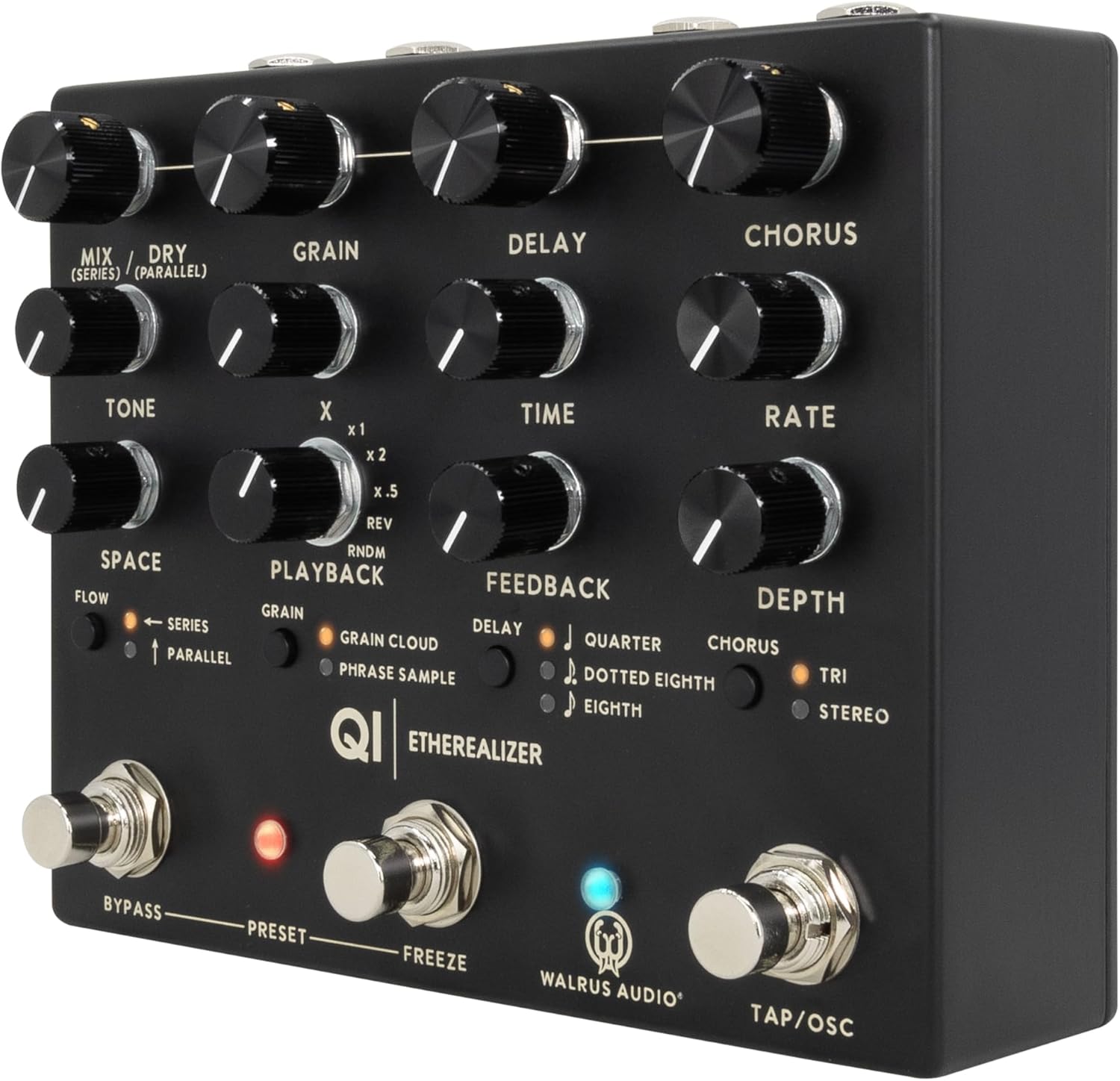
Figure 1: Front angled view of the Walrus Audio Qi Etherealizer multi-effects pedal. This image displays the pedal's top panel with all control knobs, switches, and footswitches clearly visible, along with the input/output jacks on the side.
Setup
Unboxing and Power Requirements
Upon unboxing your Walrus Audio Qi Etherealizer, ensure all components are present, including the pedal and its dedicated power supply. The Qi Etherealizer requires a 9VDC, 300mA power supply with a center-negative barrel connector. It is crucial to use the provided power supply or one that matches these specifications to ensure proper operation and prevent damage. The pedal is not designed for general USB power sources for operation, only for firmware updates.
Connections
The Qi Etherealizer offers versatile connectivity for mono and stereo setups. Refer to Figure 2 for port locations.
- IN MONO (L): Connect your instrument or the output of a preceding pedal here for mono input.
- IN STEREO (R): Connect the right channel of a stereo signal here. Use in conjunction with IN MONO (L) for stereo input.
- OUT MONO (L): Connect to your amplifier or the input of a subsequent pedal for mono output.
- OUT STEREO (R): Connect the right channel to your amplifier or a subsequent pedal for stereo output. Use in conjunction with OUT MONO (L) for stereo output.
- MIDI IN: Connect a MIDI controller or interface for external control of pedal parameters.
- MIDI THRU: Passes incoming MIDI data to other MIDI devices in a chain.
- USB-C: This port is exclusively for firmware updates. Do not use it as a primary power source for pedal operation.
- 9VDC, 300mA Power Input: Connect the dedicated power supply here.

Figure 2: Rear view of the Walrus Audio Qi Etherealizer, showing the IN MONO (L), IN STEREO (R), MIDI IN, USB-C, 9VDC power input, MIDI THRU, OUT MONO (L), and OUT STEREO (R) jacks.
Operating Controls
The Walrus Audio Qi Etherealizer features a comprehensive set of controls to shape its various effects. Familiarize yourself with the layout shown in Figure 3 before operation.

Figure 3: Top view of the Walrus Audio Qi Etherealizer, highlighting the arrangement of control knobs, switches, and footswitches.
Control Knobs
- MIX / DRY: Adjusts the blend between the dry (unaffected) signal and the wet (effected) signal.
- TONE: Controls the tonal character of the wet signal.
- SPACE: Adjusts the reverb decay and size.
- GRAIN (X): Controls a primary parameter of the granular effect, often related to grain size or density.
- DELAY (TIME): Sets the delay time.
- DELAY (FEEDBACK): Controls the number of delay repeats.
- CHORUS (RATE): Adjusts the speed of the chorus modulation.
- CHORUS (DEPTH): Controls the intensity or width of the chorus modulation.
Switches and LEDs
- FLOW (Series/Parallel): Toggles between series and parallel routing for the effects chain.
- Series: Effects process sequentially.
- Parallel: Effects process simultaneously, then mixed.
- GRAIN (Playback Modes): Selects one of five granular playback modes:
- Grain Cloud: Creates a dense, evolving texture of short grains.
- Phrase Sample: Captures and manipulates short audio phrases.
- RNDM: Introduces random elements into grain playback.
- x.5, x1, x2, REV: These likely refer to playback speed multipliers (half speed, normal speed, double speed) and reverse playback for granular effects.
- DELAY (Subdivisions): Selects delay time subdivisions relative to the tap tempo:
- Quarter Note
- Dotted Eighth Note
- Eighth Note
- CHORUS (Modes): Selects between two chorus modes:
- Tri: A standard, lush chorus effect.
- Stereo: An enhanced chorus effect optimized for stereo output.
- PRESET LED: Indicates the currently active preset or mode.
Footswitches
- BYPASS: Toggles the overall effect on or off.
- FREEZE: Engages a momentary or latching freeze effect, holding the current sound.
- TAP/OSC: Used for tap tempo input for the delay effect or to engage an oscillation mode.
Features Overview
- Granular Effect: Offers 5 distinct playback modes for diverse textural manipulation.
- Digital Delay: Provides clean delay with selectable subdivisions (Quarter Note, Dotted Eighth Note, Eighth Note).
- Chorus Effect: Features two distinct modes (Tri and Stereo) for varied modulation.
- Flexible Routing: Supports both Series and Parallel signal paths for creative effect combinations.
- Firmware Updates: Equipped with a USB-C port for future firmware enhancements and updates.
- Preset Management: Ability to save and recall custom settings.
- Independent Bypass: Quickly change settings by simultaneously pressing the Bypass and Freeze stomp switches.
Maintenance
Cleaning
To clean the pedal, use a soft, dry cloth. Avoid abrasive cleaners, solvents, or excessive moisture, as these can damage the finish or internal components. Ensure the pedal is disconnected from power before cleaning.
Firmware Updates
Walrus Audio may release firmware updates to introduce new features or improve performance. Connect the pedal to a computer via the USB-C port and visit the official Walrus Audio website for instructions and software. Always follow the update procedure carefully to avoid issues.
General Care
Store the pedal in a dry environment away from extreme temperatures. Protect it from physical impact. When transporting, use a padded case to prevent damage to knobs, switches, and jacks.
Troubleshooting
- No Power:
- Ensure the dedicated 9VDC, 300mA center-negative power supply is correctly connected to the pedal and a working power outlet.
- Verify that the power supply meets the exact specifications. Using an incorrect power supply can prevent the pedal from powering on or cause damage.
- No Sound:
- Check all audio cables for proper connection and functionality.
- Ensure the pedal is not in bypass mode (BYPASS footswitch LED should indicate active state).
- Verify that the MIX knob is not set entirely to "DRY" if you expect to hear the effect.
- Confirm that your instrument and amplifier are functioning correctly.
- Unexpected Behavior / Glitches:
- Perform a factory reset if available (refer to the Walrus Audio website for specific instructions).
- Check for and install any available firmware updates via the USB-C port.
- Ensure no other pedals in your signal chain are causing interference.
Specifications
| Feature | Specification |
|---|---|
| Model Number | WAL-QIET |
| Dimensions (L x W x H) | 5.87 x 4.92 x 2.28 inches (14.9 x 12.5 x 5.8 cm) |
| Weight | 1.58 pounds (0.72 kg) |
| Power Requirements | 9VDC, 300mA, Center-Negative (dedicated power supply included) |
| Connector Type | USB-C (for firmware updates only) |
| Signal Format | Digital |
| Audio Output Effects | Chorus, Delay, Granular, Reverb |
| Body Material | Plastic |
Warranty and Support
Walrus Audio products are covered by a manufacturer's warranty. For detailed information regarding warranty terms, registration, and support, please visit the official Walrus Audio website. You can find contact information for technical assistance, service, and parts there.
Official Website: www.walrusaudio.com


