
MCHOSE M7 ULTRA
MCHOSE M7 Ultra Wireless Gaming Mouse User Manual
Model: M7 ULTRA
Introduction
The MCHOSE M7 Ultra Wireless Gaming Mouse is designed for high-performance gaming, offering advanced features such as 8K polling rate, a lightweight ergonomic design, and versatile connectivity options. This manual provides detailed instructions for setting up, operating, and maintaining your M7 Ultra mouse to ensure optimal performance and longevity.
What's in the Box
- MCHOSE M7 Ultra Wireless Gaming Mouse
- USB-C Charging Cable
- Wireless 8K Receiver (USB Dongle)
- User Manual (this document)
- Optional: Mouse Grips (if included with specific models)
Product Overview
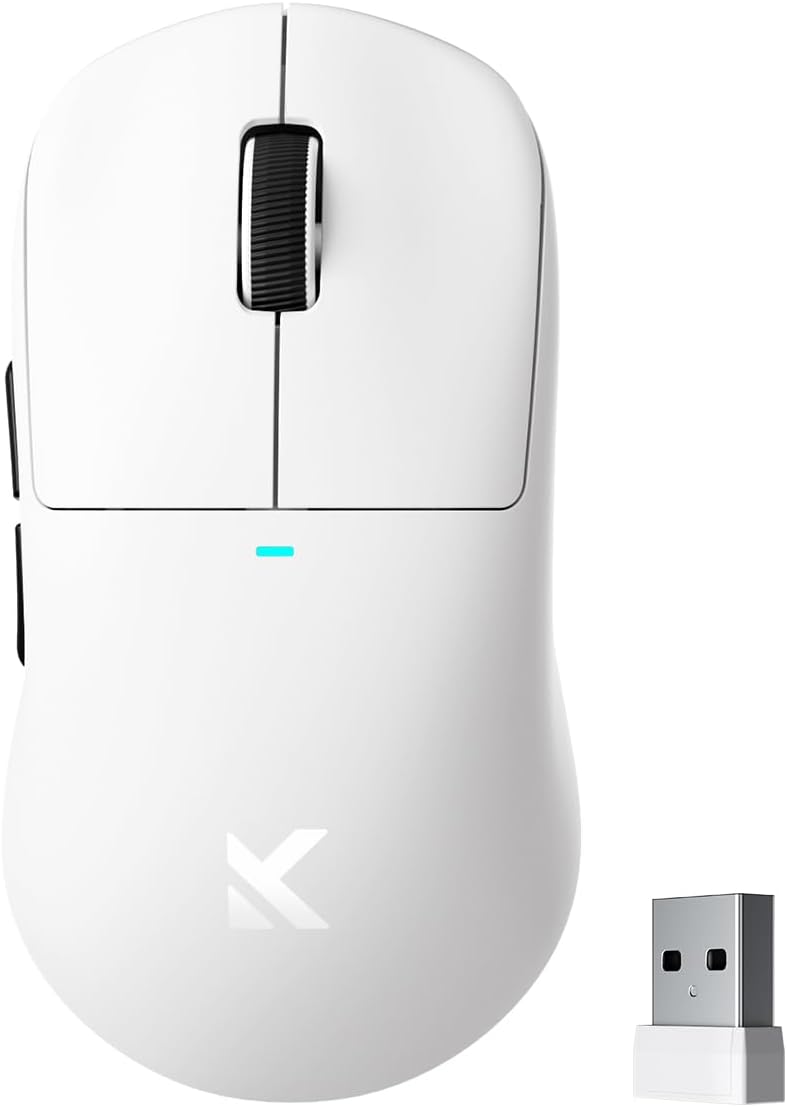
Figure 1: MCHOSE M7 Ultra Wireless Gaming Mouse with its USB receiver.

Figure 2: Fully programmable 6-button layout of the M7 Ultra, including Left/Right, Middle, Mode Switch, Forward, and Back buttons, along with the Indicator Light, DPI Switch Button, and USB Dongle storage.
The M7 Ultra features a symmetrical design with an ergonomic dual-sided waist for ultimate comfort, supporting palm, claw, and fingertip grips. It is incredibly lightweight at approximately 55g, ensuring swift and effortless movement during intense gaming sessions.

Figure 3: Ergonomic design suitable for various grip modes: Palm Grip, Finger Grip, and Claw Grip.
Equipped with a Realtek high-performance processor and the cutting-edge PAW 3950 optical sensor, the M7 Ultra delivers unmatched responsiveness and precision. It boasts up to 42000 DPI sensitivity, 750 IPS tracking speed, and 50G acceleration.

Figure 4: Internal components of the M7 Ultra, highlighting the MCHOSE Pro Optical Switches, Realtek Premium Processor, PAW 3950 Sensor, and 500mAh battery.
Setup
Connectivity Modes
The M7 Ultra supports tri-mode connectivity: 2.4GHz Wireless, Bluetooth 5.0, and USB-C Wired.

Figure 5: Tri-mode connectivity options: 2.4GHz Wireless for low-latency, Bluetooth 5.0 for longer battery life, and USB-C Wired for stable connection and charging.
2.4GHz Wireless Connection
- Locate the USB 8K receiver (dongle) stored inside the mouse's bottom cover.
- Plug the USB receiver into an available USB port on your computer.
- Turn on the mouse using the switch on the bottom. The mouse will automatically connect to the receiver.
- For optimal performance, ensure the receiver is close to the mouse and free from obstructions.
Bluetooth Connection
- Turn on the mouse and switch it to Bluetooth mode (refer to the button layout in Product Overview).
- On your computer or device, enable Bluetooth and search for new devices.
- Select "MCHOSE M7 Ultra" from the list of available devices to pair.
- If prompted, confirm the pairing code.
USB-C Wired Connection
- Connect the provided USB-C cable to the front port of the mouse.
- Plug the other end of the USB-C cable into an available USB port on your computer.
- The mouse will function in wired mode and charge simultaneously.
Operating Instructions
Button Functions
The M7 Ultra features 6 programmable buttons. Refer to Figure 2 for the button layout.
- Left/Right Click: Standard mouse functions.
- Middle Button (Scroll Wheel Click): Typically used for opening links in new tabs or specific in-game actions.
- Mode Switch Button: Cycles through different connectivity modes (2.4GHz, Bluetooth, Wired).
- Forward/Back Buttons: Used for navigation in web browsers or custom functions in games.
- DPI Switch Button: Cycles through preset DPI levels.
DPI Adjustment
Press the DPI Switch Button (located on the bottom of the mouse) to cycle through the available DPI settings. The M7 Ultra supports up to 42000 DPI with multiple adjustable levels.
Polling Rate
The M7 Ultra supports a wired 1K polling rate and a wireless 8K polling rate, providing ultra-low latency for competitive gaming. This can be configured via the custom driver software.

Figure 6: The M7 Ultra features an 8K Hz Hyperpolling Rate for ultra-low-latency response, utilizing TOPSPEED Wireless Technology.
Custom Driver Software
For advanced customization, download the MCHOSE Custom Driver from the official MCHOSE website. This software allows you to:
- Edit and remap up to five mouse buttons.
- Adjust DPI levels and polling rate.
- Configure Esports mode settings.
- Manage and create macros for complex actions.
- Utilize onboard storage to save your profiles directly to the mouse.

Figure 7: MCHOSE Custom Driver HUB Software for comprehensive customization of mouse settings and macros.
Product Video
Video 1: Official MCHOSE M7 Series Mouse overview, showcasing its design, features, and performance capabilities.
Maintenance
Cleaning
- Use a soft, lint-free cloth to wipe the mouse surface.
- For stubborn dirt, slightly dampen the cloth with water or a mild cleaning solution. Avoid harsh chemicals.
- Clean the optical sensor regularly with a cotton swab to ensure accurate tracking.
Battery Care
The M7 Ultra houses a 500mAh rechargeable internal battery, providing excellent battery life.
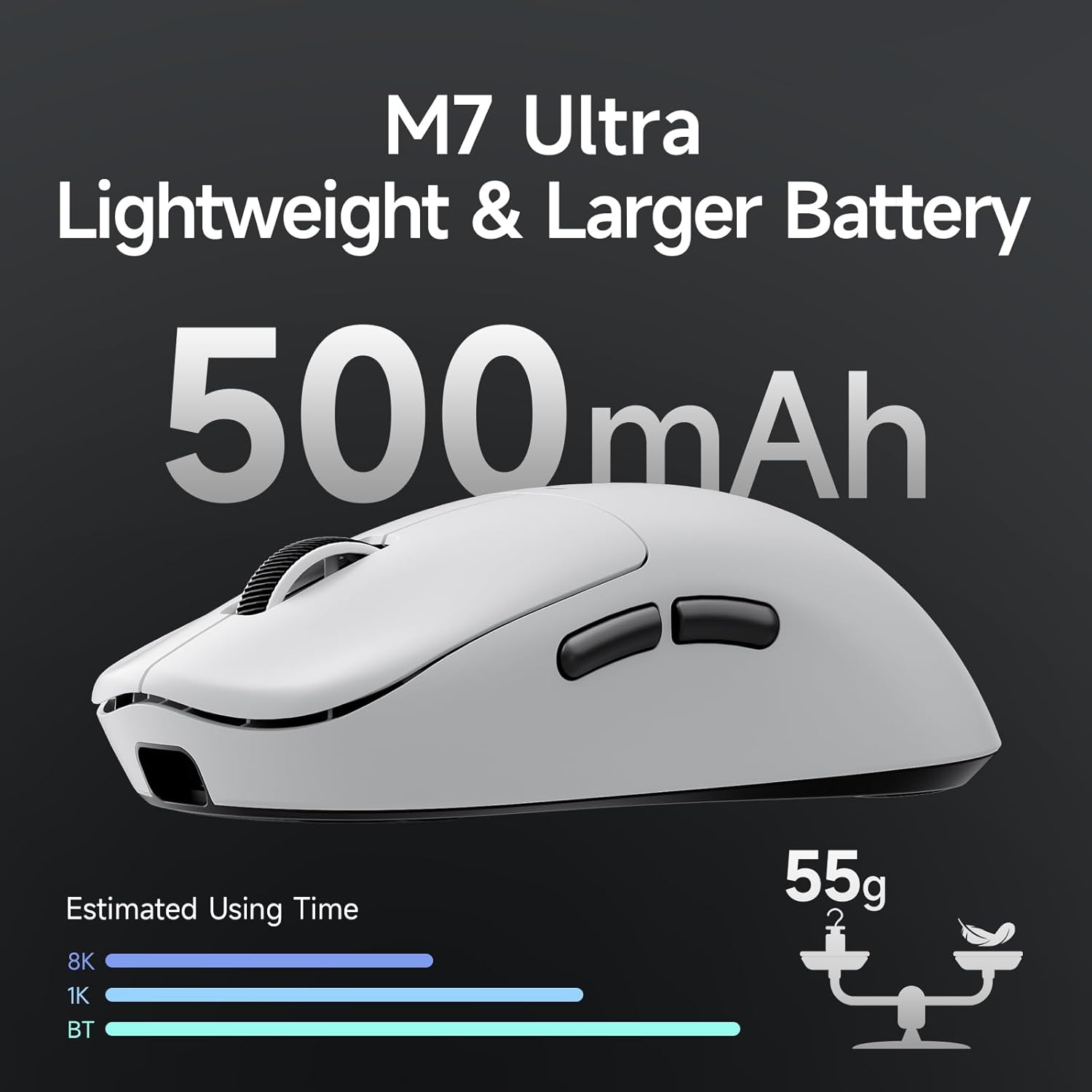
Figure 8: The M7 Ultra features a large 500mAh battery for extended usage.
- Charge the mouse using the provided USB-C cable when the battery indicator light signals low power.
- Avoid fully discharging the battery frequently to prolong its lifespan.
- Store the mouse in a cool, dry place when not in use for extended periods.
Troubleshooting
| Problem | Possible Cause | Solution |
|---|---|---|
| Mouse not responding (Wireless) | Low battery; Receiver not connected; Incorrect mode; Interference. | Charge the mouse; Ensure receiver is securely plugged in; Switch to 2.4GHz or Bluetooth mode; Move closer to receiver or reduce interference. |
| Lag or erratic movement | Dirty sensor; Surface issues; Low battery; Interference. | Clean the optical sensor; Use on a clean, uniform surface (mouse pad recommended); Charge the mouse; Reduce wireless interference. |
| Buttons not working | Software issue; Physical damage. | Restart computer; Reinstall custom driver; Check for physical damage. |
| Bluetooth pairing issues | Mouse not in pairing mode; Device Bluetooth off. | Ensure mouse is in Bluetooth pairing mode (refer to manual for specific key combination if needed); Enable Bluetooth on your device. |
Specifications
- Model: M7 ULTRA
- Connectivity: Tri-mode (2.4GHz Wireless, Bluetooth 5.0, USB-C Wired)
- Sensor: PAW 3950 Optical Sensor
- DPI: Up to 42000 DPI
- IPS: 750 IPS
- Acceleration: 50G
- Polling Rate: Wired 1K Hz, Wireless 8K Hz
- Switches: MCHOSE PRO Optical Switches
- Buttons: 6 Programmable Controls
- Weight: Approximately 55g
- Battery: 500mAh Rechargeable Lithium-ion
- Dimensions: 5 x 2.5 x 0.1 inches
Warranty and Support
MCHOSE products come with a standard manufacturer's warranty. For detailed warranty information, technical support, or service inquiries, please visit the official MCHOSE website or contact their customer support. Keep your proof of purchase for warranty claims.
Website: Visit the MCHOSE Store on Amazon
Related documentsM7 ULTRA


Ask a question about this manual
Ask about setup, troubleshooting, compatibility, parts, safety, or missing instructions. Manuals+ will review the question and use this page’s manual context to help answer it.