
Introduction
Thank you for choosing the Newsoul 15.6-inch Portable Monitor M616. This monitor is designed to provide a high-quality visual experience with its 1920x1080 FHD IPS panel, versatile connectivity options including USB Type-C and Mini HDMI, and a lightweight, portable design. This manual provides essential information for setting up, operating, maintaining, and troubleshooting your new portable monitor.
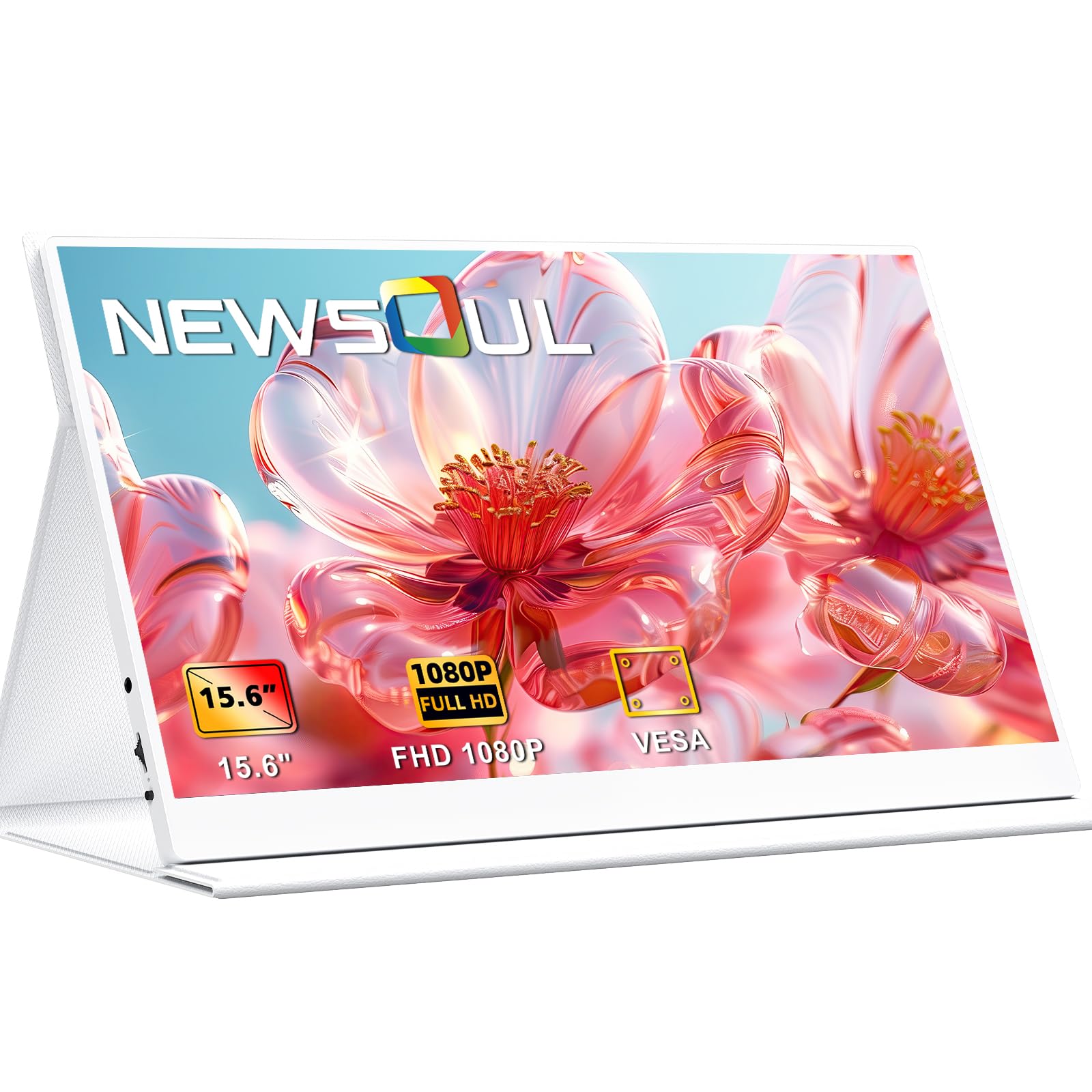
Image: The Newsoul 15.6-inch Portable Monitor M616 in a typical desktop setup.
Product Overview
Key Features
- 15.6-inch Full HD (1920x1080) IPS Display: Enjoy vibrant colors and wide viewing angles.
- Versatile Connectivity: Equipped with USB Type-C and Mini HDMI ports for broad compatibility.
- Lightweight and Slim Design: Weighing approximately 0.63 kg (1.39 lbs) and with a slim profile for easy portability.
- Durable Protective Cover: Doubles as an adjustable stand for convenient viewing.
- VESA Mount Compatible: Supports 75mm VESA mounting for flexible installation.
- Built-in Speakers: For audio output.
Monitor Components and Ports
Familiarize yourself with the monitor's physical components and connection ports.

Image: Detailed view of the monitor's ports and control buttons, including 3.5mm headphone jack, menu button, power button, Type-C ports, and Mini HDMI port.
- 3.5mm Headphone Jack: For connecting external audio devices.
- Menu Button: Accesses the On-Screen Display (OSD) menu.
- Power Button: Turns the monitor on/off and can be used for menu navigation.
- USB Type-C Ports (x2): For power, video, and data transmission with compatible devices.
- Mini HDMI Port: For video input from devices with HDMI output.
Setup
1. Using the Protective Cover as a Stand
The included durable cover can be folded to create a stable stand for your monitor, allowing for various viewing angles.

Image: A user setting up the Newsoul portable monitor using its protective cover as a stand.
2. VESA Mounting (Optional)
The monitor supports 75mm VESA mounting. This allows you to attach it to compatible monitor arms or wall mounts (not included). The VESA hole depth is 4mm.

Image: Diagram showing the VESA mounting points (75mm) on the back of the monitor and how it can be attached to a VESA stand.
3. Connecting to a Device
The Newsoul M616 monitor offers flexible connection options:
Connecting via USB Type-C (Single Cable Solution)
If your device (laptop, smartphone, etc.) has a full-featured USB Type-C port (supporting DisplayPort Alternate Mode and power delivery, e.g., Thunderbolt 3/4 or USB 3.1 Gen 2 Type-C), you can connect the monitor using a single USB Type-C cable for both power and video signal.

Image: Diagram illustrating a single USB Type-C cable connection between a laptop and the portable monitor, transmitting both power and video.
Connecting via Mini HDMI (Requires External Power)
If your device does not have a full-featured USB Type-C port, or if you prefer to use HDMI, connect the monitor using a Mini HDMI to HDMI cable for video, and a USB Type-C to USB Type-A cable (or a power adapter) for power. Ensure the monitor receives adequate power (5V).
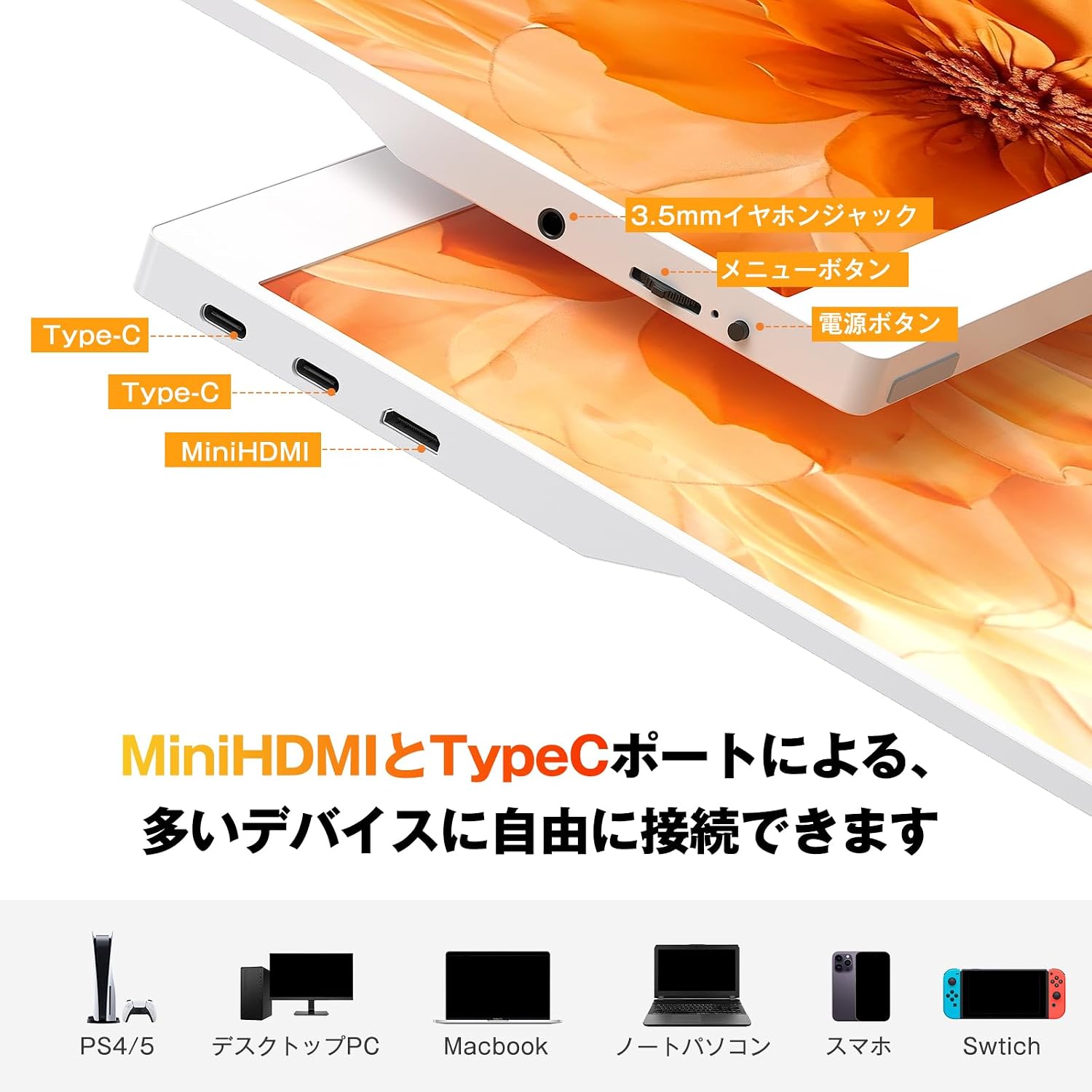
Image: Diagram showing an HDMI connection for video and a separate USB Type-C to Type-A cable for power, connecting the monitor to a laptop.
Device Compatibility
The monitor is compatible with a wide range of devices, including PS4/PS5, desktop PCs, Macbooks, laptops, smartphones, and Nintendo Switch.
Image: Icons representing various compatible devices such as PS4/PS5, desktop PC, Macbook, laptop, smartphone, and Nintendo Switch, highlighting the monitor's versatility.
Operating Instructions
On-Screen Display (OSD) Menu
Use the Menu button and Power button (which often doubles as a navigation button) to access and navigate the OSD menu. Here you can adjust various display settings:
- Brightness/Contrast: Adjust the overall luminance and contrast ratio.
- Color Settings: Modify color temperature, hue, and saturation.
- Input Source: Manually select between USB Type-C and Mini HDMI inputs.
- HDR Mode: Enable or disable High Dynamic Range for enhanced visual quality.
- Aspect Ratio: Change the display aspect ratio (e.g., 16:9).
- Volume: Adjust the volume for the built-in speakers or connected headphones.

Image: Visual representation of the monitor's display capabilities, including 178° viewing angle, 16:9 aspect ratio, 800:1 contrast ratio, and HDR mode.
Maintenance
Cleaning the Monitor
- Always power off the monitor and disconnect all cables before cleaning.
- Use a soft, lint-free cloth slightly dampened with water or a non-abrasive screen cleaner.
- Do not spray liquid directly onto the screen or frame.
- Avoid using harsh chemicals, alcohol, or abrasive materials, as these can damage the screen surface.
Storage
- When not in use, store the monitor in its protective cover to prevent scratches and dust accumulation.
- Keep the monitor in a cool, dry place away from direct sunlight and extreme temperatures.
Troubleshooting
If you encounter issues with your Newsoul portable monitor, please refer to the following common solutions:
- No Signal / Black Screen:
- Ensure all cables (USB Type-C or Mini HDMI + Power) are securely connected to both the monitor and your device.
- Verify that your device's output settings are configured to extend or duplicate the display.
- If using USB Type-C, confirm your device's port supports DisplayPort Alternate Mode and power delivery.
- Try a different cable or port on your device if available.
- Select the correct input source via the OSD menu.
- No Power / Monitor Not Turning On:
- Ensure the power cable is connected and receiving power from a sufficient source (e.g., a wall adapter or a powered USB port).
- If using a single USB Type-C cable, ensure your device provides enough power. Some devices may require an additional power source for the monitor.
- Display Issues (e.g., flickering, lines, incorrect colors):
- Check cable connections for looseness or damage.
- Try adjusting display settings (brightness, contrast, color) in the OSD menu.
- Test the monitor with a different device or cable to isolate the problem.
- If a persistent line or defect appears, contact customer support.
- No Audio:
- Ensure the volume is not muted or set too low on both the monitor and your connected device.
- Check that the correct audio output device is selected on your computer.
- If using external headphones, ensure they are properly plugged into the 3.5mm jack.
Specifications
| Feature | Detail |
|---|---|
| Brand | Newsoul |
| Model Number | M616 |
| Screen Size | 15.6 inches |
| Resolution | 1920 x 1080 (FHD 1080p) |
| Panel Type | IPS LCD |
| Aspect Ratio | 16:9 |
| Refresh Rate | 60 Hz |
| Response Time | 10 milliseconds |
| Screen Surface | Matte |
| Item Dimensions (D x W x H) | 0.39"D x 13.78"W x 9.06"H |
| Item Weight | 0.63 kg (1.39 lbs) |
| Connectivity | 2x USB Type-C, 1x Mini HDMI, 1x 3.5mm Audio Jack |
| Voltage | 5 volts |
| VESA Mount | 75mm (hole depth 4mm) |
Warranty and Support
Warranty Information
This Newsoul portable monitor comes with a 60-day warranty from the date of purchase. Please retain your proof of purchase for warranty claims.
Customer Support
For further assistance, technical support, or warranty inquiries, please contact Newsoul customer service. You can typically find contact information on the official Newsoul website or through your purchase platform.
For more information, visit the Newsoul Store on Amazon.


