1. Introduction
The IHSENO Zigbee Vibration Sensor is a smart home device designed to detect vibrations, motion, and falls. It integrates with the Tuya Smart or Smart Life application via a Zigbee gateway, providing real-time alerts and enabling smart automation scenarios to enhance home safety and monitoring.
2. Safety Information
- This device is for indoor use only.
- Do not expose the device to extreme temperatures, humidity, or direct sunlight.
- Keep out of reach of children.
- Use only the specified battery type (not included).
- Do not attempt to disassemble or repair the device yourself.
3. Package Contents

Image 3.1: This image shows the complete packing list for the IHSENO Zigbee Vibration Sensor. It includes the product box, the Smart Vibration Sensor itself, a 3M adhesive sticker for mounting, an inserting pin (likely for reset or battery access), and the user manual.
Please verify that all items are present in your package:
- IHSENO Zigbee Vibration Sensor
- User Manual
- 3M Adhesive Sticker
- Inserting Pin
Note: Batteries are not included and must be purchased separately.
4. Product Overview
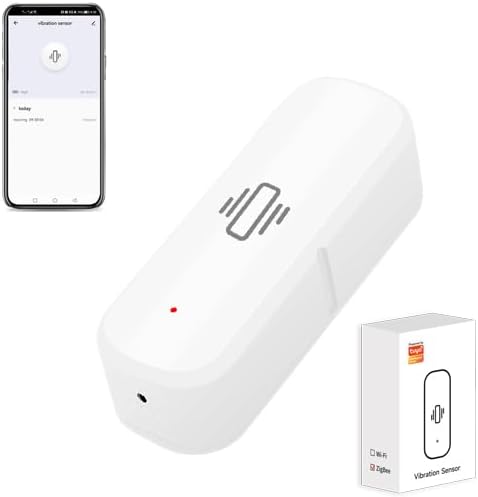
Image 4.1: The IHSENO Zigbee Vibration Sensor, a compact white device, is shown alongside a smartphone displaying its corresponding application interface. The app shows a 'vibration sensor' screen with a large icon and a history log.
The IHSENO Zigbee Vibration Sensor is a compact device designed for various monitoring applications. Its primary functions include:
- Vibration Detection: Detects physical vibrations, shocks, or movements.
- Real-time Monitoring: Sends instant notifications to your smartphone via the Tuya Smart/Smart Life app.
- Smart Linkage: Can be integrated with other Tuya-compatible smart devices for automated actions.
- History Records: Stores a log of detected events for review.
- Adjustable Sensitivity: Allows customization of detection sensitivity.
- Low Power Warning: Notifies you when the battery level is low.
5. Setup
5.1 Battery Installation
The sensor requires batteries (not included) for operation. To install the battery:
- Gently open the sensor casing. Refer to the device's casing for instructions on how to open it, as designs may vary. An inserting pin might be used to pry open a specific seam or cover.
- Insert the required battery type (e.g., CR2032, check device markings) into the battery compartment, ensuring correct polarity (+/-).
- Close the sensor casing securely.
5.2 App Installation
The IHSENO Zigbee Vibration Sensor operates with the Tuya Smart or Smart Life application.
- Download the Tuya Smart or Smart Life app from your smartphone's app store (Google Play Store for Android or Apple App Store for iOS).
- Register or log in to your account.
5.3 Device Pairing (Zigbee Hub Required)

Image 5.1: This diagram illustrates the network setup for the Smart Vibration Sensor. The sensor connects wirelessly to a Tuya Zigbee Gateway (Hub), which then connects to a WiFi Router. The router provides internet access, enabling APP Control from a smartphone.
This Zigbee version of the sensor requires a Tuya Zigbee Gateway (Hub) to function. Ensure your Zigbee gateway is already set up and connected to your home Wi-Fi network.
- Open the Tuya Smart or Smart Life app.
- Navigate to your Zigbee Gateway in the app.
- Select 'Add sub-device' or 'Search for devices'.
- Follow the in-app instructions to put the vibration sensor into pairing mode (usually by pressing and holding a reset button on the sensor until an indicator light flashes).
- Once detected, add the sensor to your gateway.
- Rename the sensor for easy identification (e.g., "Living Room Vibration Sensor").
5.4 Physical Installation
Select an appropriate location for the sensor where vibration detection is desired. This could be on a window, door, cabinet, or appliance.
- Clean the surface where you intend to mount the sensor.
- Peel off the protective film from the 3M adhesive sticker.
- Attach the sticker to the back of the sensor.
- Press the sensor firmly onto the desired surface for a few seconds to ensure secure adhesion.
6. Operating Instructions
6.1 Vibration Detection and Remote Alarm

Image 6.1: An IHSENO Zigbee Vibration Sensor is mounted on a wall in a bedroom setting, indicating detection with a red alarm icon. A hand holds a smartphone displaying the sensor's app interface, showing an active alarm notification, demonstrating remote monitoring capabilities.
Once installed and paired, the sensor will detect vibrations. When a vibration, motion, or fall is detected, the sensor will send an alarm notification to your smartphone through the Tuya Smart/Smart Life app. This allows for immediate awareness of events in your home.
6.2 Real-time Monitoring and History Records

Image 6.2: The IHSENO Zigbee Vibration Sensor is placed on a coffee table in a living room. A smartphone displays the sensor's application, showing a 'vibration sensor' screen with a current status and a detailed history log of detected events, highlighting its real-time monitoring feature.
The app provides real-time status updates from the sensor. You can also view a comprehensive history of all detected events, including timestamps, directly within the Tuya Smart/Smart Life app.
6.3 Smart Linkage
The sensor can be linked with other Tuya-compatible smart devices to create automated scenarios. For example:
- If the sensor detects vibration on a window, a smart light could turn on.
- If the sensor detects movement on a washing machine, you could receive a notification that the laundry cycle is complete.
To set up smart linkages, navigate to the 'Smart' or 'Automation' section within the Tuya Smart/Smart Life app and follow the instructions to create new scenes or automations.
6.4 Customize Sensitivity Settings

Image 6.3: A smartphone displays the 'Sensitivity Set' screen within the sensor's application. A slider allows users to adjust the sensitivity level from 'L' (Low) to 'H' (High), with instructions to shake the device to trigger an alarm and save the setting.
You can adjust the sensitivity of the vibration detection to suit your specific needs. This is done through the sensor's settings in the Tuya Smart/Smart Life app.
- Open the Tuya Smart or Smart Life app and select your vibration sensor.
- Look for 'Sensitivity Settings' or a similar option.
- Use the slider or options provided to adjust the sensitivity level (e.g., Low, Medium, High).
- Test the new setting by gently vibrating the sensor to ensure it triggers at the desired level.
6.5 Low Power Warning

Image 6.4: An IHSENO Zigbee Vibration Sensor is attached to a window frame, suggesting a security application. A smartphone screen shows a 'Low Power Warning' notification, indicating that the device's battery needs to be changed soon.
The sensor will send a low battery notification to your smartphone when its power level is critically low. This ensures you have ample time to replace the battery and maintain continuous monitoring.
7. Maintenance
7.1 Battery Replacement
When you receive a low power warning, replace the battery promptly to ensure uninterrupted operation.
- Open the sensor casing as described in Section 5.1.
- Remove the old battery.
- Insert a new battery of the same type, observing correct polarity.
- Close the casing securely.
7.2 Cleaning
To clean the sensor, use a soft, dry cloth. Do not use liquid cleaners or abrasive materials, as these can damage the device.
8. Troubleshooting
- Device not connecting to the hub:
- Ensure the Zigbee gateway is powered on and connected to your Wi-Fi network.
- Verify the sensor has a fresh battery installed.
- Make sure the sensor is within range of the Zigbee gateway.
- Try resetting the sensor (refer to the device for a small reset button, often requiring the inserting pin) and re-attempt pairing.
- Check the Tuya Smart/Smart Life app for any error messages or specific pairing instructions.
- No alarm notifications:
- Check the app's notification settings for the sensor and your phone's general notification settings.
- Ensure the sensor is properly paired and online in the app.
- Verify the sensitivity settings are appropriate for the desired detection level.
- Check the battery level of the sensor.
- Difficulty adjusting sensitivity:
- Ensure you are using the latest version of the Tuya Smart/Smart Life app.
- Follow the in-app instructions carefully when adjusting the sensitivity slider. Some apps require a test vibration to save the setting.
9. Specifications
| Brand | IHSENO |
| Model Number | Zigbee Vibration Sensor |
| Sensor Technology | Vibration Sensor |
| Connectivity | Zigbee (Requires Tuya Zigbee Gateway) |
| Power Source | Battery Powered (Batteries not included) |
| Compatible Devices | Smartphone (via Tuya Smart/Smart Life App) |
| Control Method | App |
| Color | White |
| Item Weight | 0.96 ounces |
| Product Dimensions | 2.75 x 0.94 x 0.79 inches |
10. Warranty Information
This product comes with a standard manufacturer's warranty. Please refer to the product packaging or contact the seller for specific warranty terms and conditions.
11. Customer Support
For technical assistance, troubleshooting, or product inquiries, please contact your retailer or the manufacturer's customer support channels. Contact information can typically be found on the product packaging or the seller's website.