
Introduction
This manual provides detailed instructions for the setup, operation, and maintenance of your MCHOSE M7 Pro Wireless Gaming Mouse. Please read this guide thoroughly to ensure optimal performance and longevity of your device.
Package Contents
- MCHOSE M7 Pro Wireless Gaming Mouse
- 2.4GHz USB Receiver (dongle)
- USB-C Charging Cable
- USB Extender
- Mouse Grips (optional)
- User Manual (this document)
Setup
1. Charging the Mouse
Connect the provided USB-C cable to the mouse's front port and the other end to a USB power source (e.g., computer USB port, USB wall adapter). The indicator light will show charging status.
2. Connectivity Modes
The M7 Pro supports three connectivity modes: 2.4GHz Wireless, Bluetooth, and USB-C Wired.
2.1. 2.4GHz Wireless Connection
- Locate the 2.4GHz USB receiver (dongle) stored in the compartment on the underside of the mouse.
- Insert the USB receiver into an available USB port on your computer.
- Turn on the mouse using the switch on the underside. The mouse should automatically connect.
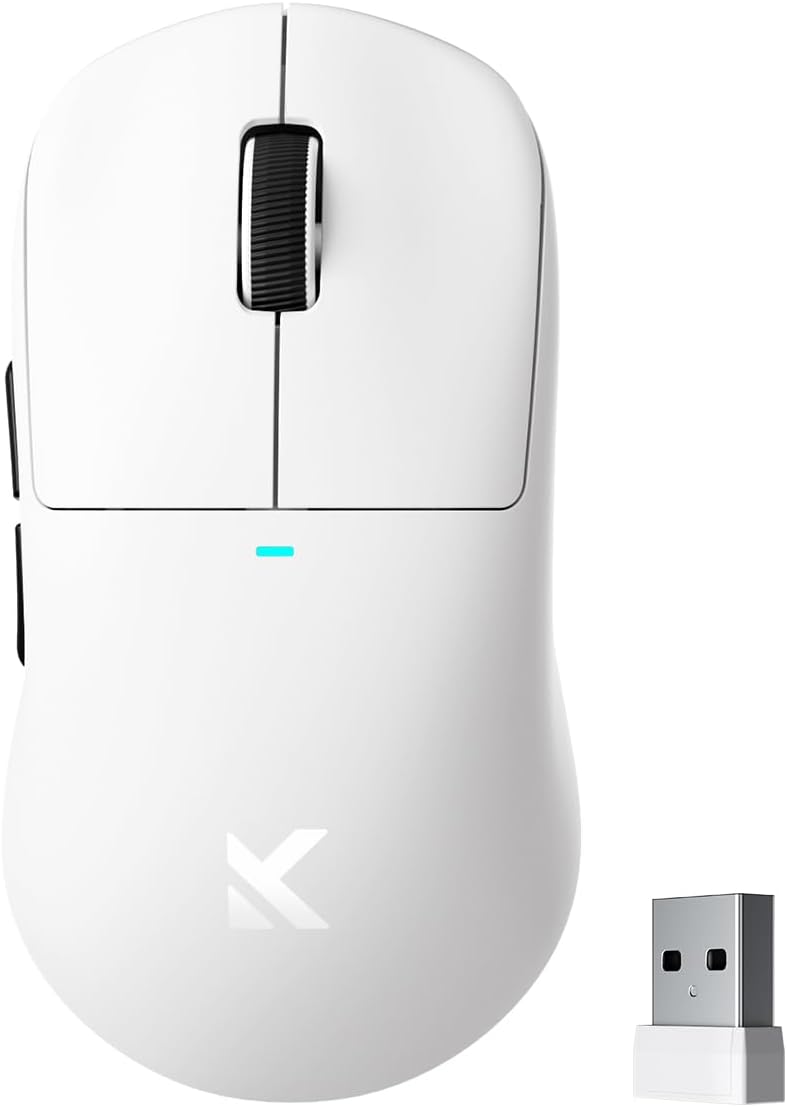
Image: The MCHOSE M7 Pro mouse shown with its compact 2.4GHz USB receiver.
2.2. Bluetooth Connection
- Turn on the mouse and switch to Bluetooth mode using the mode switch button on the underside.
- On your computer or device, go to Bluetooth settings and search for new devices.
- Select "MCHOSE M7 Pro" from the list of available devices to pair.
Note: Some users report needing to press Left, Right, and Middle clicks simultaneously for 3 seconds to enable pairing mode.
2.3. USB-C Wired Connection
Connect the USB-C cable directly from the mouse to your computer. The mouse will operate in wired mode and charge simultaneously.

Image: Illustration of the MCHOSE M7 Pro mouse demonstrating its tri-mode connectivity options: 2.4GHz wireless, Bluetooth, and USB-C wired.
3. Software Installation (MCHOSE Custom Driver)
For advanced customization, download the MCHOSE Custom Driver from the official MCHOSE website. This software allows you to:
- Edit up to five mouse buttons
- Adjust DPI settings
- Configure polling rate
- Manage macros
- Enable Esports mode

Image: A screenshot of the MCHOSE Custom Driver software, showing options for button assignment, DPI adjustment, and macro management.
Operating Instructions
1. Button Functions

Image: A diagram illustrating the six programmable buttons of the MCHOSE M7 Pro mouse, including Left, Right, Middle, Forward, Back, DPI Switch, and Mode Switch buttons, along with the indicator light and USB dongle storage.
- Left Button: Primary click function.
- Right Button: Secondary click function.
- Middle Button/Scroll Wheel: Scroll up/down, middle click.
- Forward Button: Navigates forward in web browsers or applications.
- Back Button: Navigates backward in web browsers or applications.
- DPI Switch Button: Cycles through preset DPI levels.
- Mode Switch Button (underside): Toggles between 2.4GHz wireless, Bluetooth, and Off modes.
2. Adjusting DPI
Press the DPI Switch Button located on the top of the mouse to cycle through different DPI sensitivity levels. The indicator light may change color to indicate the current DPI setting (refer to software for specific color assignments).
3. Polling Rate
The M7 Pro supports a wired 1K polling rate and wireless 8K polling rate. For 8K wireless polling, an 8K receiver (sold separately) is required. This feature reduces latency for enhanced precision.

Image: The MCHOSE M7 Pro mouse connected to an 8K Hz Hyperpolling Rate receiver, illustrating ultra-low-latency response.
Maintenance
1. Cleaning
Use a soft, dry cloth to clean the mouse surface. For the optical sensor, use a cotton swab lightly dampened with isopropyl alcohol to gently clean the sensor lens. Avoid harsh chemicals or abrasive materials.
2. Battery Care
To prolong battery life, avoid fully discharging the mouse frequently. Charge the mouse when the battery indicator is low. Store the mouse in a cool, dry place when not in use for extended periods.

Image: The MCHOSE M7 Pro mouse, emphasizing its lightweight design at 55g and its 500mAh battery capacity.
Troubleshooting
1. Mouse Not Responding
- Ensure the mouse is charged.
- Check the mode switch on the underside of the mouse to ensure it's in the correct mode (2.4GHz, Bluetooth, or Wired).
- For 2.4GHz wireless, ensure the USB receiver is securely plugged into a working USB port. Try a different USB port.
- For Bluetooth, ensure Bluetooth is enabled on your device and the mouse is paired. Try re-pairing the mouse.
- Try connecting the mouse via USB-C cable to rule out wireless issues.
2. Cursor Movement is Erratic or Inaccurate
- Clean the optical sensor on the underside of the mouse.
- Ensure you are using the mouse on a suitable surface (e.g., a mouse pad). Avoid highly reflective or transparent surfaces.
- Adjust DPI settings using the DPI switch button or the MCHOSE Custom Driver software.
3. Scroll Wheel Issues
- If the scroll wheel scrolls erratically or in the wrong direction, ensure the mouse firmware is up to date via the MCHOSE Custom Driver.
- Gently clean around the scroll wheel to remove any debris.
4. Bluetooth Pairing Difficulties
- Ensure the mouse is in Bluetooth pairing mode. Some models may require pressing the Left, Right, and Middle click buttons simultaneously for 3 seconds to initiate pairing.
- Remove previous Bluetooth pairings for the mouse from your device and attempt to pair again.
Specifications
| Feature | Detail |
|---|---|
| Model | M7 Pro |
| Connectivity | 2.4GHz Wireless, Bluetooth 5.0, USB-C Wired |
| Sensor | PAW3395 Optical Sensor |
| DPI | Up to 26000 DPI |
| IPS | 650 IPS |
| Acceleration | 50G |
| Polling Rate | Wired 1K Hz, Wireless 8K Hz (with optional 8K receiver) |
| Switches | MCHOSE PRO Optical Switches |
| Buttons | 6 Programmable Buttons |
| Weight | Approximately 55g |
| Battery Capacity | 500mAh |
| Dimensions | 5 x 2.5 x 0.1 inches (approximate) |
| Processor | Realtek High-Performance Processor |

Image: An exploded view of the MCHOSE M7 Pro mouse, highlighting internal components such as MCHOSE Pro Optical Switches, Realtek Premium Processor, PAW 3395 Sensor, and 500mAh battery.
Warranty and Support
MCHOSE products are covered by a limited warranty. For detailed warranty information, technical support, or to download the latest drivers and firmware, please visit the official MCHOSE website or contact customer service.
Official MCHOSE Website: MCHOSE Store on Amazon


