
AKREC Q70
AKREC Q70 128GB Digital Voice Recorder User Manual
Model: Q70
1. Introduction
Thank you for choosing the AKREC Q70 Digital Voice Recorder. This device is designed for high-quality audio recording in various environments, including meetings, lectures, and interviews. It features a large 128GB storage capacity, long battery life, and advanced noise reduction technology. Please read this manual carefully to understand the device's functions and ensure optimal performance.

Image 1.1: The AKREC Q70 Digital Voice Recorder, showcasing its compact and sleek design.
2. Product Overview
2.1 Key Features
- 128GB Internal Storage: Provides ample space for extensive audio recordings.
- Long Battery Life: Up to 70 hours of continuous recording and 365 days of standby time on a single charge.
- AI-Intelligent Triple Noise Reduction: Enhances audio clarity by minimizing background noise.
- Voice Activated Recording (VAR): Automatically starts recording when sound exceeds 50dB and pauses during silence, conserving storage space. Effective recording distance is approximately 3-5 meters.
- HD Recording: Captures clear and high-fidelity audio.
- Magnetic Design: Features two built-in magnets for easy attachment to metal surfaces.
- Smartphone File Management: Allows direct management and transfer of recording files to a smartphone without needing a PC.
- USB Type-C Interface: For charging and data transfer.
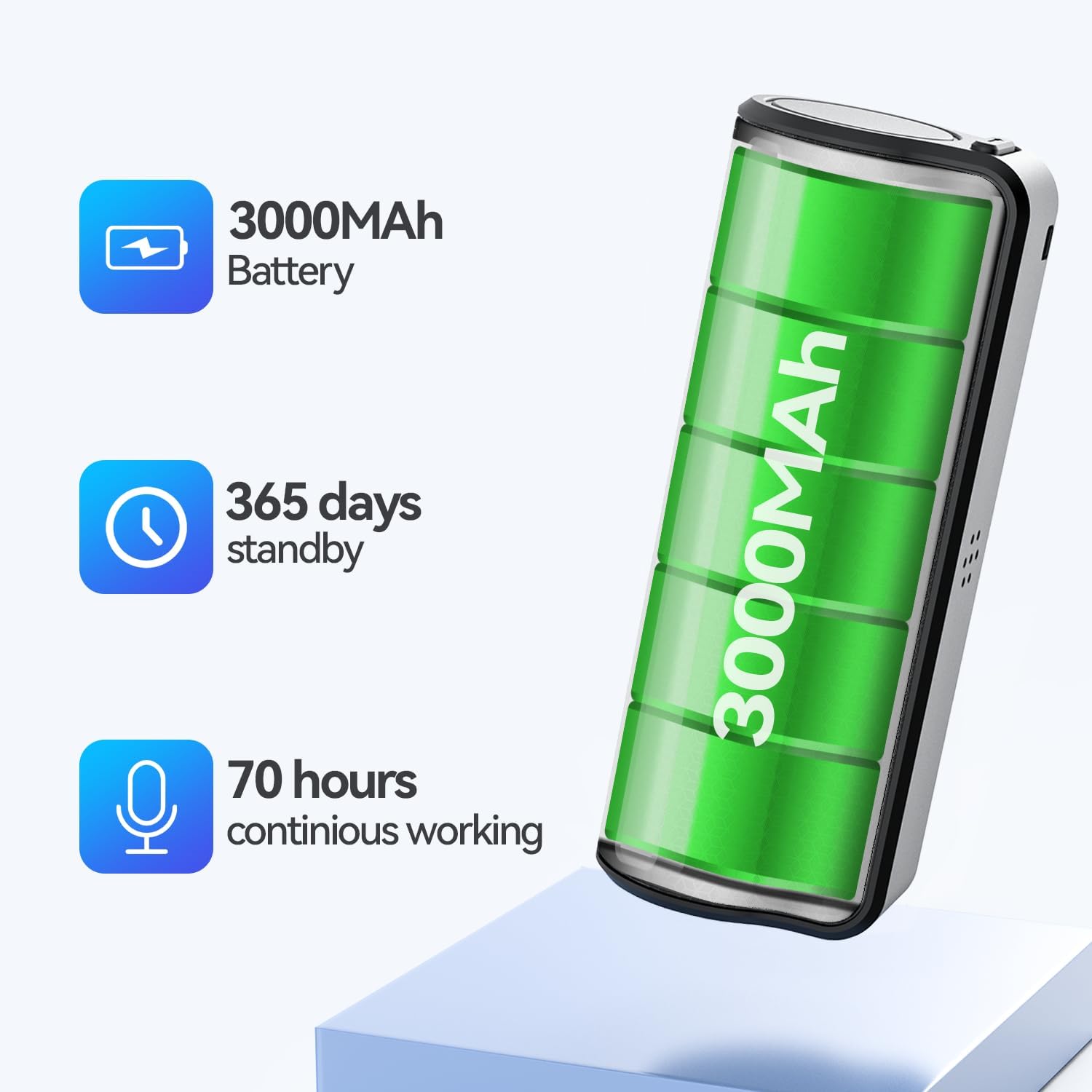
Image 2.1: Visual representation of the AKREC Q70's battery capacity, showing 3000mAh battery, 365 days standby, and 70 hours continuous working time.

Image 2.2: Illustration of the AKREC Q70's magnetic design, demonstrating its ability to attach to metal surfaces like a refrigerator.
2.2 Package Contents
- AKREC Q70 Digital Voice Recorder
- USB Type-C Charging/Data Cable
- User Manual
- Wired Headphones (USB-C type, for playback)
- OTG Adapters (for smartphone connection)
3. Setup
3.1 Charging the Device
- Connect the provided USB Type-C cable to the recorder's charging port.
- Connect the other end of the cable to a USB power adapter (not included) or a computer's USB port.
- The indicator light will show charging status (e.g., solid red while charging, off when fully charged). A full charge typically takes a few hours.
3.2 Powering On/Off
- Power On: Slide the power switch to the 'ON' position. The indicator light will briefly illuminate.
- Power Off: Slide the power switch to the 'OFF' position. The device will save any current recording and shut down.
4. Operating Instructions
4.1 Basic Recording
- Ensure the device is powered on.
- To start recording, slide the designated recording switch (if present, or press the record button). The indicator light will typically flash or change color to indicate recording is active.
- To stop recording, slide the recording switch back or press the record button again. The recording will be saved automatically.
4.2 Voice Activated Recording (VAR)
The Q70 features Voice Activated Recording (VAR) to optimize storage and focus on relevant audio.
- To activate VAR, ensure the device is in VAR mode (refer to specific button/switch if available, or it may be the default recording mode).
- Place the recorder within 3-5 meters of the sound source.
- The device will automatically begin recording when sound levels exceed 50dB and pause when silence is detected.

Image 4.1: Depiction of the voice-activated recording feature, showing the device recording only when sound levels are above a certain threshold.
4.3 Playback
- Connect the provided wired USB-C headphones to the device's USB-C port.
- Use the controls on the headphones to navigate through recordings and adjust volume.
- Alternatively, transfer files to a computer or smartphone for playback using their respective audio players.
4.4 Noise Reduction
The AKREC Q70 employs AI-Intelligent Triple Noise Reduction technology to filter out unwanted background noise, resulting in clearer recordings.

Image 4.2: Illustration of the AI-Intelligent Triple Noise Reduction feature, showing a comparison of audio waveforms before and after noise reduction.
5. File Management
5.1 Connecting to a Smartphone
The AKREC Q70 allows direct file management on your smartphone using the provided OTG adapters.
For iOS Devices:
- Connect the recorder to your iPhone using the appropriate OTG adapter and the USB-C cable.
- Open the 'Files' app on your iPhone.
- Navigate to 'Browse' and select the connected USB drive (e.g., 'JNN' or 'Huasheng USB Drive').
- Locate the 'RECORD' folder to access your audio files.

Image 5.1: Step-by-step guide for accessing recording files on an iOS device.
For Android Devices:
- Connect the recorder to your Android phone using the appropriate OTG adapter and the USB-C cable.
- Open your phone's file management application.
- Select the connected USB drive (e.g., 'JNN' or 'Huasheng USB Drive').
- Locate the 'RECORD' folder to access your audio files.

Image 5.2: Step-by-step guide for accessing recording files on an Android device.

Image 5.3: A user managing recording files on a smartphone, demonstrating the convenience of direct phone connectivity.
5.2 Connecting to a Computer
- Connect the recorder to your computer using the provided USB Type-C cable.
- The device will appear as a removable disk (e.g., 'Q70' or 'Removable Disk') in 'My Computer' (Windows) or on the desktop (Mac).
- Open the drive and navigate to the folder containing your recordings (usually named 'RECORD' or similar).
- You can copy, move, or delete files as needed.
6. Maintenance
- Cleaning: Use a soft, dry cloth to clean the device. Avoid using liquid cleaners or solvents.
- Storage: Store the recorder in a cool, dry place away from direct sunlight, extreme temperatures, and humidity.
- Battery Care: To prolong battery life, avoid fully discharging the device frequently. Charge it regularly, even if not in use for extended periods.
- Data Backup: Regularly back up important recordings to a computer or cloud storage to prevent data loss.
7. Troubleshooting
| Problem | Possible Cause | Solution |
|---|---|---|
| Device does not power on. | Low battery; power switch in 'OFF' position. | Charge the device fully. Ensure the power switch is in the 'ON' position. |
| Cannot start recording. | Insufficient storage space; device not powered on; recording switch not engaged. | Check available storage and delete unnecessary files. Power on the device. Ensure the recording switch is correctly engaged. |
| Poor sound quality / Muffled recordings. | Microphone obstructed; excessive background noise; device too far from source. | Ensure the microphone is clear. Utilize the noise reduction feature. Place the recorder closer to the sound source. Avoid placing the magnetic side directly against a surface that might muffle the microphone. |
| Cannot connect to smartphone/computer. | Faulty cable/adapter; incorrect connection steps; phone/computer not recognizing device. | Try a different USB-C cable or OTG adapter. Ensure correct connection steps are followed (refer to Section 5). Restart your phone/computer. |
| Playback issues (no sound, controls not working). | Headphones not properly connected; volume too low; file corruption. | Ensure headphones are fully inserted. Adjust volume using headphone controls. Try playing the file on a computer to check for corruption. |
8. Specifications
- Model: Q70
- Storage Capacity: 128 GB
- Recording Format: WAV
- Battery: Internal Rechargeable (3000mAh, estimated 70 hours continuous recording, 365 days standby)
- Microphone: Built-In
- Interface: USB Type-C
- Headphone Jack: 3.5 mm (Note: Playback controls are primarily via wired USB-C headphones)
- Product Dimensions: 0.1 x 2 x 3 inches (approx.)
- Item Weight: 3.53 ounces (100 Grams)
9. Warranty and Support
For warranty information or technical support, please contact AKREC customer service through the retailer where you purchased the product or visit the official AKREC website. Please have your product model (Q70) and purchase details ready when contacting support.
Ask a question about this manual
Ask about setup, troubleshooting, compatibility, parts, safety, or missing instructions. Manuals+ will review the question and use this page’s manual context to help answer it.