
Jinvocloud TA-T7130-T1-SD
Contents
Jinvocloud Outdoor Security Camera User Manual
Model: TA-T7130-T1-SD
Brand: Jinvocloud
Introduction
This user manual provides comprehensive instructions for the installation, operation, and maintenance of your Jinvocloud Outdoor Security Camera. Designed for outdoor surveillance, this camera features 2K 3MP ultra HD resolution, advanced night vision capabilities, two-way audio communication, and smart motion detection. Please read this manual thoroughly before using the product to ensure proper setup and optimal performance.
What's in the Box
- 1 x Jinvocloud Outdoor Security Camera
- 1 x 128G SD card (pre-inserted into the device body)
- 4 x Screws
- 4 x Expansion Plugs
- 1 x User's Manual (this document)
- 1 x Power Adapter

Image: The Jinvocloud Outdoor Security Camera shown with a 128GB Micro SD card, indicating its inclusion.
Setup Guide
1. Memory Card Installation
Your camera comes with a 128GB SD card pre-inserted. If you need to replace or re-insert the card, follow these steps:
- Locate the SD card slot on the camera body. It is usually protected by a rubber cover.
- Gently open the rubber cover.
- Insert the Micro SD card into the slot with the gold contacts facing down until it clicks into place.
- Close the rubber cover securely to maintain the camera's IP66 waterproof rating.
Video: This video demonstrates the process of inserting the memory card into the surveillance camera, along with the initial setup and pairing process.
2. App Installation and Device Pairing
The Jinvocloud camera operates with the Tuya or Smart Life application. Ensure your mobile device is connected to a 2.4GHz Wi-Fi network.
- Download the "Tuya Smart" or "Smart Life" app from your mobile device's app store (available on iOS and Android).
- Register or log in to your account.
- Open the app and tap the "+" icon in the upper right corner to add a device.
- Select "Security & Video Surveillance" then "Smart Camera (Wi-Fi)".
- Follow the on-screen prompts to reset the camera (if necessary) and confirm the indicator light is blinking.
- Enter your 2.4GHz Wi-Fi network password.
- A QR code will appear on your phone screen. Point your phone screen at the camera lens (15-20 cm away) until you hear a prompt sound from the camera.
- Tap "I Heard a Prompt" in the app. The camera will begin pairing with your network.
- Once successfully paired, you can rename the camera and access its control page.

Image: The security camera shown with the "Powered by Tuya" and "Work with Smart Life" logos, indicating app compatibility.
Operating Instructions
1. Live View and Two-Way Audio
Access the live feed of your camera anytime, anywhere through the Smart Life/Tuya app. The camera supports two-way audio communication.
- Open the app and select your camera from the device list to view the live feed.
- Tap the microphone icon in the app to enable two-way audio. You can speak through your phone, and the sound will be projected from the camera's speaker, allowing real-time conversation with visitors or delivery personnel.

Image: A person interacting with a delivery driver via the camera's two-way audio feature, shown on a smartphone screen.
2. Motion Detection and Alerts
The camera features PIR motion detection and abnormal sound monitoring to keep you informed of activity.
- When human movement is detected, the camera automatically records and sends push notifications to your phone.
- Enable motion tracking to allow the camera to intelligently follow detected movement.
- The camera can also detect abnormal sounds, such as loud impacts or crying, and send alerts to your device.

Image: Illustration of the camera's humanoid detection and object tracking capabilities, showing an alert on a smartphone.
3. Night Vision
The camera provides clear surveillance even in low-light conditions with both IR and full-color night vision modes.
- The camera automatically switches between day and night modes.
- Equipped with 12pcs 850mm infrared lamps, it offers an IR night vision distance of 10-15 meters.
- Full-color night vision allows the screen to display in color even in dark environments.
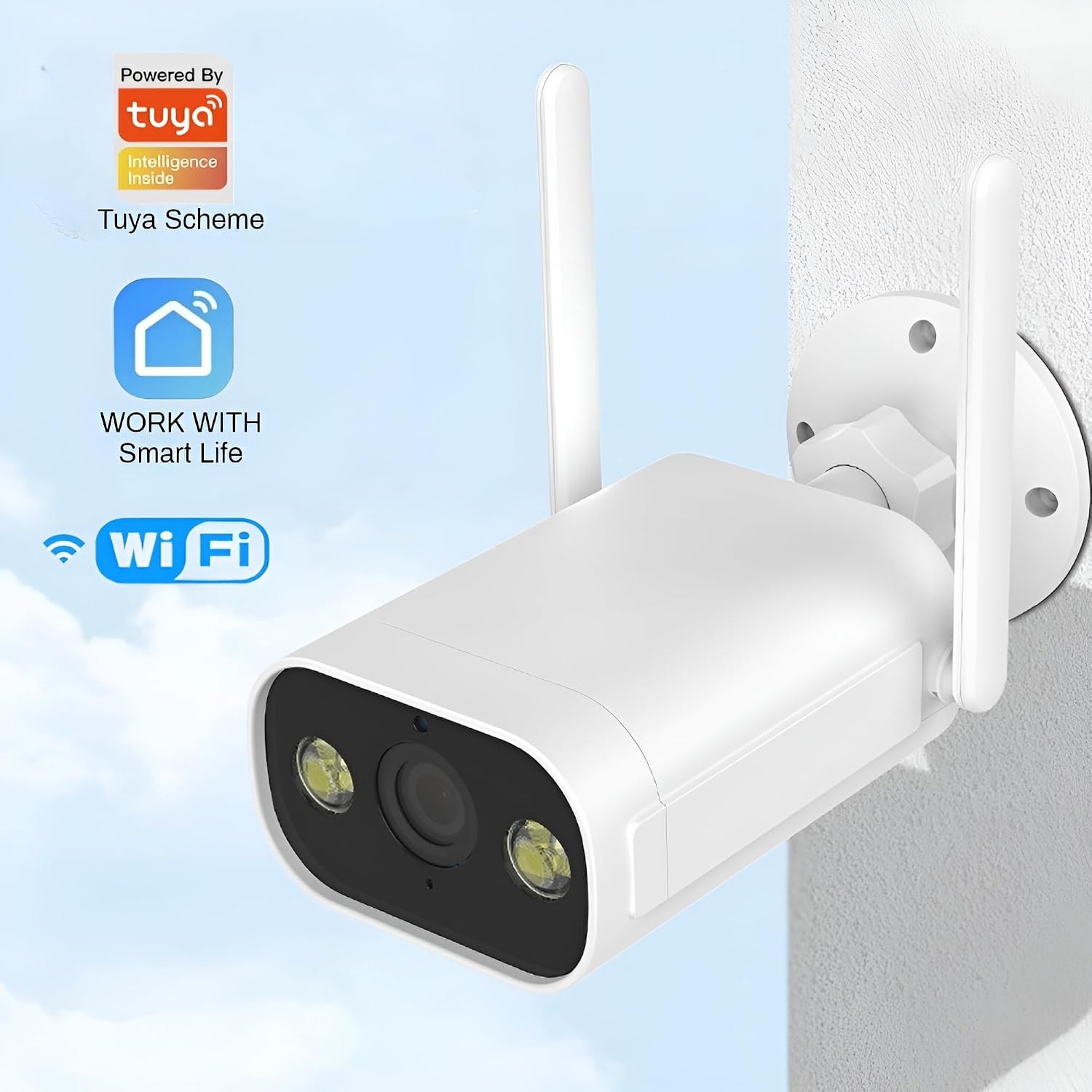
Image: A split image demonstrating the difference between full-color night vision and infrared night vision, showing a clear, colored view versus a black and white view at night.
4. Multi-Terminal Remote Viewing
View your camera feed from various devices.
- The camera supports remote viewing on smartphones, tablets, and computers.
- Share access with multiple family members or friends simultaneously.

Image: Displays the camera feed being viewed simultaneously on an iPhone, Android phone, Windows PC, and a web page, highlighting multi-device compatibility.
Maintenance
1. Resetting the Camera
If you need to reconfigure the network or encounter issues, you can reset the camera:
- Locate the reset button, usually near the SD card slot, under a protective cover.
- Use a small pin or paperclip to press and hold the reset button for approximately 5-10 seconds until you hear a voice prompt indicating the camera is resetting.
- After resetting, you will need to re-pair the camera with the app following the "App Installation and Device Pairing" steps.
Video: This video demonstrates how to reset the camera by holding down the reset button, which is useful for reconfiguring the network.
2. Cleaning and Weather Protection
To ensure optimal performance and longevity:
- Regularly clean the camera lens with a soft, dry cloth to prevent dust or smudges from affecting image quality.
- The camera has an IP66 waterproof rating, meaning it is protected against dust and powerful water jets. It is designed to withstand outdoor weather conditions like rain.

Image: The security camera shown with water droplets, illustrating its IP66 waterproof capability, indicating it is not affected by rain.
Troubleshooting
| Problem | Possible Cause | Solution |
|---|---|---|
| Camera fails to connect to Wi-Fi. | Incorrect Wi-Fi password; camera too far from router; 5GHz Wi-Fi network. | Ensure correct 2.4GHz Wi-Fi password. Move camera closer to router. Confirm router is broadcasting 2.4GHz. Reset camera and try pairing again. |
| No image or black screen in live view. | Power issue; network disconnection; app glitch. | Check power connection. Verify Wi-Fi signal. Restart the app. Restart the camera by unplugging and re-plugging. |
| Motion detection alerts are too frequent or not working. | Sensitivity settings; environmental factors (e.g., moving branches); incorrect app settings. | Adjust motion detection sensitivity in the app. Define specific detection zones to reduce false alarms. Ensure notifications are enabled in app and phone settings. |
| Two-way audio is unclear or not working. | Network latency; microphone/speaker obstruction; app permissions. | Ensure stable network connection. Check for obstructions around microphone/speaker. Grant microphone permissions to the app on your phone. |
| SD card not recording or recognized. | SD card full; corrupted card; incorrect insertion. | Format the SD card via the app. Re-insert the SD card correctly. If issues persist, try a new compatible Micro SD card. |
Specifications
| Feature | Detail |
|---|---|
| Model Name | TA-T7130-T1-SD |
| Brand | Jinvocloud |
| Indoor/Outdoor Usage | Outdoor |
| Video Capture Resolution | 2K (3MP) |
| Connectivity Protocol | Wi-Fi (2.4G) |
| Controller Type | IOS, Android (Tuya/Smart Life App) |
| Night Vision Range | 10-15 Meters (IR & Full Color) |
| Water Resistance Level | IP66 Waterproof |
| Power Source | Corded Electric (DC-5V 1A) |
| Storage | Cloud Storage, Micro SD (up to 128GB) |
| Video Encoding | H.265 |
| Viewing Angle | 79 Degrees FOV (Adjustable: 60° vertical, 180° horizontal) |
| Dimensions (L x W x H) | 6.3 x 3.15 x 2.76 inches |
| Item Weight | 15.8 ounces |
| Material | Polycarbonate (PC) |

Image: A technical drawing showing the dimensions of the Jinvocloud Outdoor Security Camera in millimeters.
Warranty and Support
For warranty information, technical support, or any product-related inquiries, please contact the manufacturer, Tuya Cloud Smart, or refer to the official Jinvocloud website. Keep your purchase receipt for warranty claims.
Manufacturer: Tuya Cloud Smart
For further assistance, you may visit the Jinvocloud Store on Amazon.
Ask a question about this manual
Ask about setup, troubleshooting, compatibility, parts, safety, or missing instructions. Manuals+ will review the question and use this page’s manual context to help answer it.