
1. Product Overview
The FJZKTEG K01 Smart Password Key Box is designed for secure and convenient key storage and access management. It features multiple unlocking methods, robust anti-theft construction, and an IP65 waterproof rating, making it suitable for various indoor and outdoor applications such as homestays, offices, and personal use.

Image 1.1: Front view of the FJZKTEG K01 Smart Password Key Box, showing the keypad, and an open side view revealing the internal key storage compartment.
Key Features:
- Smart Password Unlock: Manage access remotely via Tuya/TTlock App.
- Efficient Anti-Theft Design: Constructed from aluminum alloy and zinc alloy with a high-strength lock core.
- IP65 Waterproof: Suitable for outdoor use, resistant to water and dust.
- Versatile Storage Space: Accommodates house keys, safe keys, and other small valuables.
- Flexible Password Settings: Supports one-time and fixed passwords for various access needs.
2. Specifications
| Feature | Detail |
|---|---|
| Product Name | Security Key Lock Box |
| Model No. | K01, K01C |
| Material Quality | Aluminum alloy + Zinc alloy |
| Unlock Method | Password / APP Unlocking (Tuya APP or TT lock APP) |
| Internal Dimensions | 85mm * 65mm * 34mm |
| Outer Box Size | 95mm * 45mm * 115mm |
| Waterproof Rating | IP65 |
| Standby Time | > 3 Months |
| Power Supply | 3x AAA alkaline batteries (not included) |
| USB Back Up Power | Yes |
| Weight | 430g |
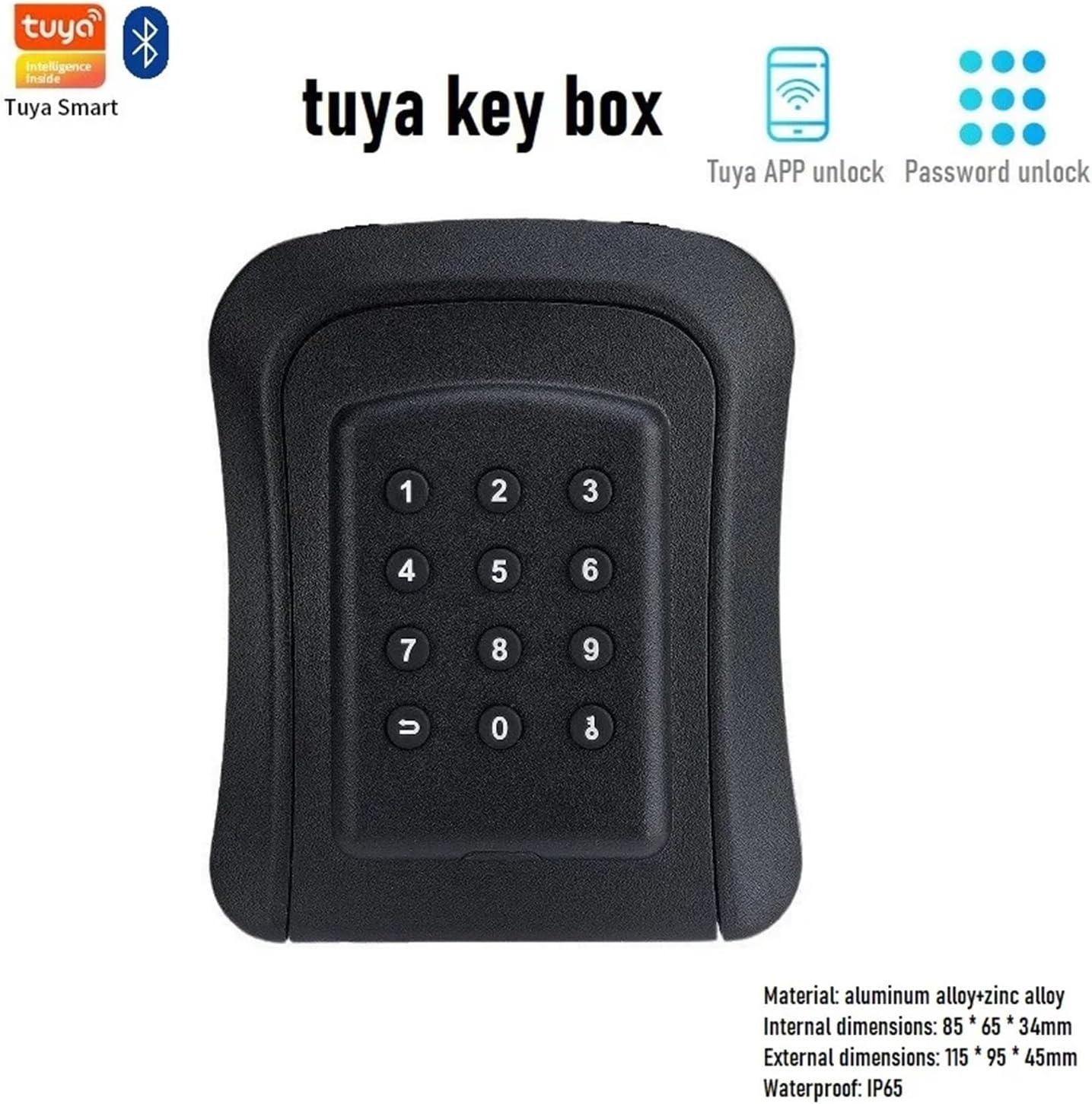
Image 2.1: The FJZKTEG K01 Smart Password Key Box displaying its dimensions and key features like Tuya APP unlock, password unlock, and IP65 waterproof rating.
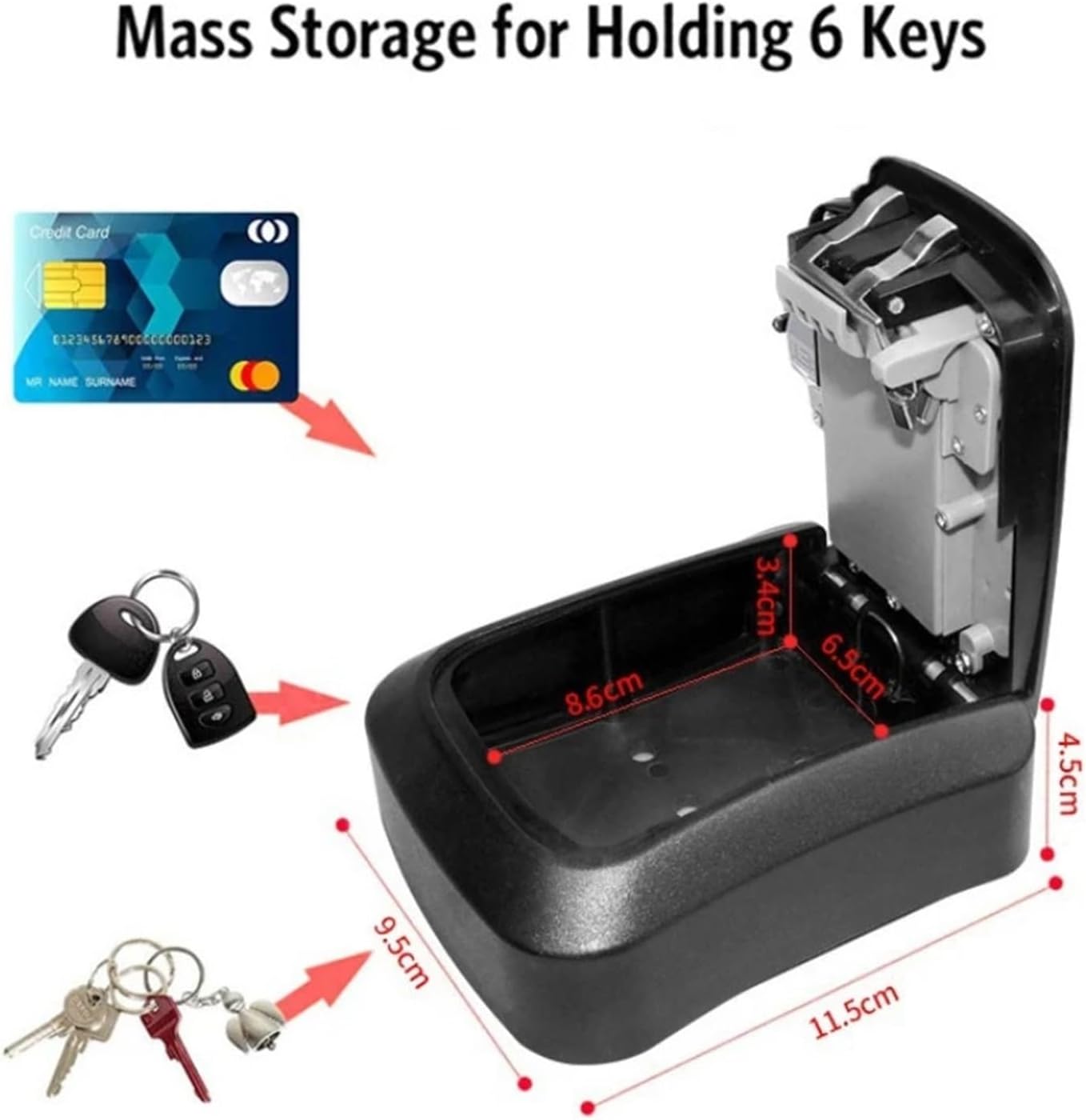
Image 2.2: An illustration of the key box's internal storage capacity, showing it can hold multiple keys and a credit card, with internal dimensions labeled.
3. Setup and Installation
The FJZKTEG K01 Smart Password Key Box offers two primary installation methods: wall-mounted and security door peephole installation.

Image 3.1: Visual guide demonstrating two installation methods: wall-mounting with drilling and securing, and installation on a security door's peephole.
3.1 Wall-Mounted Installation
- Adjust Position, Drilling: Select a suitable location on the wall. Mark the drilling points for the mounting screws. Use a drill to create holes at the marked positions.
- Embedded Expansion Pipe: Insert the provided expansion pipes (wall anchors) into the drilled holes.
- Screw the Lock Box: Align the key box with the expansion pipes and secure it to the wall using screws.
3.2 Security Door Peephole Installation
- Remove Peephole: Carefully remove the existing peephole from your security door.
- Hold the Screw: Insert the long screw provided with the key box through the peephole opening from the external side.
- Fix with Long Screw: Attach the key box to the door by screwing it onto the long screw from the internal side, ensuring it is securely fastened.
3.3 Battery Installation
The key box requires 3 AAA alkaline batteries (not included) for operation. Locate the battery compartment, typically on the inside of the key box, and insert the batteries according to the polarity markings.
4. Operating Instructions
4.1 APP Unlocking (Tuya/TTlock App)
To utilize the smart unlocking features, download either the Tuya APP or TT lock APP from your smartphone's app store. Follow the in-app instructions to pair your key box with the application. This will allow you to:
- Set and manage multiple passwords.
- Generate one-time passwords for temporary access.
- Monitor access logs (if supported by the app version).
- Remotely unlock the key box.
4.2 Password Unlocking
To unlock the key box using a password, enter the pre-set password on the keypad and press the unlock button (usually indicated by a key or unlock symbol). The box will open, allowing access to the contents.
4.3 Emergency Power Supply
In the event that the AAA batteries run out of power, the key box is equipped with a USB backup power port. Connect a standard USB power source (e.g., power bank, USB charger) to this port to temporarily power the device and gain access.

Image 4.1: The FJZKTEG K01 Smart Password Key Box being powered by an external power bank via its USB emergency power port, illustrating how to access the box if batteries are depleted.
5. Maintenance
- Battery Replacement: Replace the 3 AAA alkaline batteries every 3 months or when the low battery indicator (if available) is activated. Ensure correct polarity during installation.
- Cleaning: Wipe the exterior of the key box with a soft, damp cloth. Avoid using abrasive cleaners or solvents that could damage the finish or electronic components.
- Waterproof Protection: The IP65 rating ensures protection against dust and water jets. While suitable for outdoor use, avoid submerging the device in water. Ensure the cover is properly closed to maintain its waterproof integrity.

Image 5.1: The FJZKTEG K01 Smart Password Key Box shown in a rainy environment, highlighting its IP65 waterproof and dustproof design for outdoor durability.
6. Troubleshooting
This section provides general guidance for common issues. For more detailed troubleshooting, refer to the specific Tuya or TTlock app's help section or contact customer support.
- Keypad Unresponsive: Check battery levels. If batteries are low, use the USB backup power feature or replace the batteries.
- App Connectivity Issues: Ensure your smartphone's Bluetooth is enabled and the key box is within range. Restart the app and try reconnecting. Check if the key box batteries are sufficiently charged.
- Incorrect Password Entry: Double-check the password entered. Ensure no keys are stuck or partially pressed.
- Box Not Opening: If the box does not open after successful unlock, gently check for any obstructions in the latch mechanism.
7. Warranty and Support
Specific warranty information for the FJZKTEG K01 Smart Password Key Box is not provided in this manual. Please refer to your purchase documentation or contact the retailer/manufacturer directly for warranty details and customer support inquiries.