
FocuWay L7
FocuWay L7 4G LTE Dash Cam User Manual
Model: L7
1. Introduction
Thank you for choosing the FocuWay L7 4G LTE Dash Cam. This device is designed to provide comprehensive security and monitoring for your vehicle, offering features such as dual Full HD recording, 4G LTE remote access, cloud storage, 24/7 parking surveillance, and real-time GPS tracking. This manual provides detailed instructions for setup, operation, maintenance, and troubleshooting to ensure optimal performance and longevity of your dash cam.
2. Product Overview
2.1. Package Contents

Image: Contents of the FocuWay L7 Dash Cam package.
- FocuWay L7 Dash Cam Unit
- OBD Cable
- Adhesive Mount Pad
- 32GB SD Card
- SIM Card (pre-installed or included)
- User Manual
- Crowbar Wiring Tool
- Cable Clips (x5)
- Electrostatic Films (x2)
- Warning Sticker
- Card Pin
2.2. Device Features

Image: The FocuWay L7 Dash Cam, showing its compact design, included 32GB SD card, and remote live-view functionality on a smartphone.
- Dual 1080p FHD Cameras: Records both the front road and the vehicle interior simultaneously.
- 4G LTE Connectivity: Enables remote live-view, instant alerts, and cloud features from anywhere (subscription required after trial).
- 24/7 Parking Surveillance: Automatic recording and cloud upload of events when the vehicle is parked, powered by OBD cable or optional hardwire kit.
- Smart AI Parking Alerts: Radar-powered motion sensors and AI human detection for instant app alerts.
- IR Night Vision: Ensures clear cabin monitoring even in total darkness.
- Two-Way Audio: Allows remote communication with passengers or deterrence of intruders via the YBox app.
- GPS Real-Time Location: Tracks vehicle location accurately via the YBox app.
- Privacy Controls: Built-in lens cover and one-tap Privacy Mode to disable cabin video/audio.
- Seamless Loop Recording: Automatically overwrites oldest videos to ensure continuous recording.
- Event Video Lock & Upload: One-button function to lock current footage and upload to the cloud.
3. Setup & Installation
3.1. Preparing for Installation
- Ensure your vehicle's ignition is off.
- Clean the windshield area where the dash cam will be mounted to ensure proper adhesion.
- Familiarize yourself with the components in the packing list.
3.2. Mounting the Dash Cam
- Apply one of the electrostatic films to the chosen area on your windshield. This helps with easier removal later.
- Attach the adhesive mount pad to the dash cam unit.
- Firmly press the dash cam with the adhesive mount onto the electrostatic film on your windshield, ensuring a clear view for both front and cabin cameras.
3.3. Connecting the Power (OBD Cable)
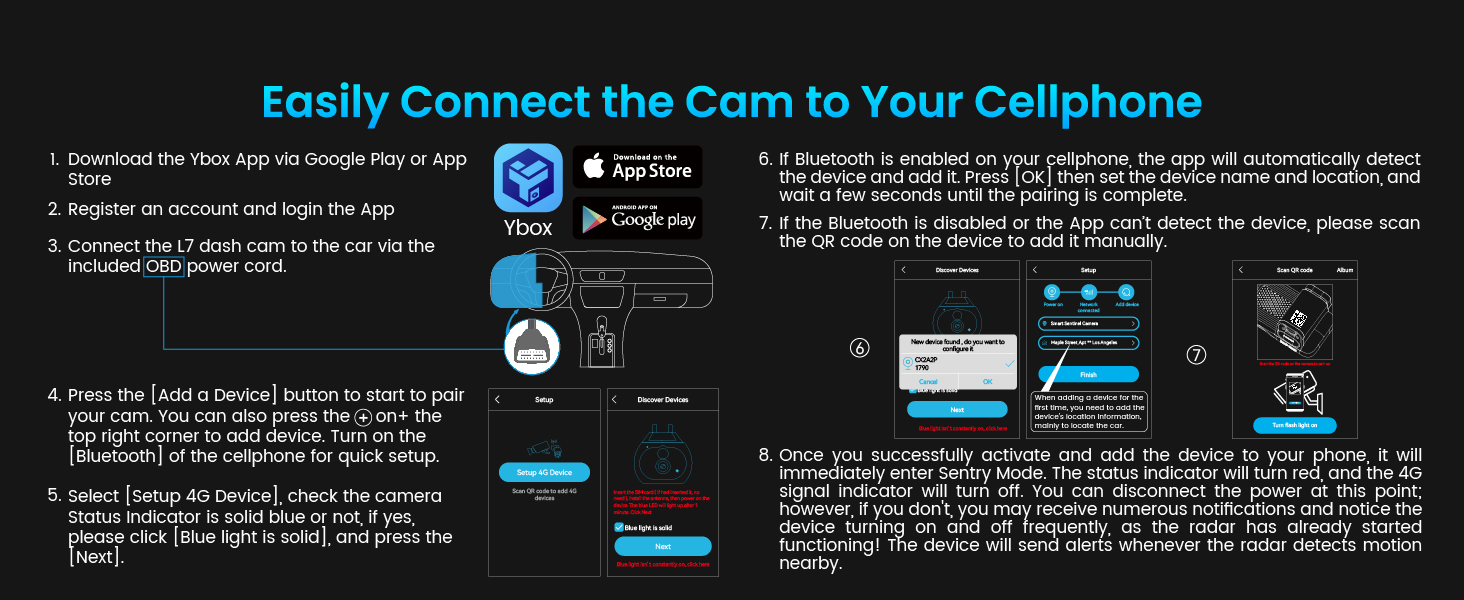
Image: Diagram illustrating the routing of the OBD cable for power connection.
- Locate your vehicle's OBD-II port, typically found under the dashboard on the driver's side.
- Connect the OBD cable to the dash cam's power input port.
- Plug the other end of the OBD cable into your vehicle's OBD-II port.
- Use the provided crowbar wiring tool and cable clips to neatly route the cable along the windshield trim and dashboard, ensuring it does not obstruct your view or interfere with driving.
3.4. Initial Setup and App Connection

Image: Step-by-step guide for connecting the FocuWay L7 Dash Cam to a smartphone via the YBox app.
- Download the YBox app from the Google Play Store or Apple App Store.
- Register an account and log in to the app.
- Ensure the L7 dash cam is connected via the OBD power cord and powered on.
- Open the YBox app and press the 'Add a Device' button (or '+' icon in the top right corner) to pair your cam.
- If Bluetooth is enabled on your cellphone, the app will automatically detect the device. Press 'OK', then set the device name and location, and wait a few seconds until pairing is complete.
- If Bluetooth is disabled or the app cannot detect the device, scan the QR code on the device to add it manually.
- Once successfully activated and added, the device will enter Sentry Mode. The status indicator will turn red, and the 4G signal indicator will turn off. The device will send alerts whenever the radar detects motion nearby.
4. Operating Instructions
4.1. Driving Mode
When your vehicle is in motion, the dash cam automatically switches to Driving Mode, continuously recording both front and cabin views in Full HD 1080p. Videos are saved to the inserted SD card.
4.2. Sentry Mode (Parking Mode)

Image: A user receiving a 'Vibration detected' alert on their smartphone from the FocuWay L7 Dash Cam, indicating active parking surveillance.
When your vehicle is parked and the ignition is off, the L7 dash cam enters Sentry Mode. It utilizes radar sensors and AI human detection to monitor the surroundings. If suspicious activity, motion, or vibration is detected, the dash cam will automatically record the event and upload it to the cloud, sending an instant alert to your YBox app.

Image: Visual representation of the 24/7 all-round protection provided by the FocuWay L7 Dash Cam, showing detection zones and examples of recorded events like collisions or theft attempts.
4.3. 4G LTE Remote Access & Cloud Services

Image: A user remotely monitoring their vehicle via the YBox app, demonstrating the cloud and 4G LTE capabilities of the FocuWay L7 Dash Cam.
The L7 dash cam leverages 4G LTE connectivity for advanced remote features. A SIM card is included, along with a free trial of LTE service (300MB). To continue using these features after the trial, an LTE data plan subscription is required. Without LTE, the dash cam functions as a standard device, saving videos only to the SD card, with no remote access or cloud features.

Image: A detailed table outlining the features available with and without a 4G Protect Go subscription, including pricing for SIM card fees and cloud service plans.
Key LTE & Cloud Features:
- Remote Live View: Monitor your car in real-time from anywhere via the YBox app.
- Instant Notifications: Receive alerts for detected events directly on your phone.
- Cloud Storage: Event videos are automatically uploaded and stored securely in the cloud.
- Video Download: Download recorded videos from the cloud via LTE data (note: downloaded videos are 720p; for 1080p, access the SD card on a computer).
4.4. Two-Way Audio

Image: Illustration of the two-way talk feature, showing a user on their phone communicating through the dash cam's loudspeaker to someone inside the vehicle.
The L7 dash cam supports two-way audio communication through the YBox app. This allows you to speak to passengers inside your vehicle or deter potential intruders remotely. This feature works seamlessly when the dash cam is connected via LTE.
4.5. GPS Real-Time Location

Image: A smartphone displaying the real-time GPS location of a vehicle in a parking lot, enabled by the FocuWay L7 Dash Cam.
With its integrated GPS module and 4G base station module, the L7 dash cam provides accurate real-time location tracking. You can open the YBox app to quickly locate your vehicle, which is particularly useful in large parking lots or for fleet management.
4.6. Privacy Controls & IR Night Vision
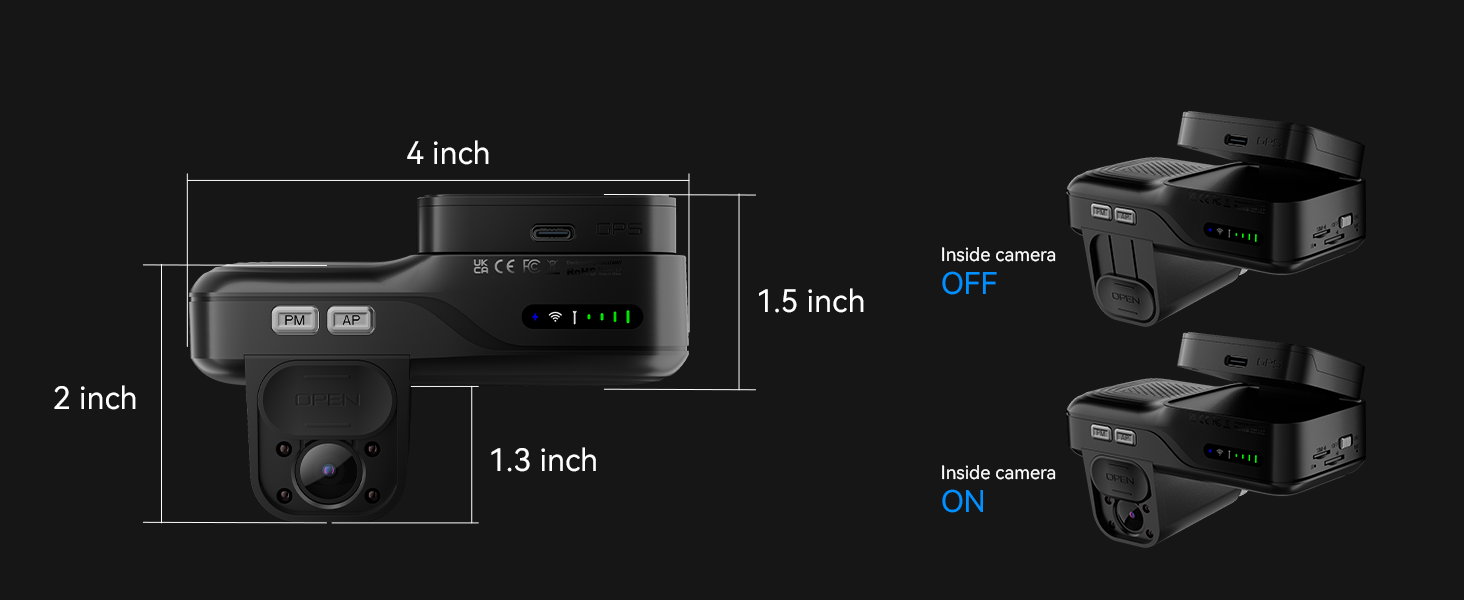
Image: The FocuWay L7 Dash Cam's interior camera with IR LEDs, demonstrating its night vision capabilities and the physical privacy cover.
The L7 dash cam is equipped with four IR LEDs for clear black-and-white images of the cabin in low-light or no-light conditions. For privacy, you can slide the built-in lens cover to physically conceal the inside camera. Alternatively, press the 'PM' button to activate in-car privacy mode, which disables both the cabin camera and audio recording instantly.
4.7. Video Management
Seamless Loop Recording:

Image: Illustration of seamless loop recording, showing older video segments being overwritten by new ones for continuous recording.
The dash cam continuously records by overwriting the oldest videos with new ones when the SD card is full. The normal video clip length is set to 5 minutes by default.
One-Button Event Video Lock & Upload:
Image: The 'AP Button' on the FocuWay L7 Dash Cam, used to lock and upload event videos to the cloud.
If you encounter an accident or wish to capture an important moment while driving, simply press the 'AP' button. This action will lock the current video clip on the SD card, preventing it from being overwritten. Additionally, the dash cam will automatically upload the last 15 seconds of footage to the cloud.
5. Maintenance
- Clean the Lenses: Regularly wipe the front and interior camera lenses with a soft, lint-free cloth to ensure clear recordings. Avoid abrasive materials.
- Check SD Card: Periodically check the SD card for errors or degradation. It is recommended to format the SD card monthly using the YBox app or a computer to maintain optimal performance and prevent data corruption. Replace the SD card if it shows signs of wear or frequent errors.
- Firmware Updates: Check the YBox app regularly for available firmware updates. Keeping the firmware updated ensures the best performance, new features, and bug fixes.
- Cable Inspection: Periodically inspect the OBD cable and other connections for any signs of wear, damage, or loose connections.
- Operating Temperature: Avoid exposing the dash cam to extreme temperatures for prolonged periods. Refer to the specifications for the recommended operating temperature range.
6. Troubleshooting
| Problem | Possible Cause | Solution |
|---|---|---|
| Dash cam not powering on. | Loose OBD cable connection; Vehicle's OBD-II port issue; Dash cam malfunction. | Ensure OBD cable is securely connected to both the dash cam and the vehicle's OBD-II port. Check vehicle's fuse for OBD-II port. If problem persists, contact support. |
| No remote live view or alerts. | No active 4G LTE subscription; Poor cellular signal; App not connected. | Verify your 4G LTE data plan is active. Check cellular signal strength in your vehicle's location. Ensure the YBox app is properly connected to the dash cam. |
| Video quality is poor or blurry. | Dirty lenses; Protective film still on lenses; Incorrect resolution settings. | Clean the camera lenses with a soft cloth. Remove any protective films. Ensure the dash cam is set to record in 1080p FHD. |
| SD card error or recording issues. | SD card full or corrupted; Incompatible SD card; SD card not inserted correctly. | Format the SD card regularly. Use a high-quality Class 10 or U3 microSD card. Reinsert the SD card correctly. Replace the SD card if issues persist. |
| GPS not tracking accurately. | Poor GPS signal; Dash cam mounted in an obstructed location. | Ensure the dash cam has a clear view of the sky. Avoid mounting near metallic objects that could interfere with the GPS signal. |
| Two-way audio not working. | No LTE connection; Microphone/speaker disabled; App issue. | Confirm active LTE connection. Check if privacy mode is active (disables audio). Restart the YBox app. |
7. Specifications
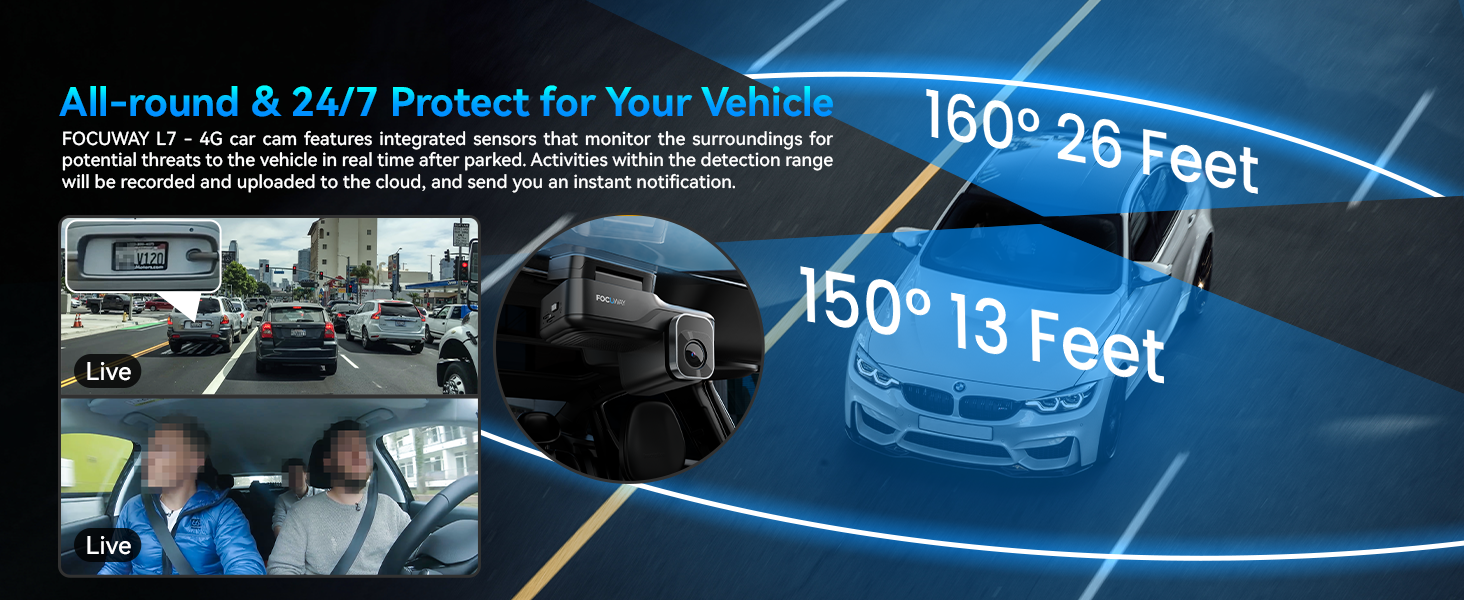
Image: Dimensions of the FocuWay L7 Dash Cam unit.
- Model Name: L7-4G
- Product Dimensions: 2.2 x 4 x 2.3 inches
- Item Weight: 1.12 pounds
- Color: Black
- Video Capture Resolution: 1080p Full HD (Front & Interior)
- Field of View: 150 Degrees (Interior), 160 Degrees (Front)
- Connectivity Technology: 4G LTE
- Special Features: 4G LTE Connect (300MB FREE Trial), Instant Notifications via App, Real-time GPS Location, Remote live-view, Two-way Audio, IR Night Vision, 24/7 Parking Mode, Privacy Mode
- Mounting Type: Adhesive Pads
- Vehicle Service Type: Bus, Car, Minivan, Truck
- Manufacturer: FOCUWAY
- First Available Date: December 24, 2024
8. Warranty and Support
FocuWay provides 18 months of reliable customer support for the L7 Dash Cam. For any technical assistance, troubleshooting, or warranty claims, please contact FocuWay customer service through the contact information provided in your purchase documentation or via the YBox app support section.
Please retain your proof of purchase for warranty validation.
Related documentsL7


Ask a question about this manual
Ask about setup, troubleshooting, compatibility, parts, safety, or missing instructions. Manuals+ will review the question and use this page’s manual context to help answer it.