
1. Introduction
Welcome to the user manual for your new XIAOMI Redmi Note 14 Pro+ 5G Smartphone. This guide provides essential information on setting up, operating, and maintaining your device. Please read it carefully to ensure optimal performance and longevity of your smartphone.
2. Package Contents
Verify that your package contains the following items:
- XIAOMI Redmi Note 14 Pro+ 5G Smartphone
- USB Cable
- Quick Start Guide (may vary by region)
- SIM Eject Tool (may vary by region)
Note: A charger is not included in the package. Please use a compatible 120W HyperCharge adapter for optimal charging.
3. Device Overview
Familiarize yourself with the physical components of your Redmi Note 14 Pro+ 5G.
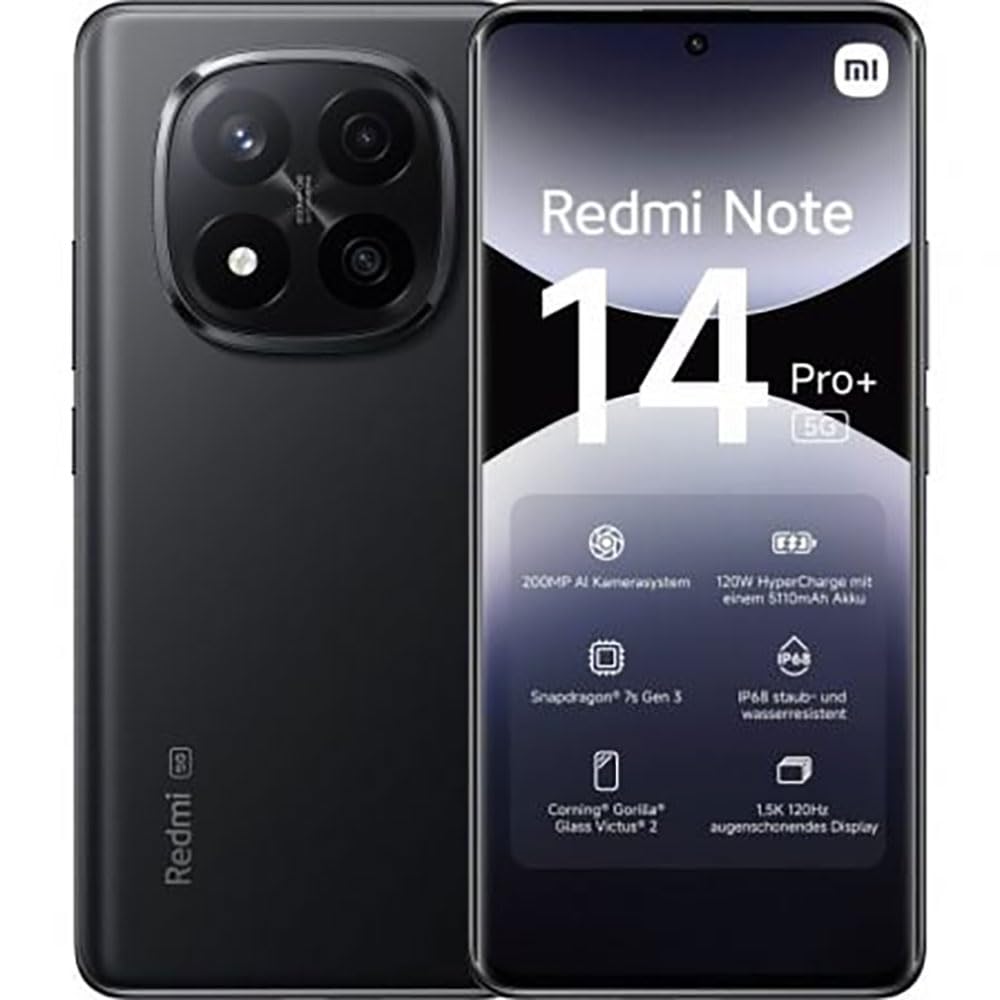
The image displays the front and back of the XIAOMI Redmi Note 14 Pro+ 5G smartphone. The front shows the display with 'Redmi Note 14 Pro+ 5G', '200 Megapixels', and '256 GB' text. The back features a prominent camera module with multiple lenses and the 'Redmi 5G' branding.
Key Components:
- Front Display: 6.67-inch 1.5K 120Hz AMOLED display with Corning Gorilla Glass Victus 2.
- Rear Camera Module: Houses the 200MP Pro-Grade AI Camera system.
- Power Button: Located on the side, used to power on/off and wake/sleep the device.
- Volume Buttons: Located on the side, used to adjust media and call volume.
- USB Type-C Port: For charging and data transfer.
- SIM Card Slot: Supports Dual SIM Nano SIM cards.
- Speakers: Stereo speakers for audio output.
4. Setup
4.1. Inserting the SIM Card
- Locate the SIM card tray on the side of your device.
- Insert the SIM eject tool into the small hole next to the tray and press firmly until the tray pops out.
- Place your Nano SIM card(s) into the tray with the gold contacts facing down. Ensure proper orientation.
- Gently push the tray back into the slot until it clicks into place.
4.2. Powering On Your Device
Press and hold the Power Button on the side of the phone until the XIAOMI logo appears on the screen. Follow the on-screen instructions to complete the initial setup, including connecting to Wi-Fi, setting up your Google account, and configuring security features like fingerprint recognition.
4.3. Initial Charge
It is recommended to fully charge your device before first use. Connect the USB Type-C cable to the phone and a compatible 120W HyperCharge adapter (not included) to a power outlet.
5. Operating Your Smartphone
5.1. Basic Navigation
- Touch Screen: Tap to select, swipe to scroll, pinch to zoom.
- Home Screen: Your central hub for apps and widgets.
- Notification Panel: Swipe down from the top of the screen to access notifications and quick settings.
- App Drawer: Swipe up from the bottom of the screen (or tap the app drawer icon) to view all installed applications.
5.2. Power On/Off and Restart
- To Power Off: Press and hold the Power Button until the power menu appears, then select "Power off."
- To Restart: Press and hold the Power Button until the power menu appears, then select "Restart."
5.3. Security Features
Your device supports various security options:
- Fingerprint Recognition: Register your fingerprints for quick and secure unlocking.
- Face Unlock: Use your face to unlock the device.
- PIN/Pattern/Password: Standard security methods.
Access these settings via Settings > Security & privacy.
6. Camera Features
The Redmi Note 14 Pro+ 5G features a powerful 200MP Pro-Grade AI Camera system designed to enhance your photography experience.
- 200MP Main Camera: Capture highly detailed images with optical image stabilization (OIS).
- Multiple Camera Modes: Includes automatic, scene, portrait, and manual modes for versatile shooting.
- Dual LED Flash: Provides enhanced lighting in low-light conditions.
- Front Camera: A 20MP front sensor for high-quality selfies and video calls.
- Video Recording: Supports up to 8K video capture at 120 fps.
7. AI Features
Leverage the integrated AI functionalities for a smarter user experience:
- AI Erase Pro: Intelligently remove unwanted objects or people from your photos.
- AI Image Expansion: Expand the boundaries of your images using AI.
- AI Notes: Smart note-taking capabilities.
- AI Subtitles: Generate subtitles for videos or audio in real-time.
- AI Recorder: Enhanced voice recording with AI features.
- AI Interpreter: Real-time language translation.
- Gemini: Integrated AI assistant.
- Circle to Search by Google: Quickly search for information by circling objects on your screen.
8. Charging
Your Redmi Note 14 Pro+ 5G supports 120W HyperCharge technology for rapid charging.
- Battery Capacity: 5110mAh Lithium-polymer battery.
- Charging: Use the provided USB Type-C cable with a compatible 120W power adapter (sold separately) for optimal charging speeds.
- Battery Life: Expect up to 20 hours of talk time. Actual battery life may vary based on usage.
Always use certified charging accessories to prevent damage to your device.
9. Maintenance
9.1. Water and Dust Resistance
The device features an IP68 rating for dust and water resistance. This means it is protected against dust ingress and can withstand immersion in water up to 1.5 meters for 30 minutes. However, this resistance is not permanent and may decrease over time with normal wear. Avoid exposing the device to hot water, saltwater, or other liquids.
9.2. Cleaning Your Device
- Use a soft, lint-free cloth to clean the screen and body.
- Avoid using abrasive cleaners, solvents, or aerosol sprays.
- If the device gets wet, wipe it thoroughly with a clean, dry cloth before charging or using ports.
9.3. Software Updates
Regularly check for and install software updates to ensure your device has the latest features, security patches, and performance improvements. Go to Settings > About phone > MIUI version to check for updates.
10. Troubleshooting
If you encounter issues with your device, try the following common solutions:
- Device not turning on: Ensure the battery is charged. Connect to a charger for at least 15 minutes, then try powering on.
- Apps crashing or freezing: Close the problematic app and reopen it. If the issue persists, restart your phone.
- Poor network connection: Check your SIM card is correctly inserted. Try toggling Airplane Mode on and off. If the issue persists, contact your network provider.
- Battery draining quickly: Reduce screen brightness, close unused apps, and disable unnecessary features like GPS or Bluetooth when not in use.
- Screen unresponsive: Force restart your device by holding the Power Button for approximately 10-15 seconds.
For more complex issues, refer to the official XIAOMI support website or contact customer service.
11. Specifications
| Feature | Specification |
|---|---|
| Brand | XIAOMI |
| Model Name | Redmi Note 14 Pro+ 5G |
| Operating System | Android 14 |
| CPU Model | Snapdragon 7 Gen 3 |
| RAM | 8 GB |
| Storage Capacity | 256 GB |
| Screen Size | 6.67 Inches |
| Display Resolution | 2712 x 1220 pixels |
| Refresh Rate | 120 Hz |
| Rear Camera Resolution | 200 Megapixels (with OIS) |
| Front Camera Resolution | 20 Megapixels |
| Battery Capacity | 5110 mAh |
| Charging Technology | 120W HyperCharge |
| Water Resistance | IP68 |
| Cellular Technology | 5G |
| SIM Card Type | Nano SIM (Dual SIM) |
| Connectivity | USB Type-C |
12. Warranty and Support
12.1. Manufacturer's Warranty
Your XIAOMI Redmi Note 14 Pro+ 5G Smartphone comes with a 2-year manufacturer's warranty. This warranty covers defects in materials and workmanship under normal use. Please retain your proof of purchase for warranty claims.
The warranty does not cover damage caused by accidents, misuse, unauthorized modifications, or normal wear and tear.
12.2. Customer Support
For technical assistance, warranty claims, or further information, please visit the official XIAOMI support website or contact their customer service department. Contact details can typically be found on the XIAOMI website or in the warranty card included with your product.


