
1. Introduction
Welcome to the user manual for your Jansite 10.26-inch Wireless Carplay Android Auto Display. This guide provides comprehensive instructions for the installation, operation, and maintenance of your device. Please read this manual thoroughly before using the product to ensure proper functionality and safety. Keep this manual for future reference.
2. Product Overview
The Jansite 10.26-inch Wireless Carplay Android Auto Display is an advanced in-car entertainment and navigation system designed to enhance your driving experience. It features a high-definition touchscreen, seamless wireless connectivity with Apple CarPlay and Android Auto, and multiple audio output options. Its versatile mounting solutions and wide vehicle compatibility make it suitable for various automobiles.

Figure 2.1: A clear view of the Jansite 10.26-inch display unit installed on a car dashboard, showcasing its sleek design and prominent screen.
3. Key Features
- Wireless Apple CarPlay and Android Auto: Seamlessly integrate your smartphone for navigation, music, messages, and calls. The built-in microphone supports voice assistants like Siri and Google Assistant for hands-free control.
- 10.26-inch HD IPS Touchscreen: Enjoy vivid and colorful images with a high-definition resolution of 1600x600. The responsive touchscreen ensures smooth, lag-free operation and reduces visual fatigue.
- Voice Control: Activate Siri or Google Assistant using the integrated microphone to control navigation, music playback, messaging, and calls, keeping your hands on the wheel and focus on the road.
- Multiple Audio Output Modes: Equipped with integrated Bluetooth 5.0 Dual, the device offers enhanced audio. Connect via wired FM or AUX to your car's factory stereo for immersive sound, or use wireless Bluetooth for music playback. A built-in speaker is also available.
- Flexible Mounting Options: Includes a new customized bracket designed to adapt to the curvature of central consoles for a stable, integrated look, preventing shaking and falling. A retractable suction cup mount is also provided for additional placement flexibility.
- Wide Vehicle Compatibility: Compatible with 7-32V vehicles, including cars, trucks, RVs, and pickups, ensuring broad applicability.
- Offline Media Playback: Supports offline music and video playback via an SD card (not included), allowing you to enjoy your media collection even in areas with weak signal.
- AirPlay/Android Cast: Synchronize content from your phone to the large touchscreen.

Figure 3.1: Screen displaying Apple CarPlay, Android Auto, and Airplay/Android Cast interfaces.
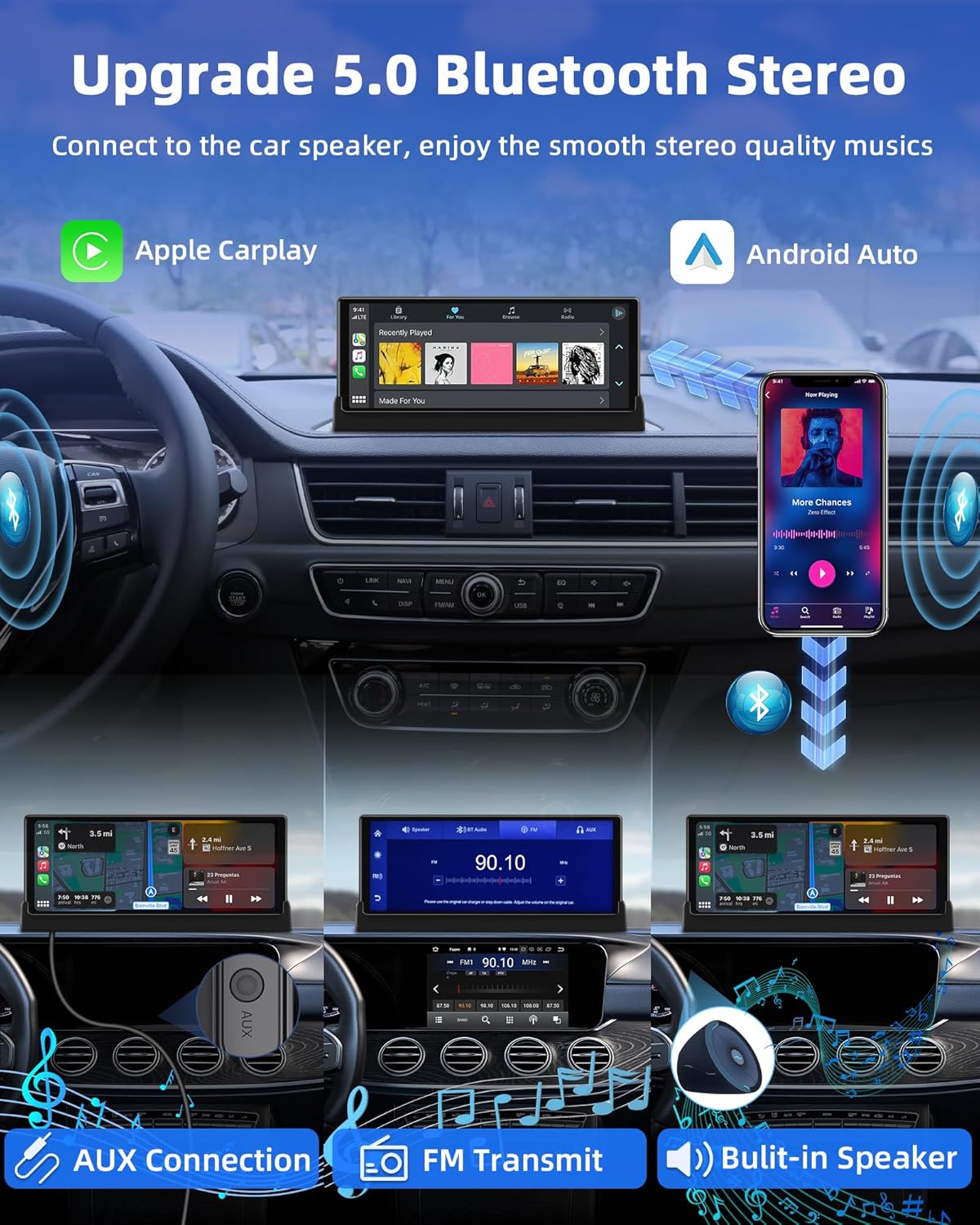
Figure 3.2: This image highlights the 10.26-inch screen's dimensions and its 1600x600 HD resolution. It also shows the device's side profile with an SD card slot, indicating support for offline music and video playback.

Figure 3.3: The display unit actively responding to voice commands like "Hey Siri, Call Honey" and "Hi Google, Navigate Home," emphasizing hands-free operation.

Figure 3.4: A visual representation of the device's audio capabilities, including Bluetooth 5.0 connectivity to car speakers, AUX cable connection, FM transmission, and its built-in speaker.

Figure 3.5: A visual comparison demonstrating the benefits of the customized bracket, showing a neat and stable installation versus a cluttered and unstable standard mount.

Figure 3.6: This graphic demonstrates the wide voltage compatibility (7-32V) and suitability of the device for various vehicle types, including cars, trucks, RVs, and pickups.
4. Setup Guide
4.1. Unboxing and Components
Before installation, ensure all components are present in the package:
- Jansite 10.26-inch Wireless CarPlay Screen
- Power Cable (with 12/24V cigarette lighter plug)
- AUX Cable
- Suction Cup Mount
- Customized Brackets

Figure 4.1: All items included in the product package, such as the main screen unit, AUX cable, power cable, suction cup mount, and specialized mounting brackets.
4.2. Mounting the Device
- Choose a Mounting Location: Select a position on your dashboard or windshield that does not obstruct your view of the road or interfere with airbags.
- Attach the Mount:
- For Suction Cup Mount: Clean the chosen surface. Press the suction cup firmly against the surface and engage the locking lever.
- For Customized Bracket: Position the customized bracket to align with the curvature of your central console for a secure and integrated fit. Ensure it is stable and does not wobble.
- Secure the Display: Attach the 10.26-inch display unit to the chosen mount. Ensure it is firmly locked in place and adjust the viewing angle for optimal visibility.
4.3. Power Connection
- Connect the power cable to the device's power input port.
- Insert the 12/24V cigarette lighter plug into your vehicle's cigarette lighter socket.
- The device should power on automatically or by pressing the power button.
5. Operating Instructions
5.1. Powering On/Off
- Power On: Once connected to power, the device will typically power on automatically. If not, press and hold the power button until the screen illuminates.
- Power Off: Press and hold the power button until the shutdown prompt appears, then confirm. Alternatively, disconnect the power cable.
5.2. Pairing with Smartphone (Wireless CarPlay/Android Auto)
- On the device, navigate to the CarPlay or Android Auto interface.
- On your smartphone, enable Bluetooth and Wi-Fi.
- Search for the device's Bluetooth name (usually 'Jansite_XXXX') on your phone and pair.
- Once Bluetooth is paired, the device will prompt you to connect via Wi-Fi for CarPlay or Android Auto. Confirm the connection.
- Your phone's interface will now be mirrored on the display.
5.3. Using Voice Control
With your smartphone connected via CarPlay or Android Auto, you can use voice commands:
- Activate Siri (for Apple CarPlay) by saying "Hey Siri" or pressing the voice command button on the screen.
- Activate Google Assistant (for Android Auto) by saying "Hey Google" or pressing the voice command button on the screen.
- Issue commands such as "Navigate to [address]", "Play [song/artist]", "Send message to [contact]", or "Call [contact]".
5.4. Playing Media
- Smartphone Media: Play music or videos directly through CarPlay/Android Auto apps.
- SD Card Playback: Insert an SD card (up to 128GB, not included) into the device's SD card slot. Use the built-in media player to browse and play stored music and videos.
- AirPlay/Android Cast: Use the AirPlay or Android Cast function to mirror content from your phone to the display.
5.5. Adjusting Audio Output
The device offers four audio output modes:
- Built-in Speaker: Audio will play directly from the device's integrated speaker.
- Bluetooth: Connect the device to your car's factory stereo via Bluetooth for higher quality audio.
- FM Transmitter: Select an unused FM frequency on the device and tune your car's radio to the same frequency to transmit audio wirelessly.
- AUX Cable: Connect the provided AUX cable from the device's AUX output to your car's AUX input for a wired audio connection.
6. Maintenance
To ensure the longevity and optimal performance of your Jansite display, follow these maintenance guidelines:
- Cleaning the Screen: Use a soft, lint-free cloth slightly dampened with water or a screen cleaner. Avoid harsh chemicals or abrasive materials.
- Cleaning the Device: Wipe the exterior with a dry, soft cloth. Do not allow liquids to enter the device.
- Storage: If storing the device for an extended period, disconnect it from power and store it in a cool, dry place away from direct sunlight.
- Avoid Extreme Temperatures: Do not expose the device to extreme heat or cold, as this can damage internal components.
7. Troubleshooting
If you encounter issues with your Jansite display, refer to the following common problems and solutions:
| Problem | Possible Solution |
|---|---|
| Device does not power on. | Ensure the power cable is securely connected to both the device and the vehicle's cigarette lighter socket. Check if the vehicle's power outlet is functioning. |
| Cannot connect to Wireless CarPlay/Android Auto. | Ensure Bluetooth and Wi-Fi are enabled on your smartphone. Forget the device from your phone's Bluetooth settings and try pairing again. Restart both the device and your phone. |
| No audio or poor audio quality. | Check the selected audio output mode (Built-in Speaker, Bluetooth, FM, AUX). Adjust volume levels on both the device and your car stereo. If using FM, try a different frequency to avoid interference. If using AUX, ensure the cable is fully inserted. |
| Screen is unresponsive or frozen. | Perform a soft reset by pressing and holding the power button until the device restarts. If the issue persists, disconnect and reconnect the power. |
| Voice control not working. | Ensure your smartphone is properly connected via CarPlay/Android Auto. Check microphone settings on both the device and your phone. Speak clearly and directly towards the device. |
If you continue to experience problems, please refer to the Warranty and Support section for contact information.
8. Specifications
| Feature | Detail |
|---|---|
| Brand | Jansite |
| Model Name | T375D+Z028 |
| Item Model Number | T375D+Z028 |
| Screen Size | 10.26 Inches |
| Display Type | LCD, LED |
| Touchscreen Type | Capacitive |
| Resolution | 1600 x 600 |
| Connectivity Technology | Bluetooth 5.0, Wi-Fi |
| Special Features | Wireless Apple CarPlay, Wireless Android Auto, AirPlay, Android Cast, Voice Control (Siri/Google Assistant), Offline Media Playback (SD card up to 128GB) |
| Audio Output Modes | Built-in Speaker, Bluetooth, FM Transmitter, AUX |
| Human Input | Microphone, Touchscreen |
| Control Method | Touch |
| Supported Satellite Navigation | GPS (via connected smartphone) |
| Compatible Devices | Smartphone |
| Vehicle Service Type | Car, Truck, Recreational Vehicle (7-32V compatibility) |
| Mounting Type | Windshield Mount (Suction Cup), Customized Bracket |
| Included Components | AUX Cable, Power Cable, Wireless CarPlay Screen, Suction Cup Mount, Customized Brackets |
| Batteries Included | No |
| Package Dimensions | 28.6 x 14.3 x 11.3 cm |
| Item Weight | 1.01 Kilograms |
9. Warranty and Support
Your Jansite 10.26-inch Wireless Carplay Android Auto Display comes with a 1-year after-sales warranty from the date of purchase. This warranty covers manufacturing defects and ensures your peace of mind.
For technical assistance, troubleshooting not covered in this manual, or warranty claims, please contact Jansite customer support. Refer to the contact information provided in the original product packaging or on the official Jansite website. Please have your model number (T375D+Z028) and proof of purchase ready when contacting support.


