
ZZB YQ10SMAX
ZZB Android 15 Tablet User Manual
Model: YQ10SMAX | Brand: ZZB
1. Introduction
Welcome to the user manual for your new ZZB Android 15 Tablet. This versatile 2-in-1 device is designed to provide a seamless experience for both productivity and entertainment, transforming effortlessly between tablet, laptop, and computer modes with its included accessories. Featuring the latest Android 15 operating system, a vibrant 10.1-inch IPS display, and robust memory specifications, your tablet is ready for a wide range of tasks, from video playback and gaming to multitasking and creative work.
2. Package Contents
Please verify that all items listed below are included in your package. If any items are missing or damaged, please contact customer support.
- 1 x ZZB 10.1-inch Android 15 Tablet
- 1 x Bluetooth Keyboard
- 1 x Wireless Mouse
- 1 x Stylus Pen
- 1 x Foldable Protective Case
- 1 x USB-C Charger Cable
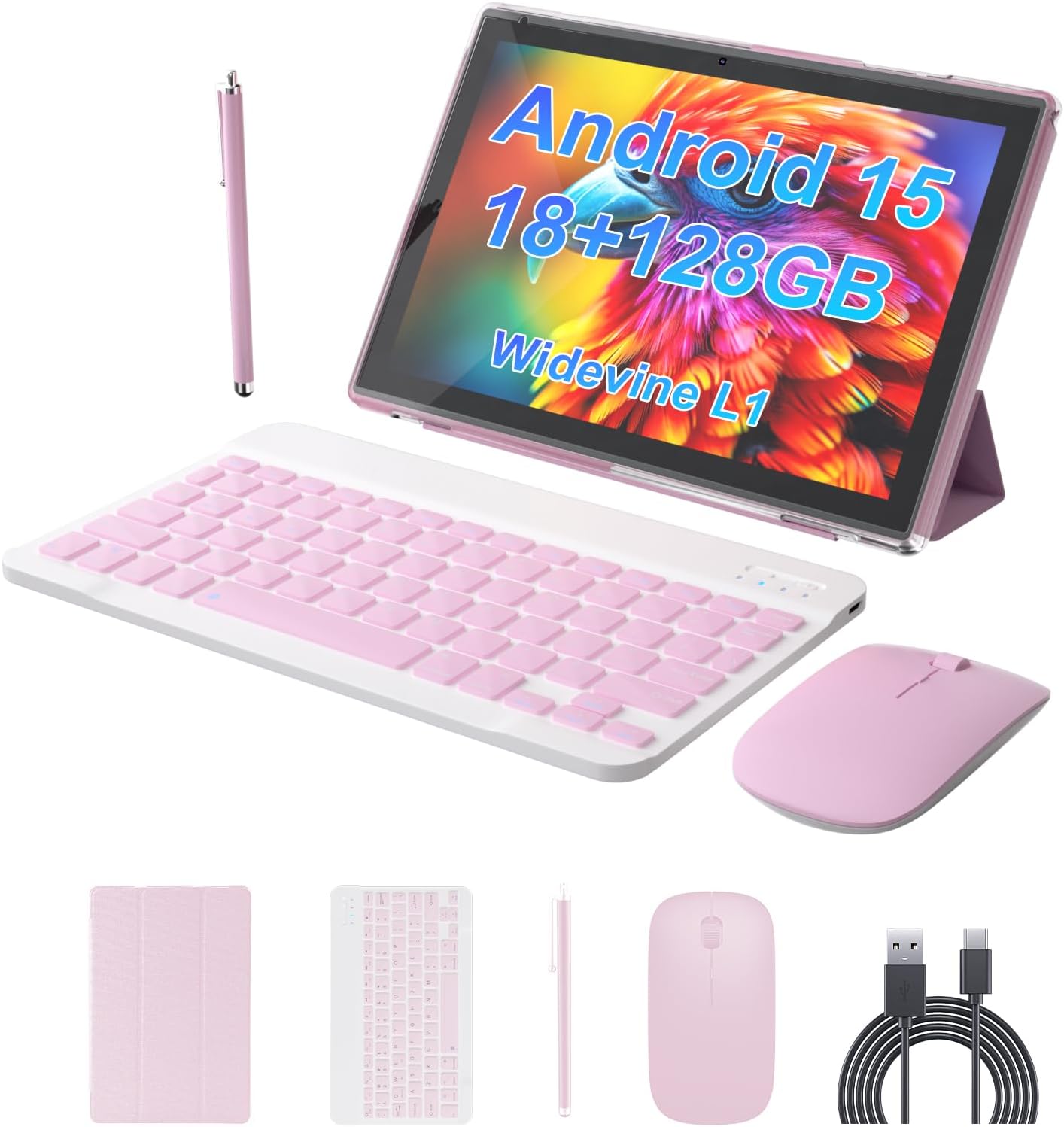
Image 2.1: All components included in the ZZB Android 15 Tablet package.
3. Setup Guide
3.1 Initial Charging
Before first use, fully charge your tablet. Connect the provided USB-C charger cable to the tablet's USB-C port and the other end to a compatible USB-A wall charger (not included). The 6000mAh battery provides up to 8 hours of uninterrupted video playback once fully charged.

Image 3.1: The tablet's charging port and battery capacity details.
3.2 Powering On/Off
- To Power On: Press and hold the Power button located on the side of the tablet until the ZZB logo appears.
- To Power Off: Press and hold the Power button until the power options menu appears, then select "Power Off".
- To Restart: Press and hold the Power button until the power options menu appears, then select "Restart".
3.3 Initial Android Setup
Upon first power-on, follow the on-screen prompts to complete the initial Android 15 setup. This includes selecting your language, connecting to a Wi-Fi network, and signing in with your Google account.
3.4 Connecting Accessories (Keyboard & Mouse)
The included keyboard and mouse connect wirelessly via Bluetooth 5.0.
- Enable Bluetooth: Go to Settings > Connected devices > Bluetooth and turn Bluetooth on.
- Pair Keyboard: Turn on the keyboard. Press the pairing button (usually on the back or side) until the indicator light flashes. Select the keyboard from the list of available devices on your tablet and follow any on-screen prompts to complete pairing.
- Pair Mouse: Turn on the mouse. Press the pairing button (if available, or it may automatically enter pairing mode). Select the mouse from the list of available devices on your tablet.

Image 3.2: The tablet set up in laptop mode with keyboard and mouse.
4. Operating Instructions
4.1 Basic Navigation
The tablet's 10.1-inch IPS touchscreen supports standard Android gestures:
- Tap: Select an item or open an app.
- Swipe: Navigate through home screens, menus, or scroll content.
- Pinch-to-Zoom: Enlarge or shrink content like photos or web pages.
- Long Press: Access contextual menus or move app icons.

Image 4.1: The Android 15 OS interface on the tablet.
4.2 Using the Cameras
The tablet is equipped with a 2.0MP front camera and an 8.0MP rear camera.
- Front Camera: Ideal for video calls and selfies.
- Rear Camera: Suitable for capturing photos and videos of your surroundings.
Access the camera application from the home screen or app drawer to start capturing moments.

Image 4.2: Overview of the tablet's dual camera system.
4.3 Storage Management
Your tablet comes with 128GB of internal storage (ROM) and 18GB of RAM (including 12GB expandable memory). For additional storage, you can expand it up to 2TB using an SD card (sold separately).
- Insert SD Card: Locate the SD card slot on the side of the tablet and gently insert the card until it clicks into place.
- Manage Storage: Go to Settings > Storage to view usage and manage files.

Image 4.3: Tablet memory and storage capabilities.
4.4 Connectivity
- Wi-Fi 6: Supports both 2.4G and 5G Wi-Fi for stable and fast internet connection. Access Wi-Fi settings via Settings > Network & internet > Wi-Fi.
- Bluetooth 5.0: For connecting wireless accessories like headphones, speakers, and the included keyboard and mouse. Access Bluetooth settings via Settings > Connected devices > Bluetooth.

Image 4.4: The tablet in use for study or work.
5. Maintenance
- Cleaning: Use a soft, lint-free cloth to clean the screen and body. Avoid abrasive cleaners or solvents.
- Battery Care: To prolong battery life, avoid extreme temperatures. It is recommended to fully charge the tablet before it completely drains.
- Software Updates: Regularly check for system updates via Settings > System > System update to ensure optimal performance and security.
- Storage Management: Periodically clear unnecessary files and apps to maintain smooth operation.
6. Troubleshooting
| Problem | Possible Solution |
|---|---|
| Tablet does not power on. | Ensure the tablet is fully charged. Press and hold the Power button for at least 10-15 seconds. |
| Wi-Fi connection is unstable or drops. | Restart your Wi-Fi router. Forget the network on the tablet and reconnect. Ensure you are within range of the Wi-Fi signal. |
| Bluetooth accessories (keyboard/mouse) do not connect. | Ensure Bluetooth is enabled on the tablet and the accessories are in pairing mode. Recharge or replace batteries in accessories if applicable. Try unpairing and re-pairing. |
| Tablet is running slow. | Close unused applications. Clear cache and data for frequently used apps. Restart the tablet. Consider uninstalling unnecessary apps or moving large files to an SD card. |
| Battery drains quickly. | Reduce screen brightness. Disable Wi-Fi/Bluetooth when not in use. Close background apps. Limit location services. |
7. Specifications
| Feature | Detail |
|---|---|
| Model Name | YQ10SMAX |
| Operating System | Android 15 |
| Screen Size | 10.1 Inches |
| Screen Resolution | 1280 x 800 pixels (IPS HD) |
| RAM | 18GB (including 12GB expandable memory) |
| Internal Storage (ROM) | 128GB |
| Expandable Storage | Up to 2TB via SD card (sold separately) |
| Battery Capacity | 6000mAh |
| Front Camera | 2.0MP |
| Rear Camera | 8.0MP |
| Wi-Fi | Wi-Fi 6 (2.4G/5G) |
| Bluetooth | Bluetooth 5.0 |
| Dimensions (LxWxH) | 9.7 x 6.8 x 0.35 inches |
| Item Weight | 2.75 pounds |
| Color | Pink |
8. Warranty and Support
For warranty information and technical support, please refer to the documentation provided with your purchase or visit the official ZZB website. If you encounter any issues not covered in this manual, please contact ZZB customer service for assistance.
Ask a question about this manual
Ask about setup, troubleshooting, compatibility, parts, safety, or missing instructions. Manuals+ will review the question and use this page’s manual context to help answer it.