
Introduction
The Samsung S4 Business Monitor is designed to deliver smooth performance for various tasks, from work to entertainment. It features an IPS Panel for consistent and accurate color reproduction across the entire display, even from wide viewing angles. The 100Hz refresh rate helps reduce lag and motion blur, providing a fluid visual experience. For user comfort, the monitor includes Eye Saver Mode to minimize blue light and screen flicker during extended use. Gamers can benefit from Game Picture Mode, which optimizes color and contrast settings. The monitor's ergonomic design allows for height adjustment, tilt, swivel, and pivot functionality, maximizing versatility and screen space with its ultra-thin bezels. Multiple connectivity options ensure easy integration with various devices.
What's in the Box
Verify that all components are present in the packaging:
- Samsung 22-inch S40GD Business Monitor
- Monitor Stand (Base and Neck)
- Power Cable
- HDMI Cable
- DisplayPort Cable
- USB Type-B Upstream Cable
- Quick Setup Guide / User Manual (this document)
Setup
1. Assembling the Stand
- Carefully remove the monitor and stand components from the packaging.
- Attach the stand neck to the stand base. Ensure it clicks securely into place.
- Align the assembled stand with the mounting area on the back of the monitor. Gently push the monitor onto the stand until it locks.
- Tighten any securing screws if provided, typically located at the bottom of the stand base or on the monitor's rear mounting plate.

2. Connecting Cables
Connect the necessary cables to the monitor and your computer:
- Power Cable: Connect one end of the power cable to the monitor's power input (8) and the other end to a power outlet.
- Video Cable: Connect either the HDMI cable (to HDMI IN 1 or HDMI IN 2) or the DisplayPort cable (to DP IN) from your computer's video output to the corresponding port on the monitor.
- USB Upstream Cable: For USB hub functionality, connect the USB Type-B Upstream cable from your computer's USB port to the monitor's USB Type-B Upstream port (6).
- Audio (Optional): If using external speakers or headphones, connect them to the Headphone IN port (7).

3. Initial Power On
Press the power button on the monitor. The monitor should automatically detect the input signal. If not, you may need to manually select the input source using the OSD joystick control.
Unboxing and Assembly Video
Operating Instructions
On-Screen Display (OSD) Navigation
The monitor's settings are controlled via a joystick-style button, typically located on the back or bottom of the monitor. Press the joystick to access the OSD menu, then move it up/down/left/right to navigate and select options.
Key Settings and Modes
- Input Source: Select between DisplayPort, HDMI 1, or HDMI 2.
- Brightness/Contrast: Adjust these settings to your preference for optimal viewing.
- Refresh Rate: The default refresh rate is 60Hz. To enable the 100Hz refresh rate, navigate to the monitor's settings and adjust accordingly.
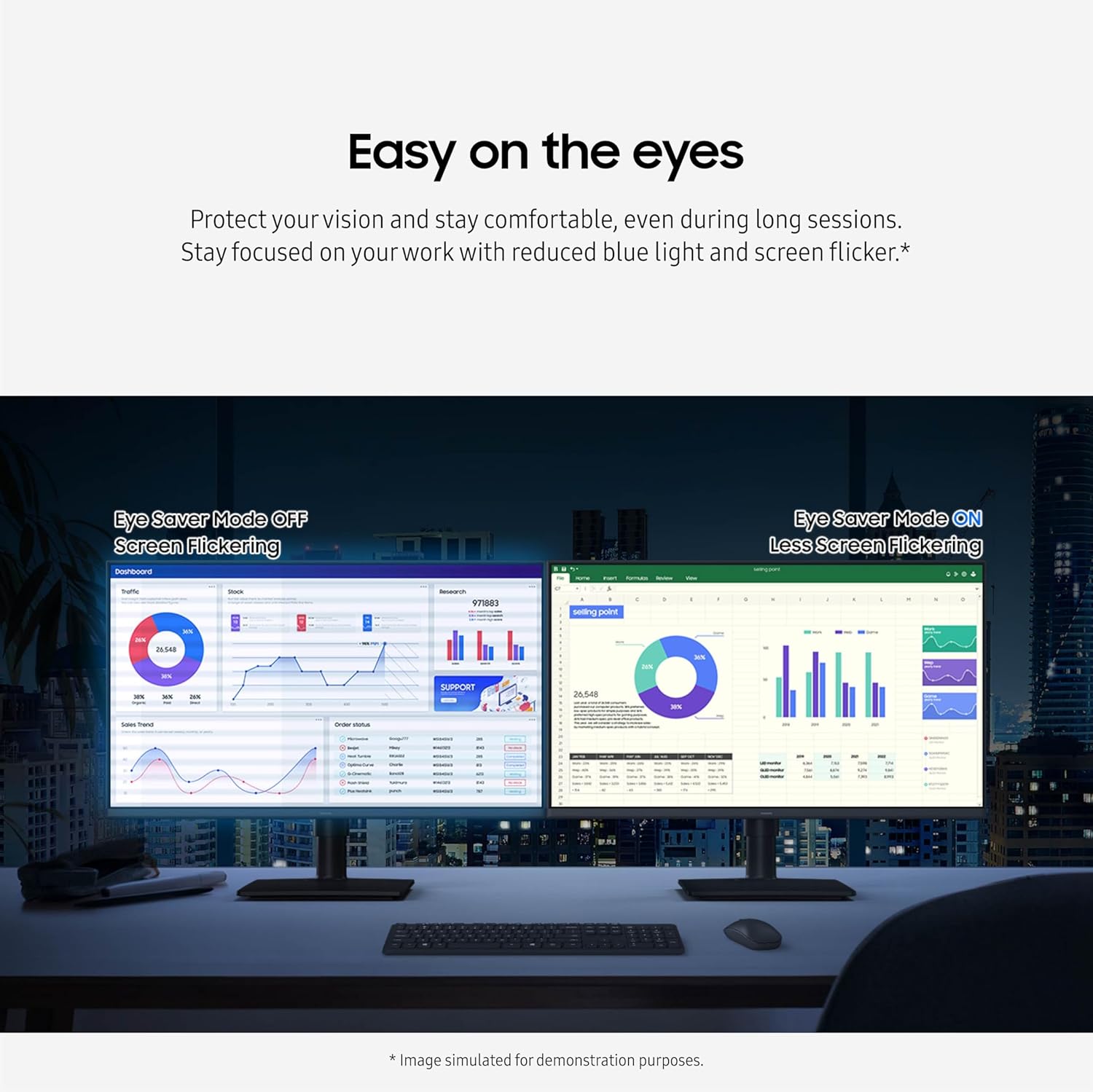
- Eye Saver Mode: Activates a blue light filter and reduces screen flicker for enhanced viewing comfort during long sessions.
- Game Picture Mode: Optimizes color and image contrast for gaming, making scenes clearer and potentially revealing hidden details.

Features
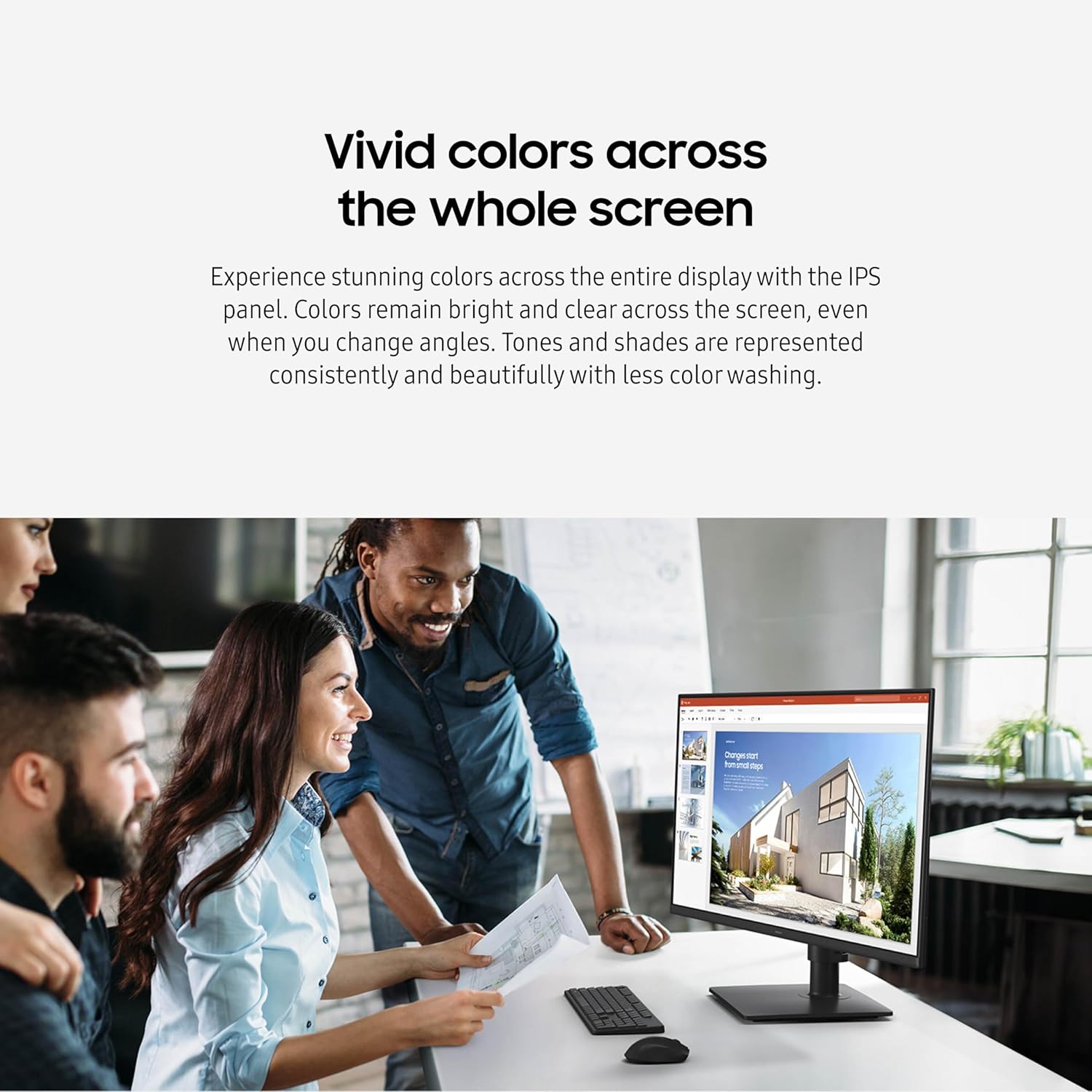
- IPS Panel: Experience vivid and consistent colors across the entire screen, with less color washing, ensuring clarity from any viewing angle.
- 100Hz Refresh Rate: Enjoy smooth performance with reduced lag and motion blur, ideal for fast-paced content and gaming.
- Eye Saver Mode & Flicker-Free: Protect your vision and maintain comfort during long work sessions by reducing blue light emissions and eliminating screen flicker.
- Game Picture Mode: Gain a competitive edge with optimized game settings that allow instant adjustment of color and image contrast for clearer visibility.
- Ergonomic Design: The super-slim design includes a height-adjustable screen for optimal viewing angles, tilt, swivel, and the ability to pivot 90 degrees for a vertical view. Ultra-thin bezels maximize screen space.
- Multiple Connectivity: Features 2 HDMI ports, 1 DisplayPort, and a USB hub (2x USB 3.0 downstream, 1x USB Type-B upstream) for flexible device connections.


Maintenance
To ensure the longevity and optimal performance of your Samsung monitor, follow these maintenance guidelines:
- Cleaning the Screen: Gently wipe the screen with a soft, lint-free cloth. For stubborn smudges, lightly dampen the cloth with water or a specialized screen cleaner. Avoid harsh chemicals, alcohol, or abrasive materials.
- Cleaning the Casing: Use a soft, dry cloth to clean the monitor's casing.
- Ventilation: Ensure the monitor's ventilation openings are not blocked to prevent overheating.
- Power Off: Always power off the monitor when not in use for extended periods.
- Avoid Direct Sunlight: Do not expose the monitor to direct sunlight or excessive heat.
Troubleshooting
If you encounter issues with your monitor, refer to the following common troubleshooting steps:
| Problem | Possible Solution |
|---|---|
| No image on screen |
|
| Image is blurry or distorted |
|
| Monitor not turning on |
|
| Colors appear incorrect |
|
If the issue persists after trying these steps, please contact Samsung customer support.
Specifications
| Feature | Detail |
|---|---|
| Brand | Samsung |
| Model Number | LS22D402GANXGO |
| Screen Size | 22 Inches |
| Resolution | FHD 1080p (1920 x 1080 Pixels) |
| Aspect Ratio | 16:9 |
| Refresh Rate | 100 Hz |
| Response Time | 5 Milliseconds |
| Display Type | LED (LCD Technology) |
| Panel Type | IPS Panel |
| Brightness | 250 cd/m² |
| Contrast Ratio | 1000:1 |
| Viewing Angle | 178 Degrees |
| Connectivity | 2x HDMI, 1x DisplayPort, 2x USB 3.0 (Downstream), 1x USB Type-B (Upstream), Headphone Out |
| Adaptive Sync | FreeSync |
| Additional Features | Anti Glare Screen, Flicker-Free, Height Adjustment, USB Hub, Wall Mountable |
| Item Dimensions (D x W x H) | 8.62"D x 19.29"W x 18.47"H |
| Item Weight | 7.1 Pounds |
| Color | Black |

Warranty and Support
Warranty Information
This Samsung monitor comes with a 3-year manufacturer's limited warranty, which includes ship-in service. Please retain your proof of purchase for warranty claims.
Customer Support
For technical assistance, troubleshooting beyond this manual, or warranty inquiries, please contact Samsung Customer Support:
- Website: Visit the official Samsung support website for your region.
- Phone: Refer to the contact information provided in your product's quick start guide or on the Samsung support website.
When contacting support, please have your monitor's model number (LS22D402GANXGO) and serial number ready.


