1. Introduction
The ZapperBox M2 Single Tuner is a 4K over-the-air tuner, DVR, and gateway designed to provide high-resolution standard TV programming without a monthly subscription. It allows users to watch and record broadcasts from standard channels like ABC, NBC, FOX, CBS, The WB, and PBS. This manual provides essential information for setting up, operating, and maintaining your ZapperBox M2 device.
2. What's in the Box
Upon unboxing your ZapperBox M2, please ensure all the following items are present:
- IR remote control
- Power adapter 5V/2A
- 4K HDMI cable
- Ethernet cable
- Quick start guide
3. Key Features
The ZapperBox M2 offers a robust set of features to enhance your TV viewing experience:
- DVR Functionality: Record, pause, fast-forward, and rewind live TV.
- Whole Home Gateway: Distribute TV signals wirelessly throughout your home.
- High-Resolution Video: Supports 4K video and HDR formats (HDR10, HLG).
- Dual ATSC Support: Compatible with both ATSC 1.0 and the newer ATSC 3.0 signals.
- Connectivity: Built-in Wi-Fi (802.11 b/g/n AC 2.4G 5.8G) and Ethernet (10/100 Mbps) for network access.
- Interactive Guide: Features a grid guide for easy program browsing.
- Automatic Updates: Ensures your device always has the latest software.
- Advanced Audio: Supports Dolby AC-4 Audio, Dolby Atmos, and Dolby AC-3 Pass-through up to 7.1.4 channels AAC.
- Expandability: Includes USB 2.0 (one port) and a microSD slot for additional storage.
4. Setup Guide
Follow these steps to set up your ZapperBox M2:
- Connect the Antenna: Screw your TV antenna's coaxial cable into the "ANT IN" port on the back of the ZapperBox M2.
- Connect to TV: Use the provided 4K HDMI cable to connect the "HDMI" port on the ZapperBox M2 to an available HDMI input on your television.
- Connect to Power: Plug the power adapter into the "DC 5V/2A" port on the ZapperBox M2 and then into a wall outlet. The device will power on automatically.
- Network Connection (Optional Ethernet): If you prefer a wired connection, plug one end of the Ethernet cable into the "LAN" port on the ZapperBox M2 and the other end into your router or network switch. For Wi-Fi setup, proceed to the next step.
- Initial Setup via Mobile App:
- Download the ZapperBox app on your smartphone or tablet.
- Follow the on-screen instructions in the app to connect your ZapperBox M2 to your home Wi-Fi network (if not using Ethernet).
- The app will guide you through a firmware update and a channel scan to find available over-the-air channels.
- Once the channel scan is complete, the app will download the program guide data.
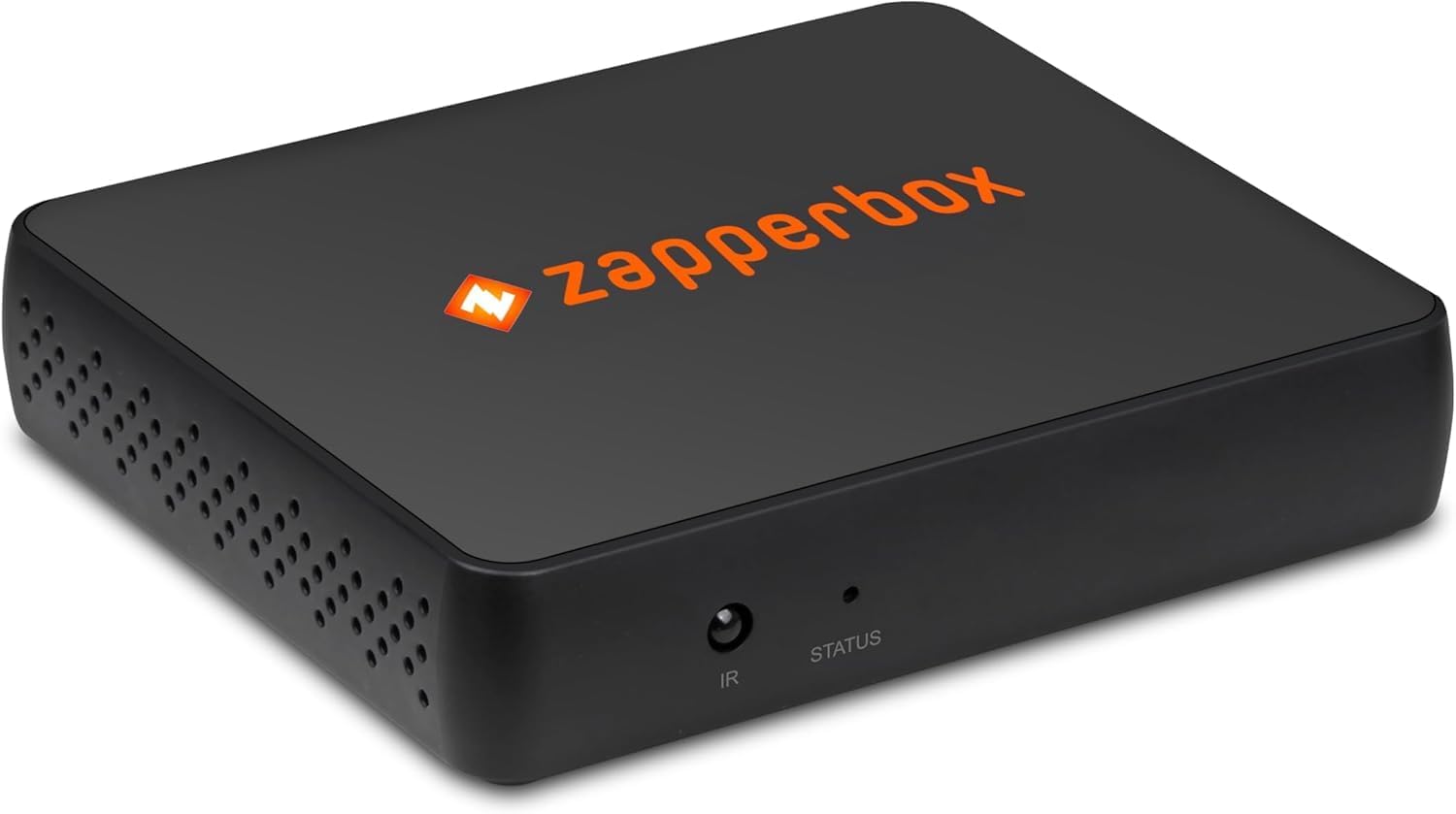
Figure 1: Rear view of ZapperBox M2 showing antenna, HDMI, LAN, USB, and power ports.

Figure 2: Side view of ZapperBox M2 showing the MicroSD card slot.
5. Operating Instructions
Once set up, you can control your ZapperBox M2 using the provided IR remote control or the mobile app.
5.1 Live TV and Channel Guide
- Navigate the interactive grid guide to browse available channels and upcoming programs.
- Select a program to watch live.
- The ZapperBox M2 delivers raw, uncompressed MPEG-2 video from the off-air signal directly to your TV for optimal picture quality.
5.2 DVR Functionality
- Record Programs: Select a program from the guide and choose to record a single episode or schedule a series recording (all episodes or new episodes only).
- Pause/Rewind Live TV: Use the remote control to pause, fast-forward, or rewind live broadcasts.
- Access Recordings: View your recorded content through the dedicated DVR or Library section in the app or on your connected TV.
5.3 Whole Home Gateway
The ZapperBox M2 acts as a gateway, allowing you to stream live and recorded TV wirelessly to multiple devices in your home, such as smart TVs, streaming sticks (Roku, Fire TV), smartphones, and tablets.
5.4 Remote Access
Currently, the ZapperBox M2 does not support remote access to recordings and live TV outside of your home network. The manufacturer is exploring options to reintroduce this feature in the future, but there is no estimated time of arrival.
6. DVR Storage
The ZapperBox M2 requires external storage for DVR functionality. It supports various storage options:
- microSD Cards: Minimum 128GB capacity required.
- SSDs (Solid State Drives): Supported via the USB 2.0 port.
- HDDs (Hard Disk Drives): Supported via the USB 2.0 port. Note that HDDs may require a separate powered hub or a powered HDD for sufficient power.
There is no maximum drive size restriction for external storage.
7. Specifications
| Feature | Detail |
|---|---|
| Model Number | M2 |
| Tuner Type | ATSC 1.0 & ATSC 3.0 Single Tuner |
| Video Output | HDMI 2.1/HDMI 1.4/HDMI 1.3a (HDCP 2.2/1.4/1.3) |
| Video Resolution | 4K @ 60/30/24 fps, 1080p @ 60/30/24 fps, 720p @ 60 fps |
| HDR Formats | HDR10, HLG |
| Audio Output | Dolby Atmos, Dolby AC-4, Dolby AC-3 Pass-through (up to 7.1.4 channels AAC) |
| Networking | Ethernet: 10/100 Mbps, Wi-Fi: 802.11 b/g/n AC 2.4G 5.8G |
| Expandability | Bluetooth 4.2, USB 2.0 (one port), microSD slot |
| Dimensions | 4.0 in x 3.2 in x 7/8 in (111mm x 85mm x 21cm) |
| Item Weight | 3.5 ounces |
| Special Features | 4K Upscaling |
8. Troubleshooting
If you encounter issues with your ZapperBox M2, consider the following:
- Weak Signal/Pixelation: Use the Antenna Setup and Diagnostics features in the ZapperBox app to check signal strength and quality. Adjust your antenna's position for optimal reception. Environmental factors like wind can affect signal stability.
- Buffering/Disconnections: Ensure your Wi-Fi signal is strong and stable, especially if streaming to devices far from your router. A wired Ethernet connection can provide more reliable performance.
- Remote Access: As noted, remote access to live TV and recordings outside your home network is not currently supported.
- DVR Recording Issues: Verify that your external storage (microSD, SSD, or HDD) meets the minimum 128GB requirement and is properly formatted. Ensure powered HDDs have an adequate power supply.
- Software Updates: Ensure your ZapperBox M2 is running the latest software version. Automatic updates are typically handled by the device.
9. Warranty
ZapperBox offers a 1-year limited warranty to repair or replace any defective material or component. This warranty does not cover issues due to:
- Lightning strike
- Power surges
- Customer-caused damage
- Loss/theft


